

CRMlesson 3 of 4
Written lesson
Schedule calls, emails and meetings on an opportunity, and see the whole team's next steps in the activity view.
Read the lesson →Plan the next step with activities
Course contentslesson 3 of 4
Lead Management13 min
Performance Analysis5 min
What Lead Management gets you to
- Work an opportunity to won or lost, and keep a next step planned on every deal
An opportunity with no next step goes cold. Activities keep one planned on every deal.
Schedule an activity
- Open the opportunity and click Activities under the form.
- Choose the Activity Type: To-Do, Email, Call, Meeting and others.
- Set the Due Date, a short Summary and who it is Assigned to; add a note if it helps.
- Click Schedule.
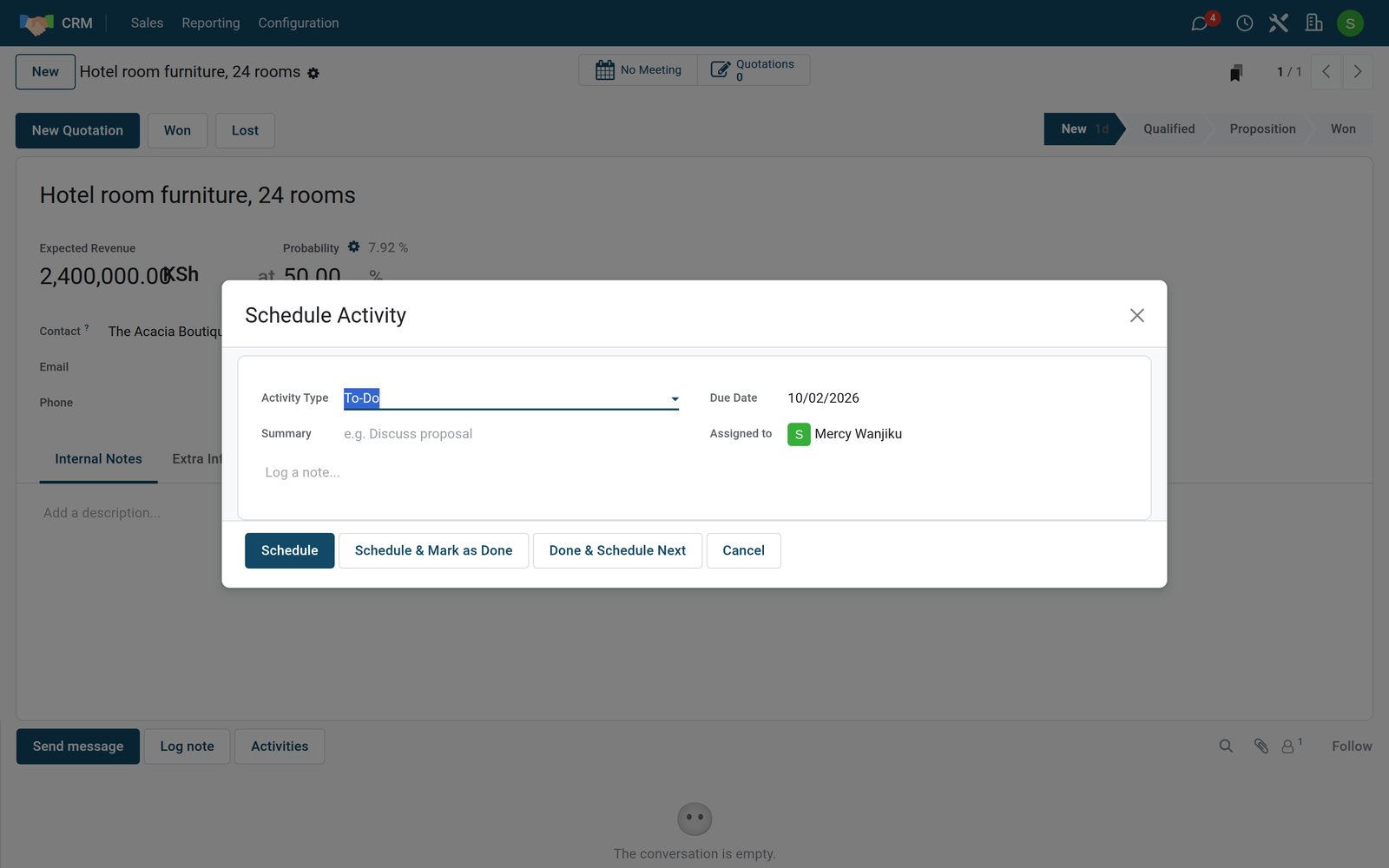
Schedule & Mark as Done records something you have already done. Done & Schedule Next closes it and opens the next one straight away.
Planned activities are listed under the opportunity with their due date: green when planned, orange when due today, red when overdue. Mark Done moves one into the opportunity's history.
The activity view
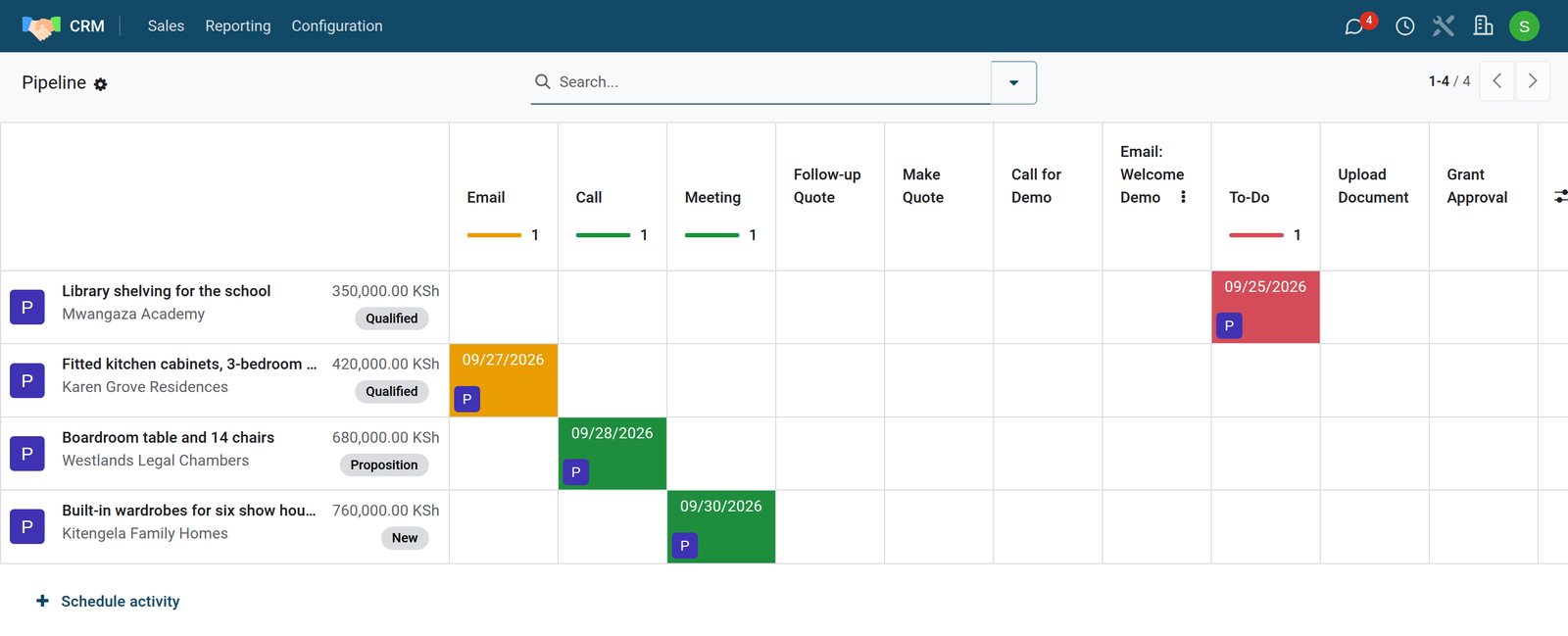
Switch the pipeline to the activity view (the clock at the right of the view buttons) to see everyone's next steps on one screen. Click a cell to open the activity, or an empty cell to plan one. A salesperson who starts the day here does not miss a follow-up.
Check what you learned
Loading the quiz…
These lessons were recorded on a working BridgeERP. Start a free trial and follow them on your own.