
BridgeERP

Hardware

Hardware that works with BridgeERP

Scanners, printers, scales, tills and readers. This page tells you what we have tested ourselves, what works because it follows a standard we support, and what we have not checked yet. Models vary more than their spec sheets suggest, so test one unit before you buy the fleet.

No sign-in needed. Nothing on this page is behind a form.

  • Tested by usWe have run this model against BridgeERP.
  • Works by standardWe have not run this exact model, but it uses a standard we support.
  • Not checkedWe have no result. Send us the model and we will find out.
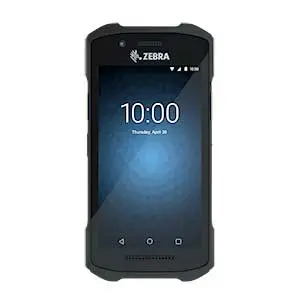
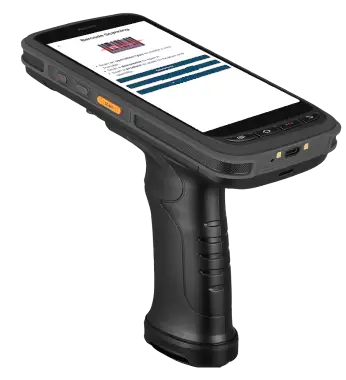
A rugged Android handheld scanner showing the BridgeERP barcode screen.
A handheld running the Barcode app in Chrome. No app store, no install.

Three ways a device talks to BridgeERP

BridgeERP runs in a browser, so most hardware connects to the computer or the network rather than to us. There are only three routes, and knowing which one a device uses tells you almost everything about whether it will work.

Three ways a device connects to BridgeERPThree routes, all ending at the same browser window. First, a barcode scanner plugs into the computer and types the code in as keystrokes, so BridgeERP is not part of the connection at all. Second, a label printer sits on your network and BridgeERP sends it a print job in ZPL. Third, a weighing scale, a digital caliper or a foot switch connects to an IoT Box over USB or Bluetooth, and the box passes the reading to your database over the network.Scanner1 2 4 5 5 ↵ComputerLabel printerZPLYour networkScale, caliper, pedalUSB / BluetoothIoT BoxnetworkBridgeERP in the browserThree ways a device connects to BridgeERPThree routes, all ending at the same browser window. First, a barcode scanner plugs into the computer and types the code in as keystrokes, so BridgeERP is not part of the connection at all. Second, a label printer sits on your network and BridgeERP sends it a print job in ZPL. Third, a weighing scale, a digital caliper or a foot switch connects to an IoT Box over USB or Bluetooth, and the box passes the reading to your database over the network.Scanner1 2 4 5 5 ↵ComputerLabel printerZPLYour networkScale, caliper, pedalUSB / BluetoothIoT BoxnetworkBridgeERP in the browser

Route 1

Plugs straight in

The device pretends to be a keyboard.

You plug in the USB lead or pair over Bluetooth, put the cursor in a barcode field, and the scan arrives as typed characters followed by Enter. BridgeERP is not involved in the connection at all, which is why most scanners on the market simply work.
Used by: barcode scanners, magnetic-stripe readers, most till keyboards.

Watch for: the scanner’s keyboard layout must match the computer’s, or the characters arrive scrambled.

Route 2

Over the network

The device has its own network address and BridgeERP sends it a job.

Label printers work this way using ZPL, which we support, so a label can print automatically when a lot or a serial number is created rather than someone pressing print.

Used by: network label printers, network receipt printers.

Watch for: the printer and the computer have to be on the same network.

Route 3

Through an IoT Box

Some devices speak serial, not keyboard and not network.

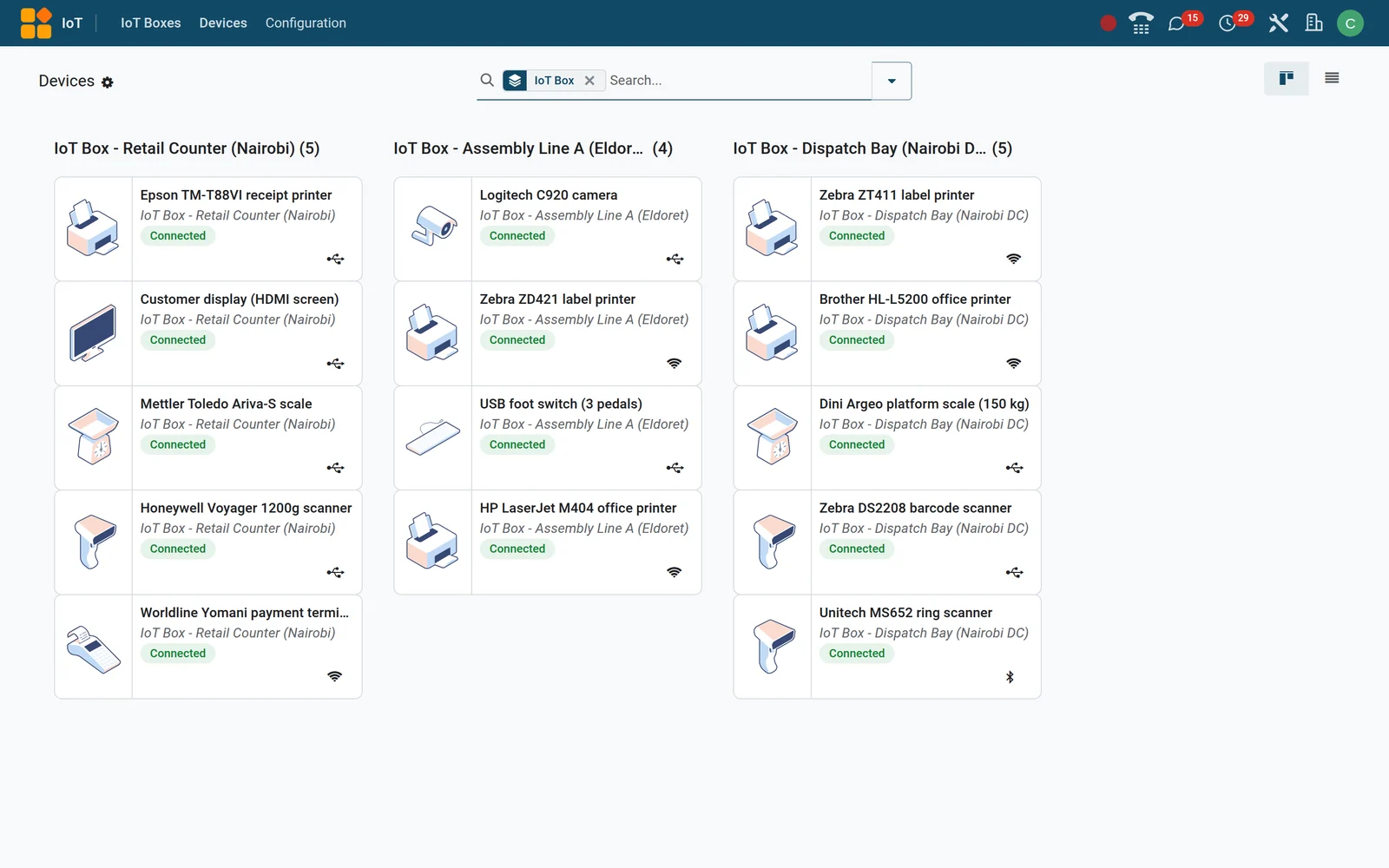
The IoT Box sits between them and your database: connect it to the same network, plug the device into it over USB or pair it over Bluetooth, and the reading appears in the app in real time. IoT boxes built on Raspberry Pi 3 and 4 are supported, and devices can connect over Wi-Fi, Ethernet, Bluetooth, USB or HDMI.

Used by: weighing scales, calipers and measuring tools, foot switches, cameras, cash drawers (through the receipt printer).

Watch for: this is the only route that needs a piece of our hardware in the middle.

Already know the model you are looking at?

Check it now

What we support

Category by category: what the device does inside BridgeERP, how it connects, and what we have actually verified. Where we have not verified anything, the row says so.

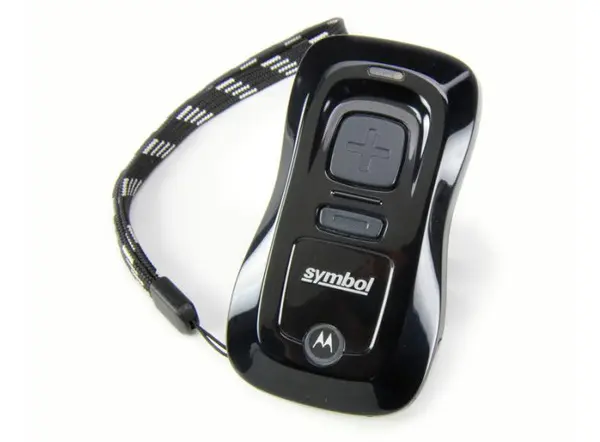
A small black pocket barcode scanner with a lanyard, photographed on white.
Pictured: a compact wireless pocket scanner.

Barcode scanners

Plugs straight inWorks by standard

Most USB and Bluetooth scanners work with BridgeERP because they emulate a keyboard — the scan arrives as typed text in whatever field the cursor is in. There are three shapes worth knowing about, and the right one depends on where you stand when you scan.

  • Inateck BCST-10Tested by us
  • Honeywell Eclipse 5145Tested by us
  • Motorola DS4208-SRTested by us
  • Motorola CS3000Tested by us
  • Zebra TC2x and TC7x linesWorks by standard
  • Other USB and Bluetooth scannersWorks by standard

Used by Inventory, Point of Sale and Purchase

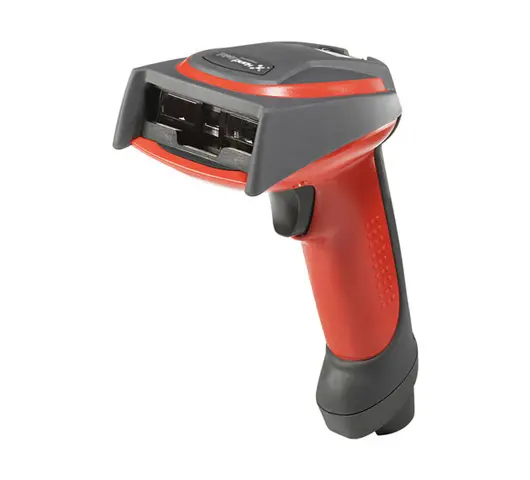
A red-and-grey industrial handheld barcode imager, three-quarter view on white.
Pictured: an industrial USB handheld imager.

USB scanner

You scan at a fixed counter or a receiving desk.

Plug it into the computer and start scanning. Nothing to configure in BridgeERP — the scan arrives as typed characters in whichever field the cursor is in.

Plugs straight inWorks by standard

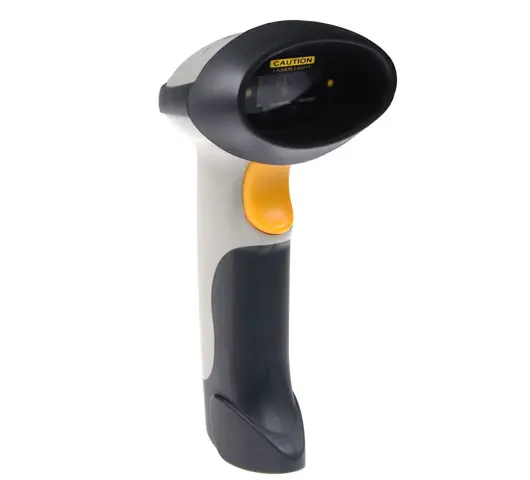
A black-and-grey handheld barcode scanner with a yellow trigger, photographed on white.
Pictured: a handheld scanner that pairs over Bluetooth.

Bluetooth scanner

You want to move around without buying a computer for every position.

Pairs with a phone or tablet. Good if you want to be mobile without a big investment. Bluetooth is reliable to about 10 metres, so you will still be scanning near the station rather than across the warehouse.

Plugs straight inTested by us

A rugged Android mobile computer with a barcode scanner built in, screen switched on.
Pictured: a rugged Android mobile computer.

Mobile computer

You scan in more than one place, all day.

A small Android computer with the scanner built in. It runs BridgeERP in Chrome, so there is no app to install and nothing to sync — the device is simply a browser with a trigger. Recent Android models generally work. Because models and configurations vary so widely, test one unit before you commit to a fleet. We recommend the Zebra TC2x and TC7x lines.

Plugs straight inWorks by standard

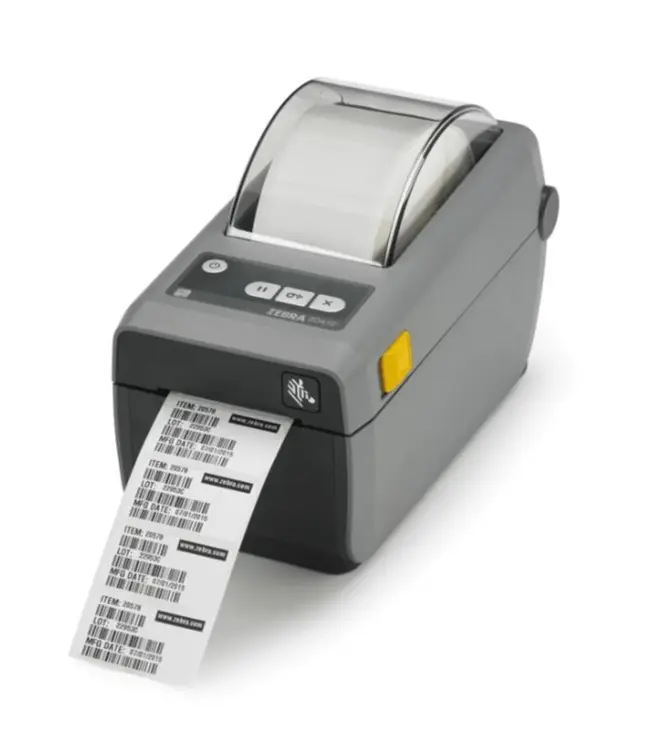
A grey desktop label printer with a strip of printed lot and serial labels feeding out of the front.
A desktop label printer producing lot labels straight from a production order.

Label printers

Over the networkTested by us

We support ZPL, so a label printer on your network can print straight from BridgeERP without anyone pressing print — when a lot or a serial number is created, the label comes out. We recommend the Zebra ZD411, and we have tested label output as PDF, PNG and ZPL.

  • Zebra ZD411Tested by us
  • Other ZPL label printersWorks by standard

Used by Inventory, Manufacturing and Point of Sale

How a cash drawer is wired to a tillThe cash drawer does not connect to the computer. It plugs into the receipt printer with an RJ-12 lead, and the printer pops the drawer open when a receipt prints. The printer in turn reaches Point of Sale over the network, or through an IoT Box. The RJ-12 lead looks like a telephone plug but is not one.Cash drawerRJ-12Receipt printernetworkor IoT BoxPoint of Salelooks like a phone plug,is not a phone plug

Receipt printers and cash drawers

Over the networkorThrough an IoT BoxNot checked

A cash drawer does not connect to the computer. It plugs into the receipt printer with an RJ-12 lead, and the printer pops it open when a receipt prints. That means the printer is the only decision you actually have to make — get the printer right and the drawer follows.

We have not published a tested receipt-printer list yet. If you already own one, send us the model and we will tell you which of the three routes above it uses.

Not checkedWe have no published result for receipt printers yet — ask us about yours.

Ask about a printer

Used by Point of Sale and Restaurant POS

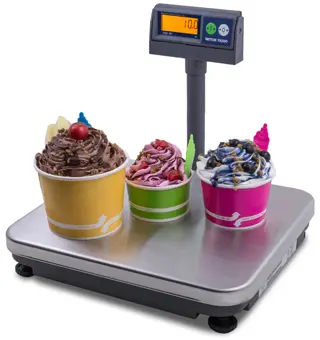
A stainless steel bench scale with a pole display showing a price, tubs of frozen yoghurt on the platter.
Pictured: a Mettler Toledo Ariva bench scale.

Weighing scales

Through an IoT BoxTested by us

Scales need an IoT Box between them and your database. With one in place, the weight lands in BridgeERP as it settles, so a priced-by-weight item is rung up from the scale rather than typed. The IoT Box natively supports the Mettler Toledo Ariva family. If your scale is not one of those, we can write a driver for it.

Patient scales are a different class of device from retail scales and we have not checked any. Ask us before you buy one.

Used by Point of Sale and Inventory

Not checked

We have not published a tested terminal list.

Ask about card payments

Card readers and payment terminals

Not applicableNot checked

Mobile money does not need a terminal — the payment is requested from inside BridgeERP and confirmed back to the same order. There is no device on the counter to buy, maintain or reconcile.

Card terminals are a separate question and depend on your bank or acquirer. We have not published a tested terminal list. Tell us who your acquirer is and we will tell you what is possible.

Used by Point of Sale

Not checked

Buildable, but project work rather than something you plug in.

Talk to us about biometrics

Fingerprint readers

Not applicableNot checked

We have not verified any fingerprint reader against BridgeERP. Fingerprint capture in a browser is harder than it looks: readers do not behave like keyboards, they need a small program running on the same computer, and recent browser releases have tightened what a web page may talk to on the local machine. It is buildable and we have built it elsewhere, but it is project work, not something you plug in.

If attendance or till sign-in is what you are after, BridgeERP already secures cashier accounts with badges and PINs, and that needs no extra hardware.

Connected instruments as BridgeERP lists them.

Workshop and production devices

Through an IoT BoxWorks by standard

On a production line the IoT Box turns instruments into data entry. Digital calipers, micrometers, gauge feelers and height gauges report their reading straight onto the product, so a measurement is never transcribed. A camera captures a quality photo in one click. A foot switch moves an operator to the next step with their hands still on the work.

  • Digital calipers and measuring toolsWorks by standard
  • USB cameraWorks by standard
  • USB foot switchWorks by standard

Used by Manufacturing, Quality and Inventory

Through an IoT Box

A small computer on your network. The diagram above shows where it sits.

How the IoT Box works

The IoT Box itself

Through an IoT BoxTested by us

The IoT Box is a small computer that sits on your network and lets BridgeERP talk to devices that do not speak keyboard or network. Boxes built on Raspberry Pi 3 and 4 are supported. Devices connect to it over Wi-Fi, Ethernet, Bluetooth, USB or HDMI. You need one only if something on your list says “Through an IoT Box”.

How the IoT Box works

Compatibility at a glance

Everything we have an opinion about, and how confident that opinion is. “Works by standard” means we have not run that exact unit but it uses a connection we support — which is almost always enough, and is still worth testing one before you buy several.

Check a device

Three questions, all optional. The answer comes from the same list as the table below.

Tell us what you are looking at.

Pick a device type, or type a model. Nothing is stored and nothing is sent until you ask us to.

Showing 19 of 19 devices

Compatibility results for every device we have an opinion about.
DeviceWhat it isHow it connectsOur resultUsed by
Barcode scanners
Inateck BCST-10Wireless and USB laser scannerPlugs straight inTested by usInventory, Point of Sale, Purchase
Honeywell Eclipse 5145USB handheld scannerPlugs straight inTested by usInventory, Point of Sale, Purchase
Motorola DS4208-SRUSB omni-directional, ruggedPlugs straight inTested by usInventory, Point of Sale
Motorola CS3000Compact wireless pocket scannerPlugs straight inTested by usInventory
Zebra TC2x seriesAndroid mobile computerPlugs straight inWorks by standardInventory, Point of Sale
Zebra TC7x seriesAndroid mobile computerPlugs straight inWorks by standardInventory, Point of Sale
Other USB and Bluetooth scannersKeyboard-emulating handheldsPlugs straight inWorks by standardInventory, Point of Sale, Purchase
Printers
Zebra ZD411Desktop label printer, ZPLOver the networkTested by usInventory, Manufacturing, Point of Sale
Other ZPL label printersNetwork label printersOver the networkWorks by standardInventory, Manufacturing
Receipt printersCounter receipt printersOver the networkorThrough an IoT BoxNot checkedPoint of Sale, Restaurant POS
Scales and instruments
Mettler Toledo Ariva familyRetail bench scalesThrough an IoT BoxTested by usPoint of Sale, Inventory
Other retail scalesSerial bench scalesThrough an IoT BoxNot checkedPoint of Sale, Inventory
Patient and medical scalesClinical weighingNot checked
Digital calipers and gaugesMeasuring instrumentsThrough an IoT BoxWorks by standardManufacturing, Quality
USB foot switchHands-free step controlThrough an IoT BoxWorks by standardManufacturing
USB cameraQuality photo captureThrough an IoT BoxWorks by standardManufacturing, Quality
Payment and identity
Cash drawersTill drawer, RJ-12Through the receipt printerNot checkedPoint of Sale, Restaurant POS
Card terminalsAcquirer-supplied terminalsNot checkedPoint of Sale
Fingerprint readersBiometric captureNot checked

Product names and images belong to their manufacturers. A compatibility result describes what we observed and is not a warranty.

What to buy, by business

The catalogue turned into a decision. Start with the first column, add the second when the work asks for it — and where a column is blank, that business does not need the device at all.

Which devices to start with and which to add later, by kind of business.
DeviceShop counterRestaurantWarehouseClinic or pharmacy
Barcode scanner (USB)Start hereAdd laterStart here
Mobile computerStart here
Receipt printerStart hereStart hereStart here
Cash drawerStart hereStart hereAdd later
Label printerAdd laterStart hereStart here
Weighing scaleAdd laterAdd laterask us
Customer-facing screenAdd laterAdd later
IoT BoxAdd laterAdd laterAdd laterAdd later

A scanner, a receipt printer and a drawer will run a till. Everything else is an upgrade you can make later.

Ask about this setup

Orders are taken on screens, so the only hardware most kitchens need is a printer at the pass and a drawer at the till.

Ask about this setup

One mobile computer per picker and a label printer at receiving. Fixed scanners are for the desk, not the aisle.

Ask about this setup

Dispensing runs on a scanner and a label printer. Ask us before buying any scale — patient scales are a different class of device.

Ask about this setup

Shop counter

Start here

  • Barcode scanner (USB)
  • Receipt printer
  • Cash drawer

Add later

  • Label printer
  • Weighing scale
  • Customer-facing screen
  • IoT Box

A scanner, a receipt printer and a drawer will run a till. Everything else is an upgrade you can make later.

Ask about this setup

Restaurant

Start here

  • Receipt printer
  • Cash drawer

Add later

  • Weighing scale
  • Customer-facing screen
  • IoT Box

Orders are taken on screens, so the only hardware most kitchens need is a printer at the pass and a drawer at the till.

Ask about this setup

Warehouse

Start here

  • Mobile computer
  • Label printer

Add later

  • Barcode scanner (USB)
  • IoT Box

One mobile computer per picker and a label printer at receiving. Fixed scanners are for the desk, not the aisle.

Ask about this setup

Clinic or pharmacy

Start here

  • Barcode scanner (USB)
  • Receipt printer
  • Label printer

Add later

  • Cash drawer
  • IoT Box

Weighing scaleask us first.

Dispensing runs on a scanner and a label printer. Ask us before buying any scale — patient scales are a different class of device.

Ask about this setup

Setting it up

Three routes, three short procedures. If something goes wrong, it is almost always one of the three things listed under each one.

A scanner that plugs straight in

  1. Plug in the USB lead, or pair it over Bluetooth the way you would pair a keyboard.
  2. Open any BridgeERP screen with a barcode field and put the cursor in it.
  3. Scan something. The code should appear as typed text, followed by Enter.

If it goes wrong

Characters are scrambled
The scanner’s keyboard layout does not match the computer’s. Fix it with the configuration barcodes in the scanner’s own manual — this is by far the most common problem and it is not a BridgeERP setting.
Nothing happens at all
The scanner is not sending Enter after the code. Its manual has a barcode to turn that on.
It scans but the wrong field fills
The cursor was somewhere else. The scanner types wherever the cursor is; it has no idea what a barcode field is.

A mobile computer

  1. It is an Android device: connect it to your Wi-Fi and open Chrome.
  2. Go to your BridgeERP address and sign in. Add it to the home screen if you want a one-tap icon — there is no app to install.
  3. Set the built-in scanner to keyboard mode in the device’s own scanner settings, then open the Barcode app and scan one product.

If it goes wrong

Scans do nothing in the browser
The built-in scanner is not in keyboard mode. Every vendor calls this something slightly different — Zebra calls it the keystroke output plugin.
Works on one device, not another
Models and firmware vary far more than the spec sheets suggest. Test one unit before you buy the fleet.

A device on an IoT Box

  1. Connect the IoT Box to the same network as the computers that will use it.
  2. Plug the device into the box over USB, or pair it over Bluetooth.
  3. Open the IoT section in BridgeERP and confirm the device is listed, then link it to the app that needs it.

If it goes wrong

The device is not listed
It is on a different network from the box, or it needs a driver we have not written yet. Tell us the model.
It appears but reports nothing
Serial devices are fussy about their settings. Send us the make and model and we will check the driver.
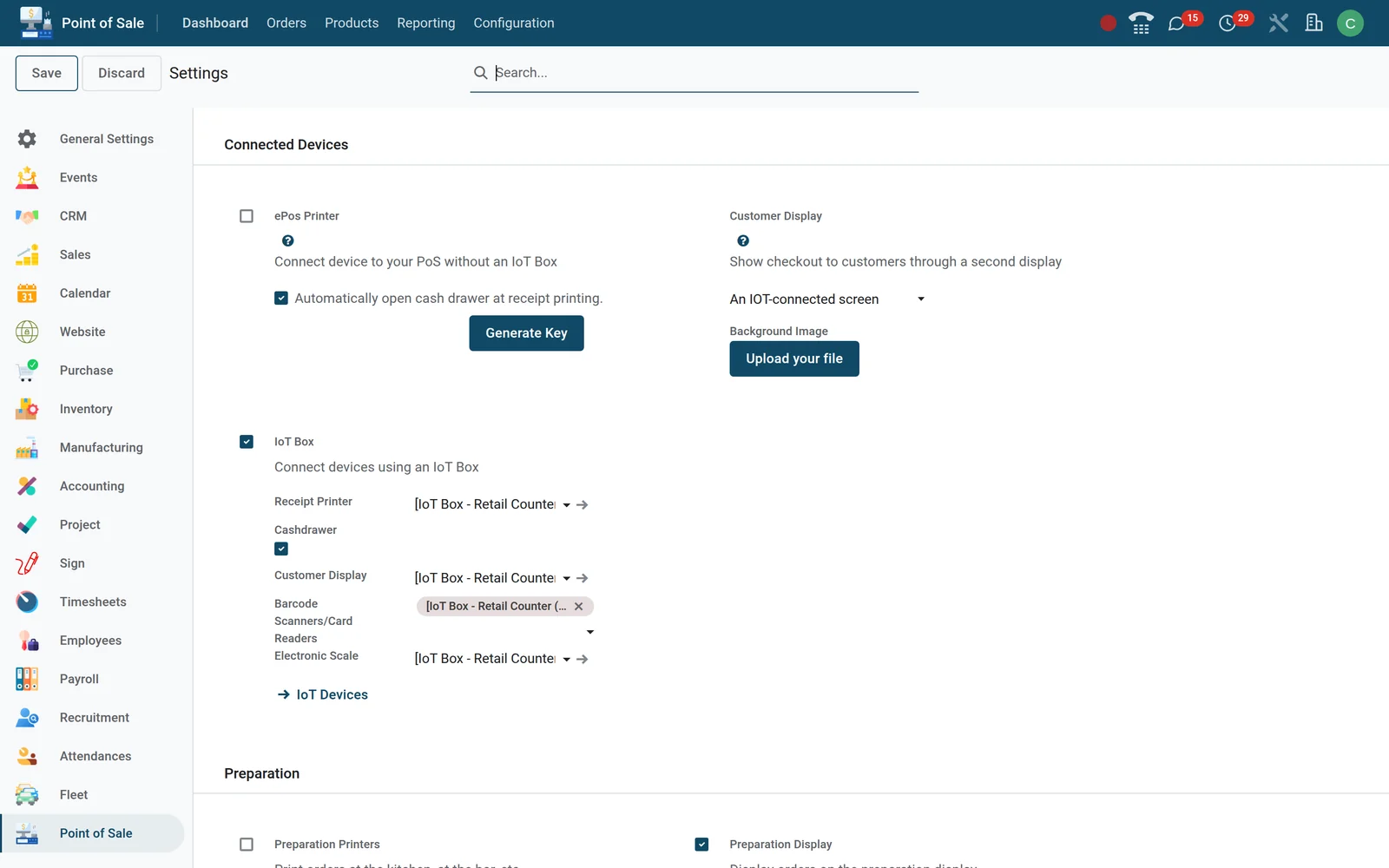
Where scanning and connected devices are switched on.

Where to buy it, and who to ask

  1. Send us the model, we will tell you if it works.

    Free, and we answer it ourselves. If we have not tested it we will say so — and if it is interesting enough we will test it and add it to the table above.

  2. Buy it locally, we will set it up.

    Barcode scanners and label printers are widely available and you will usually get a better price and a faster replacement buying near you than importing. Once it arrives we can configure it with you remotely.

  3. You need something built.

    If your scale, instrument or terminal has no driver, we write one. That is project work and it is priced by the day. Talk to a developer.

We are not a hardware dealer. We will always tell you when the cheaper answer is to buy the device somewhere else.

Ask about a device

We reply from the same team that answers support tickets.

Questions we get asked

Do I need special hardware to use BridgeERP?

No. It runs in a browser on the computer, tablet or phone you already own. Hardware makes some jobs faster — scanning instead of typing, printing a label instead of writing one — but nothing on this page is required to start.

Will the scanner I already own work?

Probably. Most USB and Bluetooth scanners emulate a keyboard, and anything that types the code into a field works with BridgeERP without any configuration on our side. Send us the model if you want a straight answer before you rely on it.

Will Bluetooth reach across my shop?

About ten metres, and less through walls or shelving. If you need to scan away from the counter, a mobile computer is the right shape of device rather than a Bluetooth scanner paired to a distant machine.

What is an IoT Box, and do I need one?

A small computer that sits on your network so BridgeERP can talk to devices that speak neither keyboard nor network — scales, measuring instruments, foot switches. You need one only if something on your list says “Through an IoT Box”.

Can I start with the phone I already have?

Yes for looking things up and working through the apps — BridgeERP runs in the phone’s browser. For sustained scanning, a device with a real trigger and a laser will out-run a phone by a wide margin.

My device is not on this page. What now?

Tell us the make and model. We answer these ourselves, and when a device turns out to be interesting we test it and add it to the table above with the date we checked it.

Not sure it will work? Send us the model.

We answer these ourselves, and we will tell you when the honest answer is that we have not checked. If it turns out to be useful, it goes in the table.