
 Purchase: Ask three vendors, pick the best quote, then receive and bill against the same order
Requests for quotation that fill in each vendor's price and lead time, one order that carries its receipt and vendor bill, an on-time rate on every vendor, and Purchase Analysis with 13 measures on every line.
Free instant access. No credit card required.
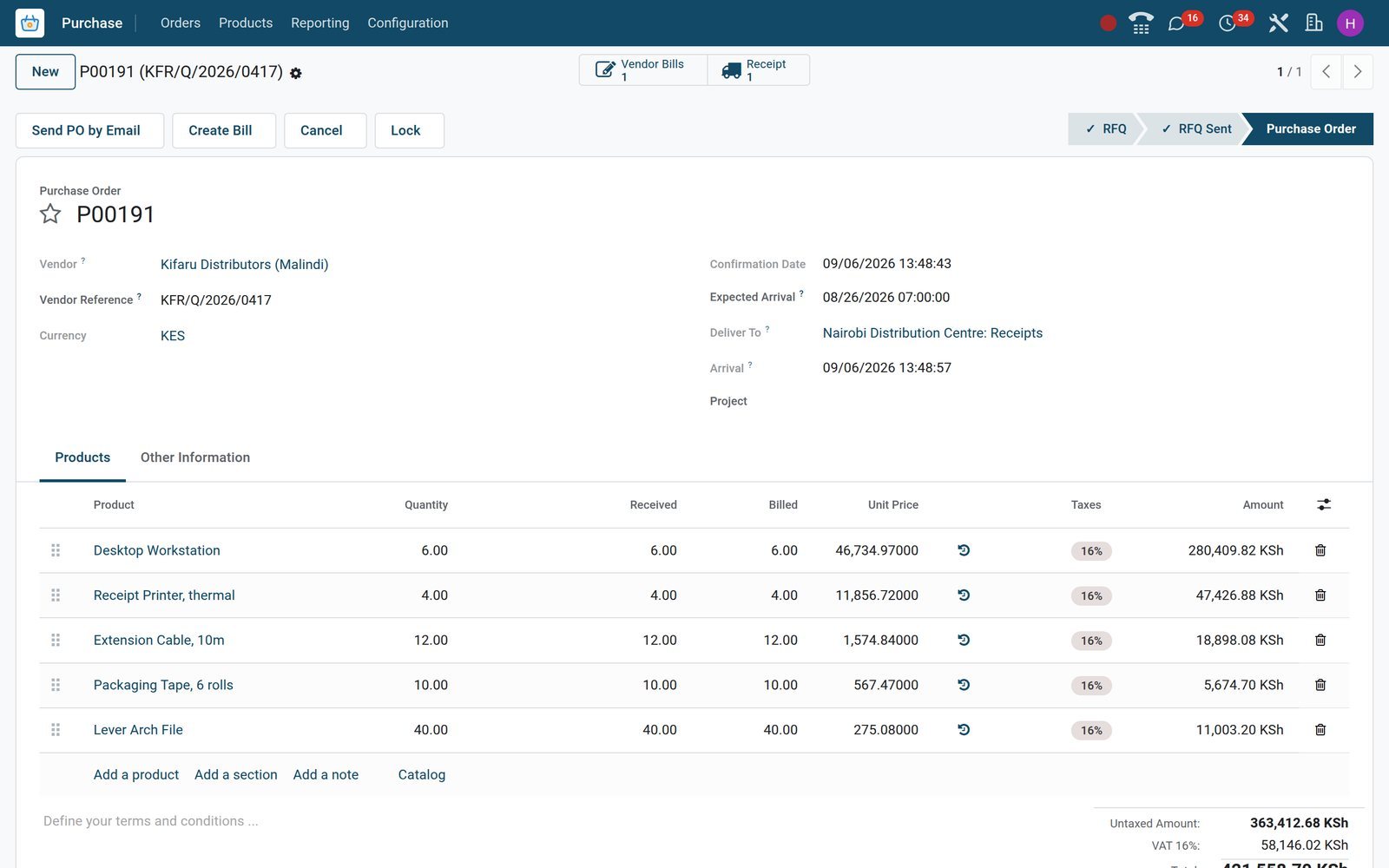
One order carries the receipt, the vendor bill and every quantity in between
The purchase order form is the control point: each line shows ordered, received and billed quantities, and smart buttons open the receipt and the bill that the order itself created.
 Purchase
Purchase order P00191, fully received and fully billed
Kifaru Distributors (Malindi), five lines from desktop workstations to lever arch files, KES 421,558.70 including 16% VAT, with Receipt and Vendor Bills smart buttons.
Explore Purchase →By the numbers
What ships inside the Purchase app
Counts taken from the product itself and checked on the demo.
- 13
- measures in Purchase Analysis, from Untaxed Total and Average Cost to Days to Confirm, Days to Receive and Qty to be Billed
- 6
- statuses an order moves through: RFQ, RFQ Sent, To Approve, Purchase Order, Locked and Cancelled
- 7
- views on the same orders: list, kanban, form, pivot, graph, calendar and activities, one click apart
- 3
- email templates ready to send: Request for Quotation, Purchase Order and the Vendor Reminder that goes out before the receipt date
Inside the app
What is inside
The Purchase menu as it stands on the demo, grouped by what each screen does.
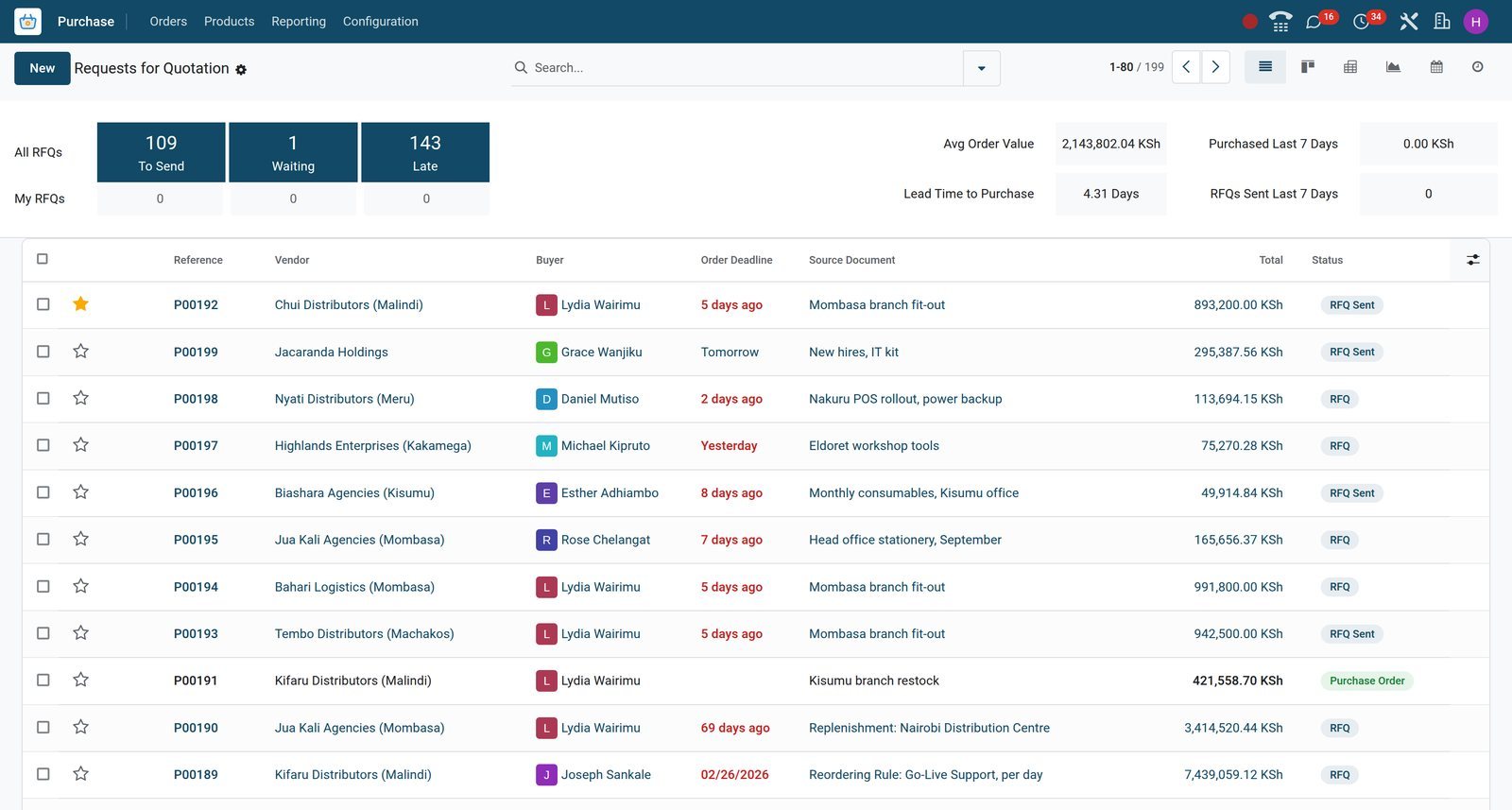
Requests for Quotation
Every open request with its order deadline, vendor, buyer, source document and total; counters above the list show what is To Send, Waiting and Late.
Purchase Orders
Confirmed orders with confirmation date, expected arrival, total, billing status and receipt status, filtered by Waiting Bills, Bills Received, My Orders or Starred.
Vendors
Each vendor record carries Purchases, Vendor Bills and On-time Rate smart buttons, vendor payment terms, a supplier currency and receipt-reminder settings.
Vendor Pricelists
One row per vendor and product: vendor product code, minimum quantity, price, currency, discount, delivery lead time and validity dates.
Products and Product Variants
Purchasable products with cost, purchase unit of measure, vendor list, purchase taxes and a bill control policy chosen per product.
Purchase Analysis
Reporting > Purchase switches between graph and pivot over every order line, with 13 measures and group-bys by vendor, product, category, buyer and date.
Configuration
Settings, product attributes, product categories and the six unit-of-measure categories: Unit, Weight, Working Time, Length / Distance, Surface and Volume.
Receipts and vendor bills
Receive Products opens the receipt in Inventory and Create Bill opens the vendor bill in Accounting; both keep the order number as their source document.
Step by step
From a stock need to an analysed spend in six steps
Each step names the app that does the work; the order number follows the goods and the money all the way.
- Step 1
A need appears
A reordering rule, a Replenishment run, a sales order or a manufacturing order raises the request and names itself in the order's Source Document field.
Inventory - Step 2
Build the RFQ
Pick the vendor: unit price and lead time fill in from its pricelist row, 16% purchase VAT from the product, or add lines from the Catalog button.
Purchase - Step 3
Send, then confirm
Send by Email attaches the RFQ PDF; the emailed order carries an acknowledgement link for the vendor. Then Confirm Order, or Approve Order when approval is on.
Purchase - Step 4
Receive the goods
Receive Products opens the receipt at the warehouse; validating it fills Received on every line and moves the order's Receipt Status to Fully Received.
Inventory - Step 5
Bill and pay
Create Bill raises the vendor bill for received quantities with the vendor's payment terms; Billing Status moves to Fully Billed and Accounting takes the payment.
Accounting - Step 6
Analyse
Purchase Analysis reads every order line by vendor, product, category, buyer and month; On-Time Delivery reads every receipt by vendor, product and category.
Purchase
Let stock levels raise the request, then compare what every vendor charges
Replenishment turns a minimum and a maximum into a quantity to order; vendor pricelists hold each vendor's offer with its price, minimum quantity and delivery lead time.
 Inventory
Replenishment shows only what needs reordering
The default To Reorder filter keeps only rules short of stock, most on the Buy route, each with On Hand, Forecast, Min, Max and To Order.
Explore Inventory →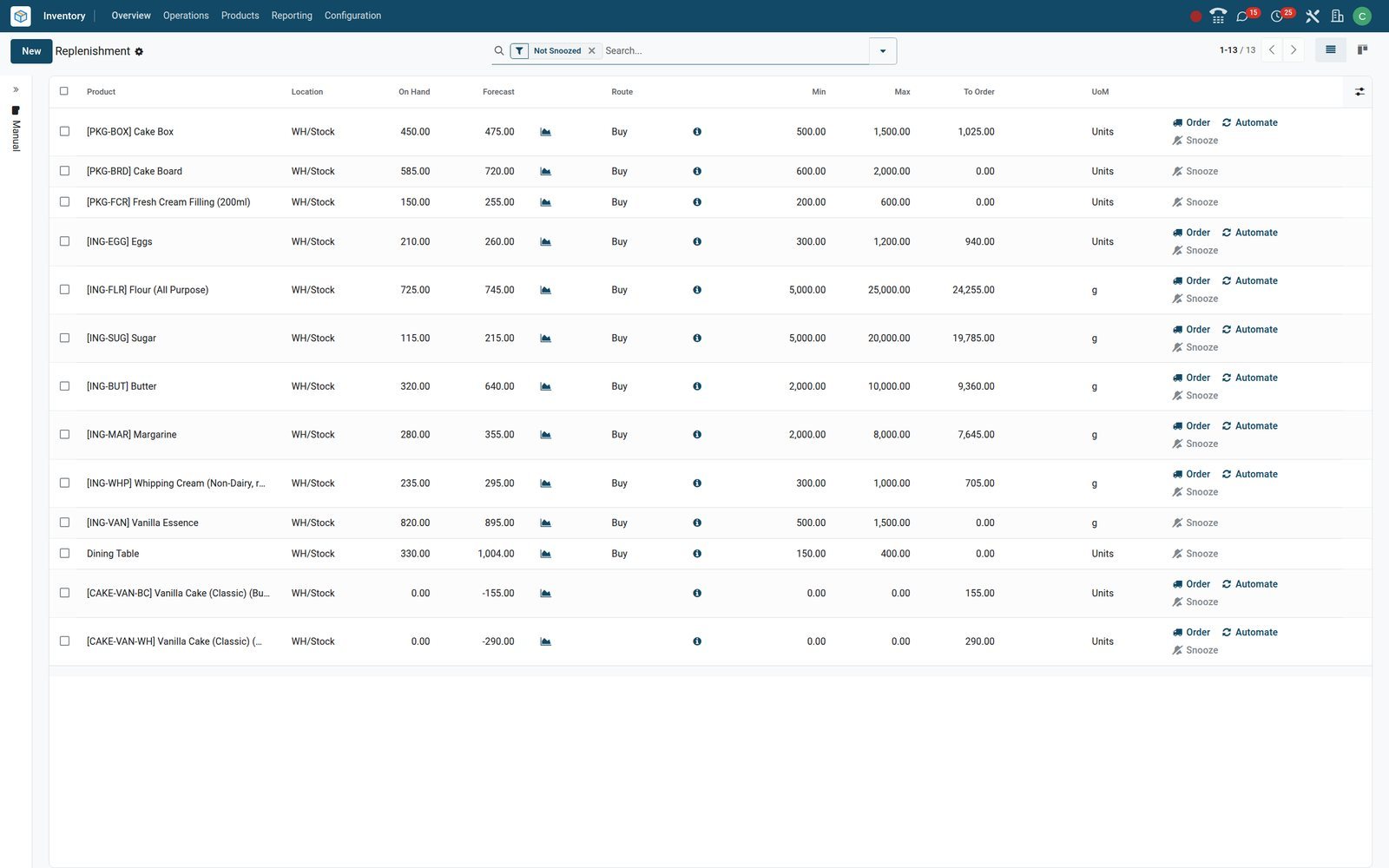
- Purchase
Vendor Pricelists for one product, side by side
Thirteen offers for the 24-inch LED Monitor in one list: Chui Distributors (Malindi) at KES 15,950 from 20 units and 15,400 from 50; Bahari Logistics delivers in two days.
Explore Purchase →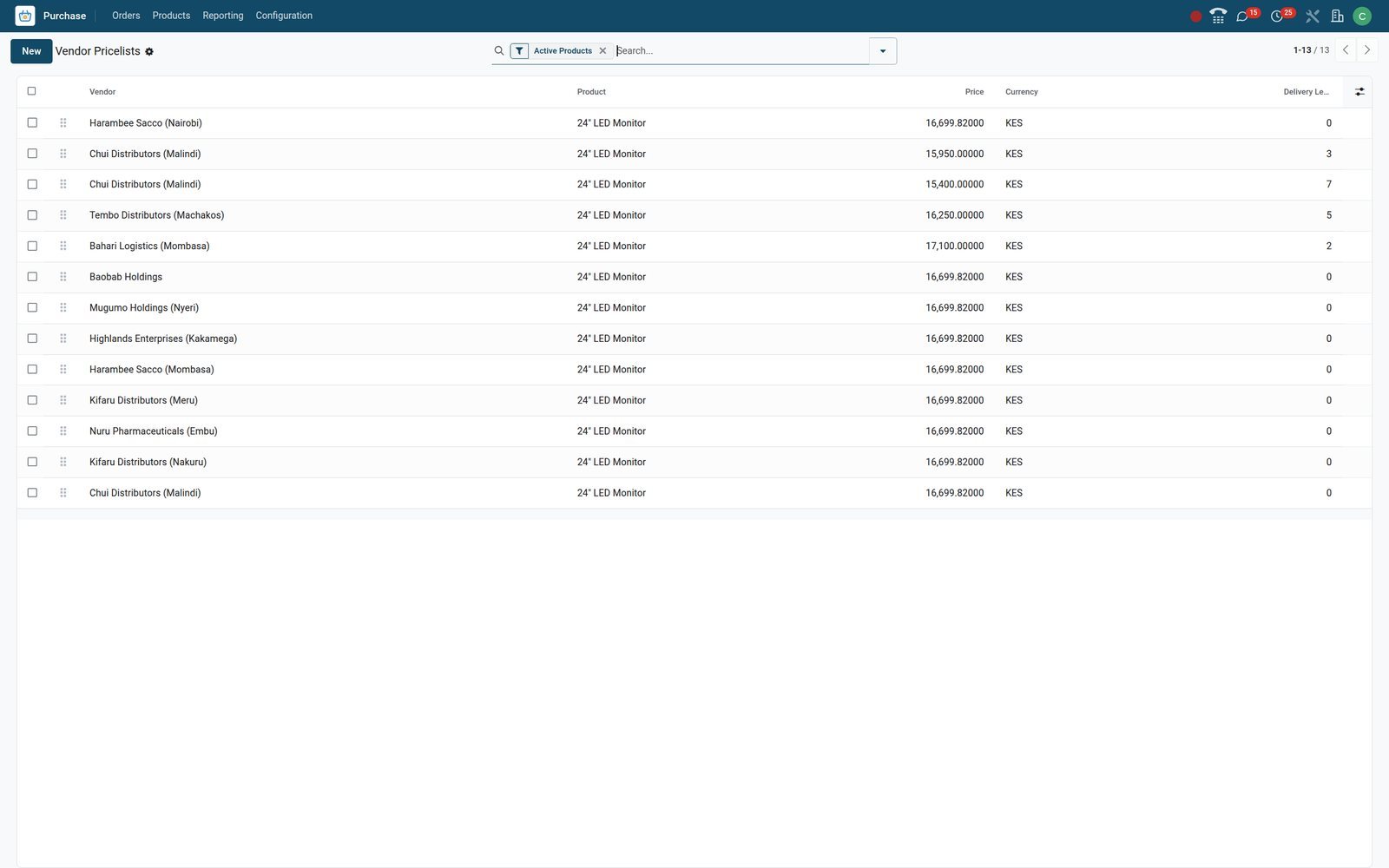
Receive against the order, bill against what actually arrived
Bill Control on each product decides whether the bill is raised on ordered or on received quantities; the receipt and the bill both keep the order number as their source document.
- Inventory
The receipt that Confirm Order created
WH/IN/00122 at Nairobi Distribution Centre lists the five lines of P00191 with demand and received quantities, scheduled for 26 August and validated on 6 September.
Explore Inventory →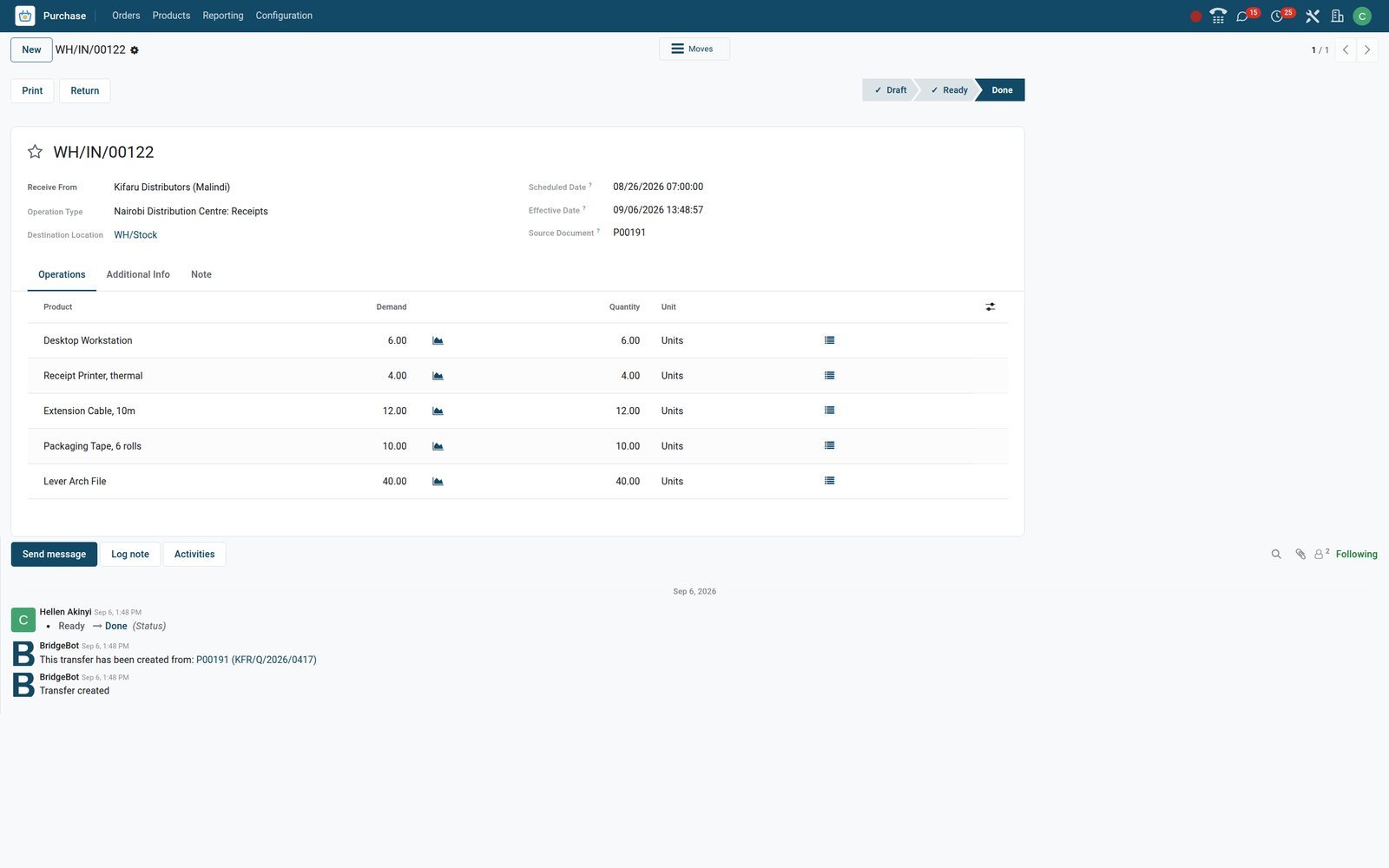
 Accounting
Vendor bills in Accounting, with due date and payment status
BILL/2026/09/0001 from Kifaru Distributors (Malindi), KES 421,558.70, heads the Bills list with bill date 4 September, due date 4 October, the vendor's reference and Not Paid.
Explore Accounting →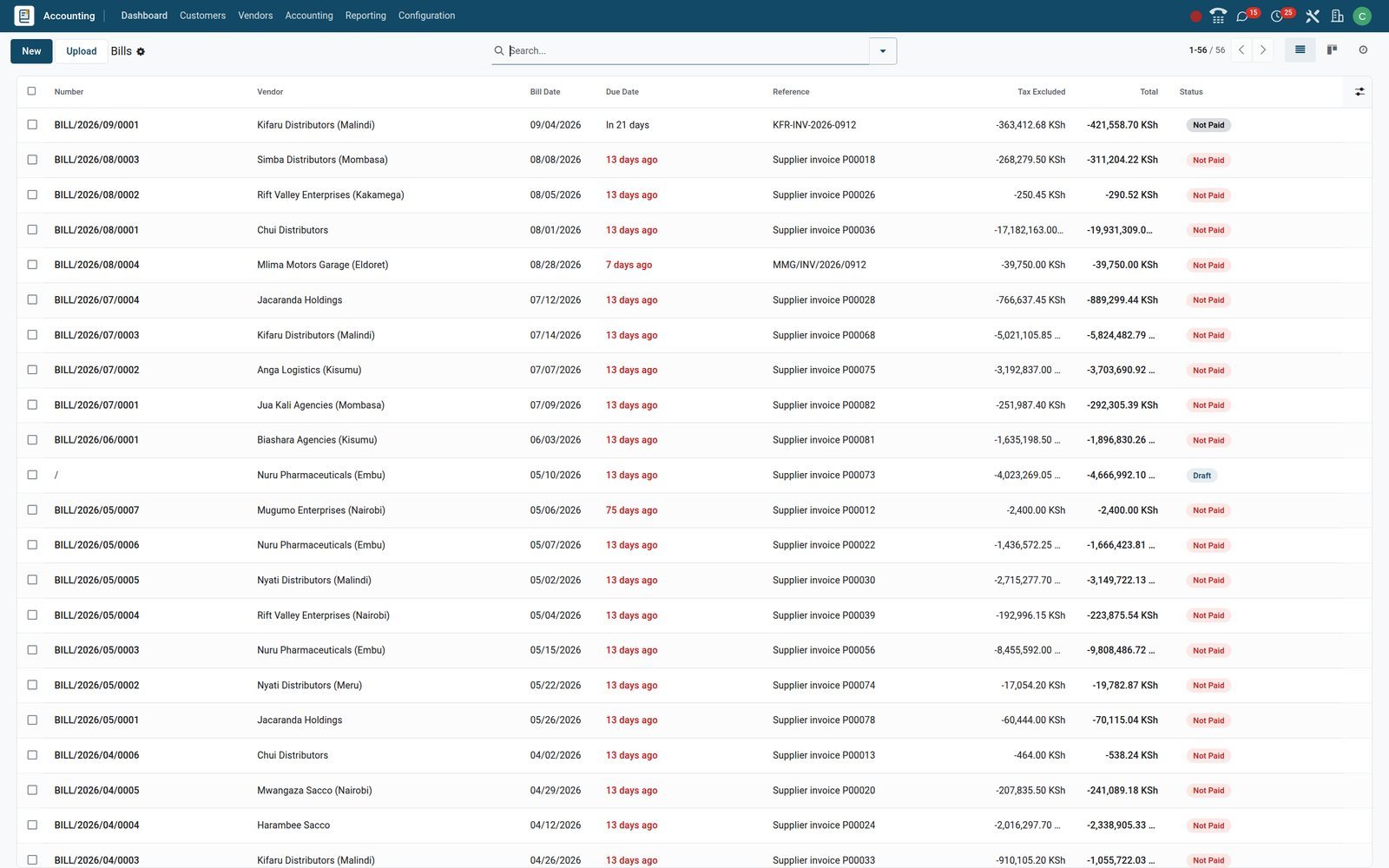
Know which vendor, category and month carried the spend
Purchase Analysis reads every order line; On-Time Delivery reads every receipt. Both filter and group from the same search bar, and the graph switches between bar, line and pie.
- Purchase
Purchase Analysis by confirmation month
One bar per month of untaxed purchases confirmed over the last year, so the months that carried the spend stand out before anyone opens a spreadsheet.
Explore Purchase →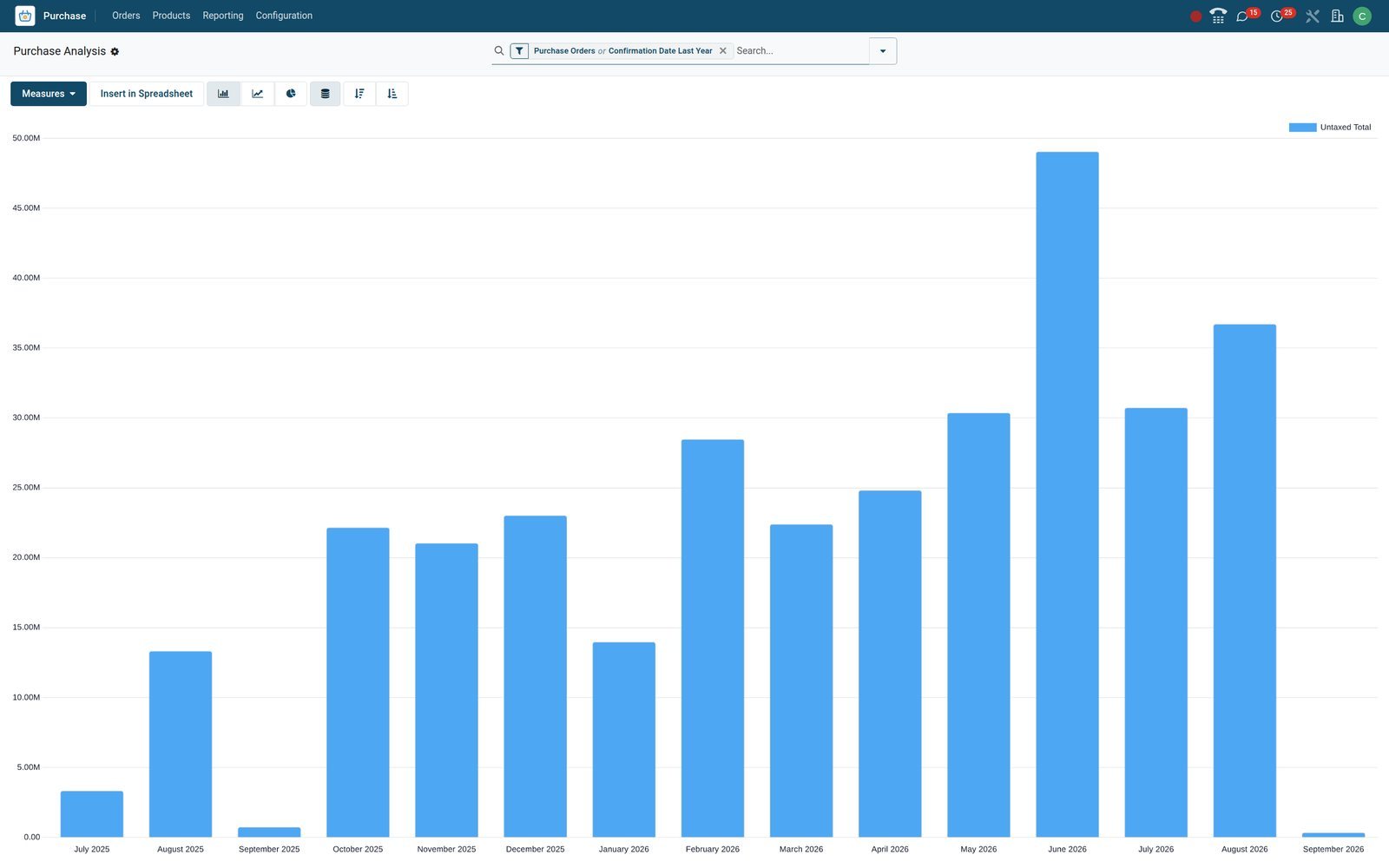
- Purchase
Pivot by vendor and quarter
Rows per vendor, columns per quarter, with Untaxed Total, Qty Ordered, Qty Received and Qty Billed side by side, so undelivered or unbilled quantities show at once.
Explore Purchase →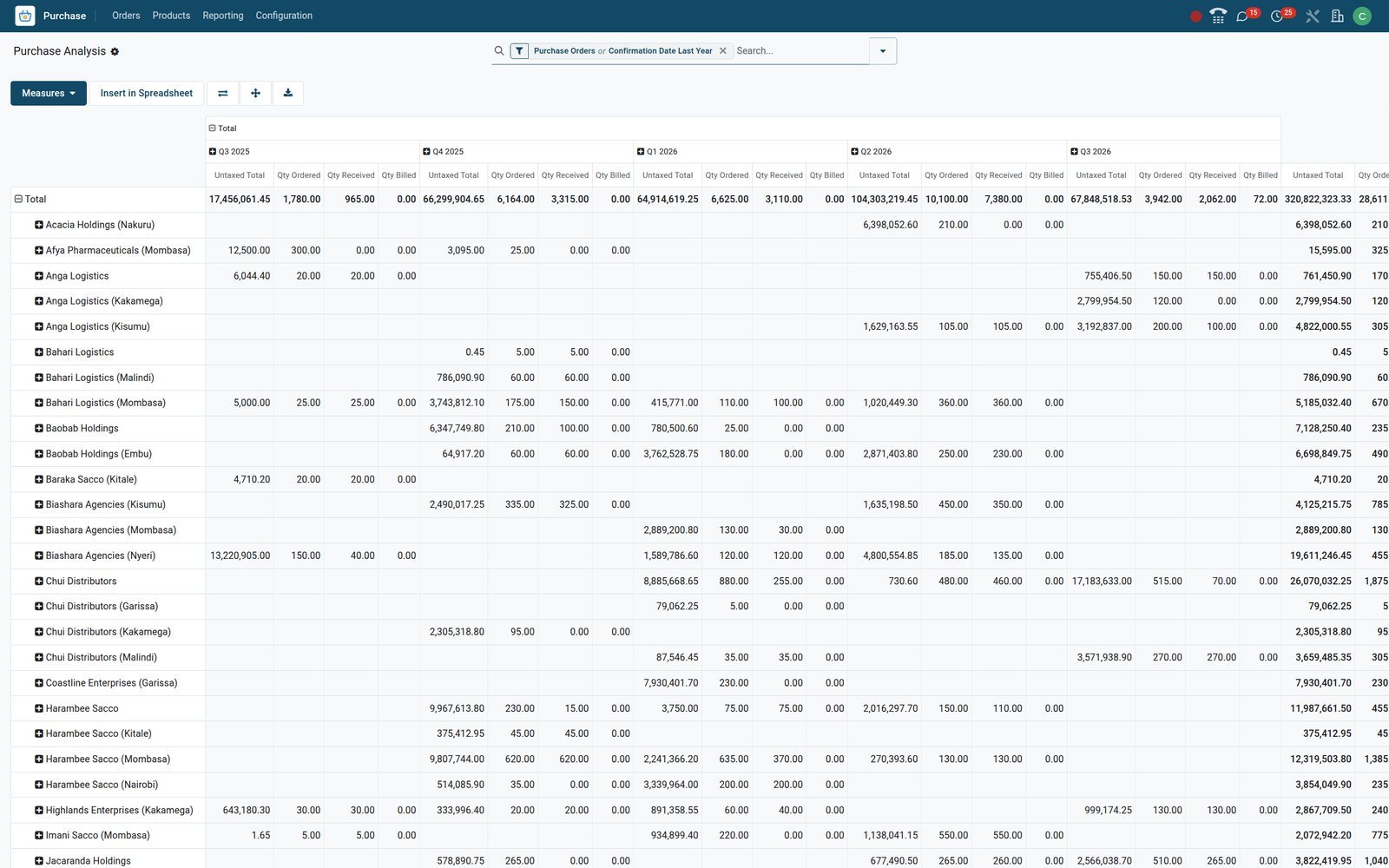
- Purchase
On-Time Delivery by product category
One row per product category for last year's receipts, with on-time and total quantities beside the rate; Office Furniture, with none on time, shows where deliveries ran late.
Explore Purchase →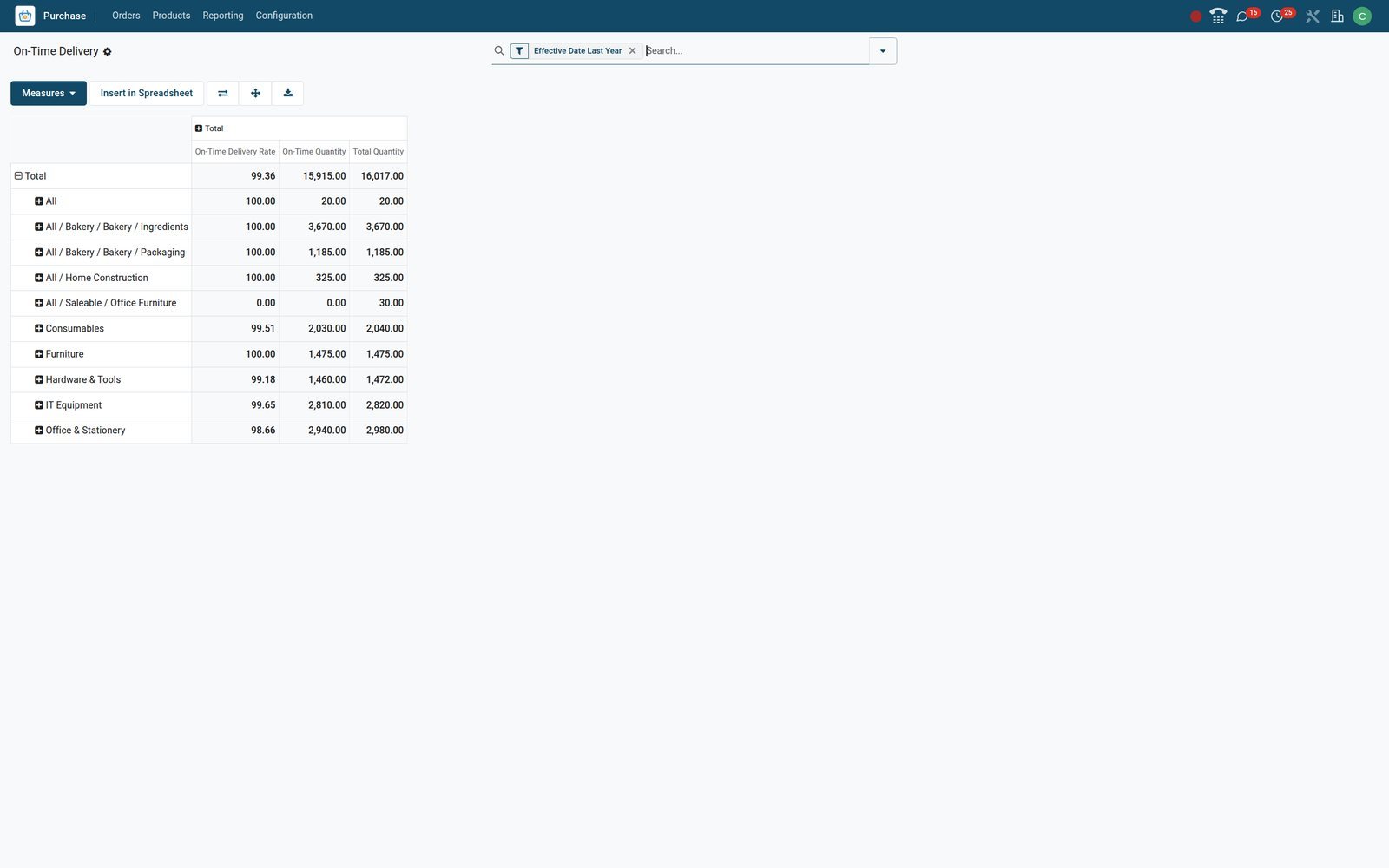
Set the rules once in Settings, then work the orders from anywhere
Approval, locks, warnings and reminders are switches on one page; the order kanban is built for a phone.
 Purchase
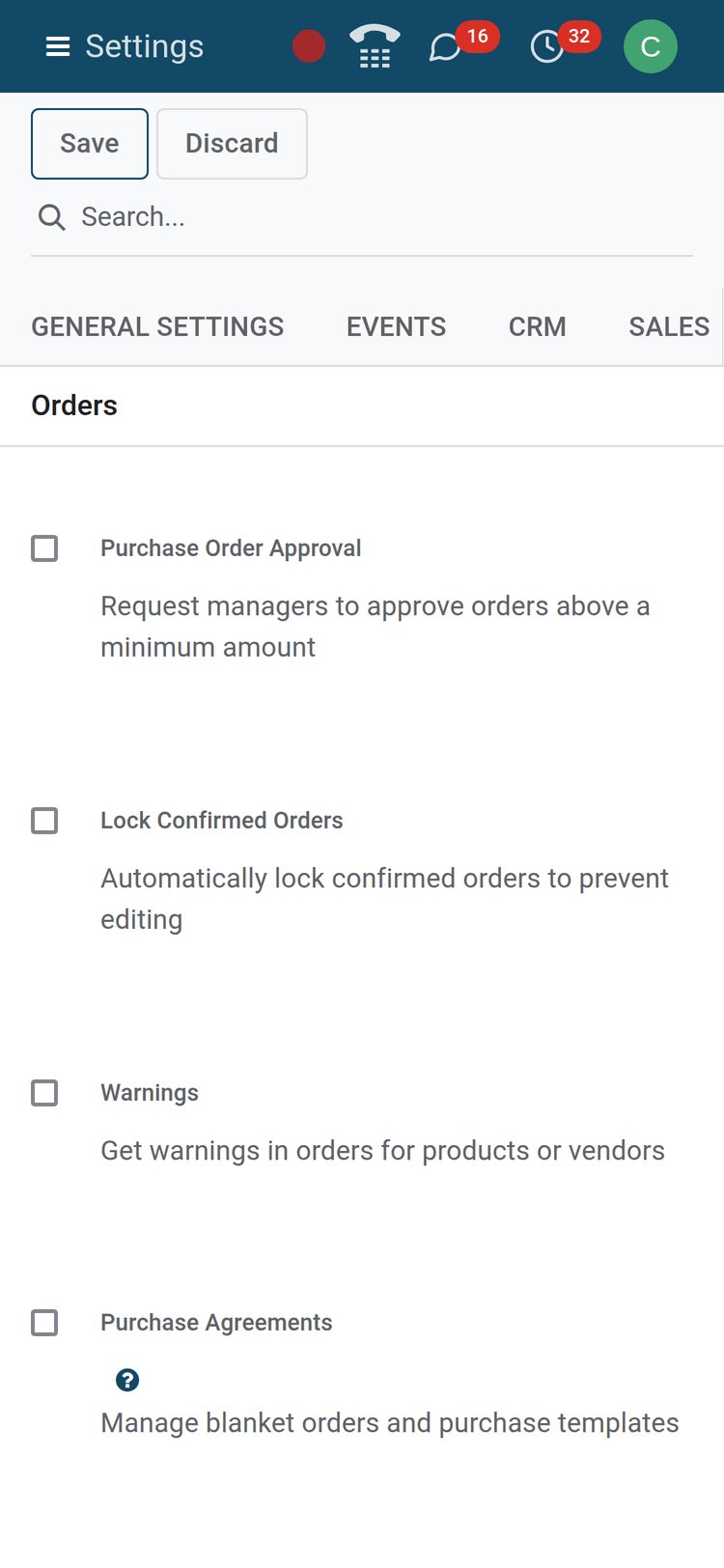
Approvals, locks and warnings are switches
Purchase Order Approval with a minimum amount, Lock Confirmed Orders, warnings on products and vendors, and Purchase Agreements, each one switch in the Orders block.
Explore Purchase →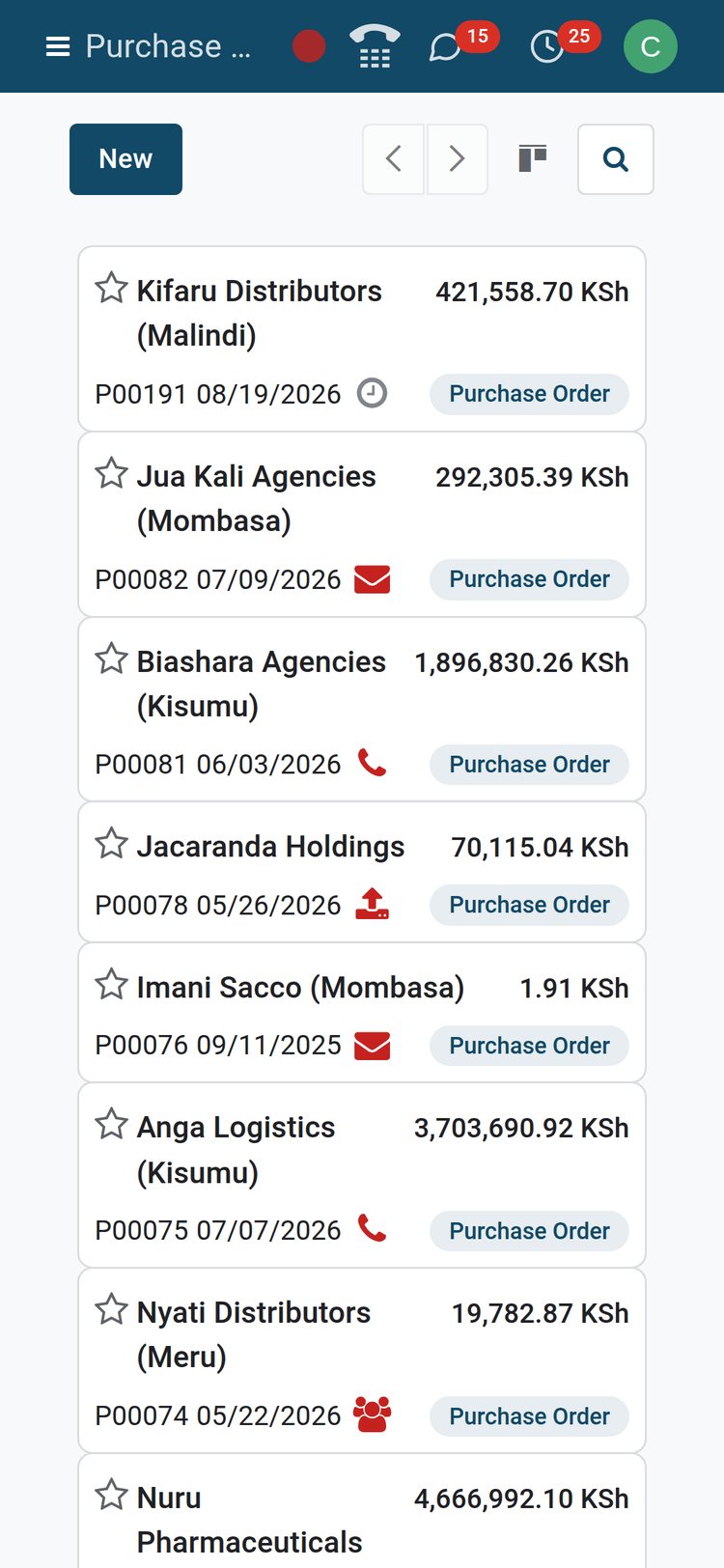 Purchase
Orders on a phone
The mobile kanban shows vendor, amount, reference, order date and status per card; open one to check the lines, Send PO by Email or Receive Products.
Explore Purchase →Who uses it
Who uses it, and what each person sees
Two access levels ship with the app: Purchase / User works the orders, Purchase / Administrator also approves them above the minimum amount and unlocks locked ones.
Owner or managing director
Reads Purchase Analysis by vendor and month and the Purchase & Vendor analysis dashboard, and approves orders above the minimum amount when approval is switched on.
Procurement manager
Sets the approval minimum, locks confirmed orders, keeps vendor pricelists current and watches the On-Time Delivery report by vendor.
Buyer
Works the RFQ list with its To Send, Waiting and Late counters, the My Orders and Starred filters, activities on each order and Send by Email with the PDF attached.
Storekeeper
Receives against the order in Inventory or by scanning in the Barcode app; received quantities flow back to every purchase line and to the Receipt Status.
Accountant
Creates the vendor bill from the order, checks Billing Status, applies 16%, import VAT or withholding, and posts the accrued expense entry at month end.
Vendor
Receives the RFQ or order by email with a PDF and a UBL e-document, acknowledges it from the email and gets a reminder before the receipt date.
Works with
Apps that pick up where the order leaves off
All installed beside Purchase on the demo; each one shares the order number rather than a copy of the data.
- InventoryReceipts, reordering rules, the Replenishment screen and the Buy route turn stock needs into RFQs and receipts.
- AccountingVendor bills, payments, purchase VAT, withholding and the accrued expense entry, all with the order as source document.
 InvoicingBills raised from received quantities carry the vendor's payment terms and due date; Bills Received is a filter on the order list.
 SalesA confirmed sales order can raise the RFQ; the purchase order counts its source sales orders and links straight back to them.
 ManufacturingComponents a manufacturing order lacks become purchase lines, and the order shows a count of its MO sources.
 ProjectsA Project field on the purchase order lands external costs on the right project instead of a general expense line.
 DiscussChatter on every order keeps the sent RFQ, the vendor's reply and internal notes together, with followers and activities.
 SignSupplier agreements are signed electronically and filed before the first order goes out.
 StudioAdd fields, an automation rule or a custom report to purchase orders without code; the demo flags orders above KES 2,000,000 with an automation rule.
 Point of SaleProducts bought here are the same records sold at the till, with cost, vendor and reordering rule in one place.
 eCommerceStock received on purchase orders updates the availability shown in the online shop.
 DashboardsThe Purchase & Vendor analysis spreadsheet dashboard in the Logistics group reads purchase data live.
In your country
Built for how firms buy, in any country
Taxes, tax-authority feeds, currencies and companies follow each company's country; this is how the demo's Kenyan setup looks.
Country purchase taxes on every line
Purchase taxes come with the country's chart; the demo's Kenyan chart brings 16%, 8%, 0%, 0% Exempt, 16% Import and 2% withholding, mapped per vendor by fiscal positions.
E-invoicing on the vendor side
On the demo, Kenya's eTIMS module turns purchases your suppliers reported to KRA into vendor bills, each with a Create Purchase Order button, plus withholding certificate fields.
Customs imports linked to the order
On the demo, import declarations fetched from KRA carry declaration number, HS code and origin country; the Customs Imports list under Vendors links each one to its purchase order.
Vendor prices in any currency
Each vendor pricelist row carries its own currency and each order its currency rate; the demo holds pricelist rows in KES, USD and ETB.
Five companies, one database
Acacia Holdings, Chui Security Services, Soko Agencies, Falcon Tech and Baobab Traders share one database; each order belongs to one company, and a pricelist row can too.
Vendor bills from a PDF or photo
Bill digitisation reads vendor, lines and totals from an uploaded or emailed bill into a draft, and links it to the purchase order whose number it carries.
Reports and control
Reports and control
Every report here exists on the demo under Reporting, behind a button on a form or list, or in the Dashboards app.
Purchase Analysis, graph
Untaxed Total, Total, Average Cost, Qty Ordered, Received, Billed and To be Billed by vendor, product, category, buyer or month, as bar, line or pie.
Purchase Analysis, pivot
Cross vendor against quarter or category against buyer; measures also include Days to Confirm, Days to Receive, Effective Days to Arrival, Gross Weight and Volume.
On-Time Delivery
On-time quantity against total quantity received, by vendor, product or category over the last year; the same rate sits on each vendor form.
Purchase History
The history button on an order line opens past purchases of that product with vendor, quantity, unit price and confirmation date, as list, pivot or graph.
Purchase & Vendor analysis dashboard
A spreadsheet dashboard in the Dashboards app, Logistics group, that reads purchase data live for people who never open the Purchase app.
RFQ counters
The Requests for Quotation list counts orders To Send, Waiting and Late for everyone and for you, with average order value and purchases in the last seven days.
Order documents
Print RFQ and the Purchase Order PDF carry your letterhead, lines, taxes and totals; the emailed order adds a UBL BIS 3 electronic document.
Accrued expense entry
From the Purchase Orders list, Accrued Expense Entry posts what has been received but not yet billed at a chosen date, with its reversal the next day.
What sets it apart
Details that shorten the chase between buyer and vendor
Small things on the order form and in Settings that decide whether a purchase desk runs on the system or on phone calls.
Vendor acknowledgement
The emailed order carries an acknowledgement link; Reception Confirmed or Reception Declined is then recorded on the order, so the buyer knows who has seen it.
Reminder before the receipt date
Receipt Reminder emails the vendor a set number of days before expected arrival, switched on per vendor or per order, and records when the vendor confirms it.
Bill control per product
Each product bills on ordered or received quantities; Receipt Status and Billing Status sit side by side, and billing on receipts covers only what actually arrived.
Merge and batch actions
Select several RFQs to the same vendor and Merge them into one, Confirm RFQ in bulk, Create Vendor Bills for a batch, or Send Reminder to all of them.
Catalog on the order
The Catalog button adds products to an RFQ from a searchable product grid, quantity by quantity, instead of typing one line at a time.
An automation rule that flags big orders
The demo schedules a review activity on any purchase order above KES 2,000,000, set up as an automation rule rather than code.
Getting started
Getting started
What a first week looks like: imports, switches and roles, nothing custom.
Import vendors, products and pricelists
Import from Excel or CSV with column mapping and a Test step before anything is written; vendors, products, vendor pricelist rows and open orders all accept imports.
Switch on what you need
Settings toggles: approval with a minimum amount, lock confirmed orders, purchase warnings, receipt reminder, bill control, variants, units of measure and packagings.
Add modules when ready
Purchase Agreements, 3-way matching, Dropshipping and Purchase Grid Entry are switches in Settings that install their module on demand.
Two access levels
Purchase / User works orders, vendors and pricelists; Purchase / Administrator also approves orders above the minimum amount and unlocks locked orders.
Email and PDF ready
Request for Quotation, Purchase Order and Vendor Reminder email templates, plus the RFQ and Purchase Order PDFs, ship configured; edit the wording once.
Migrate what is open
Bring open orders, vendors and pricelists over with the same import, then run the RFQ list from day one with its counters live.
Questions
Questions about Purchase
Not covered here? Contact us.
Can an order be held for approval before it goes to the vendor?
Yes. Switch on Purchase Order Approval in Settings and set a Minimum Amount. Above that amount, Confirm Order parks the order at To Approve until a Purchase Administrator clicks Approve Order; below it the order confirms directly. For softer control, an automation rule can schedule a review activity instead, as the demo does for orders above KES 2,000,000.
How do I compare several vendors for the same product?
Vendor Pricelists hold one row per vendor and product with price, minimum quantity, currency, discount, delivery lead time and validity dates, and an RFQ takes the price and lead time of the vendor you pick. The Purchase Agreements switch in Settings adds blanket orders and alternative RFQs with a line-by-line comparison.
Does the vendor bill have to match the order?
Create Bill copies the order lines onto the bill. Bill Control on each product decides whether it bills on ordered or on received quantities, and Billing Status on the order shows Nothing to Bill, Waiting Bills or Fully Billed. The 3-way matching switch in Settings adds a check that a bill is only released for payment once ordered, received and billed quantities agree.
Can I receive part of an order?
Yes. Validate the receipt with the quantities that arrived and keep the rest as a backorder; the order shows Partially Received and each line carries its Received quantity. With bill control on received quantities, the bill covers only what has arrived.
What does the vendor actually receive?
Send by Email uses the Request for Quotation or Purchase Order template with the PDF attached and a UBL electronic document. The emailed order carries a link for the vendor to acknowledge it, which is recorded on the order, and Receipt Reminder sends a reminder a set number of days before the expected arrival.
Can purchases start from stock levels or sales orders on their own?
Yes. Reordering rules on products with the Buy route create RFQs from the Replenishment screen in Inventory, a confirmed sales order can create the RFQ for what it needs, and manufacturing orders request the components they lack. Every such order names its trigger in Source Document.
How does it work with e-invoicing such as KRA eTIMS?
The Kenya eTIMS (OSCU) modules are installed on the demo. Purchases your suppliers have reported to KRA are fetched as vendor bills, each with a Create Purchase Order button; customs import declarations are fetched into Customs Imports under Vendors and linked to their purchase order; and bills carry eTIMS payment method and withholding certificate number and date fields.
Can I lock an order once it is confirmed?
Yes. With Lock Confirmed Orders on in Settings, each order moves to Locked as soon as it is confirmed, so lines, prices and quantities can no longer change. Without it, the Lock button on the order does the same case by case, and only a Purchase Administrator can Unlock.
Tax compliance
Invoices your tax authority accepts
In Kenya, Uganda, Rwanda, Burundi and Zambia, each invoice, receipt and stock movement goes to the tax authority's own system when you post it. Ghana and Pakistan come next, and we connect 73 more countries on request.
- KenyaReady
eTIMS KRA
Invoices, credit notes, POS receipts and stock movements
- UgandaReady
EFRIS URA
Invoices, POS receipts and stock
- RwandaReady
EBM RRA
Invoices, POS receipts, stock and imports
- BurundiReady
EBMS OBR
Invoices, POS receipts, stock and manufacturing
- ZambiaReady
Smart Invoice ZRA
Invoices, POS receipts, stock and imports
Put Purchase to work
Add it to your plan and pay only for what you use, or see it running on your own demo first.