

 Sign: Send the contract at nine, have it signed from a phone by ten
Upload a PDF once as a template, place signature and text fields per role, send it with a signing order, an expiry date and reminders, and get the signed PDF back with its certificate of completion, all inside BridgeERP.
Free instant access. No credit card required.
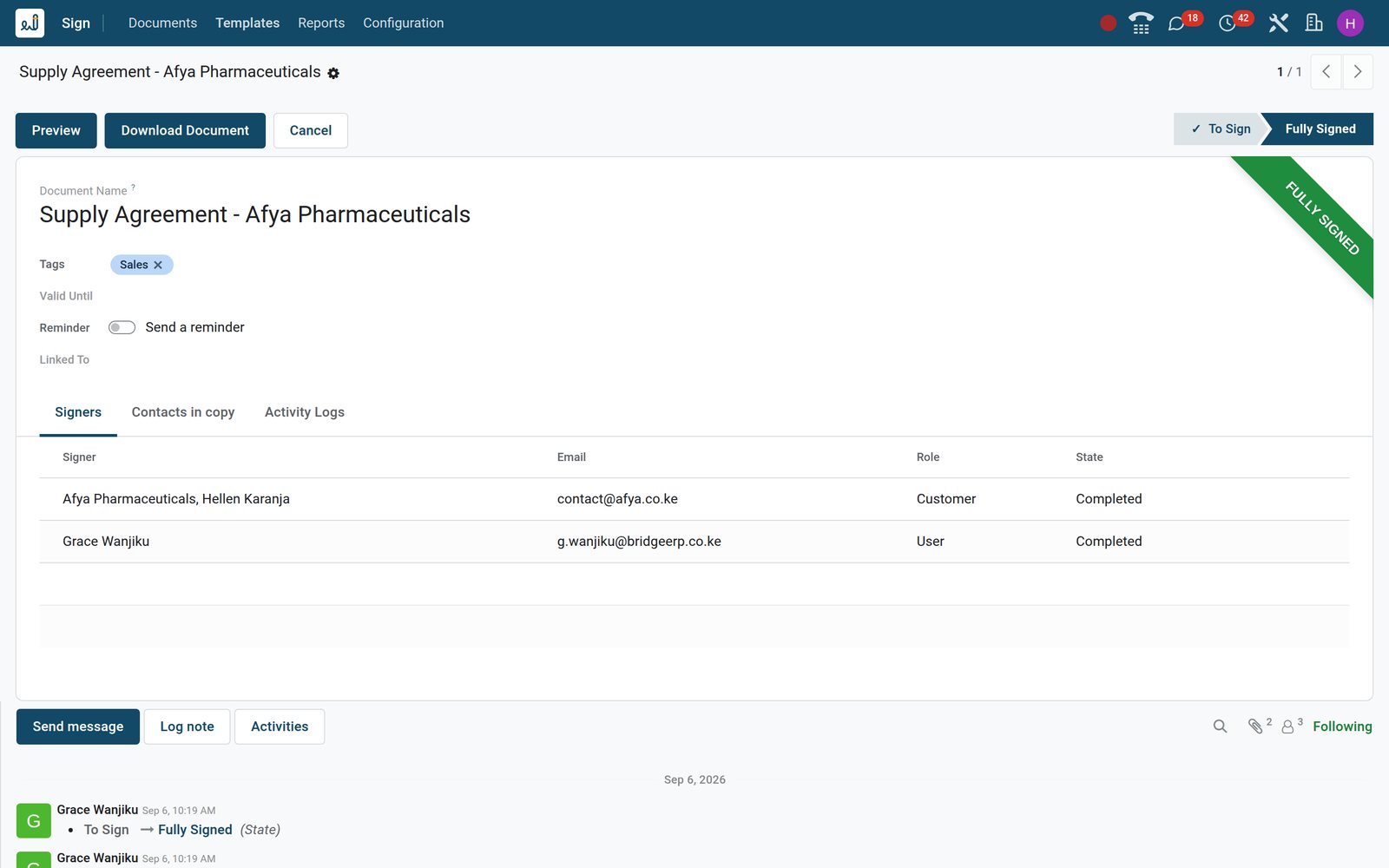
Open the agreement and see that it is fully signed, by whom and when
A request form shows the state bar from To Sign to Fully Signed, every signer with a signed-on date, the expiry date, the reminder rule, the contacts in copy and the record the document is linked to.
 Sign
SignA supply agreement signed by both parties, with the PDF one click away
The Afya Pharmaceuticals supply agreement carries the Fully Signed ribbon, both signers marked Completed on 6 September, a Download Document button and an Activity Logs tab.
Explore Sign →By the numbers
What ships inside the Sign app
Counts taken from the field types, audit-trail actions, states and reports of the app on the demo, not estimates.
- 12
- field types to place on a PDF: Signature, Initials, Name, Email, Phone, Company, Text, Multiline Text, Checkbox, Radio Buttons, Selection and Date
- 8
- actions written to the audit trail of every document: creation, view or download, save, signature, refusal, cancellation, email update and update
- 5
- states a document can be in: Shared, To Sign, Fully Signed, Cancelled and Expired, each one a filter on the Documents list
- 2
- built-in reports: a Certificate of Completion for each document and the Green Savings report for the whole company
Inside the app
What is inside
The Sign menus on the demo, grouped by what they let a team do.
Documents: yours and everyone's
My Documents opens on what you sent or still have to sign; All Documents shows the company's requests in kanban, list, form or activity view.
Templates with the PDF attached
A template holds the uploaded PDF and its field layout; each card offers Send and Sign Now, and counts documents in progress and signed.
Send with order, expiry and reminders
The send window names a signer per role, switches on a signing order, sets Valid Until, a reminder every N days, contacts in copy and a message.
Roles with their own rules
Configuration > Roles holds Customer, User, Employee and Standard; each role can demand a one-time SMS code and allow its signer to be replaced later.
Tags that sort the board
Tags such as HR, NDA and Sales colour templates and documents, feed the side panel counters and group the board by type of agreement.
Field types and selection values
Settings link to the field types, with placeholder text and auto-completion from the contact, and to the option lists used by Selection fields.
Reports on paper saved and proof kept
Reports > Green Savings turns sent requests into paper, water, wood, carbon, waste and energy saved; every document prints its own Certificate of Completion.
Settings for terms, SMS and access
Sign Settings hold default terms and conditions as email text or a web page, SMS authentication credits and template access control by user or group.
Step by step
From a PDF to a signed agreement in six steps
Each step names the app that does the work; nothing is printed, scanned or retyped along the way.
- Step 1
Upload the PDF
Create a template from the PDF of your NDA, lease, supply agreement or employment contract; the file stays attached to the template.
Sign - Step 2
Place the fields
Put Signature, Initials, Date, Name and Checkbox fields on the pages, mark them required and assign each one to a role such as Customer or Employee.
Sign - Step 3
Send, or sign now
Pick the contact for each role, switch on a signing order, set Valid Until and a reminder cadence, add contacts in copy, then send or sign now.
Sign - Step 4
Sign on any device
Signers open the emailed link, see who else is signing or waiting, fill their fields, add their signature, then validate or refuse the document.
Sign - Step 5
Receive the signed PDF
When the last signer finishes, the completed PDF and its certificate go by email to the signers and contacts in copy, and stay on the request.
Sign - Step 6
Start from HR records
The employee form carries a Signature Request button; contracts and applicants count their requests, so an offer letter starts from the person's record.
Employees
Write the agreement once, then send it again and again
A template fixes the PDF, the fields and the roles; sending is then a matter of choosing the contact for each role. Favourites, tags and a side panel keep a growing library in order.
- Sign
One card per template, with Send and Sign Now
The Supply Agreement, NDA, Employment Contract, Offer Letter, Distribution Agreement, Service Level Agreement, Warehouse Lease and Vehicle Hire templates each show documents in progress and signed.
Explore Sign →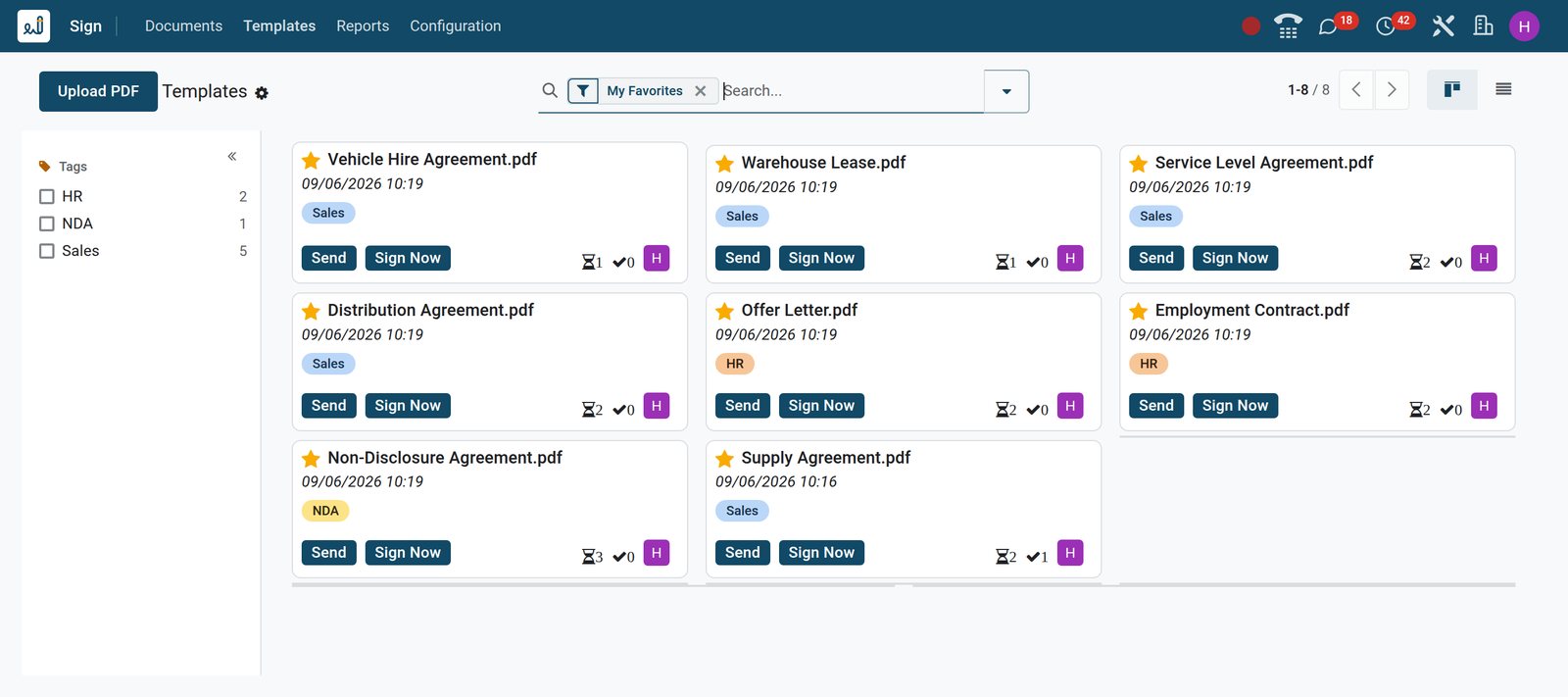
- Sign
Every field on the template, listed by type, role and page
The Supply Agreement's Fields tab lists eight required fields, Signature, Initials, Name, Date and Company, each with its Customer or User role, page and position.
Explore Sign →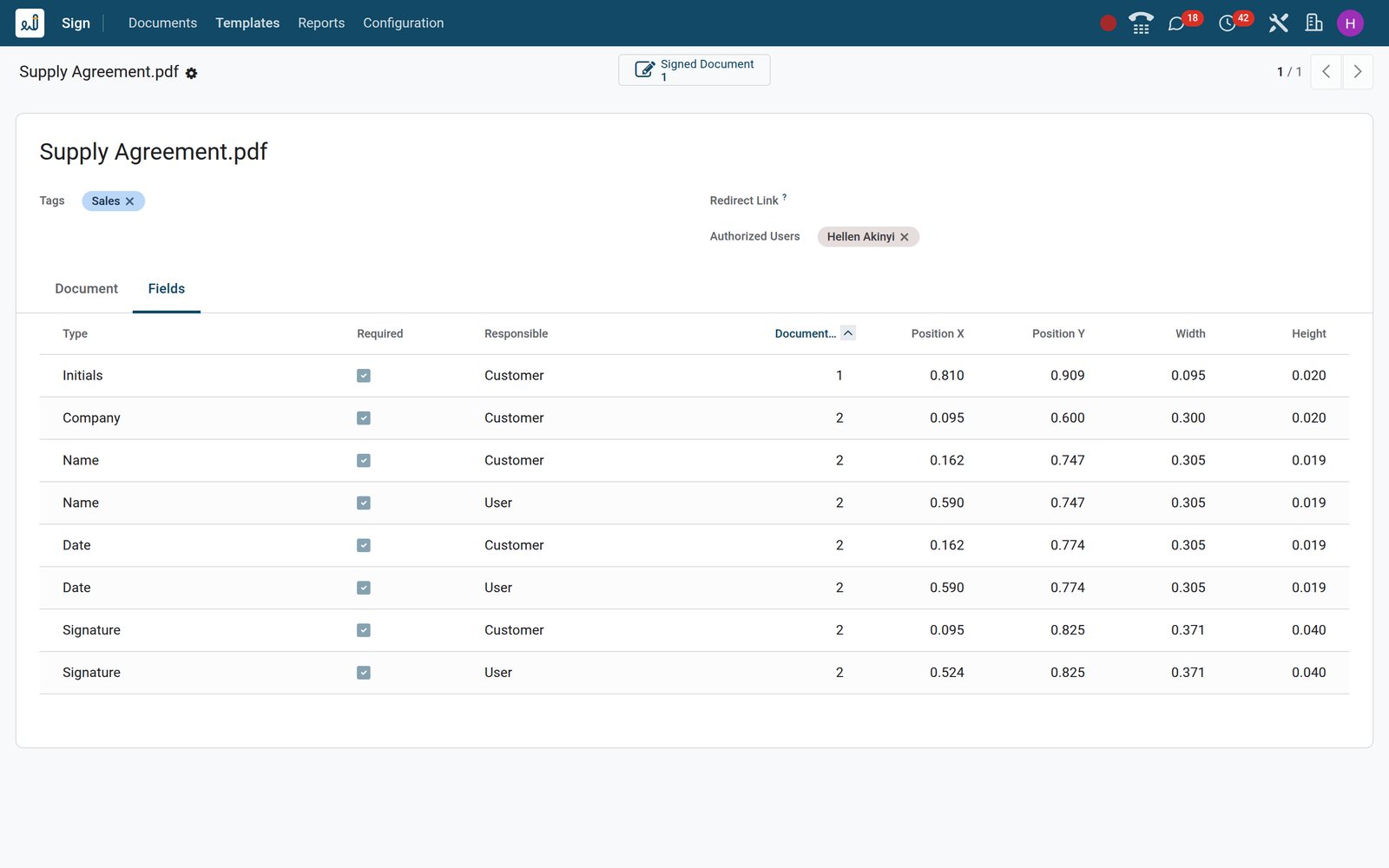
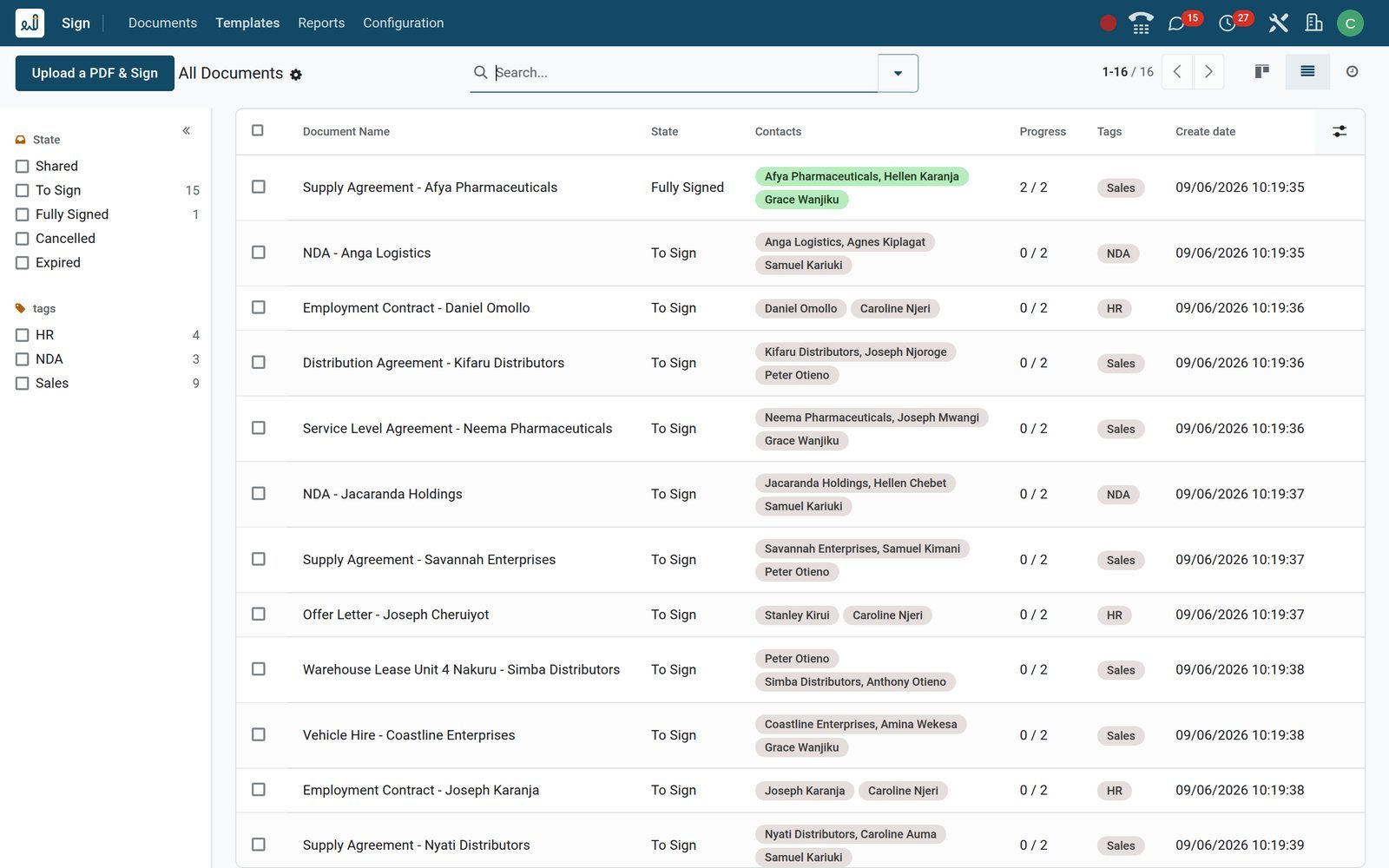
Know who is holding things up, and resend without leaving the list
The Documents list shows progress per request; filters such as Waiting for me, Waiting for others and Expiring Soon cut the noise, and open requests carry a Resend button in the row.
 Sign
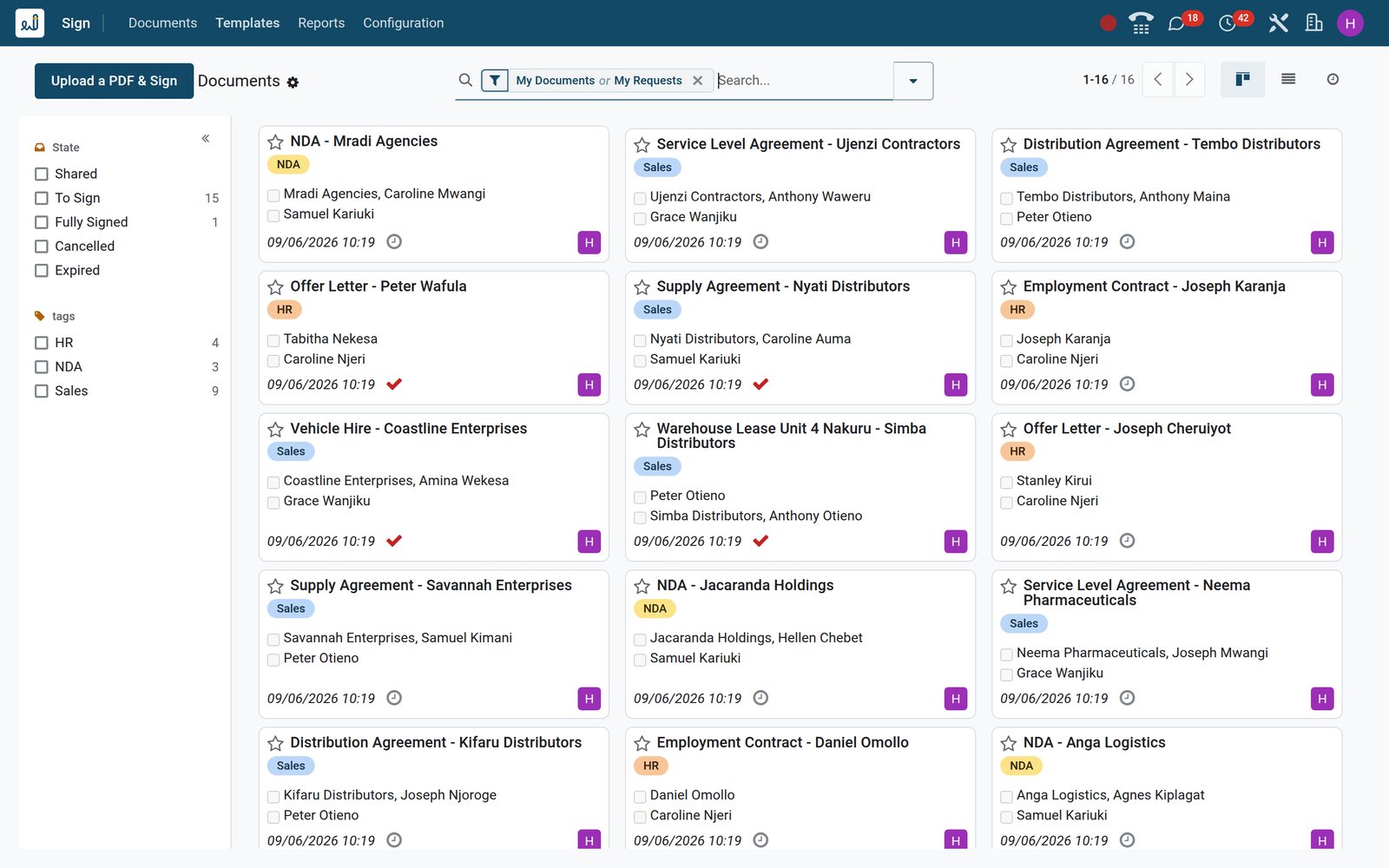
SignProgress, state and contacts per document, with Resend and Download in the row
Each row shows the document name, state, signers as tags, progress, tags and creation date; a Resend button sits on open requests and Download on the signed ones.
Explore Sign →Follow every agreement from your phone; customers sign from theirs, with no account
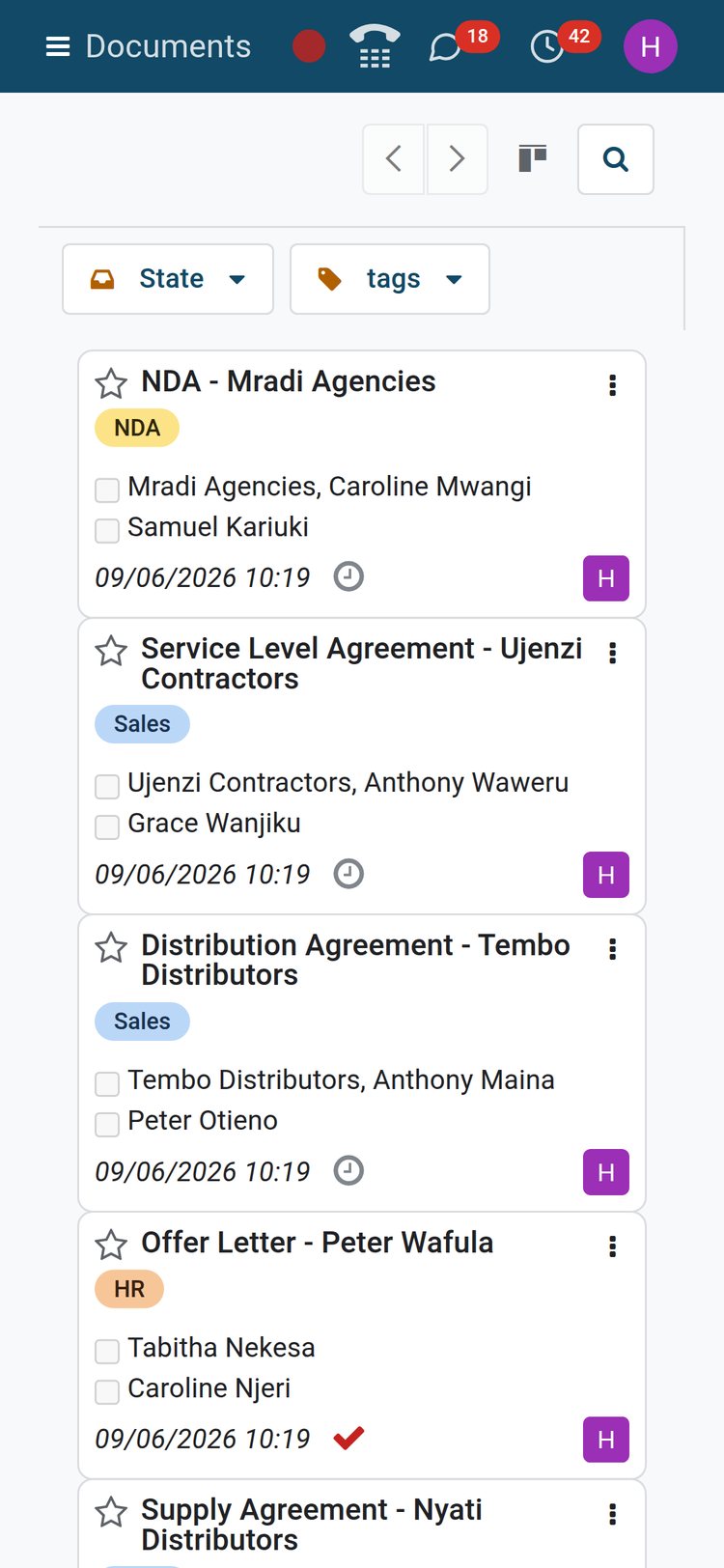
The Documents board works in a phone browser. Signers outside the company never log in: their emailed link opens the PDF with the fields waiting, the other signers' status and a Validate button.
 Sign
SignThe Documents board on a phone
My Documents stacks each agreement as a card with its signers' tick-boxes, tags and date, so a director sees who still has to sign before a meeting.
Explore Sign →Offer letters and contracts start from the employee, not from a folder
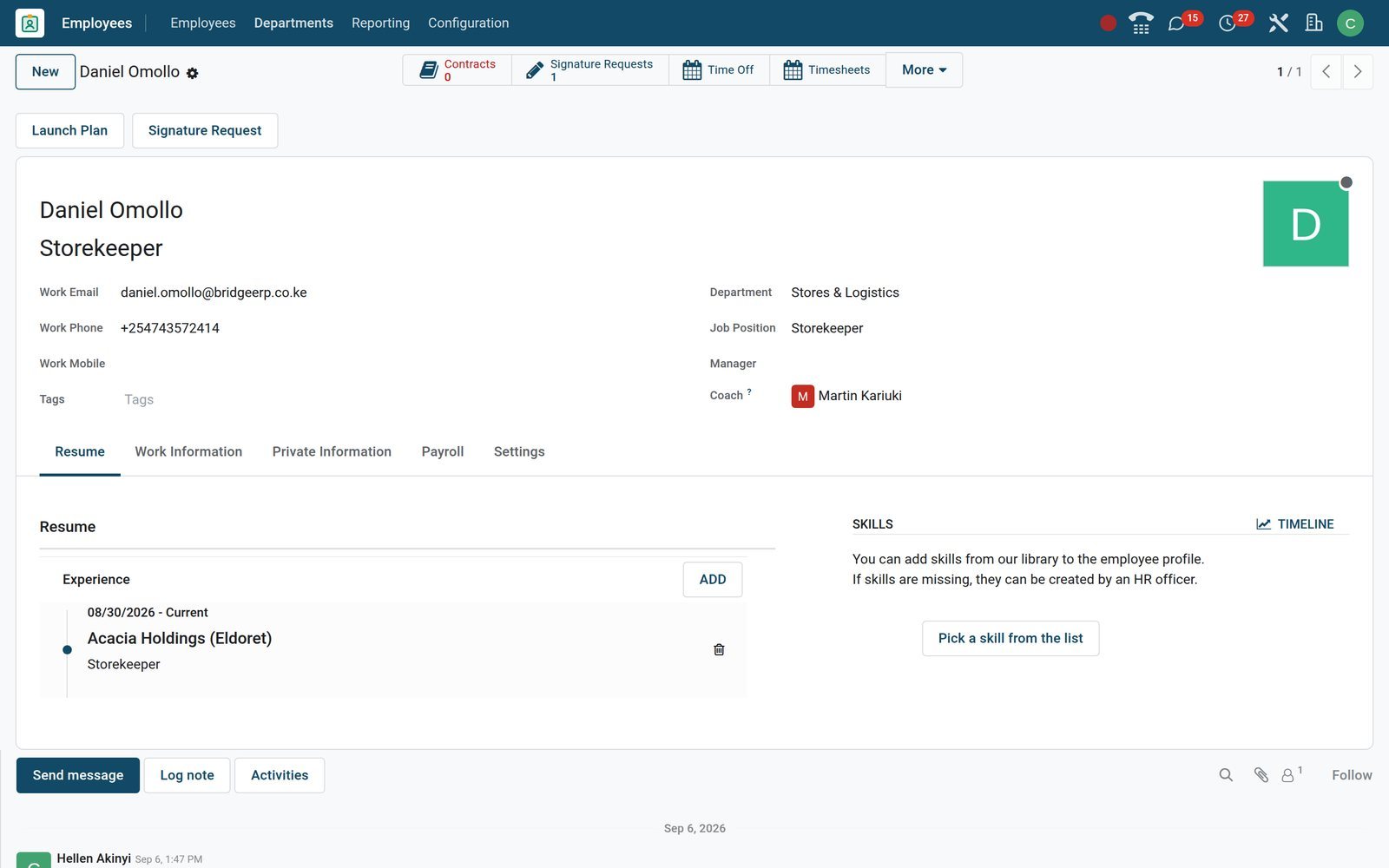
With Employees installed, the employee form gains a Signature Request button and a counter of requests; contracts and applicants count theirs too, and each request stays linked to the person's record.
 Employees
A storekeeper's employment contract, sent from his employee form
Daniel Omollo's form shows the Signature Request button and one linked request; the send window picks the templates, the employee role, the email and the HR signer.
Explore Employees →Who uses it
Who it is for
Each seat below works in the same Sign records; access rights and template access control decide what each one can see and send.
Managing director
Opens My Documents on the Waiting for me filter, signs from the phone between meetings and checks Waiting for others before the weekly call.
HR manager
Sends offer letters and employment contracts from the employee record, names the responsible HR signer in the same window, and sees the count on each contract.
Sales representative
Sends the supply or distribution agreement from its template, links the request to the sales order and watches the customer's tick-box on the board.
Legal or company secretary
Prints the Certificate of Completion, relies on the integrity warning if a PDF was altered, and restricts sensitive templates to named users or groups.
Customer or employee signing
Receives a link, opens it on any phone, sees who else must sign, fills the fields, signs or refuses, and gets the completed PDF by email.
Finance
Downloads signed leases and hire agreements from the request, links a request to an invoice, payment or asset, and finds it later by tag.
Works with
Runs with the rest of BridgeERP
A request's Linked To field points at a record in any of these apps, and two of them send documents on their own.
- EmployeesThe employee form carries a Signature Request button, and every contract counts the requests linked to it.
 RecruitmentDocuments sent to an applicant under an Applicant role, counted on the applicant.
 PayrollA request can be linked to a payslip or a payslip batch.
 SalesLink agreements to sales orders; quotations carry their own online signature on the portal.
 CRMAttach an NDA request to the lead or opportunity it belongs to.
 PurchaseSupplier and distribution agreements linked to the purchase order they govern, found again from the order.
 InvoicingLink a signed lease or hire agreement to the invoice, payment, journal or asset it relates to.
 ProjectsService level agreements and client sign-offs linked to a project, a task or a milestone.
 FleetVehicle hire agreements linked to the vehicle or to its fleet contract.
 InventoryWarehouse leases and delivery paperwork linked to a transfer, a batch transfer or a lot number.
 Point of SaleHire forms or consent forms signed at the counter, linked to the Point of Sale order or session.
 DiscussEach request has its own chatter, followers and scheduled activities, shown on the board as well.
In your country
Built for how agreements get signed today
What the Sign app does about phones, identity and evidence, all of it visible in the app's settings, roles and certificate on the demo.
One-time SMS codes
Give a role the Unique Code via SMS step and the signer must type a code sent to their mobile before the signature counts; credits sit in Settings.
Email verification on every signer
The certificate records that each signatory proved control of their inbox by opening a unique link, alongside a per-signer hash.
Phone first, no account needed
Signers never log in; the emailed link opens the PDF in a phone browser with the fields to fill and one Validate button at the end.
Time, IP and location on the record
Every signing event is stamped in UTC with the IP address, and with geolocation when the signer allows it; the certificate prints all three.
Your terms on every request
Settings carry default terms and conditions, printed at the foot of each request email or linked as a web page, in your own wording.
Signed PDFs stay in your database
The completed PDF is an attachment on the request in your own BridgeERP database, downloadable any time; archived requests reappear under the Archived filter.
Reports and control
Reports and control
Everything below exists as a report, a tab or a filter on the demo.
Certificate of Completion
One PDF per document: creator, creation IP, each signatory with email verification and hash, every signing event with UTC time and IP, and the access log.
Integrity check
Log entries are hash-chained; if a signature value or the PDF is changed afterwards, the request form shows an integrity warning instead of a clean certificate.
Activity Logs tab
On each request, the tab lists action, date, state at the time, contact, IP address and optional latitude and longitude, read-only.
Green Savings report
Reports > Green Savings converts sent requests into sheets of paper, litres of water, kilograms of wood, carbon and waste, and kilowatt-hours saved.
Filters that answer the Monday questions
Waiting for me, Waiting for others, Expiring Soon, Sent, Fully Signed, Cancelled and Archived, plus group by Template or State on the same list.
Counters in the side panel
The Documents board counts requests per state and per tag in its side panel, and each template card counts documents in progress and signed.
What sets it apart
What sets it apart
Features found on the demo that change how a team works, not a comparison of names.
Sign Now, without an email round-trip
Sign Now on a template card skips the email round-trip and opens the document for signature on the screen in front of you.
Share one link with many signers
A template with a single role can be shared as a link; each person who opens it gets their own document, ideal for policies and consent forms.
Reuse a field layout on a new PDF
Use Layout copies the fields, roles and positions of an existing template onto a freshly uploaded PDF, so a revised contract keeps its layout without placing fields again.
Replace a signer who is away
Roles marked Change Authorized let you swap the contact on a sent request, so an out-of-office director does not stall the agreement.
Linked to the record it belongs to
The Linked To field ties a request to an employee, sales order, invoice, vehicle, project or other record, and employees, contracts and applicants count their requests.
Redirect after signing
A template can send the signer to a page of your choice once they finish, with your own button label, for onboarding steps or a thank-you page.
Getting started
Getting started
What a first week with the Sign app looks like on BridgeERP.
Bring your PDFs
Upload the agreements you already use as PDFs; each becomes a template with the file attached and a page count, ready for fields.
Roles are ready
Customer, User, Employee, Standard and HR Responsible roles sit in Configuration > Roles; add your own, a guarantor or a witness, from the same list.
Import your signers once
Customers and staff are contacts; import them from a spreadsheet in Contacts and their name, email and phone auto-fill the matching fields.
Set terms, tags and field options
In Settings, write the terms and conditions, then create tags such as HR, NDA and Sales and the option lists for Selection fields.
Decide who sees which template
Switch on template access control and name the users or groups allowed on each template; everyone else keeps their own templates.
Top up SMS when you need codes
One-time SMS codes use credits bought from Settings > Authenticate by SMS; until then, email verification and the audit trail apply.
Questions
Questions about Sign
Not covered here? Contact us.
Do my customers need a BridgeERP account to sign?
No. Each signer receives an emailed link carrying a unique token. It opens the document in any browser, on a phone or a laptop, with the fields to fill and a Validate button.
What proof do I have that a document was signed?
Each document has a Certificate of Completion: who created it and from which IP, each signatory's email verification and hash, every signing event with its UTC time, IP and optional geolocation, and the access log. An integrity check flags any later change.
Is an electronic signature legally valid in my country?
That depends on your country's law and the type of document. BridgeERP records the evidence a court or auditor would ask for, the certificate, the hashes, the email verification and optional SMS codes, and the completed PDF is yours to present.
Can signers sign in a fixed order?
Yes. Switch on Signing Order in the send window and the request goes to the next signer only when the previous one has finished; the HR Responsible can sign before the employee, for example.
What happens if someone does not sign?
Set a reminder every N days and a Valid Until date when sending. Reminders go out automatically, the list offers Resend at any time, and a request past its date moves to Expired.
Can a signer refuse, and can I change who signs?
A signer can press Refuse Document, which is logged and notifies the sender and contacts in copy. For roles marked Change Authorized, you can replace the contact on a request that has already been sent.
Which file types can I send?
Templates are built from PDF files. Fields are placed on the pages of the PDF and the completed document is returned as a PDF with the certificate.
Can I add an extra identity check for important contracts?
Yes. Give the role a Unique Code via SMS step and the signer must enter a one-time code sent to their mobile before the signature is accepted. The step applies to every signer who holds that role.
Put Sign to work
Add it to your plan and pay only for what you use, or see it running on your own demo first.