

 Sales: Send the quotation, get it signed and paid, then deliver and invoice from the same order
Quotations with section headings and optional extras, online signature and payment on the customer portal, delivery orders and invoices raised from the confirmed order, and four sales analysis reports that read from the same lines.
Free instant access. No credit card required.
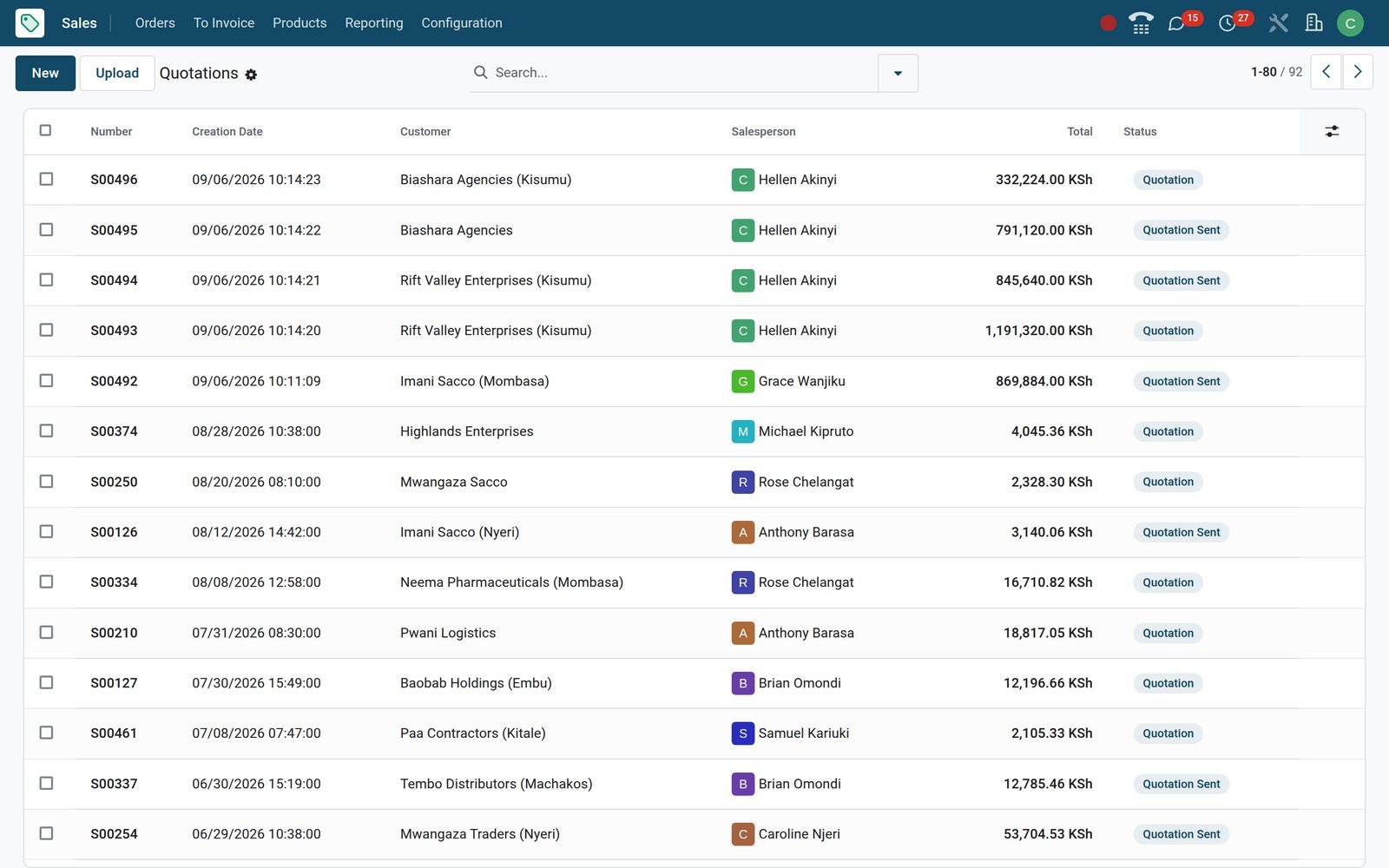
Build a quotation the customer can accept in one click
A quotation on BridgeERP holds the customer, priced lines with their taxes, an expiry date and the running totals on one form, with Send by Email and Confirm in its header.
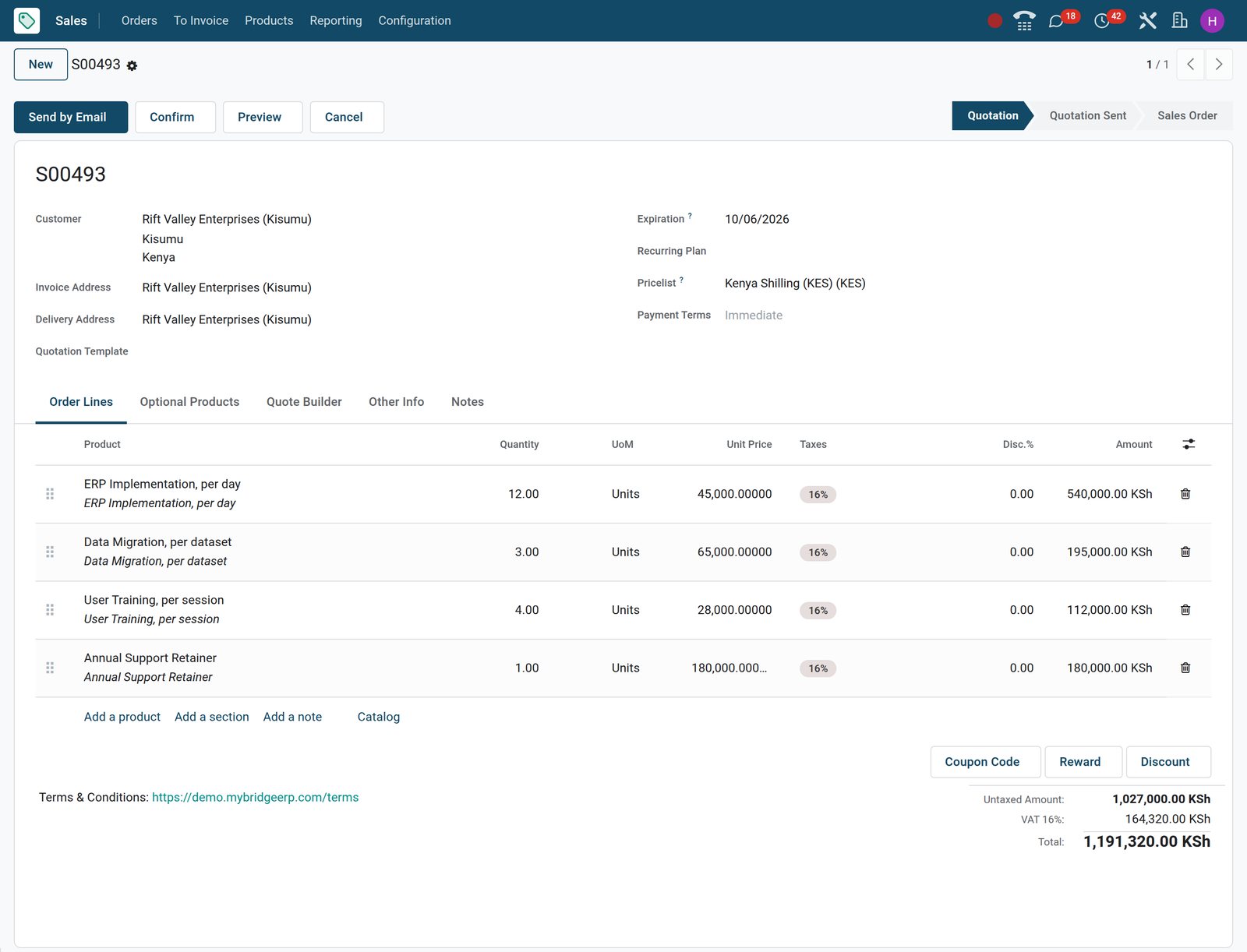 Sales
SalesLines, VAT, totals and expiry on one form
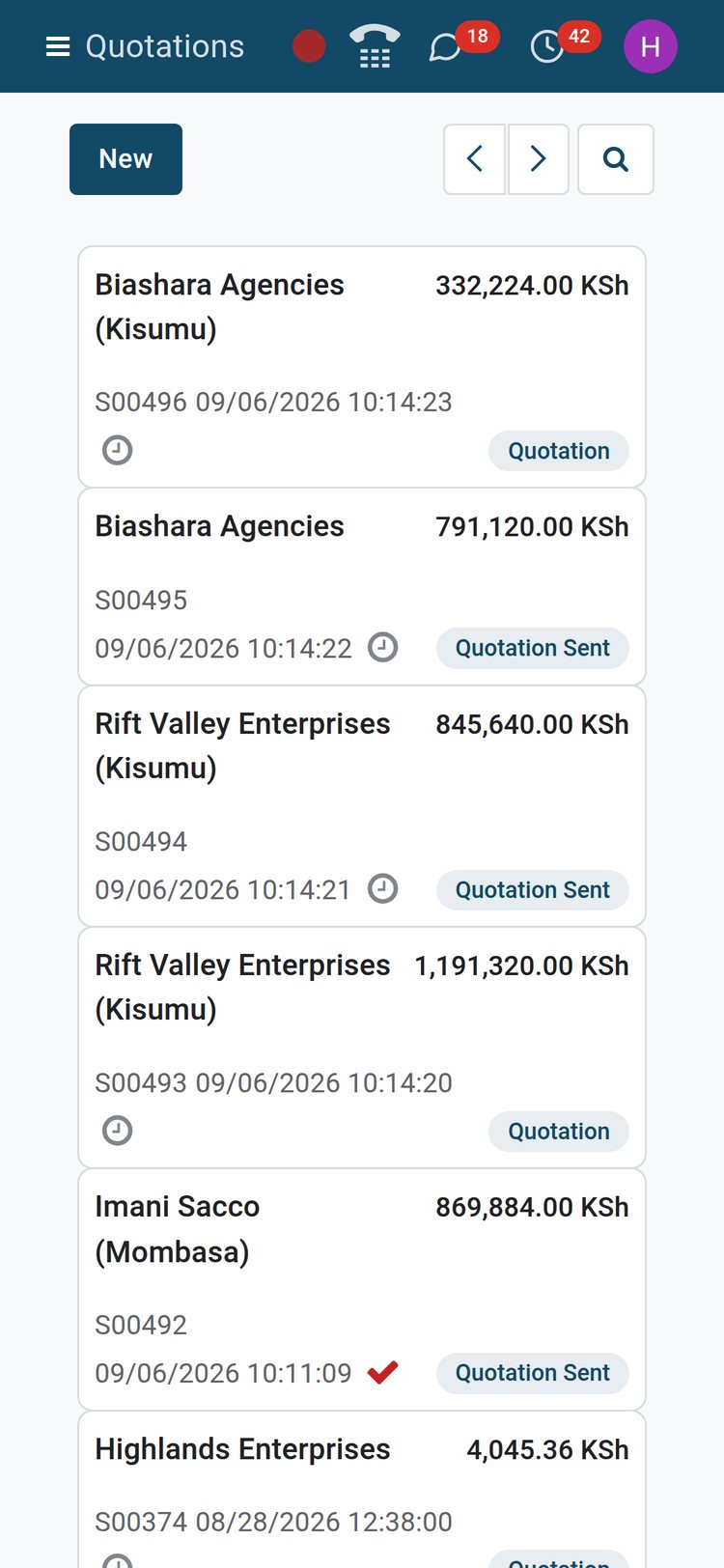
Quotation S00493 for Rift Valley Enterprises (Kisumu) prices four lines at 16% VAT, totals KES 1,191,320 and stays valid until 6 October 2026.
Explore Sales →By the numbers
What ships inside the Sales app
Counts of things you will find under the Sales menus on the demo, not marketing estimates.
- 4
- sales analysis reports: Sales, Salespersons, Products and Customers, each switchable between graph and pivot
- 8
- promotion programme types, from discount codes and coupons to loyalty cards, gift cards and eWallets
- 10
- shipping carrier connectors in Sales settings, including DHL, FedEx, UPS, USPS and Sendcloud
- 17
- payment providers listed under Configuration, ready to install, Flutterwave, Stripe, PayPal and Adyen among them
Inside the app
What is inside
The Sales menus on the demo, grouped by what they let a team do.
Quotations and orders
The Orders menu holds Quotations, Orders, Sales Teams and Customers; every quotation moves from Quotation to Quotation Sent to Sales Order with its history in the chatter.
To Invoice queues
Orders to Invoice and Orders to Upsell are ready-made lists: confirmed orders not yet fully billed, and orders where delivered quantities have passed what was ordered.
Products and variants
Products, Product Variants, Attributes such as colour and size, Combo Choices, Product Categories and Product Tags sit under Products, shared with Inventory and eCommerce.
Pricelists
Pricelists per currency, customer or country group: fixed prices, percentage discounts or formulas, with minimum quantities and date ranges on every rule.
Discount, loyalty and gift cards
Discount & Loyalty programmes and Gift cards & eWallet live in the Products menu; a promo code or a buy-X-get-Y rule adds its reward line to the quotation.
Quotation templates and PDF headers
Quotation Templates carry standard lines and optional products; Headers/Footers add a cover page, About Us, a project description and terms to the PDF quote.
Delivery methods and online payments
Delivery Methods (fixed price, rule-based or carrier connectors) and Online Payments (Payment Providers, Payment Methods) are configured inside Sales, not in a separate tool.
Reporting
The Reporting menu offers Sales, Salespersons, Products and Customers analyses over sale lines, in graph or pivot, with Insert in Spreadsheet on every pivot.
Step by step
From opportunity to analysed revenue in six steps
Each step names the app that does the work; nothing is retyped between them.
- Step 1
Quote the opportunity
The New Quotation button on a CRM opportunity opens a quotation with the customer, salesperson and sales team already filled in.
CRM - Step 2
Build the quotation
Pick a Quotation Template or add lines by hand; the customer's pricelist, taxes, fiscal position and the default expiry date apply themselves.
Sales - Step 3
Send, sign and pay
Send by Email or SMS; the customer opens the portal link, adds optional products, signs and pays the prepayment online.
Sales - Step 4
Confirm and deliver
Confirmation creates delivery orders in Inventory; the order shows a Delivery Status and counts its transfers on a smart button.
Inventory - Step 5
Invoice
Create Invoices from Orders to Invoice: regular, a down payment percentage or a fixed amount, on ordered or delivered quantities.
Invoicing - Step 6
Analyse
Sales Analysis reports the result by month, team, salesperson, product and customer, with untaxed amounts and quantities as measures.
Sales
Standard packages become a one-click quotation
A quotation template fixes the lines, the optional extras, the validity period and the online confirmation rules once; the salesperson picks it from the Quotation Template field and adjusts quantities.
- Sales
Templates with section headings and optional products
The Branch Office Fit-out template lists workstations, network and power, and training under headings, adds three optional products, sets 30 days validity and requires signature and payment.
Explore Sales →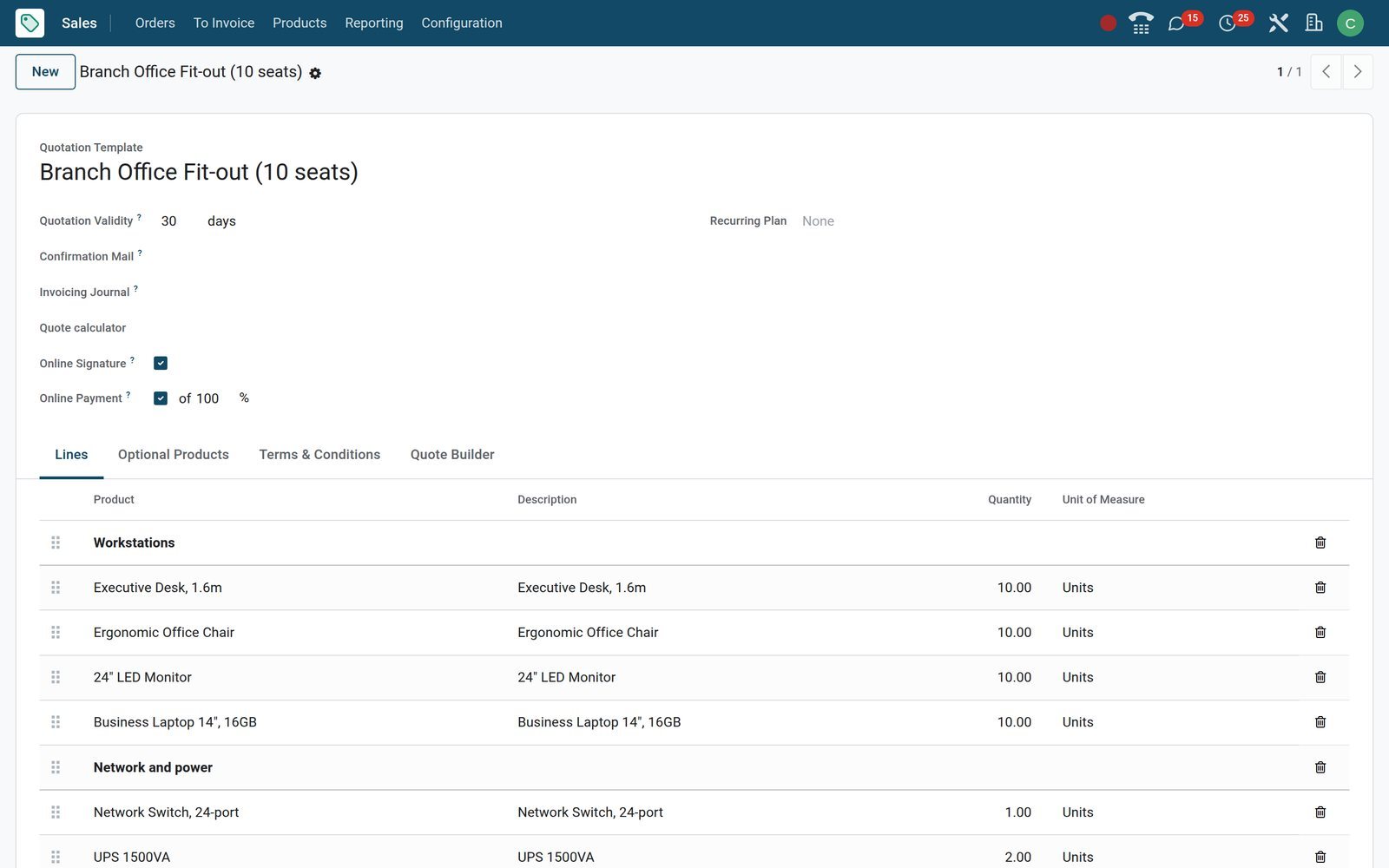
- Sales
One catalogue with sales price and cost
The Products list shows each sellable item with its sales price and cost in shillings; the same product records feed Inventory, Purchase, eCommerce and Point of Sale.
Explore Sales →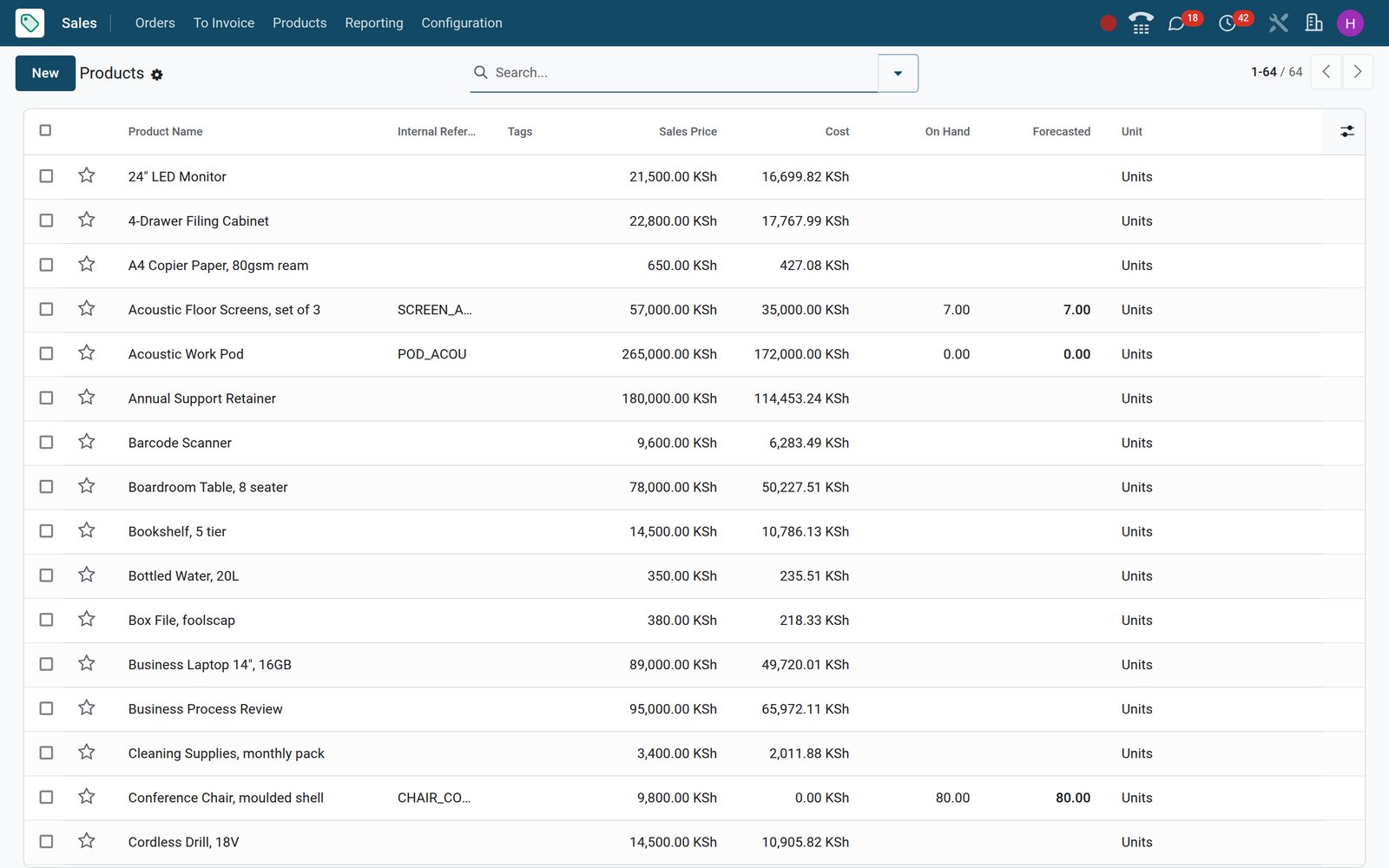
Confirmed orders show what is delivered and what is still to bill
Once a quotation is confirmed it becomes a sales order that tracks its own deliveries and invoices; two standing lists tell finance what to do next.
- Sales
Sales Orders with invoice status on every row
The Orders list carries every confirmed order with its customer, salesperson, total and Invoice Status, so a manager sees Fully Invoiced against To Invoice at a glance.
Explore Sales →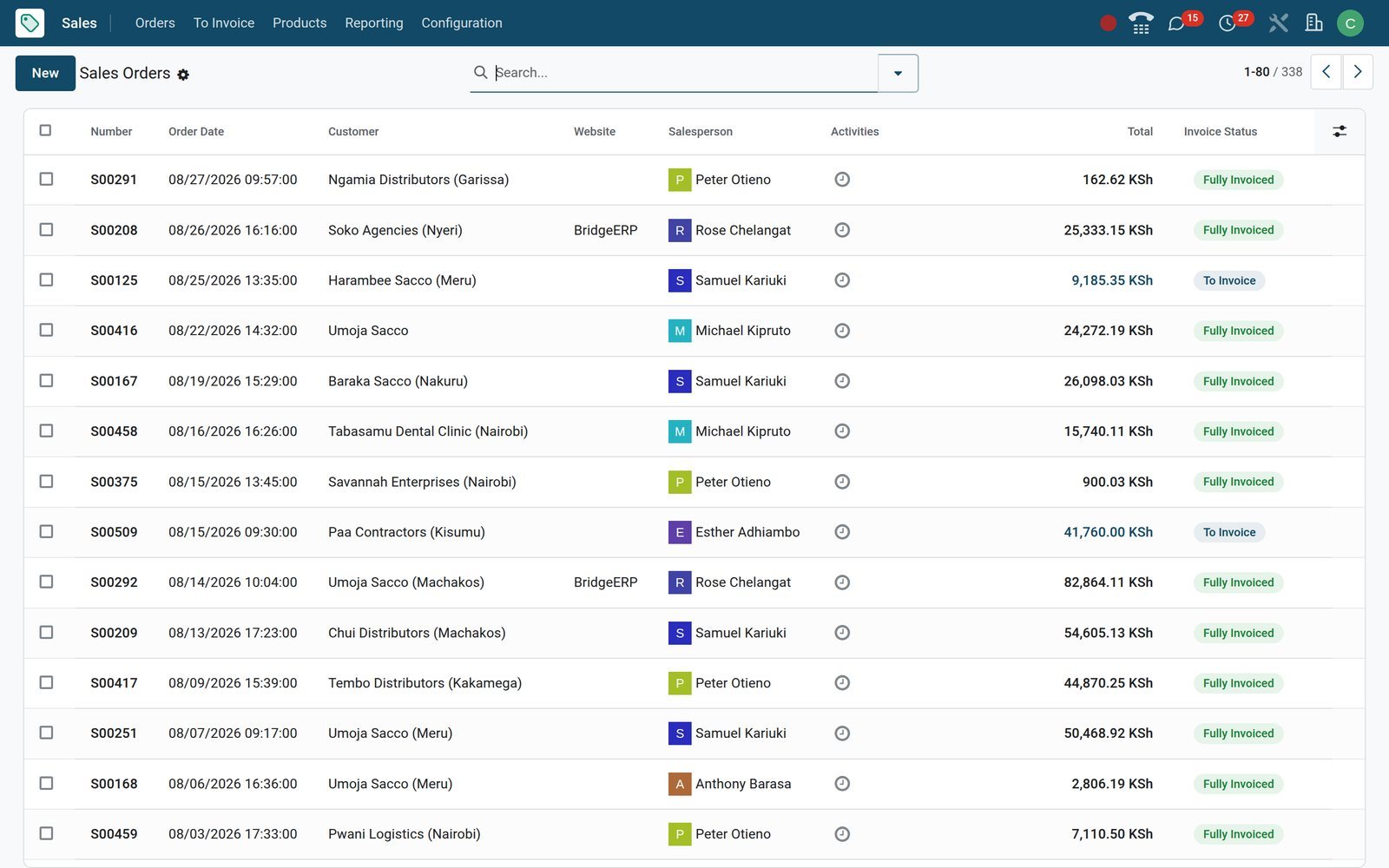
- Sales
Orders to Invoice, ready for Create Invoices
Orders to Invoice lists confirmed orders with an unbilled balance; select them, click Create Invoices and choose regular invoice, down payment percentage or fixed amount.
Explore Sales →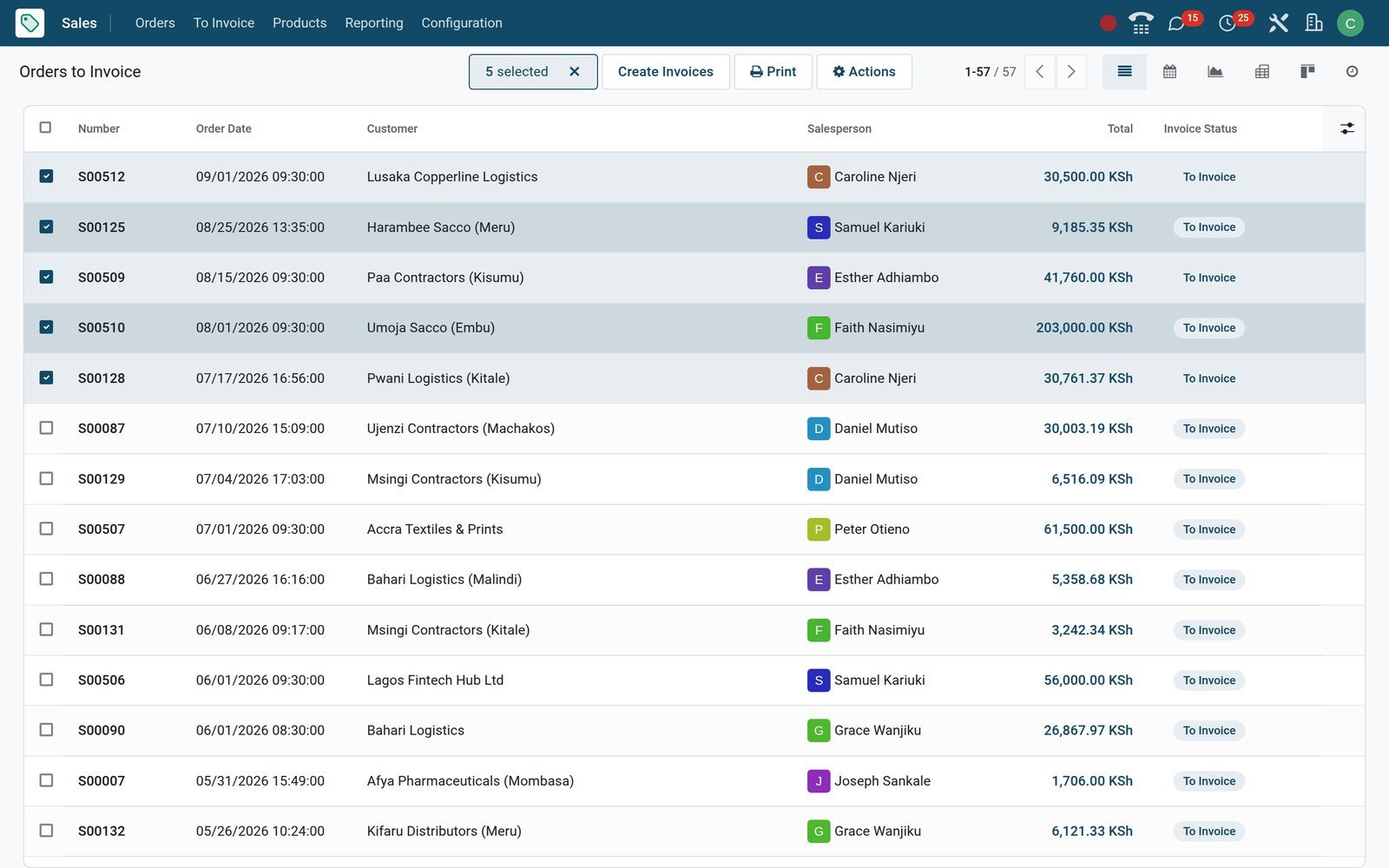
Know which month, team and salesperson carried the quarter
Every report under Sales > Reporting reads the same order lines, so the figures on a manager's chart are the figures on the accountant's invoices.
- Sales
Sales Analysis by order month
Sales Analysis charts untaxed sales by order month for the last 365 days, filtered to confirmed orders; switch to pivot to cross sales team against month.
Explore Sales →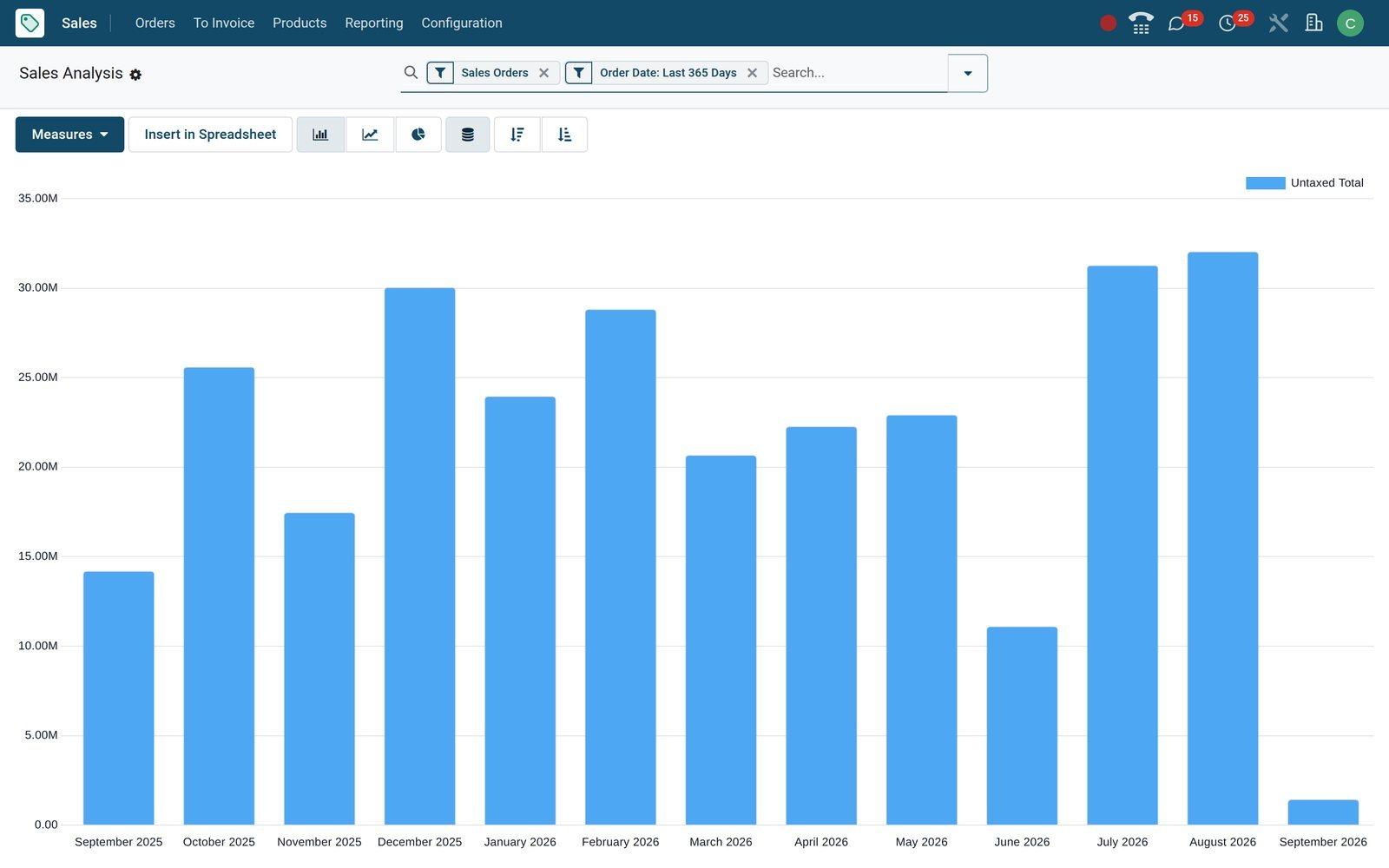
- Sales
Sales by salesperson
The Salespersons report groups the same figures by seller, Grace Wanjiku, Samuel Kariuki and colleagues, so targets are checked against confirmed orders rather than promises.
Explore Sales →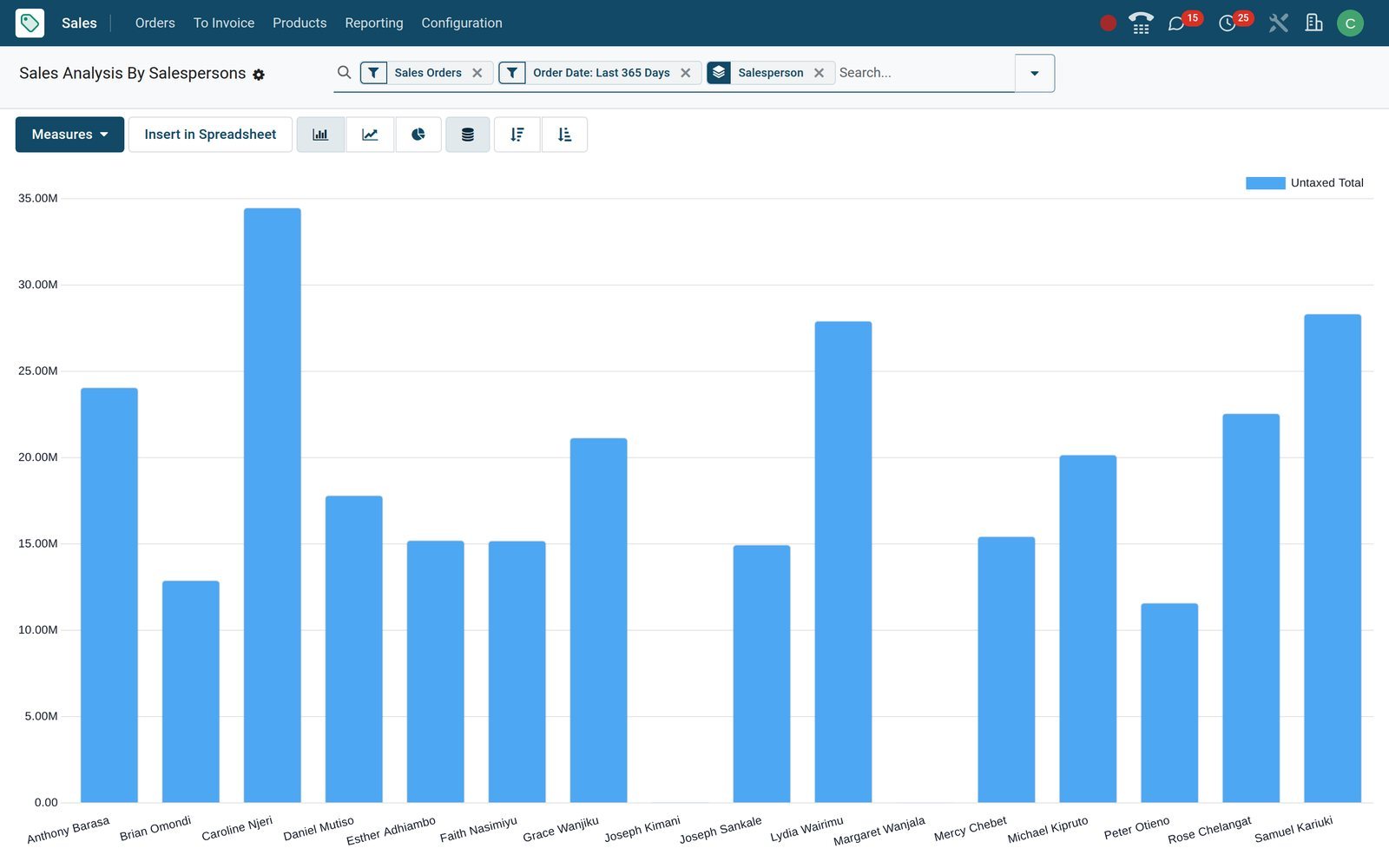
Quote from the customer's premises
BridgeERP's web client reflows on a phone; the Sales app on a handset is the same database with the same quotations, not a cut-down export.
 Sales
SalesQuotations on a phone
The quotation kanban on a phone shows customer, amount and status for each card; open one to edit lines and Send by Email before leaving the meeting.
Explore Sales →Who uses it
Who uses it, and what each person sees
One order, six views of it; access groups decide who may quote, confirm, lock and invoice.
Owner or managing director
Opens the Sales dashboard, Sales Analysis by team, the invoicing target on each sales team, and Orders to Invoice when cash is the question.
Sales manager
Runs Sales Teams with members and invoicing targets, reviews Sales Analysis per team, and switches on Lock Confirmed Sales so accepted lines stay as accepted.
Salesperson
Works the My Quotations filter, sends quotes from templates, schedules calls from the chatter, and sees on the order when the customer has signed or paid.
Accountant
Raises invoices from Orders to Invoice, with down payments and a pro-forma option; each invoice inherits taxes, fiscal position and payment terms from the order.
Storekeeper
Receives delivery orders the moment an order is confirmed, with the shipping policy deciding whether to ship as soon as possible or when all products are ready.
Customer
Opens the emailed link to read the quotation, add optional products, sign, pay and download the PDF, then follows deliveries and invoices in the customer portal.
Works with
Apps that pick up where the order leaves off
All of these are installed on the demo and share the same products, customers and orders.
 CRMAn opportunity becomes a quotation with one button, keeping its campaign, medium and source.
 InvoicingInvoices raised from the confirmed order carry its taxes, terms and fiscal position.
 AccountingReceivables, payment follow-ups and e-invoicing submission, such as KRA eTIMS, follow the sales invoice into the ledger.
 InventoryConfirmation creates delivery orders in the warehouse; delivery status and delivered quantities flow back onto the order.
 PurchaseProducts on a make-to-order route raise a purchase order to the vendor when the sale is confirmed.
 SignContracts and other PDFs go out for electronic signature alongside the quotation.
 SubscriptionsA recurring plan on the quotation turns it into a subscription that invoices itself each period.
 eCommerceWeb orders land in the same Orders list, each carrying the website it came from.
 WebsiteThe online shop and its product pages are built and styled in the Website builder.
 ManufacturingMade-to-order products with a bill of materials create manufacturing orders the moment the sale is confirmed.
 Point of SaleA quotation can be settled at the till; the shop shares products and pricelists.
 StudioAdd your own fields, list columns and automated actions to the quotation form without writing code.
In your country
Built for how firms sell, in any country
Taxes, currencies, payment rails and delivery follow each company's country; the demo shows them on its Kenyan and Ethiopian companies.
Country VAT on every line
The demo's sales taxes are 16%, 8%, 0%, 0% Exempt, 0% Export and a 2% withholding line; a fiscal position swaps them per customer automatically.
E-invoicing in the chain
E-invoicing modules range from Mexico to Kenya; on the demo, Kenya's eTIMS (OSCU) module sends invoices raised from an order to KRA through the company's control unit.
Any currency on the quotation
KES, ETB and USD are active; the Automatic Currency Rates service can refresh them daily, weekly or monthly, and a pricelist in the customer's currency prices the quotation.
Online payment, mobile money included
Payment Providers lists Flutterwave, Stripe, PayPal and Adyen ready to install; Payment Methods already hold M-Pesa and Mobile Money for providers that support them.
Delivery methods and Incoterms
Fixed-price and rule-based delivery methods add the shipping charge to the quotation; eleven Incoterms and an Incoterm location are set on the order for cross-border sales.
Several companies, one database
Five companies on the demo, trading in KES and ETB, with pricelists and quotation templates kept per company; a user switches company from the top bar.
Reports and control
Reports and control
Everything under Sales > Reporting and the control settings a manager will look for, as found on the demo.
Sales Analysis
Measures include untaxed total, quantities ordered, delivered, to invoice and invoiced, discount amount, weight and volume; group by any date, team, product or customer field.
Salespersons
The Salespersons report groups order lines by seller for the chosen period, so each person's confirmed sales can be set against the team's invoicing target.
Products
The Products report ranks what sells by quantity and untaxed amount, by product category, product or variant.
Customers
The Customers report shows revenue per customer and commercial partner, with country and industry as extra groupings.
Sales and Product dashboards
The Dashboards app carries a Sales dashboard and a Product dashboard built as spreadsheets, their pivots and charts refreshing from live orders.
PDF Quote and Pro-Forma Invoice
Print or email the PDF Quote / Order, or a Pro-Forma Invoice once the setting is on; product documents such as brochures can be placed inside the PDF quote.
Orders to Invoice and Orders to Upsell
Two standing queues: confirmed orders with an unbilled balance, and orders where delivered quantity has passed what was ordered and should be re-quoted.
Lock and warnings
Lock Confirmed Sales stops edits after confirmation; Sale Order Warnings raise a note or a block when a flagged customer or product is picked.
What sets it apart
What sets the quoting apart
Quoting features already installed on the demo's Sales app, each tied to a setting or a field you can open.
Optional products on the quote
Suggest extras the customer adds from the portal; the order total updates and the accepted option becomes an ordinary order line.
PDF quote builder
Headers, footers and product documents (About Us, Project Description, Terms and Conditions) assemble into one branded PDF straight from the quotation.
Sales grid for variants
Sales Grid Entry adds a size-by-colour matrix so a distributor orders every variant of a product from one entry screen.
Quote calculator spreadsheet
A Quote calculator spreadsheet set on a quotation template opens from the quotation itself, pricing complex work with your own formulas and cells.
Specific email per product
A product can carry its own email template, sent when the invoice containing it is confirmed, for licence keys, vouchers or onboarding steps.
Down payments and prepayment
Set a prepayment percentage on the quotation, invoice the down payment first, then invoice the balance against delivered quantities.
Getting started
Getting started
What a new team sets up in the first week, all of it under Sales > Configuration and the Import tool.
Import customers, products and orders
Import from Excel or CSV with column mapping and a Test button before anything is written; customers, products and open orders all accept imports.
Switch on what you sell with
Settings toggles: default quotation validity, online signature and payment, discounts per line, pricelists, variants, units of measure, quotation templates, pro-forma invoices.
Set the invoicing policy
Choose ordered or delivered quantities per product, the default sale tax, and the automatic invoice option that bills as soon as the online payment lands.
Templates and email wording
Quotation templates plus the editable Sales email templates: Send Quotation, Order Confirmation, Payment Done and Order Cancellation, each with your own wording.
Teams, targets and activities
Create Sales Teams with members and an invoicing target; Activity Plans and Tags keep follow-up consistent from one salesperson to the next.
Customer portal from day one
The emailed quotation carries a secure portal link, so the customer reads, signs and pays without an account; portal users also see orders and invoices under My Account.
Questions
Questions about Sales
Not covered here? Contact us.
Can a customer accept a quotation online?
Yes. With Online Signature and Online Payment switched on in Sales settings (or per quotation), the emailed link opens a portal page where the customer signs, pays the prepayment and confirms; the order moves to Sales Order on its own. Quotations carry an expiry date, and the default validity in days is set once in settings.
Do I invoice on ordered or delivered quantities?
Each product has an invoicing policy: ordered quantities or delivered quantities. Orders to Invoice then shows what can be billed, and Create Invoices offers a regular invoice, a down payment percentage or a fixed amount. A Pro-Forma Invoice can be printed before anything is booked.
Can I quote in one currency for one customer and another currency for the next?
Yes. Pricelists are tied to a currency and can be assigned to customers or country groups. The demo runs KES, ETB and USD, the Automatic Currency Rates service can refresh rates on a daily, weekly or monthly schedule, and the quotation, its PDF and the portal show the pricelist currency.
How do discounts and promotions work?
Discounts per line are a settings switch. Beyond that, Discount & Loyalty programmes handle promo codes, coupons, buy X get Y, loyalty cards and next-order coupons, and Gift cards & eWallet cover prepaid balances; a code applied on the quotation adds the reward line.
Can a CRM opportunity become a quotation?
Yes. CRM and Sales are linked on the demo: the New Quotation button on an opportunity creates the quotation with the customer, salesperson and team filled in, and the quotation keeps the opportunity, campaign, medium and source for reporting.
What happens to stock when I confirm an order?
Confirming creates delivery orders in Inventory according to the shipping policy (as soon as possible, or when all products are ready). The order shows a Delivery Status and a Transfers smart button, and delivered quantities flow back to drive invoicing.
Can I import my existing customers, products and open quotations?
Yes. The Import tool accepts Excel or CSV files, maps each column to a field and offers a Test run before importing, so a team can load customers, products and its open orders rather than retyping them.
How do I stop confirmed orders being changed?
Switch on Lock Confirmed Sales so orders lock on confirmation, and use Sale Order Warnings to show a note or block a sale when a flagged customer or product is selected. Every change is recorded in the order's chatter.
Tax compliance
Invoices your tax authority accepts
In Kenya, Uganda, Rwanda, Burundi and Zambia, each invoice, receipt and stock movement goes to the tax authority's own system when you post it. Ghana and Pakistan come next, and we connect 73 more countries on request.
- KenyaReady
eTIMS KRA
Invoices, credit notes, POS receipts and stock movements
- UgandaReady
EFRIS URA
Invoices, POS receipts and stock
- RwandaReady
EBM RRA
Invoices, POS receipts, stock and imports
- BurundiReady
EBMS OBR
Invoices, POS receipts, stock and manufacturing
- ZambiaReady
Smart Invoice ZRA
Invoices, POS receipts, stock and imports
Where Sales fits
Nothing here is a silo: the apps around it read and write the same records, so the hand-offs happen on their own.
What feeds it, and what it feeds — these are real app connections, not a diagram.
- Customers & sales
- Operations
- Finance
Sales
Quotations, sales orders, price lists and customer portal.
Sales →
Put Sales to work
Add it to your plan and pay only for what you use, or see it running on your own demo first.