

 CRM: Know which deals close this month, and what to do about each one today
BridgeERP CRM puts every enquiry from your website, live chat, email and events on one drag-and-drop pipeline, with scheduled activities, probability scoring, monthly forecasts and quotations one click from the deal.
Free instant access. No credit card required.
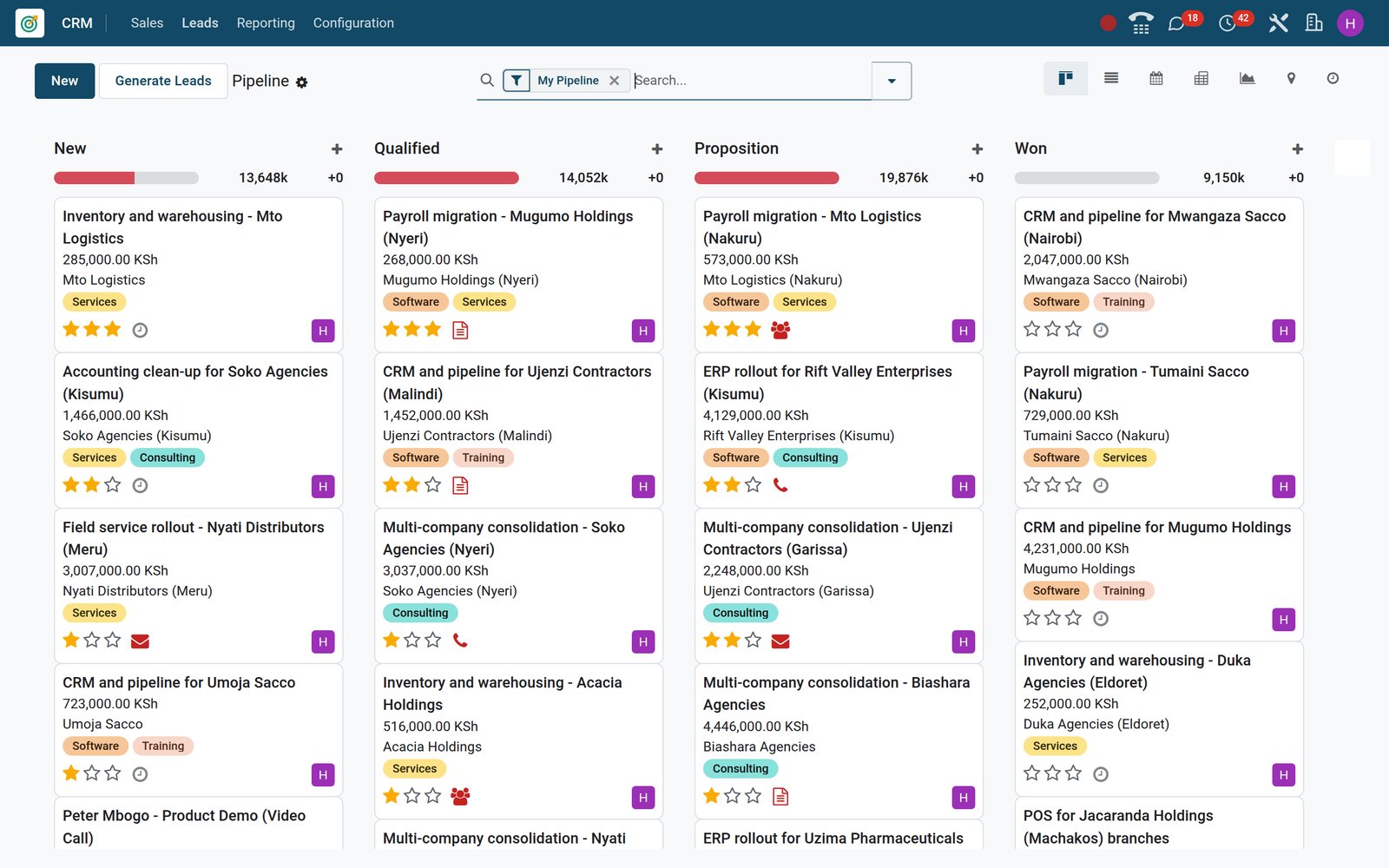
Every team's deals on one board, totalled by stage
The pipeline is a kanban of opportunity cards grouped by stage. Each column header totals its expected revenue and carries a bar of activities planned, due today or overdue.
 CRM
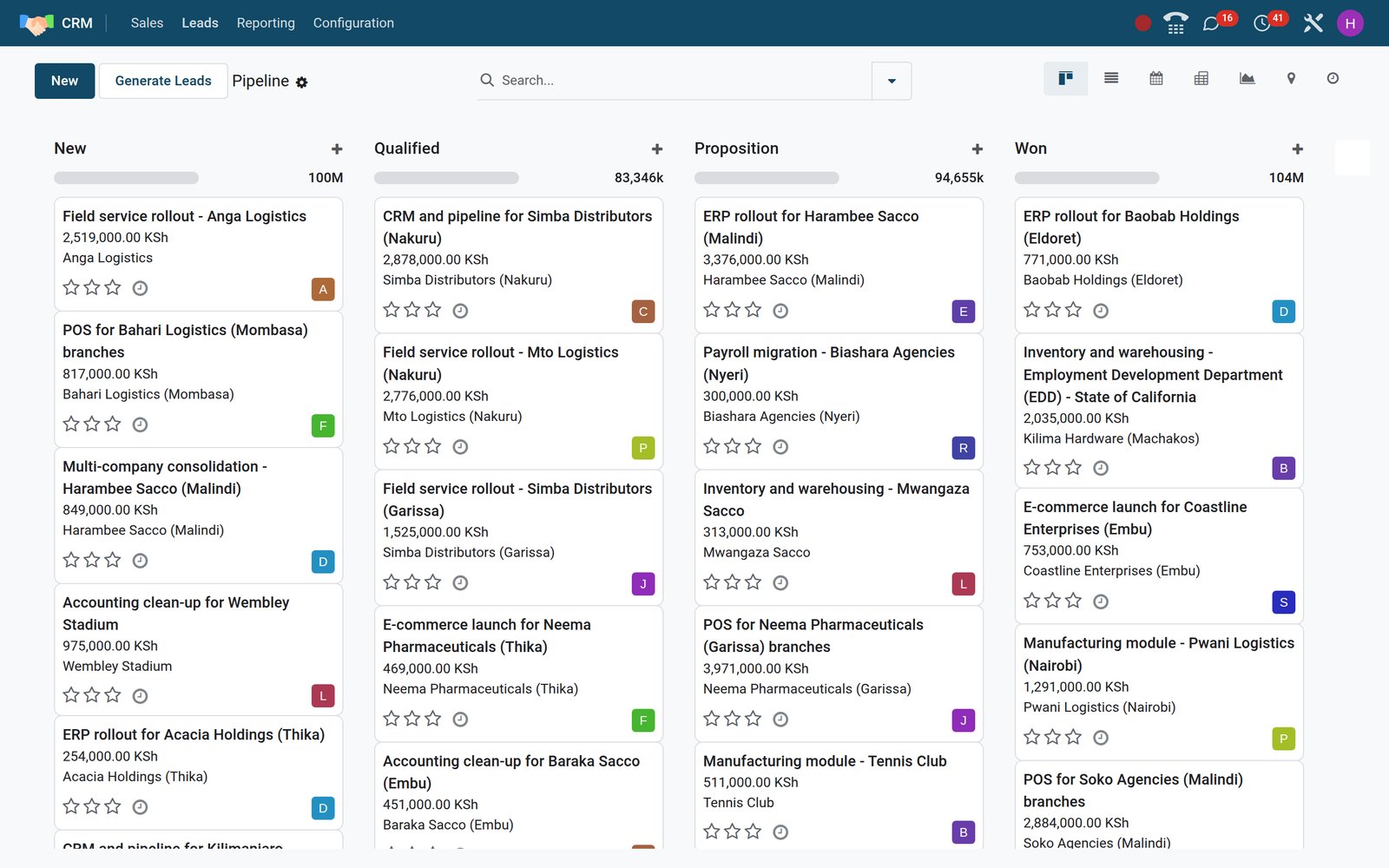
CRMDrag a card to move a deal along
The whole sales floor on one board: each card carries its owner, each column totals its expected revenue, and dragging an opportunity from Qualified to Proposition moves both totals at once.
Explore CRM →By the numbers
What ships in the CRM app
Counted on the BridgeERP demo, not estimated.
- 5
- lead sources installed besides the email alias: website form, live chat, appointment bookings, event registrations and lead mining
- 11
- activity types ready on a deal, from Call and Meeting to Make Quote, Call for Demo and Request Signature
- 7
- fields predictive scoring can learn from, picked in Settings: country, state, phone quality, email quality, source, language and tags
- 4
- reports under CRM > Reporting, Forecast, Pipeline, Leads and Activities, all computed from the live pipeline
Inside the app
What is inside
The menus of the CRM app on the demo, and what each one does for a sales team.
Leads inbox
The Leads menu holds enquiries before they earn a pipeline slot: qualify, tag, merge duplicates, assign a team or convert one to an opportunity.
My Pipeline
Opportunities by stage with expected revenue, probability, expected closing, tags and priority stars; filter by salesperson, team, country, city, source or overdue activities.
My Activities
Every call, email, meeting, quote and demo scheduled on your deals in one list, coloured green, yellow or red by its due date.
Sales teams
Sales, Pre-Sales and other teams each carry a leader, members, an email alias such as info@, a monthly invoicing target and an assignment domain.
Customers
Each lead links to a contact record with addresses, numbers, emails, meetings and the full message history shared with Sales and Accounting.
My Quotations
Quotations raised from opportunities are listed inside CRM; the New Quotation button on a deal opens a quotation with the customer already filled in.
Lead generation and enrichment
Lead Mining Requests target companies by country, industry and size; Lead Enrichment completes company details from the email domain. Both are credit-based services.
Configuration
Tags, lost reasons, activity types, activity plans and sales teams sit under Configuration as plain lists; stages are added or renamed from the pipeline itself.
Step by step
From first enquiry to paid invoice without re-typing
Six steps, each in the app that does the job, on the same customer record.
- Step 1
Capture
A website contact form, a live chat run by the Lead Generation Bot, an email to the info@ alias or an event registration creates a lead with its source.
Website Builder - Step 2
Qualify
The lead arrives with a probability learned from your own won and lost deals and from its phone and email quality, and is assigned to a sales team.
CRM - Step 3
Work the deal
Schedule the next call or meeting on the opportunity, log emails in the chatter, send an SMS, and watch the activity colour move from green to red.
CRM - Step 4
Quote
Press New Quotation on the opportunity: the customer is filled in, products come from the catalogue, and the deal shows the quotation count and amount.
Sales - Step 5
Win or learn
Mark the deal Won once the order is confirmed, or Lost with a reason such as Too expensive; lost deals stay searchable under the Lost filter.
CRM - Step 6
Invoice
The confirmed order becomes a customer invoice in Accounting; with an e-invoicing module, such as the eTIMS connector on the demo, it reaches the tax authority.
Accounting
One record holds the whole deal, on any screen
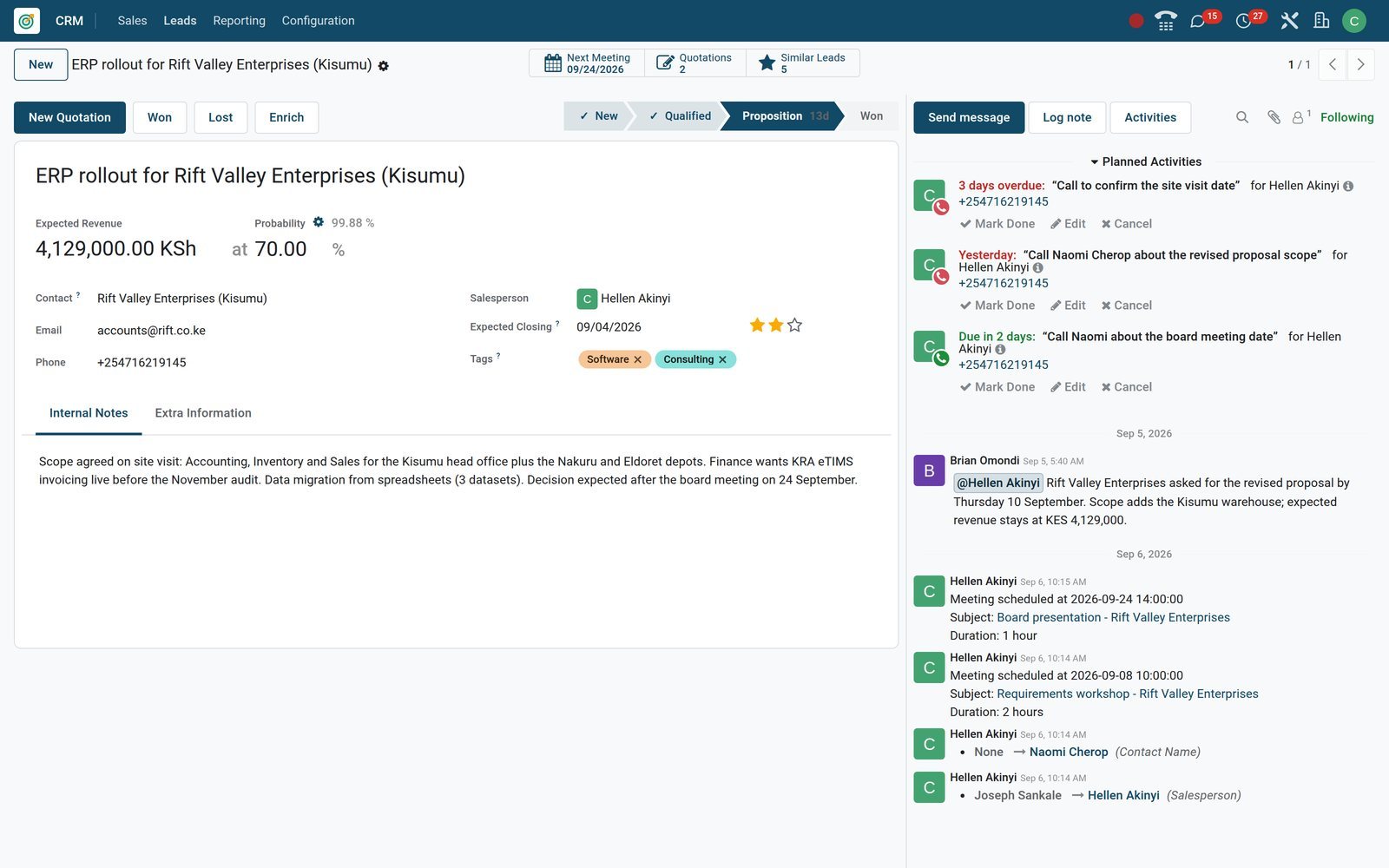
The opportunity form keeps amount, probability, contact, expected closing, tags, notes, quotations, meetings and every message in one place; the Activity view turns it into a daily list, and the phone shows the same pipeline.
 CRM
CRMThe deal record
KES 4,129,000 at 70% in Proposition for Rift Valley Enterprises, with Software and Consulting tags, two quotations, scope notes and three planned calls beside the form.
Explore CRM →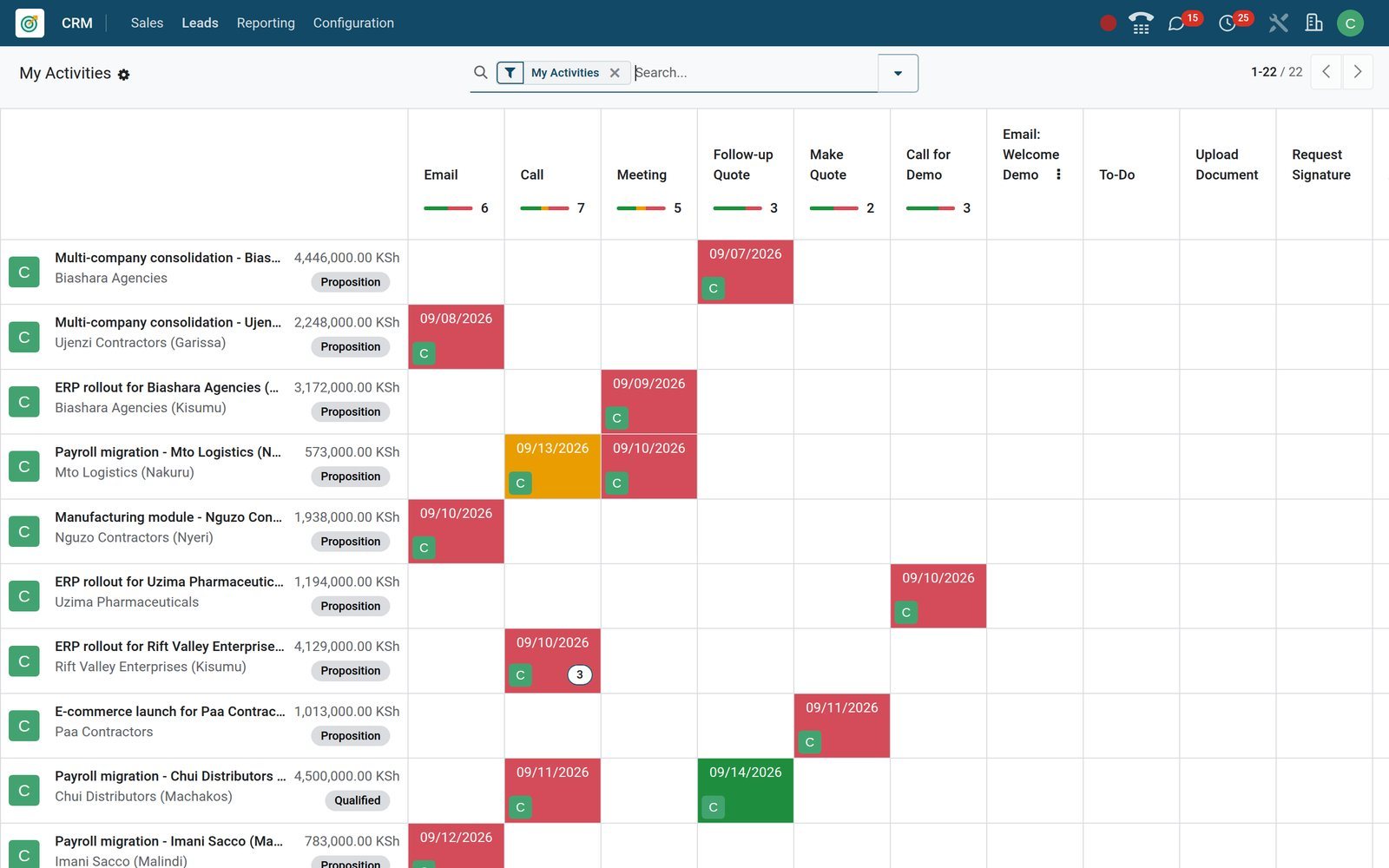 CRM
CRMToday's calls, tomorrow's demos
The Activity view lists each deal against Call, Email, Meeting, Make Quote and Call for Demo columns; red cells are overdue, yellow are due today, green are planned.
Explore CRM →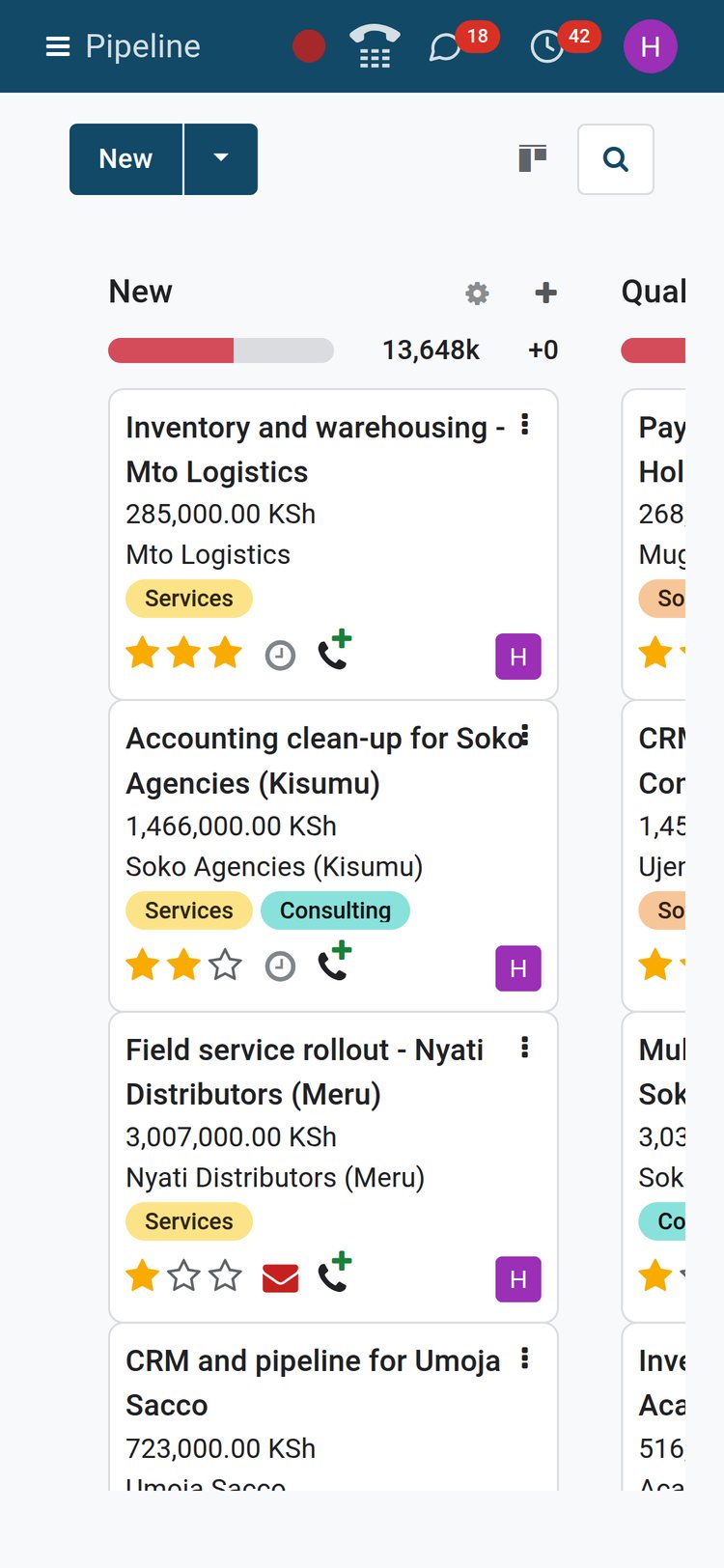 CRM
CRMThe pipeline in your pocket
On a phone the pipeline scrolls stage by stage; tap a card to open the deal, call the contact from its phone field or reschedule the next activity.
Explore CRM →See the quarter before it ends
Forecast groups open opportunities by expected closing month; Pipeline Analysis draws the same deals as revenue weighted by probability, by month and by stage.
- CRM
Forecast by closing month
Columns for September, October, November and beyond hold the deals expected to close then; drag a card to another month when the customer moves the decision.
Explore CRM →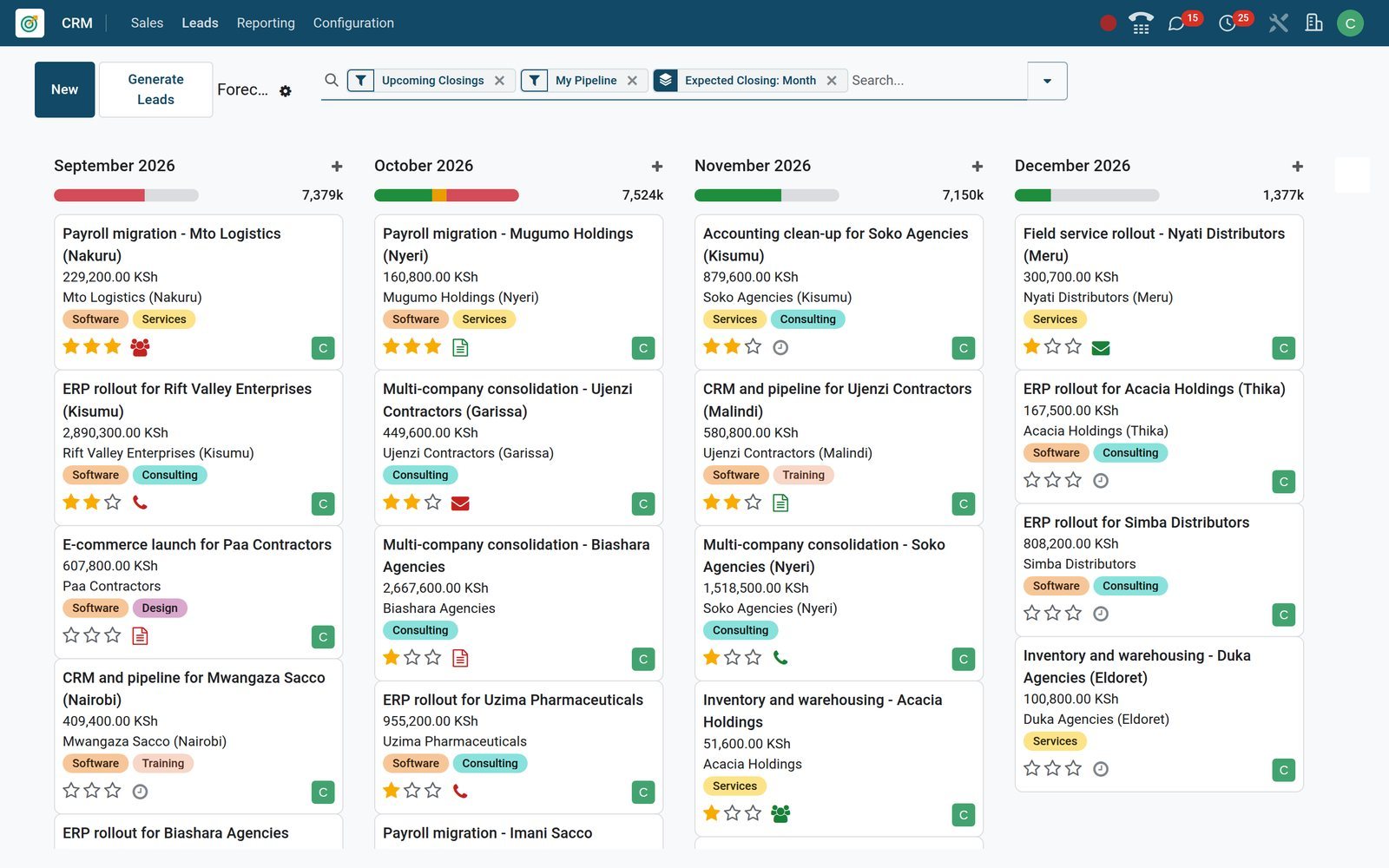
- CRM
Pipeline analysis
Prorated revenue by expected closing month, stacked by stage, as a bar chart; switch to pivot or cohort and group by salesperson, team, source, country or lost reason.
Explore CRM →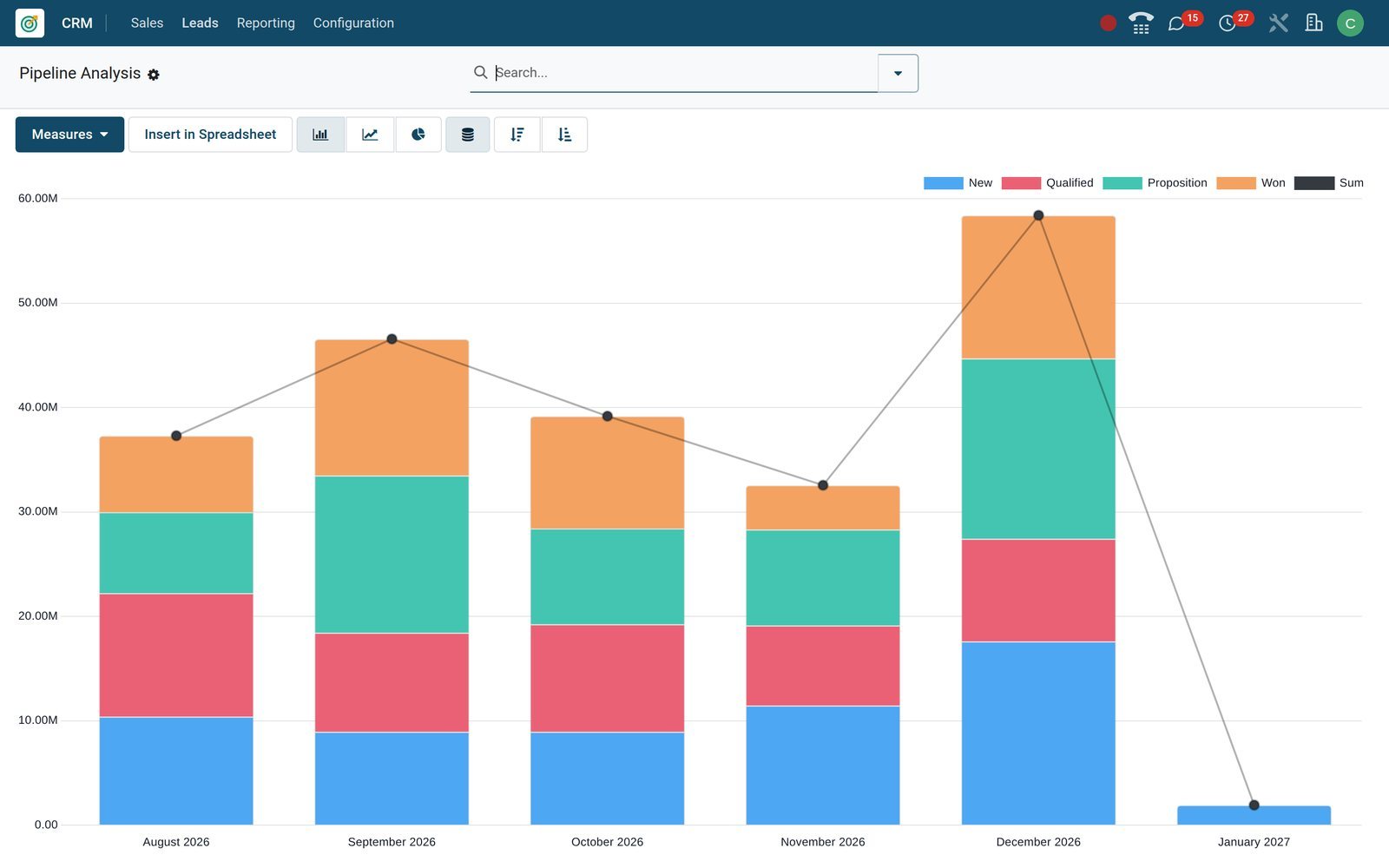
Leads arrive on their own, with the source attached
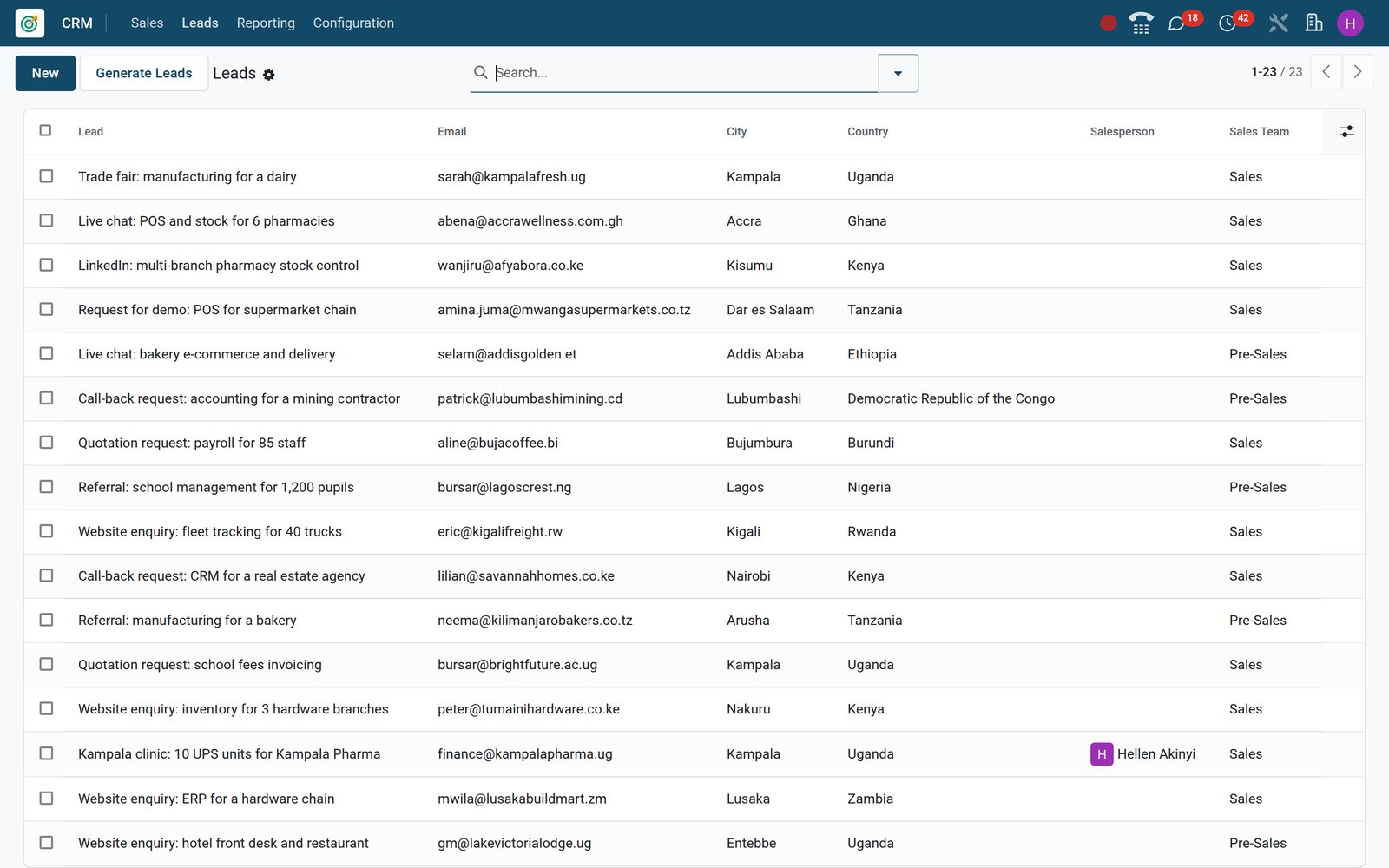
Website contact forms, live chat and its chatbot, email aliases, event registrations and appointment types set to create opportunities all feed the Leads menu; each lead carries its source, medium and campaign.
 CRM
CRMThe leads inbox
Enquiries from Kigali, Accra, Lagos, Bujumbura, Lubumbashi, Kampala, Dar es Salaam and Nakuru with email, city, country and team; assign, merge or convert each one from the list.
Explore CRM →Managers see the work done, not only the promises
Activities Analysis counts the calls, emails, meetings, demos and quotes completed each month per salesperson; Pipeline Analysis turns the open deals into a pivot by salesperson and stage.
- CRM
Activities analysis
Completed activities per month, stacked by type: Call, Email, Meeting, Call for Demo, Make Quote and Follow-up Quote; group by salesperson or team to coach the right person.
Explore CRM →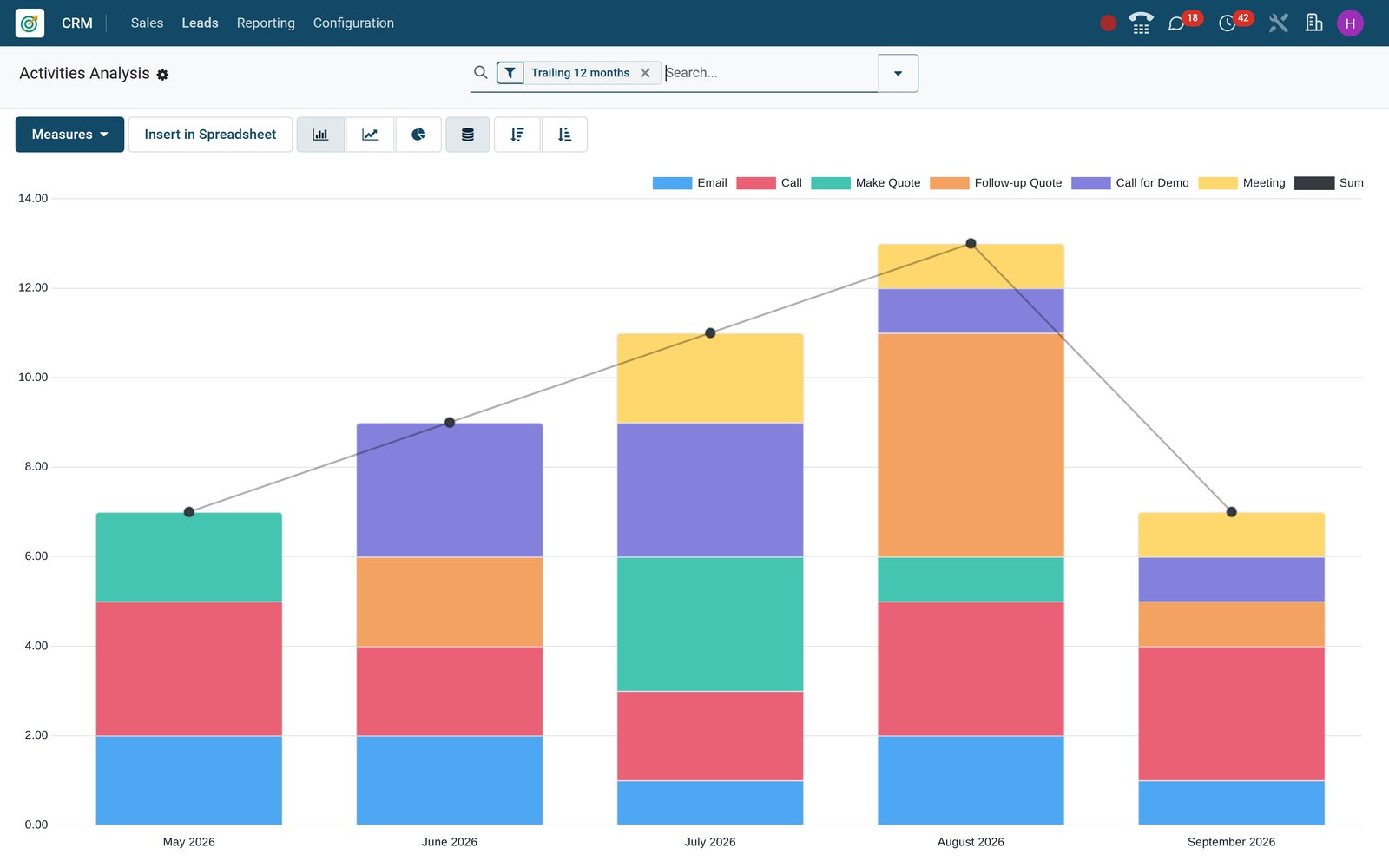
- CRM
Pipeline by salesperson
Pipeline Analysis as a pivot: one row per salesperson, one column per stage, expected revenue in every cell, ready to expand by team or closing month.
Explore CRM →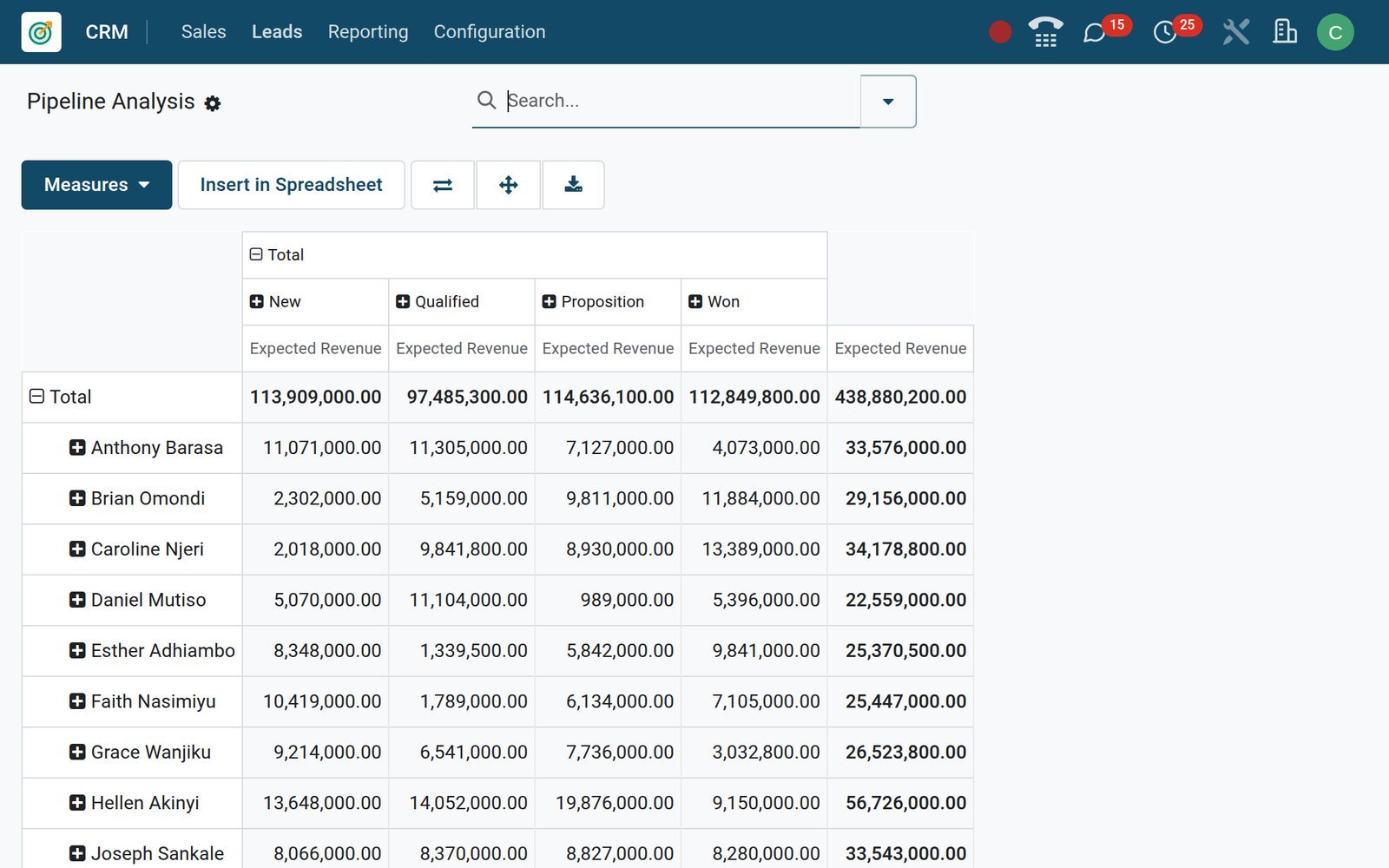
Who uses it
Who it is for
The same pipeline, a different first screen for each role.
Owner or managing director
Opens Reporting > Forecast for the months ahead and the Pipeline dashboard for the figures, without asking anyone for a spreadsheet.
Sales manager
Watches every team's pipeline, switches on rule-based assignment with a domain per team and a capacity per member, and reads Activities Analysis and lost reasons.
Salesperson
Starts the day in My Activities, works My Pipeline, raises quotations from the deal and answers customer emails from the chatter.
Marketing
Reads Leads Analysis by source, medium and campaign to see which channel fills the pipeline: search engine, LinkedIn, Facebook, newsletter or live chat.
Front desk and live chat agent
Answers website visitors in Live Chat; the Welcome Bot or Lead Generation Bot script turns the conversation into a lead with the transcript attached.
Accountant
Sees the won deal arrive as a confirmed sales order and invoices it from the same customer record; e-invoicing, KRA eTIMS on the demo, reports the invoice.
Works with
Apps it runs with
CRM shares customers, products and messages with the rest of BridgeERP; these are the apps that plug into the pipeline directly on the demo.
 SalesQuotations and orders start from the opportunity and report back to it.
 AccountingConfirmed orders from won deals are invoiced, with e-invoicing where the country module is installed.
 WebsiteThe contact form feeds leads with their source and medium.
 Live ChatChats and chatbot scripts create leads with the transcript attached.
 AppointmentsAn appointment type can create an opportunity for each booking.
 EventsRegistration rules turn attendees into leads for the team.
 SubscriptionsA quotation raised from a deal can carry a recurring plan and become a subscription.
 SignRequest Signature is an activity type on any deal.
 DiscussMention a colleague on a deal; the thread stays on the record.
 eCommerceWeb shop customers land in the same contact records salespeople work from.
 StudioAdd fields, tabs and automations to the opportunity form.
 Contacts, Calendar and DashboardsShared contacts, meetings on the deal and the CRM dashboards.
In your country
Built for how business is done in your market
Phone formats, company currencies, SMS, tax compliance and branch structures across countries, handled in the product rather than in a workaround.
Phone numbers in the right format
Numbers are checked and formatted for the contact's country as you enter them, and the Phone Quality flag feeds each deal's computed probability.
Each company in its own currency
Expected revenue is held in the company's currency, KES for the Kenyan companies and ETB for Baobab Traders, and a USD pricelist exists for quoting in dollars.
SMS from the lead
Send an SMS to the contact's mobile from the lead or opportunity, paid for with SMS credits; the text is logged in the chatter beside emails and notes.
E-invoicing when the deal is won
The Kenyan eTIMS connector is installed on the demo, so an order confirmed from a won deal is invoiced and sent to KRA from the same records.
Works on a phone
Pipeline, activities, contacts and chatter run in the mobile web app, so a salesperson in the field updates a deal before the next visit.
Branches as companies
Leads, opportunities and sales teams each belong to a company, so branches keep separate pipelines; the demo runs five companies under one login.
Reports and control
Reports and control
Every item below is a menu on the demo, built on the live pipeline, with filters and group-bys you can save.
Forecast
A kanban of open opportunities by expected closing month with prorated revenue per column, for your own deals or, without the filter, the whole team.
Pipeline analysis
Graph, pivot and cohort of opportunities by stage and closing month; group by salesperson, team, country, source, medium, campaign or lost reason.
Leads analysis
New leads per week or month by team, source and medium, with the Won and Lost filters to compare what converted.
Activities analysis
Completed activities per month by type, salesperson and team over the trailing twelve months, under Reporting > Activities.
Pipeline and Leads dashboards
Two spreadsheet dashboards for CRM in the Dashboards app, computed from the live pipeline and editable like any spreadsheet.
Lost reasons
Mark a deal lost with a reason, then group lost deals by reason in Pipeline Analysis; the demo ships Too expensive, missing people or skills, and not enough stock.
Predictive scoring
Probability learned from your won and lost history, always by stage plus the fields you pick in Settings: phone and email quality, source, country, state, language or tags.
Team targets
Each sales team carries a monthly invoicing target; the Teams screen shows open and overdue opportunities and unassigned leads per team.
What sets it apart
What sets it apart
Small things that remove daily friction for a sales team, switched on from Settings or Configuration.
The next step is suggested
An activity type can suggest or trigger the next one when it is marked done; the Email: Welcome Demo type carries its own email template.
Activity plans launch a whole script
One click on an activity plan schedules a sequence on a lead: a qualification call today, then an email, a demo call and a quotation on later days.
Duplicates are caught
The opportunity form flags other leads with the same email or phone, and the Merge action combines them without losing history.
Enrichment without typing
Lead Enrichment runs automatically on the demo: a lead with a company email is looked up and its company name, address, phone and size are filled in.
Rule-based assignment
Switch on Rule-Based Assignment and each team's domain and each member's monthly capacity share out new leads, on a schedule or with Assign Leads.
Recurring revenue on a deal
Switch on Recurring Revenues to add a monthly, yearly, three-year or five-year plan on an opportunity and see MRR beside the one-off amount.
Getting started
Getting started
A working pipeline in an afternoon, using what is already in the product.
Import your leads
Any list has Import: upload a spreadsheet of leads or contacts, map the columns once and reuse the mapping for the next file.
Set the stages and tags
Rename the four stages from the pipeline's column headers or add your own, then define tags and lost reasons under Configuration.
Connect your channels
Turn on the website contact form and live chat, keep the info@ alias on a sales team, and leads start arriving on their own.
Write the sales script
Create activity types such as Make Quote and Call for Demo, chain them, and build an activity plan for new enquiries.
Adapt the form with Studio
Studio adds a field, a tab or an automation to the opportunity form by drag and drop, without writing code.
Give everyone a login
Salespeople see their own documents or all documents depending on their access right, administrators manage every team, and the same screens work in a phone browser.
Questions
Questions about CRM
Not covered here? Contact us.
Can leads come in automatically from our website?
Yes. The website contact form, live chat and its chatbot scripts, an email alias such as info@ on a sales team, event registration rules and appointment types set to create opportunities all add leads to CRM with their source and medium recorded.
How is the probability on a card calculated?
Predictive lead scoring learns from your own won and lost deals, always by stage plus the fields you select in Settings (phone and email quality, source, country, state, language or tags), and computes a probability for each open lead. You can override it on the deal.
Can two teams use different stages?
Yes. Stages are shared by default, but a stage can be restricted to one sales team, so Pre-Sales and Sales can run different columns on the same pipeline.
What happens when we lose a deal?
You mark it Lost and pick a reason, for example Too expensive. The deal is archived, stays searchable with the Lost filter, appears in Pipeline Analysis grouped by reason, and can be restored if the customer comes back.
Can I send a quotation without leaving the opportunity?
Yes. The New Quotation button on the opportunity opens a quotation with the customer filled in; the quotation count and amount then show on the deal, and the quotations are listed under My Quotations in CRM.
Does it work on a phone?
Yes. The pipeline, activities, contacts, chatter and tap-to-call phone links work in the phone browser on Android and iPhone with the same login.
Can we import our existing leads from Excel?
Yes. Every list view has an Import action that accepts .xlsx or .csv files, lets you map columns to fields such as company, contact, phone, email, city, country and tags, and saves the mapping for the next import.
How do we stop two salespeople chasing the same company?
The opportunity form flags possible duplicates on the same email or phone and offers to merge them, and rule-based assignment gives each incoming lead to one team member according to the team's domain and each member's capacity.
Put CRM to work
Add it to your plan and pay only for what you use, or see it running on your own demo first.