

 Live Chat: Answer a website visitor in seconds and turn the chat into a quotation or a lead
BridgeERP Live Chat puts a chat bubble on your website and on any other site, sends each conversation to an available operator with the fewest open chats, lets a chatbot qualify visitors when nobody is free, and hands the transcript to CRM with one command.
Free instant access. No credit card required.
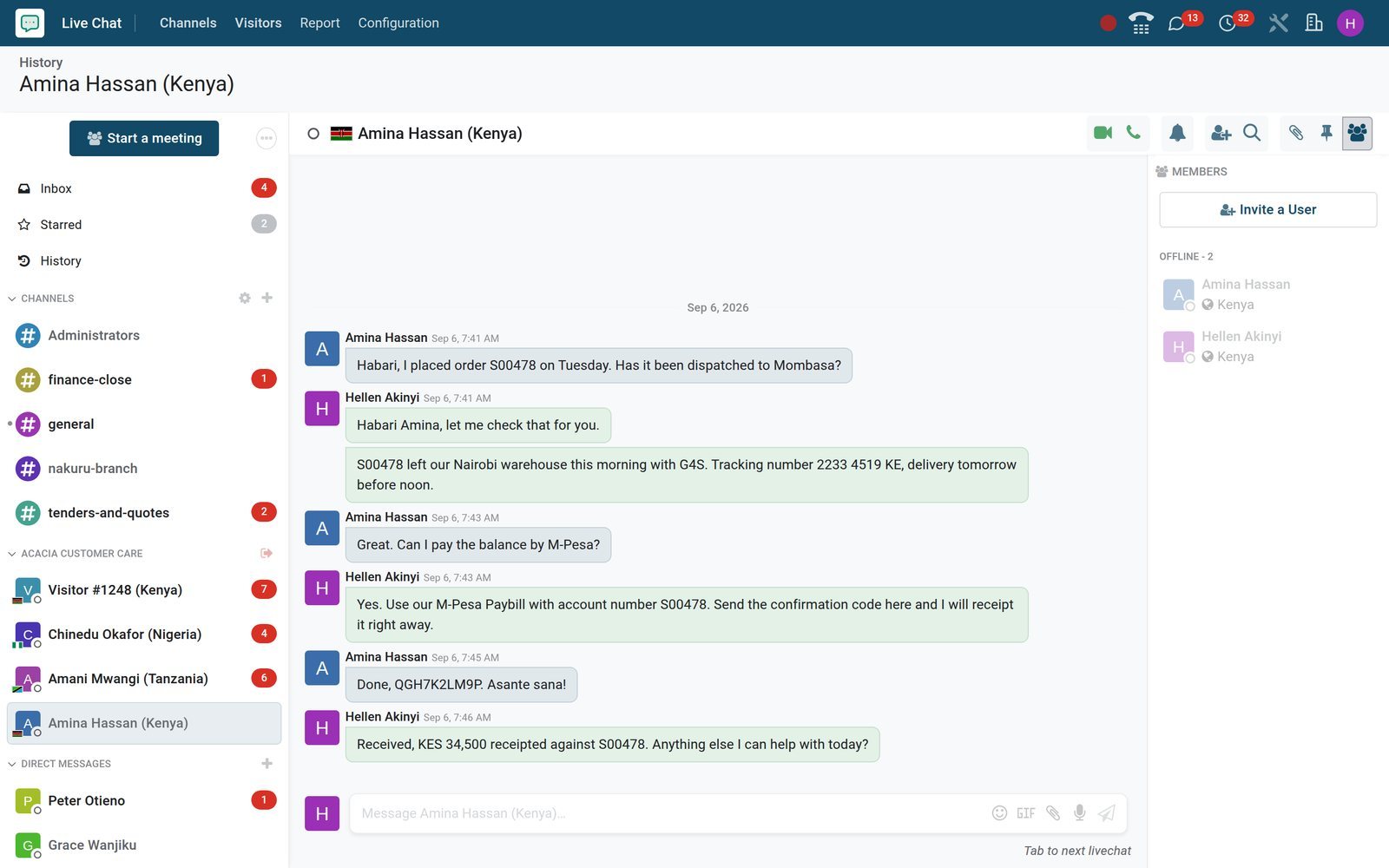
Every website conversation lands in the inbox your team already works in
Live chat sessions appear in the sidebar under their channel, next to team channels and direct messages, so operators answer visitors without a second tool, and a manager sees every session on one board.
 Live Chat
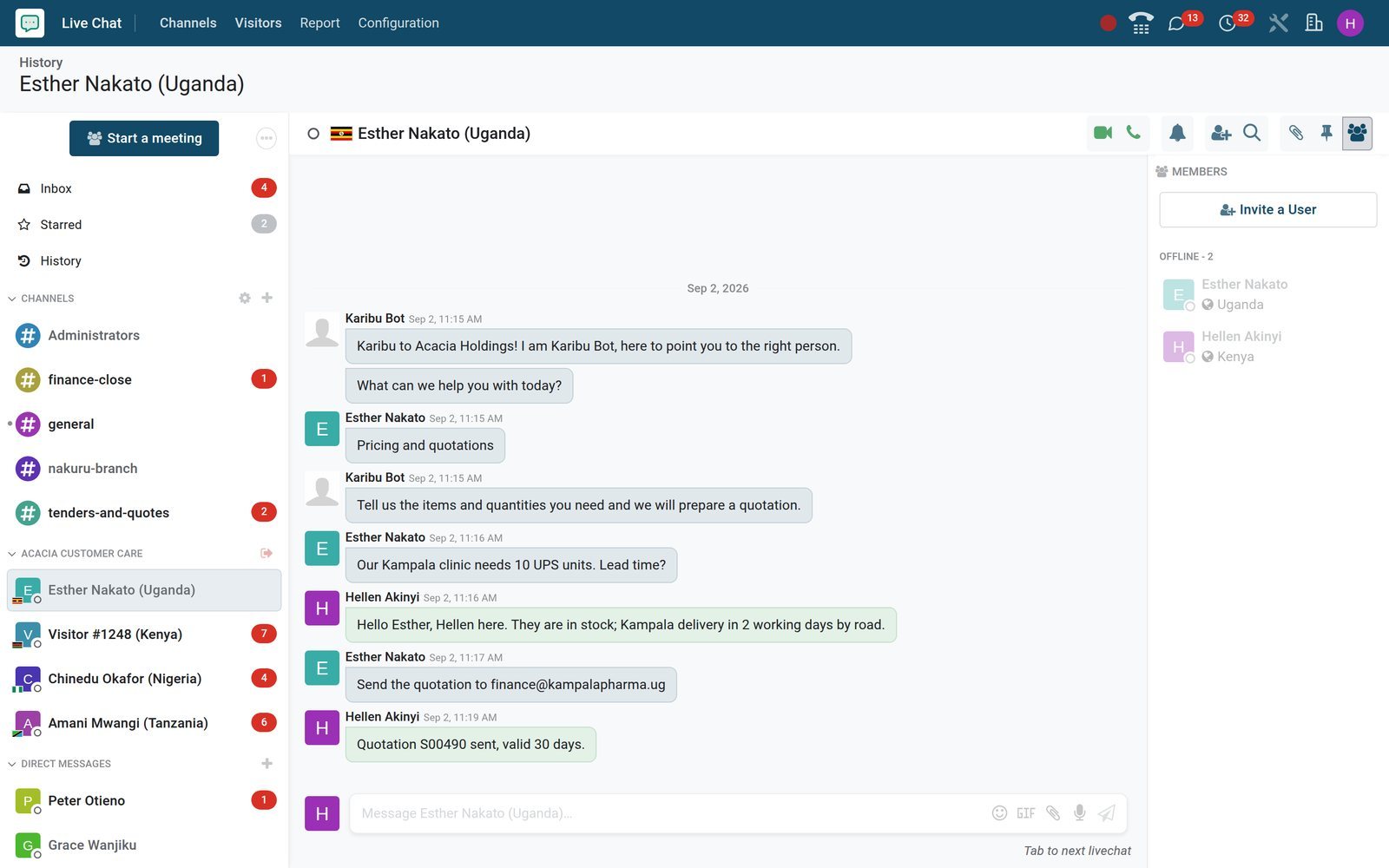
The chatbot greets, the person closes
Karibu Bot welcomes Esther Nakato of a Kampala clinic, asks what she needs and forwards her to Hellen, who sends quotation S00490 in the same thread.
Explore Live Chat →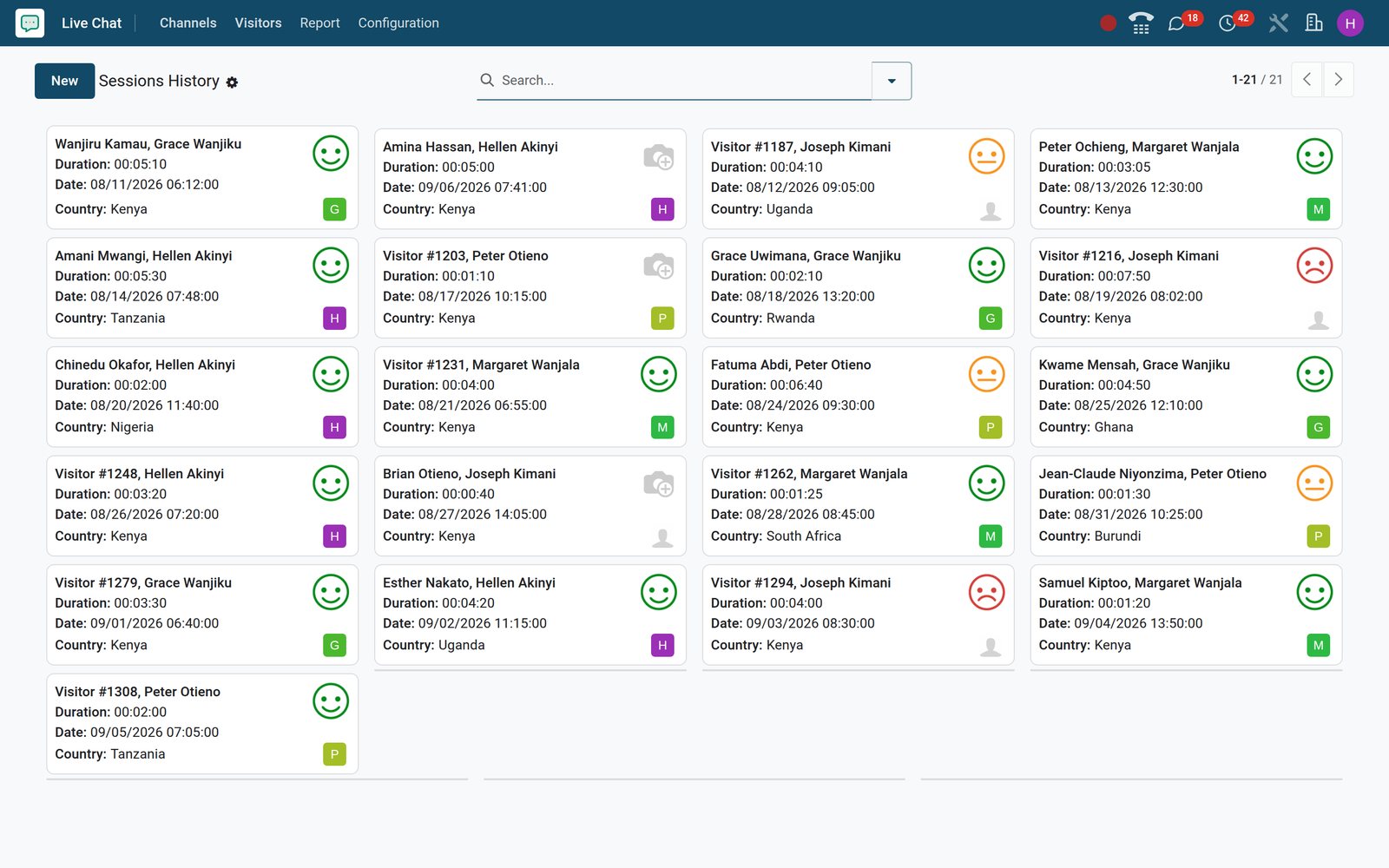 Live Chat
Every session on one board
Sessions History shows each chat as a card with participants, duration, date, country and operator avatar, plus the rating smiley; filter by Bad Ratings, Unrated or My Sessions.
Explore Live Chat →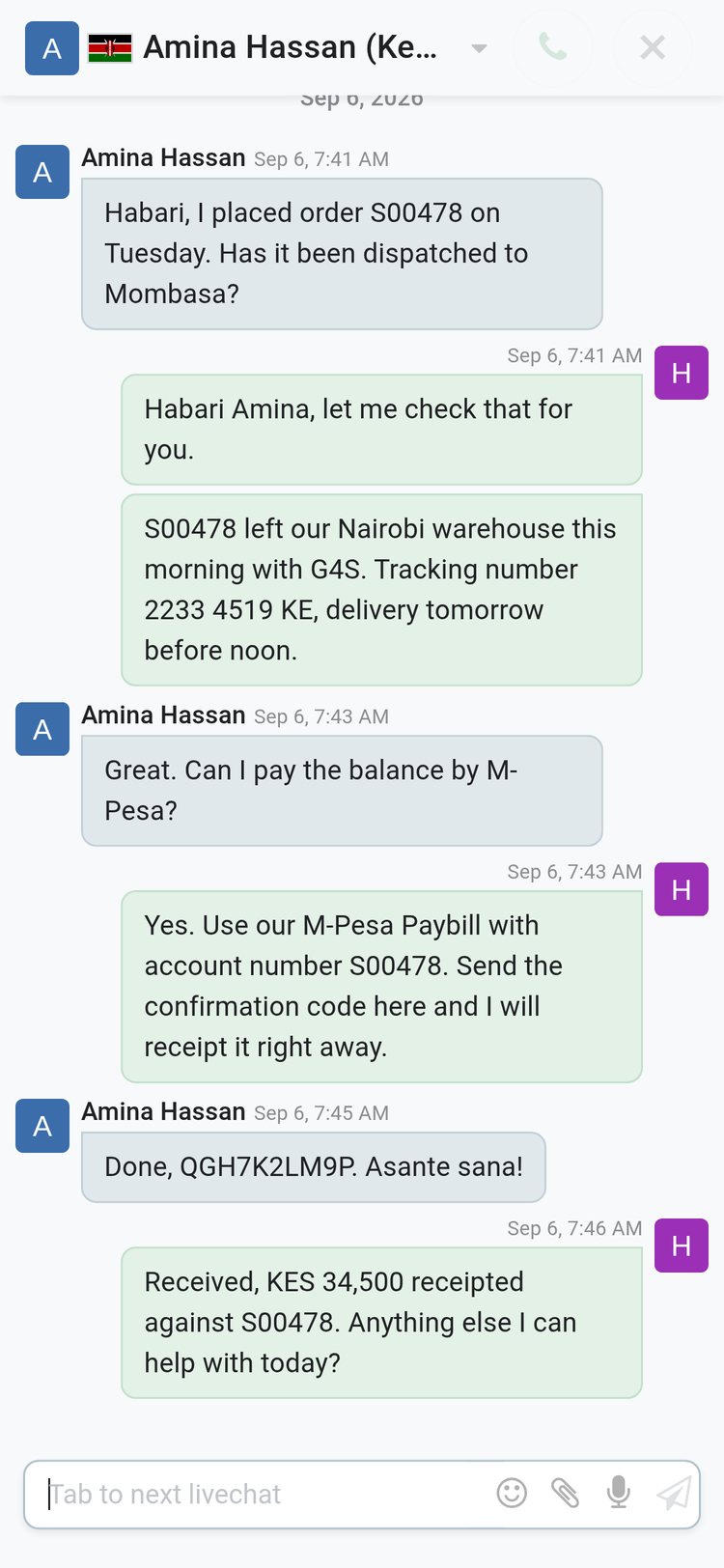
 Discuss
Reply from a phone between customer visits
The same session opens on a phone browser: an operator on the road reads Amina's M-Pesa confirmation code and receipts the payment from there.
Explore Discuss →By the numbers
Live Chat in numbers
Counted on the BridgeERP demo database, not estimated.
- 8
- chatbot step types: Text, Question, Email, Phone, Free Input, Free Input (Multi-Line), Forward to Operator and Create Lead
- 4
- channel-rule behaviours per URL and country: Show, Show with notification, Open automatically after a timer, or Hide
- 32
- live chat sessions in Sessions History, each kept with its participants, date, operator and full transcript
- 28
- visitor ratings in Customer Ratings, each with a smiley, the operator, the session and the date
Inside the app
What is inside
The menus of the Live Chat app on the demo, and what each one does for a customer care team.
Channels
Each channel holds its operators, button text and colours, welcome message, rules and the script for any website; operators Join or Leave from the header.
Sessions History
Every chat kept with participants, country, duration and rating, in kanban or list; group by channel or session date and open the full transcript.
Customer Ratings
The smiley and comment each visitor leaves at the end of a chat, shown per operator and per session, with kanban, list, pivot and graph views.
Session Statistics
Messages per session, duration, time to answer in seconds, sessions without answer and days of activity, grouped by channel, operator, start hour or month.
Operator Analysis
Sessions handled, time to answer, average duration and average rating for each operator, filtered to the last day, this week or this month.
Canned Responses
A shortcut such as mpesa or delivery and its full reply; typed in the composer it brings in the whole answer, and Authorized Groups share it with other operators.
Chatbots
Scripts of steps with answers and Only If conditions; a Test button plays the script, and smart buttons count the channels using it and the leads it created.
Visitors
Website visitors with country flag, language, visits, pages and products viewed and leads; Chat, Email and SMS buttons open a conversation from the list.
Step by step
From a chat bubble to a rated conversation and a lead
Six steps, each in the app that does the job, on the same visitor.
- Step 1
Put the bubble on the site
Tick Livechat in Website settings under Email & Marketing and pick the channel, or paste the script from the channel's Widget tab into any other website.
Website Builder - Step 2
Rules decide when it opens
Rules per URL and country show the button, add a notification, open after a timer or hide it; on the demo /shop notifies and / opens Karibu Bot.
Live Chat - Step 3
The chatbot qualifies
Karibu Bot offers Track my order, Pricing and quotations, Invoices and M-Pesa payments or Talk to a person, collects the order number, then forwards to an operator.
Live Chat - Step 4
An operator answers
The session goes to an available operator with the fewest open chats, preferring one who lists the visitor's language; canned responses cover the routine questions.
Discuss - Step 5
The chat becomes a lead
Type /lead and a title: the lead is created with the transcript in its Internal Notes and Livechat as its source; the quotation follows from the lead.
CRM - Step 6
The visitor rates, you report
The visitor picks a smiley, adds a comment and can have the conversation emailed; ratings feed Customer Ratings and each channel's % Happy figure.
Live Chat
A chatbot that works the night shift and books the lead
Chatbots are scripts of numbered steps. Each step is a message, a question with answer buttons, an email or phone request, a free-text input, a forward to an operator or a Create Lead step tied to a sales team; Only If conditions branch the script on the answer given.
 Live Chat
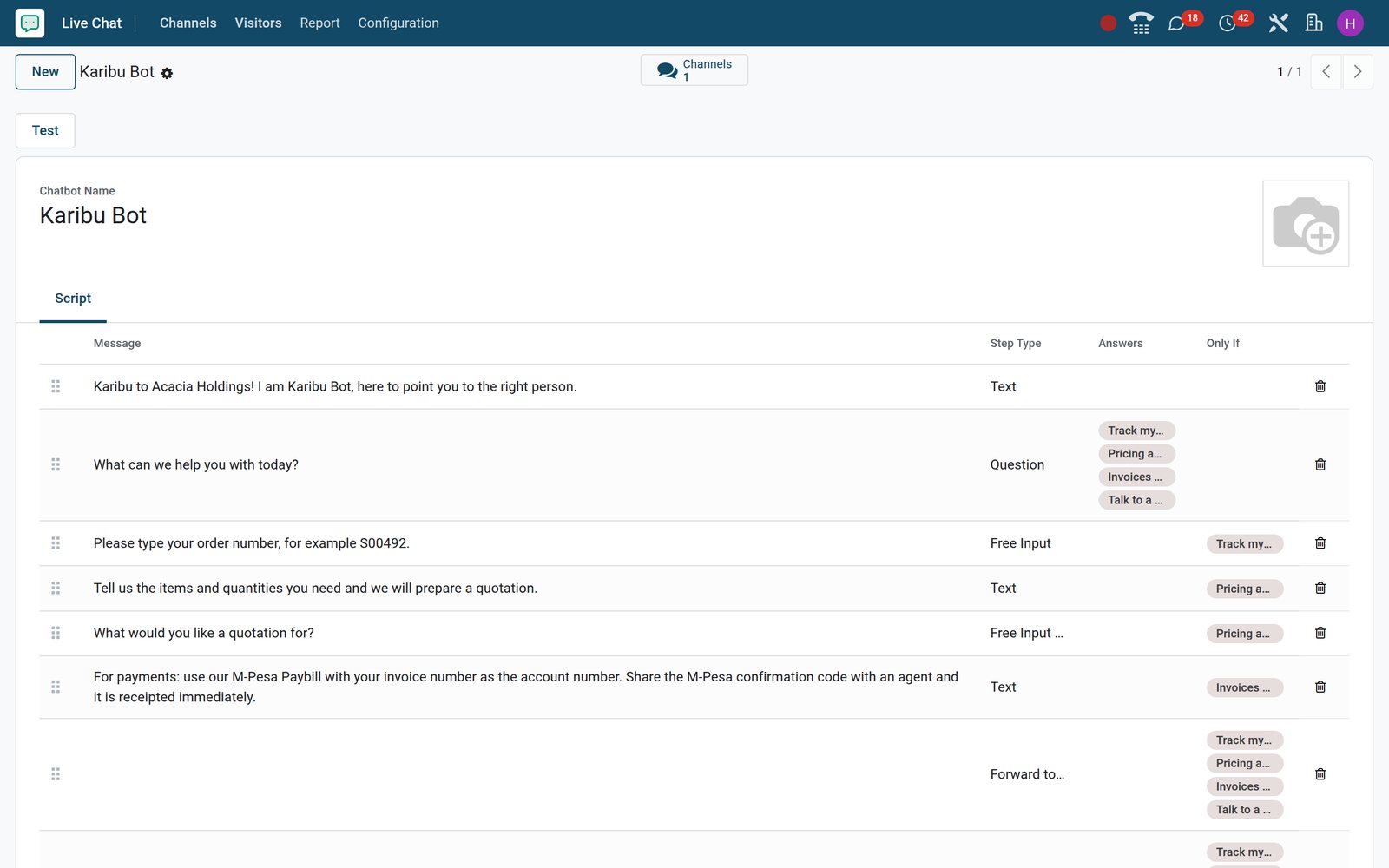
Karibu Bot's script
A welcome, a question with four answers, then the step each answer leads to: the order number, a quotation request, the M-Pesa Paybill instructions or a forward to an operator.
Explore Live Chat →Operators, colours, rules and the widget script on one channel form
A channel is the unit you publish. Its form holds the operators and their online chat names, the button and window colours, the welcome message, the rules per URL and country, and the script for websites not built with BridgeERP; canned responses give the operators their answers.
- Live Chat
Acacia Customer Care
Grace, Hellen, Joseph, Margaret and Peter as operators, with the chatbot, 21 sessions and a 66% happy score as smart buttons.
Explore Live Chat →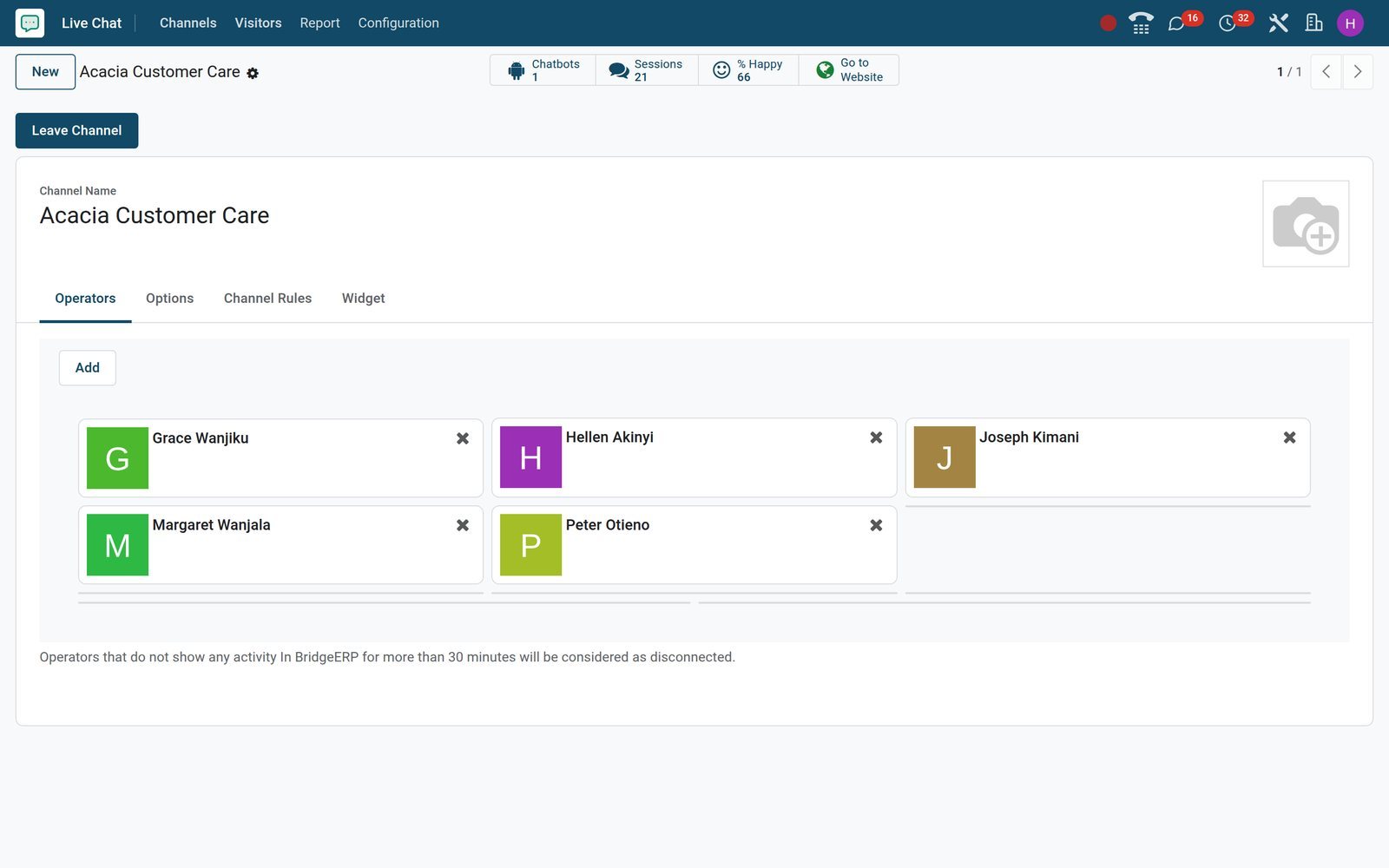
- Live Chat
Answers you type once
Seven canned responses on the demo: mpesa asks for the confirmation code, delivery covers Nakuru deliveries, etims explains the KRA invoice and hours gives opening times.
Explore Live Chat →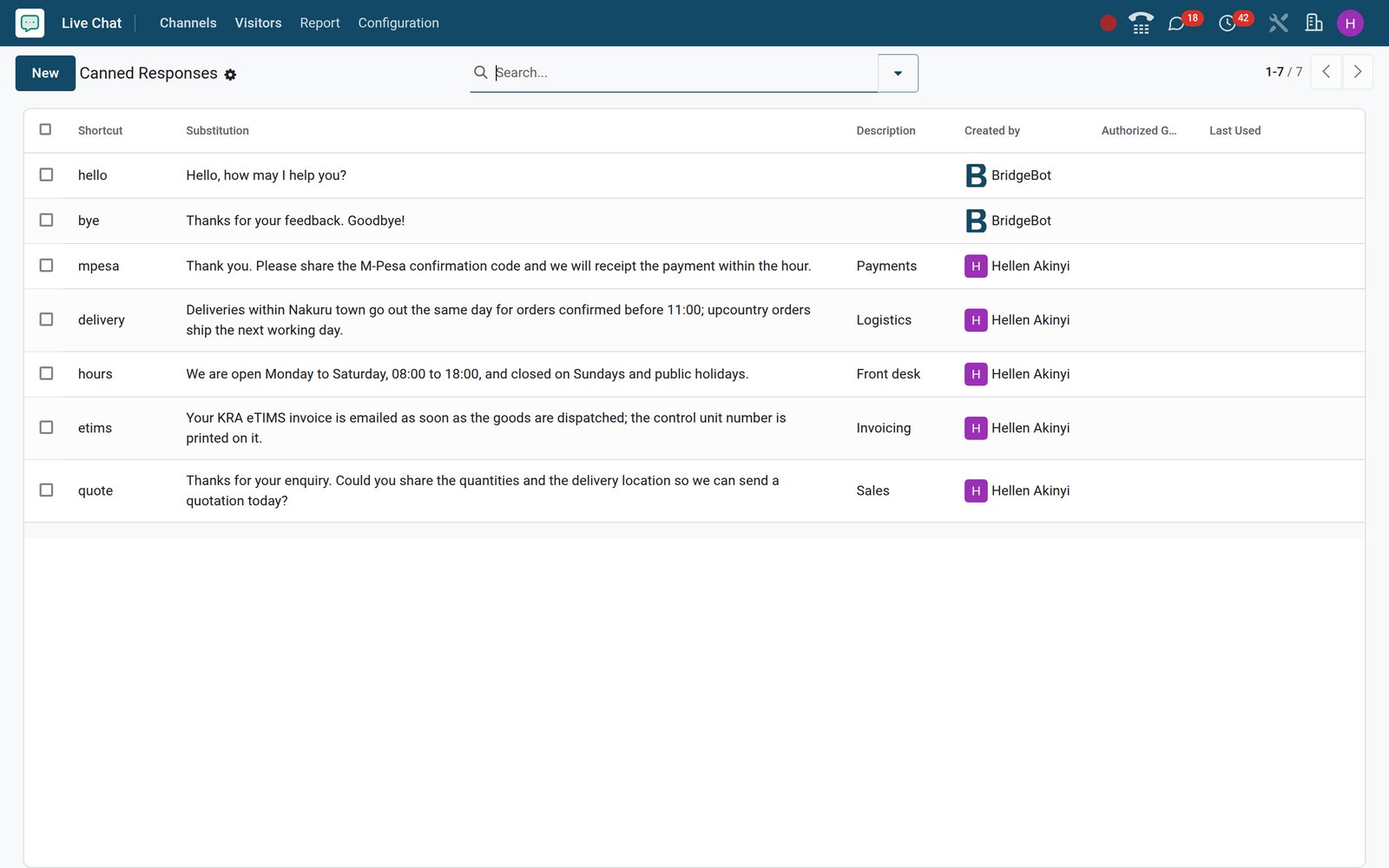
One command turns a chat into a lead with the transcript attached
Type /lead followed by a title inside the session. CRM creates the lead with every line of the conversation in its Internal Notes and the source set to Livechat; when the visitor is known, the lead also counts their page views and chat sessions.
 CRM
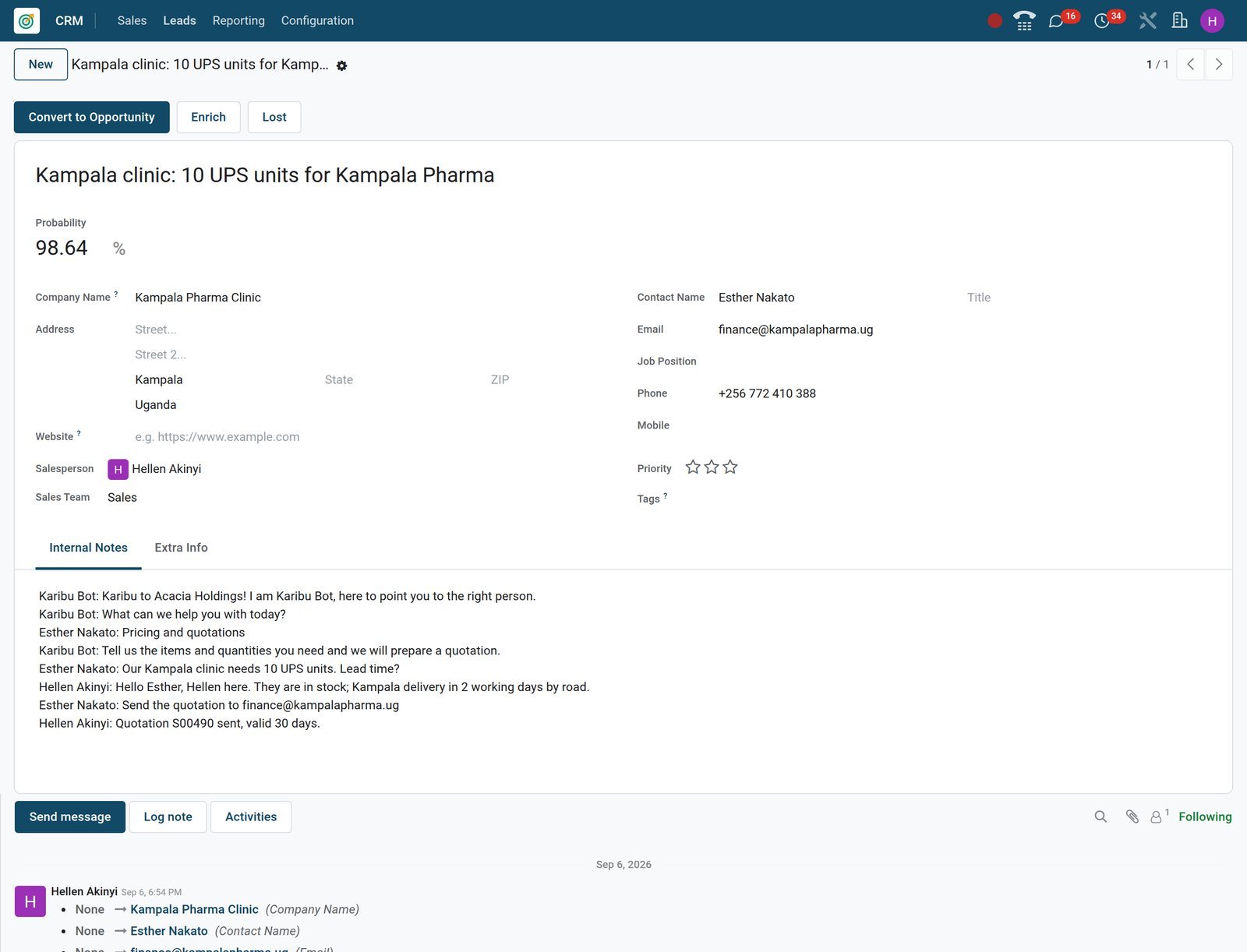
CRMA Kampala clinic's UPS enquiry, now a lead
Created from Esther Nakato's chat with /lead: Internal Notes hold the conversation, Hellen Akinyi is the salesperson, and Convert to Opportunity puts it on the pipeline.
Explore CRM →See who answers fast, who gets the smiles, and which hour needs cover
The Report menus and a spreadsheet dashboard read the same sessions: ratings with comments per operator, sessions and answer times per operator, statistics per hour and month, and the Live chat dashboard in the Dashboards app.
- Live Chat
Customer Ratings
Each card is one visitor's verdict: smiley, operator, session, date and comment, from 'Sorted my invoice in two minutes' to 'Nobody could tell me the delivery date'.
Explore Live Chat →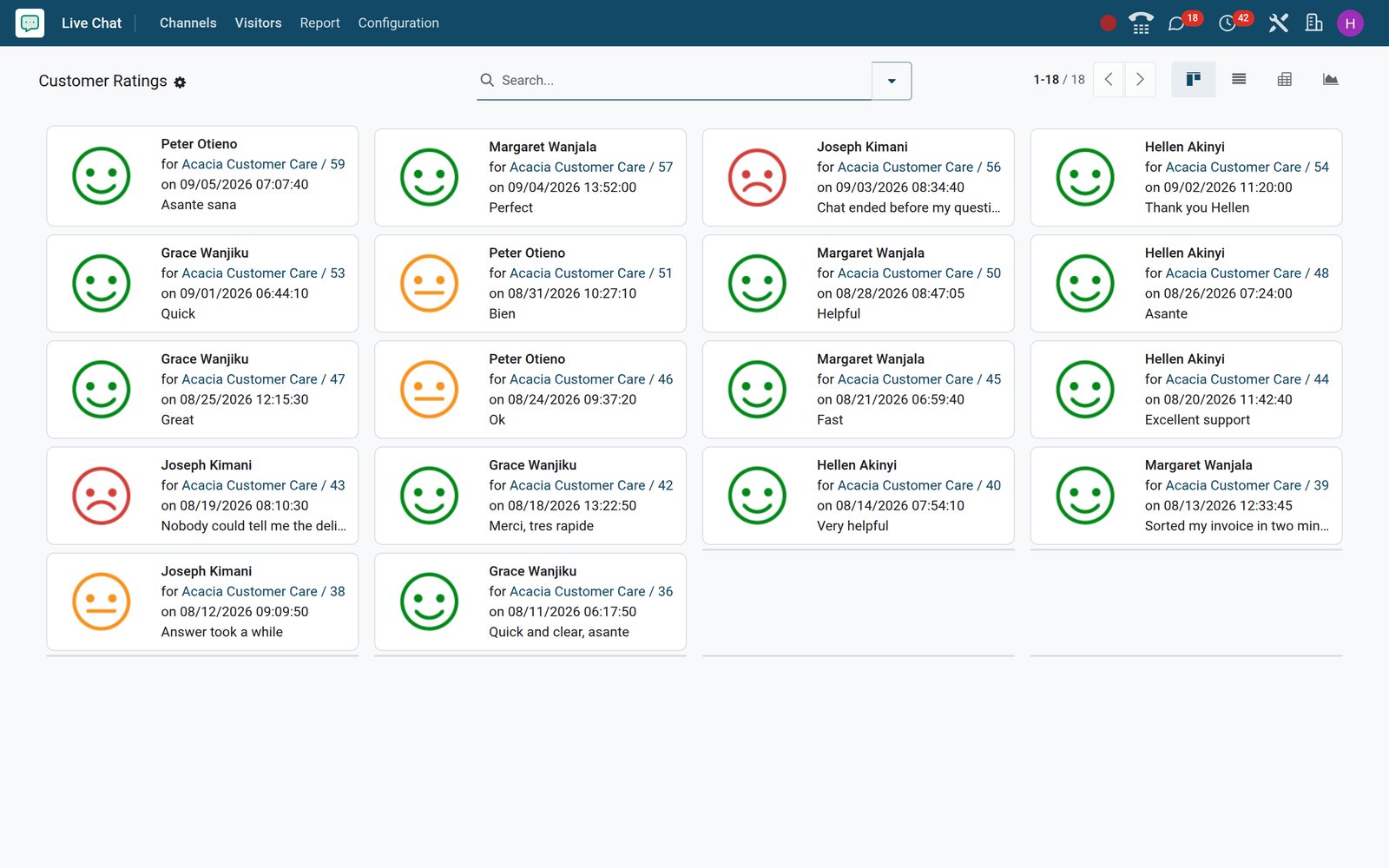
- Live Chat
Operator Analysis
A bar per operator with sessions handled this month; switch the measure to time to answer or average duration, or open the pivot to compare them.
Explore Live Chat →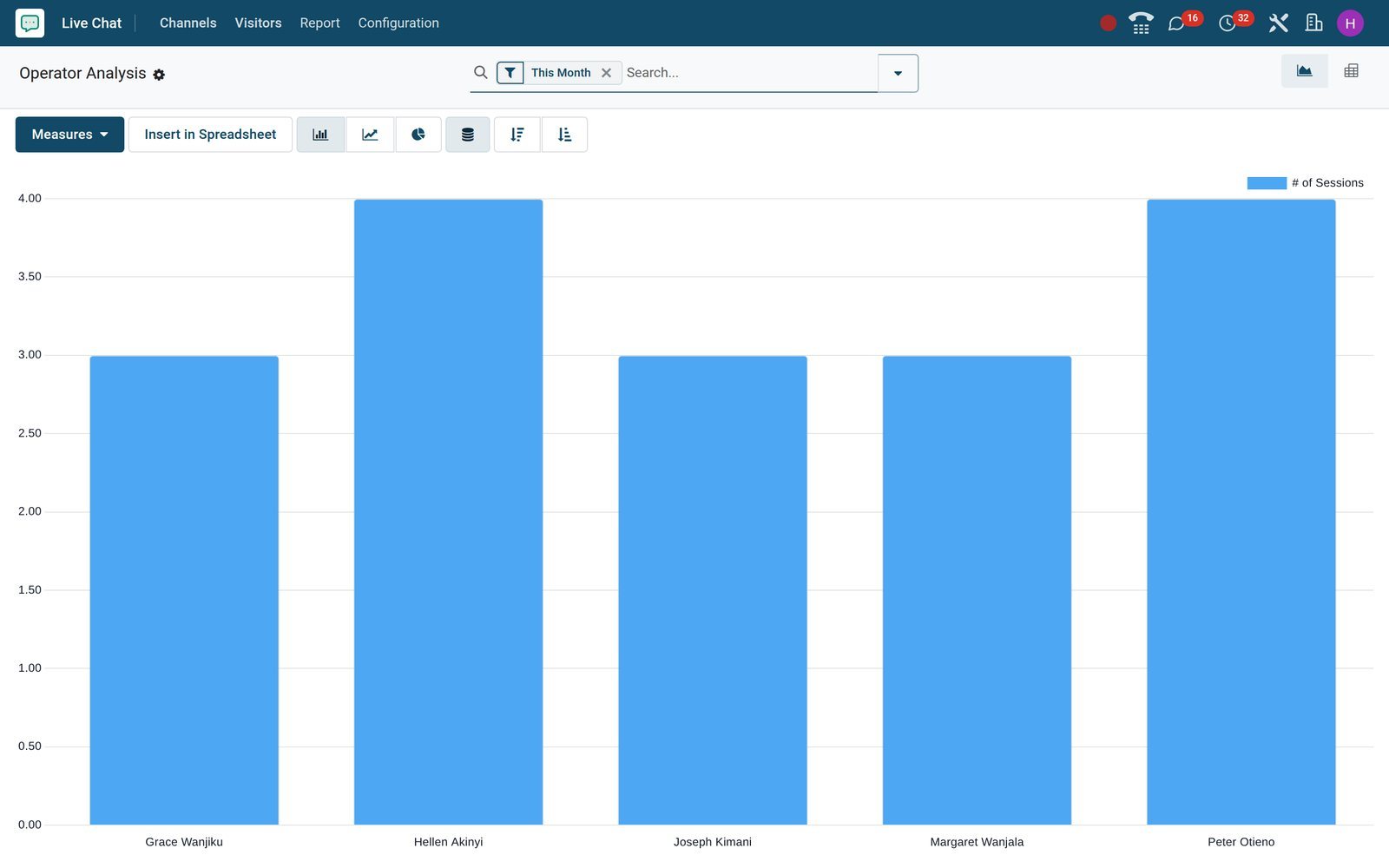
 BridgeERP Core
The Live chat dashboard
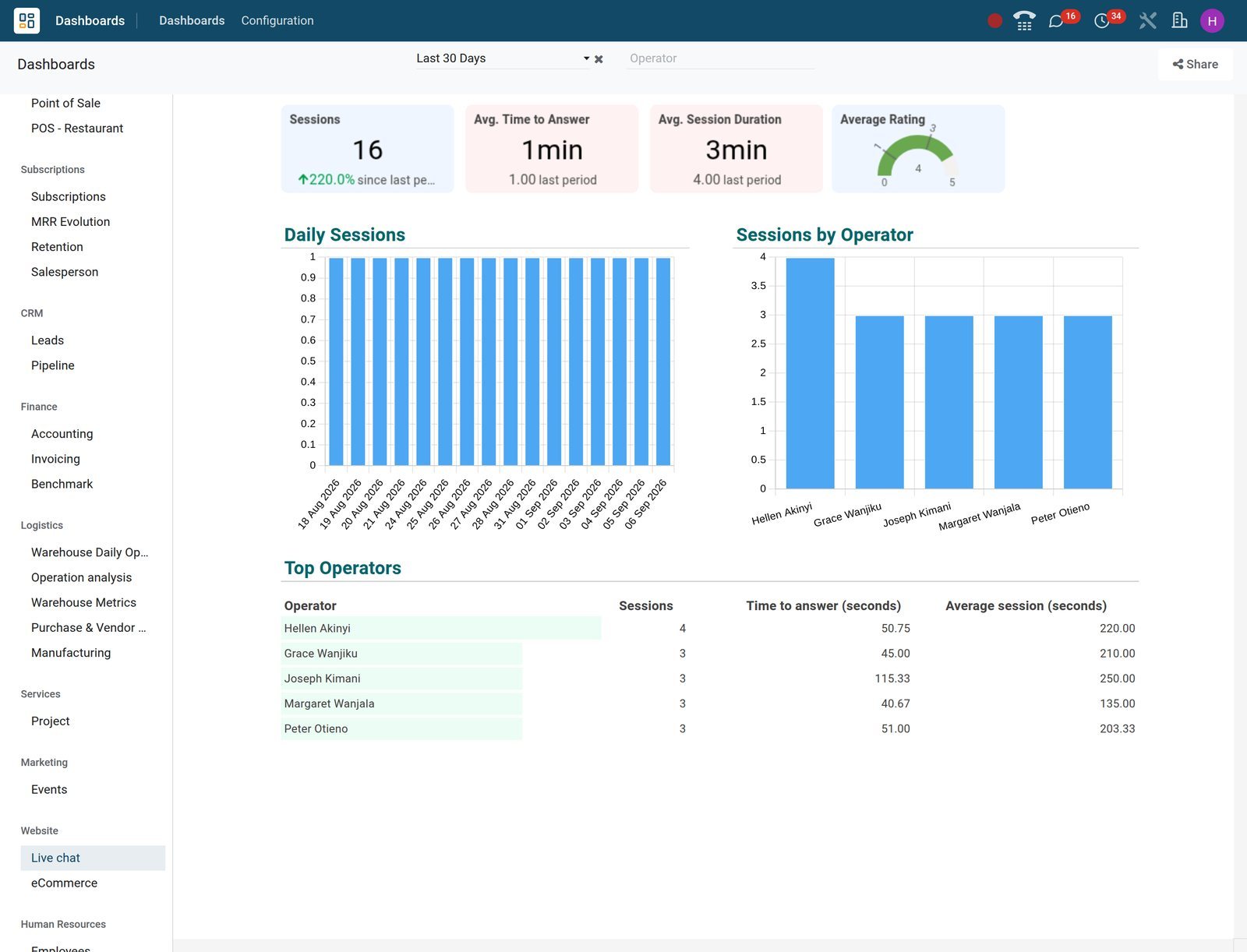
In the Dashboards app, under Website, the Live chat dashboard lays out figures and charts from the live chat data, editable like any spreadsheet.
Who uses it
Who it is for
The same sessions, a different first screen for each role.
Owner or managing director
Opens Customer Ratings to read what visitors wrote this week and checks the % Happy figure on each channel, without asking the team for a report.
Customer care manager
Adds operators to a channel, writes the rules and canned responses, and reads Operator Analysis and Session Statistics to plan cover for the busy hours.
Chat operator
Works in the Chat app, sees new sessions arrive under their channel, answers with canned responses, checks /history for the visitor's pages and steps out with /leave.
Salesperson
Receives the leads that the chatbot and the /lead command create, with the transcript in Internal Notes and Livechat as the source, and raises the quotation from there.
Website manager
Ticks Livechat in Website settings, chooses the channel, watches the Visitors list and starts a chat with a connected visitor from the Chat button.
IT or web agency
Pastes the channel's script into the head of a site built elsewhere, sets button and header colours to the brand and picks operators on the Operators tab.
Works with
Apps it runs with
Live Chat shares contacts, visitors and messages with the rest of BridgeERP; these are the apps that plug into a session directly.
 WebsiteTick Livechat in Website settings and pick the channel that owns the bubble on every page.
 eCommerceA channel rule shows the button with a notification on the /shop pages, where the buying questions come from.
- CRMThe /lead command and the chatbot's Create Lead step feed the pipeline with the transcript and the Livechat source.
- DiscussSessions sit in the Chat sidebar next to team channels and direct messages, on desktop and in a phone browser.
 HelpdeskWith the Helpdesk app installed, the /ticket command turns a chat into a ticket from the same composer.
- DashboardsThe Live chat dashboard sits in the Dashboards app under Website and is edited like any spreadsheet.
In your country
Built for how customers ask questions, in their own language
Languages, payment questions, currencies and phones across countries, handled in the product rather than in a workaround.
Several languages in one channel
On the demo Peter takes 'Habari, mnauza printers?' in Swahili, another visitor writes 'livraison a Bujumbura possible?', and Livechat Languages steer routing to a match.
Payment questions answered in one shortcut
The mpesa response asks for the confirmation code and promises a receipt within the hour; Karibu Bot gives the Paybill to visitors choosing Invoices and M-Pesa payments.
Quote in the customer's currency
The operator agrees the price in the chat and raises the quotation in Sales, where the pricelist sets the currency; the demo runs KES, USD and ETB.
The visitor's country on the session
Each session records the visitor's country, Kenya to Ghana on the demo; rules can target countries, and country is a dimension of Session Statistics.
Works on the phone in the field
The Chat app runs in any phone browser, so a salesperson in the field answers a session between visits; visitors chat from their phone without installing anything.
Any website, not only one built here
The Widget tab gives a script for the head of a WordPress or hand-built site, and a link to the channel's own chat page for emails and SMS.
Reports and control
Reports and control
Every item below reads the live sessions on the demo, with filters and group-bys you can save as favourites.
Sessions History
Kanban or list of every session with date, participants, country, duration and rating; filters My Sessions, Bad Ratings, Good Ratings and Unrated; group by channel or date.
Customer Ratings
Kanban, list, pivot and graph of the smileys and comments, filtered to this week or grouped by session and live chat channel.
Session Statistics
Graph and pivot with measures such as messages per session, duration, time to answer, sessions without answer and happy visitors; filters for missed and treated sessions.
Operator Analysis
Sessions, time to answer, average duration and average rating per operator, with last-day, this-week and this-month filters; group by channel or month.
Channel figures
Each channel card and form shows its number of sessions, the operators available right now and the % Happy score computed from its ratings.
Live chat dashboard
A spreadsheet dashboard under Website in the Dashboards app; add a cell or a chart the way you would in any spreadsheet.
What sets it apart
What sets it apart
Small things that remove daily friction for a customer care team, all switched on from the channel or the session itself.
One inbox for colleagues and customers
Live chat sessions, team channels and direct messages share the Chat app, so an operator asks a colleague about stock without leaving the visitor's thread.
Commands instead of menus
/lead creates the lead, /history lists the visitor's recent pages, /leave steps out without closing the chat and /help shows what you can type.
Routing that spreads the load
A new session goes to an available operator with the fewest open chats, returns a visitor to the previous operator and prefers one who speaks their language.
Guests rated, not only customers
Anonymous visitors rate and comment too: 23 of the 28 ratings on the demo come from guests, and any visitor can have the conversation emailed.
A public chat page per channel
Every channel has its own web page with a description ready to publish, so a link in an SMS or email opens the conversation without the bubble.
Chat with a visitor first
The Visitors list shows who is connected and their last page; the Chat button opens a session with that visitor before they ask.
Getting started
Getting started
A working chat bubble in an afternoon, using what is already in the product.
Create a channel and join it
Live Chat > Channels > New: name it, add operators on the Operators tab and press Join; the channel then counts who is available right now.
Put it on the website
Website > Configuration > Settings > Email & Marketing: tick Livechat and choose the channel; for other sites paste the script from the Widget tab.
Write the rules
In Channel Rules add a line per URL: show, notify, open after a timer or hide, per country, with a chatbot enabled only if no operator is online.
Build the bot and press Test
Configuration > Chatbots: add steps, give questions their answers, set Only If on the branches and add Create Lead for a sales team; Test plays the script.
Load the canned responses
Configuration > Canned Responses: a shortcut and its full text per line, with Authorized Groups so other operators can use the same answer.
Name the operators
On each user, set the Livechat Username visitors will see and the Livechat Languages they speak; the channel's Operators tab shows the same Online Chat Name.
Questions
Questions about Live Chat
Not covered here? Contact us.
Can we put the chat on a website that was not built with BridgeERP?
Yes. Every channel has a Widget tab with a script to paste into the head section of any website, and a link to a chat page of its own that you can send in an email or an SMS. Websites built with BridgeERP only need Livechat ticked in Website settings.
What happens when nobody is online?
The button is not shown to visitors when no operator of the channel is available. A channel rule can start a chatbot instead, enabled only if no operator is online, and the bot can ask for an email and a phone number and create a lead for a sales team so the enquiry is not lost.
How is a new chat assigned to an operator?
The session goes to an available operator of the channel with the fewest open chats; an operator who lists the visitor's language under Livechat Languages is preferred, and a returning visitor is sent back to the operator they spoke to before.
Can the chatbot collect leads?
Yes. A chatbot script can ask a question with answer buttons, request an email and a phone number, forward to an operator and end with a Create Lead step tied to a sales team. Inside a live session an operator can also type /lead and a title to create the lead with the transcript in its Internal Notes.
Do visitors rate the conversation?
Yes. When closing the chat the visitor picks a smiley, can add a comment and can ask for a copy of the conversation by email. The ratings appear under Report > Customer Ratings and in the % Happy figure on the channel.
Can operators reuse the same answers?
Yes. Canned Responses pair a shortcut with a full reply; typing the shortcut in the composer brings in the text, and Authorized Groups decide which other operators can use it.
Can we see which pages the visitor looked at?
Yes. Inside the session the /history command lists the pages the visitor viewed most recently, and the Visitors menu shows every visitor with country, language, visits, pages and products viewed, and whether they are connected right now.
Does it work on a phone?
Yes. Operators answer sessions in the Chat app from a phone browser with the same login, and visitors chat from any phone browser without installing anything.
Put Live Chat to work
Add it to your plan and pay only for what you use, or see it running on your own demo first.