

 Inventory: Know what is on the shelf, what is promised and what to reorder before the delivery runs late
Receipts, deliveries, batch picking, counts and reordering rules in one app, with standard, FIFO or average costing, country stock reporting such as KRA eTIMS, and a Barcode app that runs on a phone.
Free instant access. No credit card required.
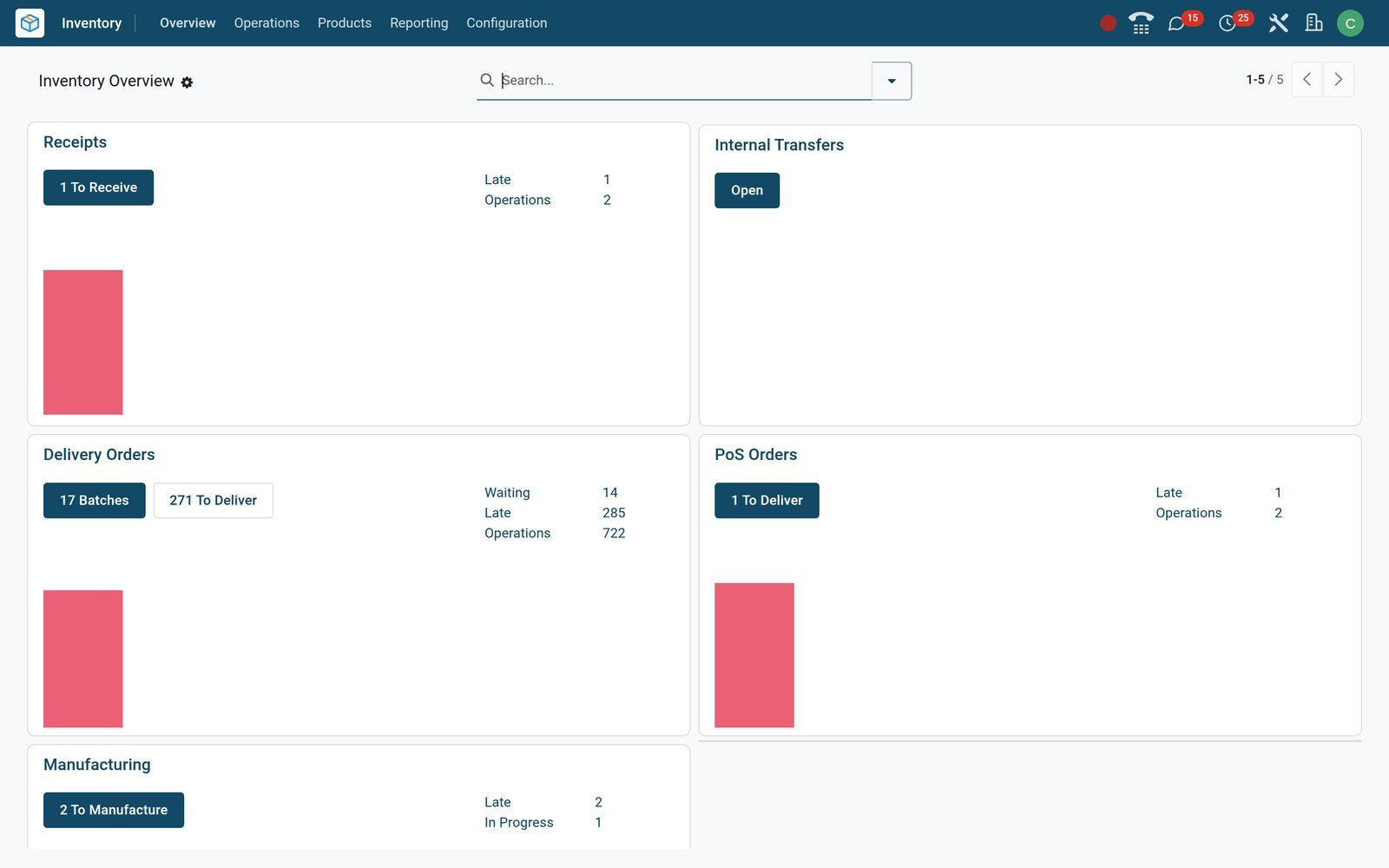
The stock question, answered in one list
Reporting > Stock is the screen to see first: every tracked product with what is on hand, what is free, what is coming in and what is going out.
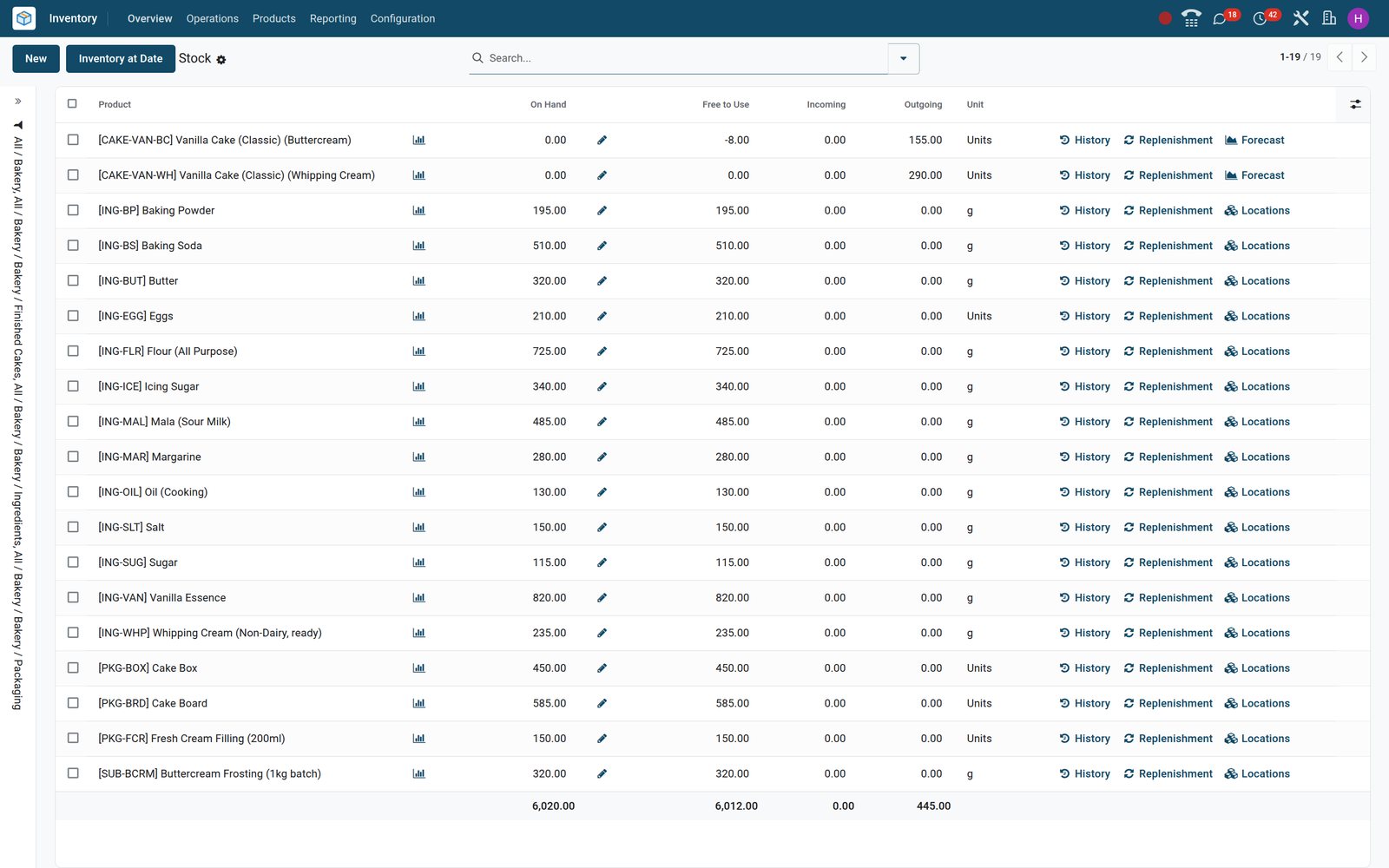 Inventory
On Hand, Free to Use, Incoming, Outgoing, Forecasted
Each row is a tracked product; Forecasted adds confirmed receipts and subtracts confirmed deliveries, so a coming shortfall shows in red before the shelf is empty.
Explore Inventory →By the numbers
What ships inside the Inventory app
Counted in the product itself: options a warehouse can switch on today, not a roadmap.
- 3
- costing methods per product category, Standard Price, First In First Out and Average Cost, each with manual or automated valuation
- 4
- removal strategies a location can apply when stock leaves it: FIFO, LIFO, Closest Location and Least Packages
- 10
- carrier connectors ready to switch on in Settings: DHL, FedEx, UPS, USPS, bpost, Easypost, Sendcloud, Shiprocket, Starshipit and Mondial Relay
- 18
- printable documents and labels on stock records, from Delivery Slip, Picking Operations and Count Sheet to lot, package and location barcodes
Inside the app
What is inside
The Inventory menus as they appear for a warehouse such as Nairobi Distribution Centre, grouped by what each one does.
Receipts, deliveries and internal transfers
Operations > Transfers holds Receipts, Deliveries, Internal and Manufacturings; transfer lists filter Ready, Waiting, Late and Backorders, and each transfer has a Validate button.
Batch and wave transfers
Operations > Jobs groups several transfers for one picker; automatic batches form by contact, carrier or destination, and waves by product, category or location.
Physical Inventory and Scrap
Adjustments > Physical Inventory records Counted Quantity and Difference per quant and applies the count; Scrap moves damaged stock out to a scrap location.
Replenishment
Procurement > Replenishment lists reordering rules with On Hand, Forecast, Min, Max and To Order, and orders from the line or automates the rule.
Products, variants, lots and serials
Products carry the Track Inventory switch, tracking by lot or serial number, units of measure and vendors; Lots / Serial Numbers keeps the register of each lot.
Warehouse configuration
Warehouses, Operations Types, Locations, Routes, Rules, Storage Categories and Putaway Rules define one-, two- or three-step reception and delivery for each warehouse.
Reporting
Stock, Locations, Moves History, Moves Analysis and Valuation menus, plus the Forecasted and Traceability reports opened from a product or a lot.
Delivery methods and the Barcode app
Configuration > Delivery Methods prices shipping as a fixed amount or by rules; the Barcode app runs operations and counts from a phone or a handheld scanner.
Step by step
From purchase order to posted stock value in six steps
Every step is a screen in BridgeERP; nothing happens on paper or in a side spreadsheet.
- Step 1
Confirm the purchase order
Purchase confirms the order and its receipt appears under Operations > Receipts, with the order in Source Document and the vendor's lead time setting the date.
Purchase - Step 2
Receive and put away
Scan the receipt in the Barcode app, enter the lot when the product is tracked and validate; putaway rules and storage categories choose the shelf.
Inventory - Step 3
Reserve for the sales order
Sales confirms the quotation and the delivery order reserves stock at confirmation, manually, or a set number of days before the scheduled date.
Sales - Step 4
Pick, pack, deliver, sign
Batch the deliveries for one picker, print the Delivery Slip, take the customer's signature on screen and send the SMS or email confirmation.
Inventory - Step 5
Post the value
Each validated move writes a valuation layer at standard, FIFO or average cost; automated valuation also posts the journal entry, and a country stock module such as eTIMS adds its send status.
Accounting - Step 6
Reorder before it runs out
Reordering rules compare the forecast with the minimum; Replenishment raises the request for quotation or the manufacturing order from the same line.
Inventory
Receive against the purchase order, deliver against the sales order
Transfers are created by the order that needs them, so the warehouse never types a product line twice.
- Inventory
Receipts carry the vendor, the source document and the date
Operations > Receipts lists incoming transfers with the vendor in Contact, the purchase order in Source Document, the scheduled or effective date and a status badge.
Explore Inventory →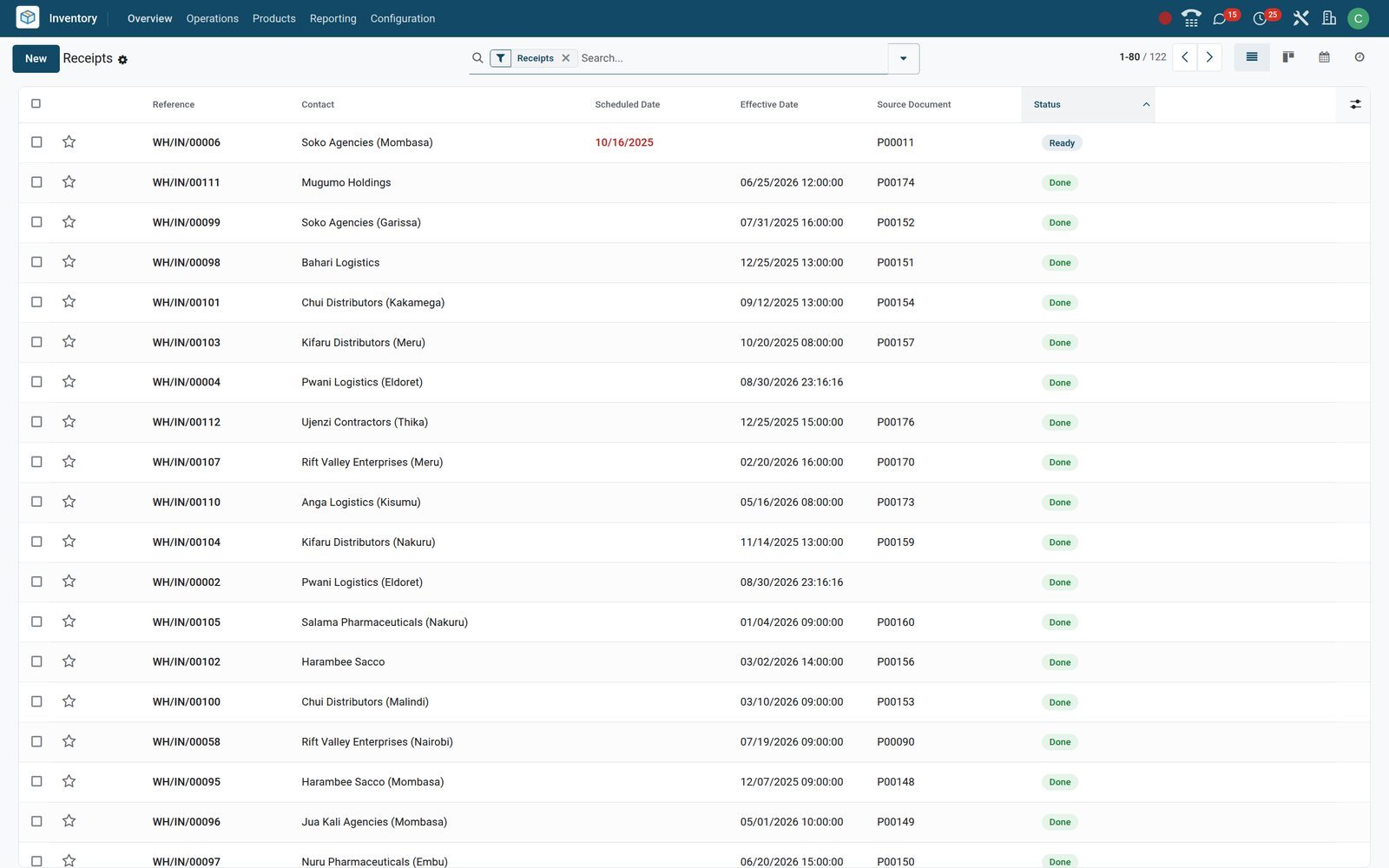
- Inventory
Deliveries show what is ready, what is waiting and what is late
Operations > Deliveries separates ready, waiting and late orders; the Shipping Policy decides whether a partial order ships now or waits for the missing products.
Explore Inventory →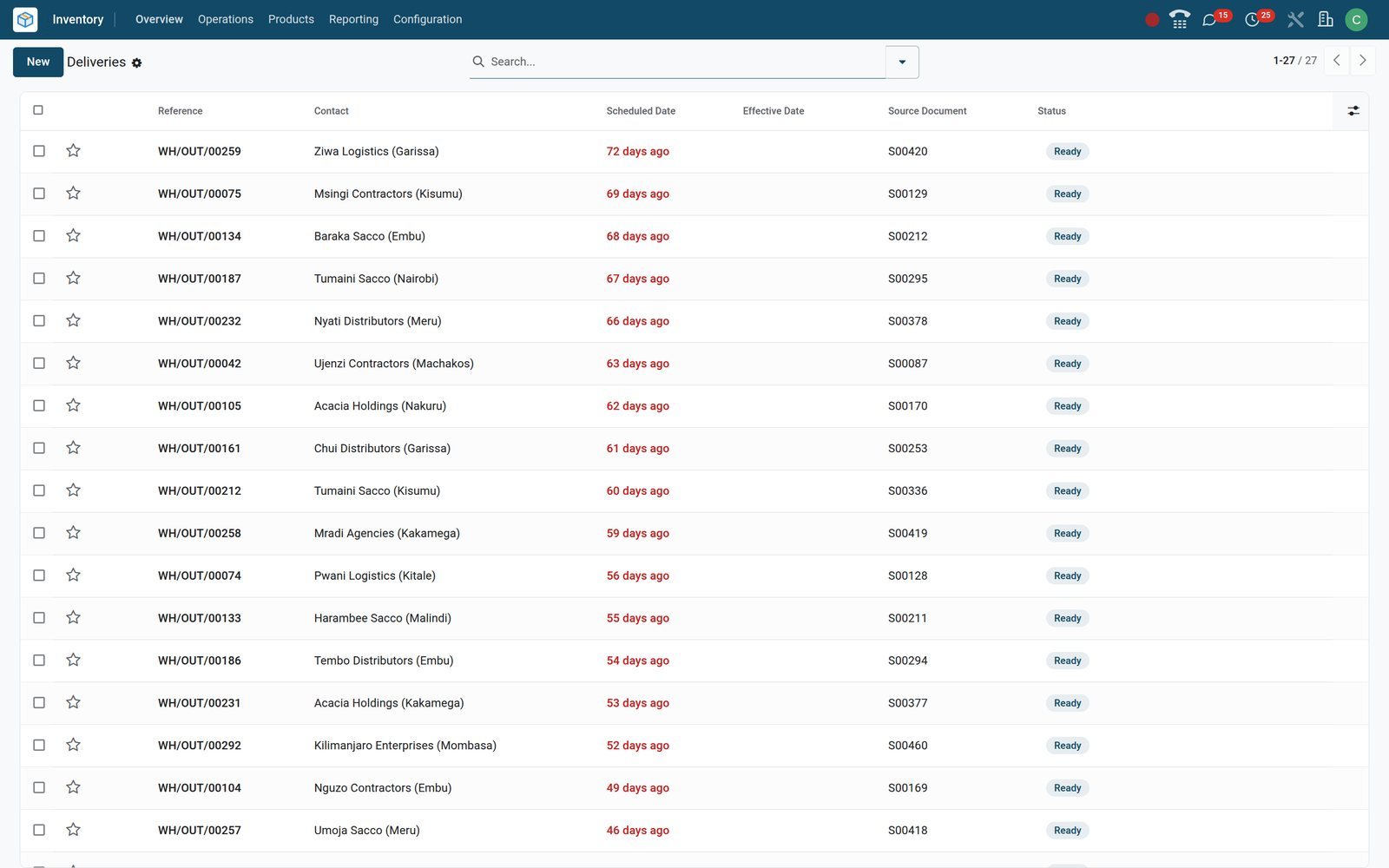
- Inventory
One transfer, every line, one Validate button
A delivery order lists each product with Demand and Quantity, the Carrier and Tracking Reference, and a Validate button that offers a backorder when stock is short.
Explore Inventory →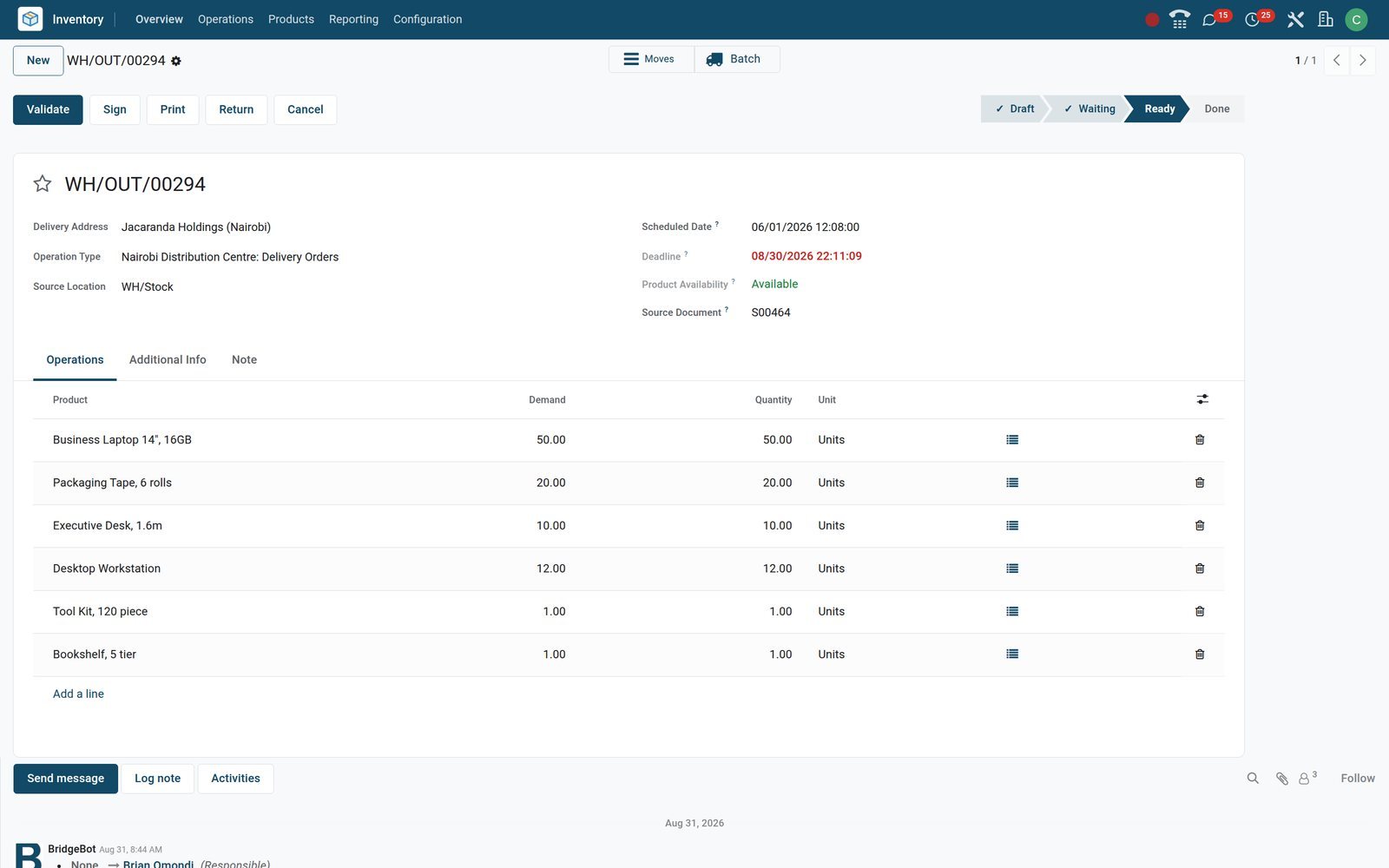
Reorder from minimum and maximum, not from memory
A reordering rule per product and location watches the forecast; the Replenishment screen shows what to order today and raises the order itself.
- Inventory
To Order is computed for you
Replenishment compares On Hand and Forecast with each rule's Min and Max, fills To Order up to the maximum and raises the request for quotation from the line.
Explore Inventory →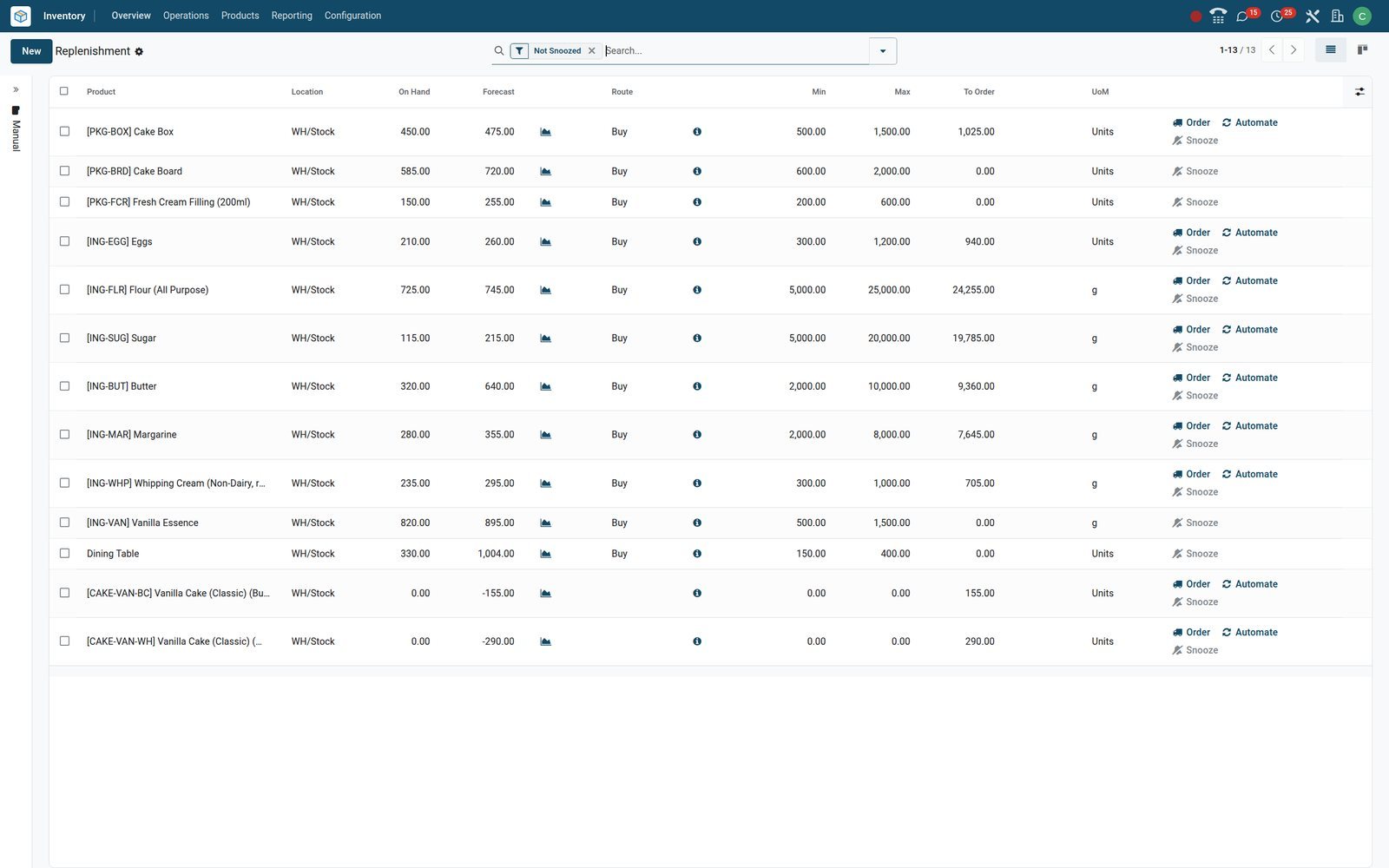
- Inventory
The vendors and their prices live on the product
On the product form, On Hand and Forecasted smart buttons sit above the Purchase tab, which lists each vendor with its quantity and price for Replenishment to order from.
Explore Inventory →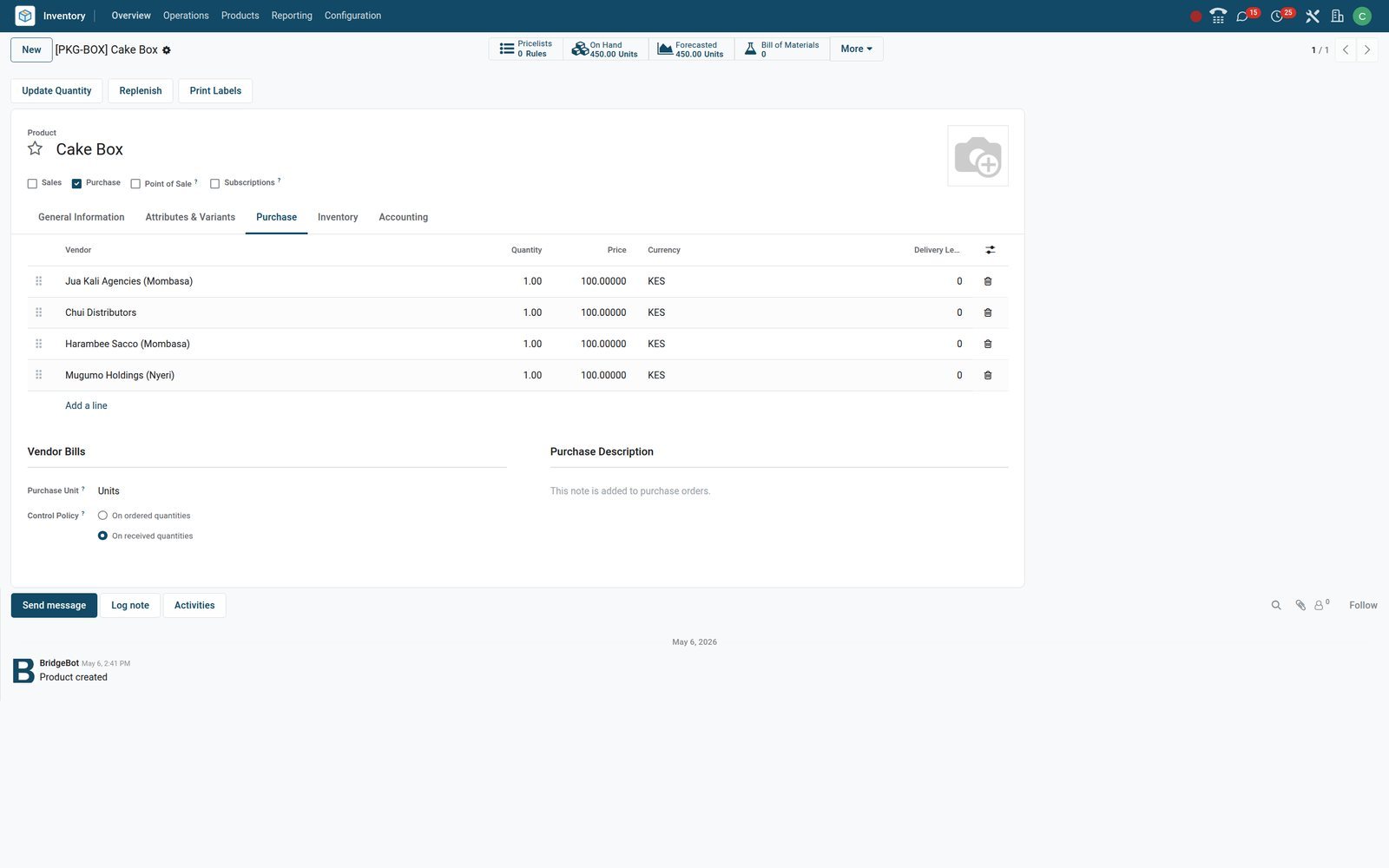
Run the floor in batches and shelf locations
The tools a warehouse manager uses every day, each with its own screen.
- Inventory
One batch, one picker, many deliveries
Batch Transfers give a group of deliveries to one Responsible, such as Anthony Barasa or Caroline Njeri; Dispatch Management adds a vehicle, driver and dock to the batch.
Explore Inventory →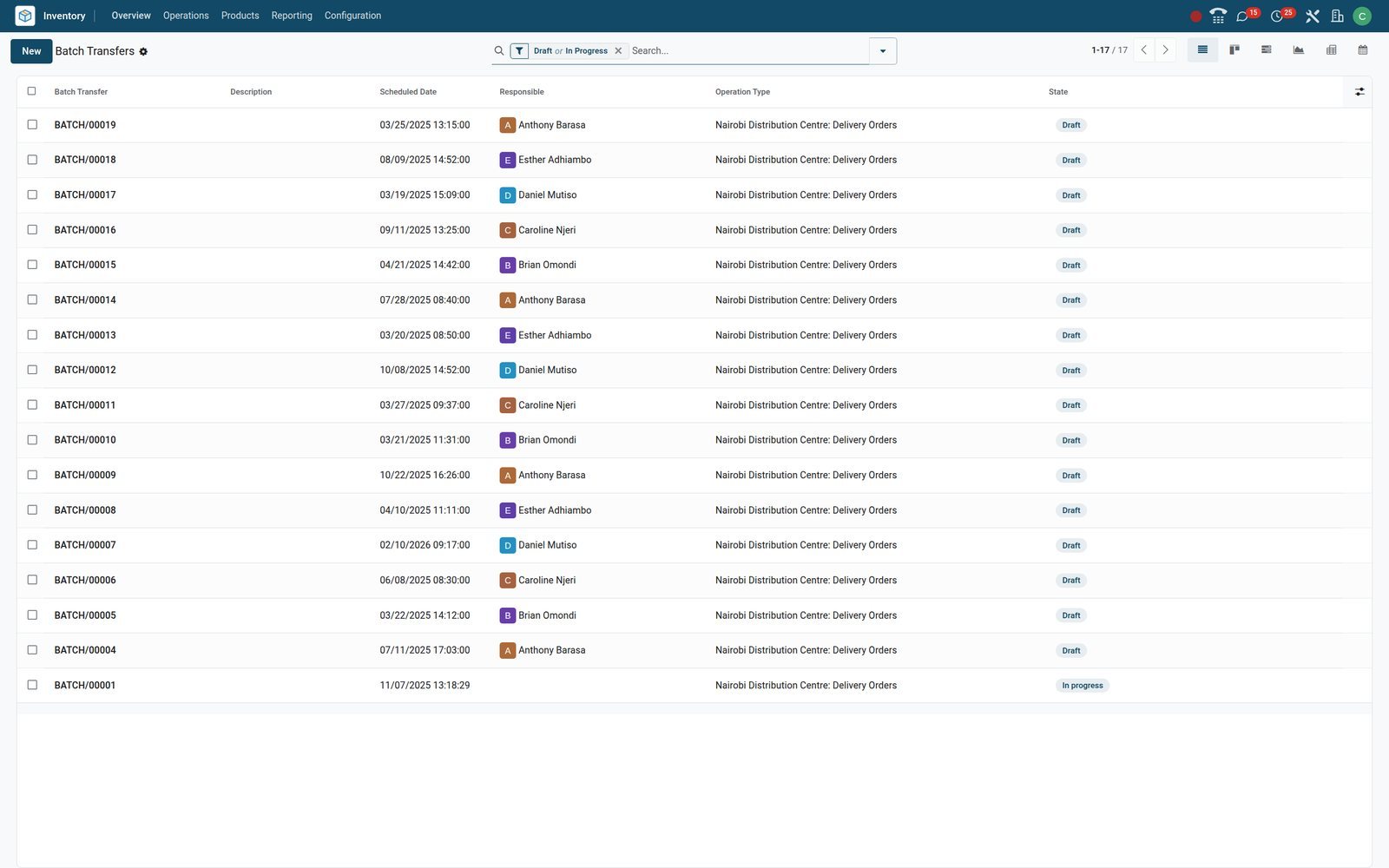
- Inventory
Shelves, fridges, gates and docks, each with its own rules
Locations nest WH/Stock, its shelves, a Small Refrigerator, the dispatch gates and Docks A and B; each can carry a removal strategy, storage category and count frequency.
Explore Inventory →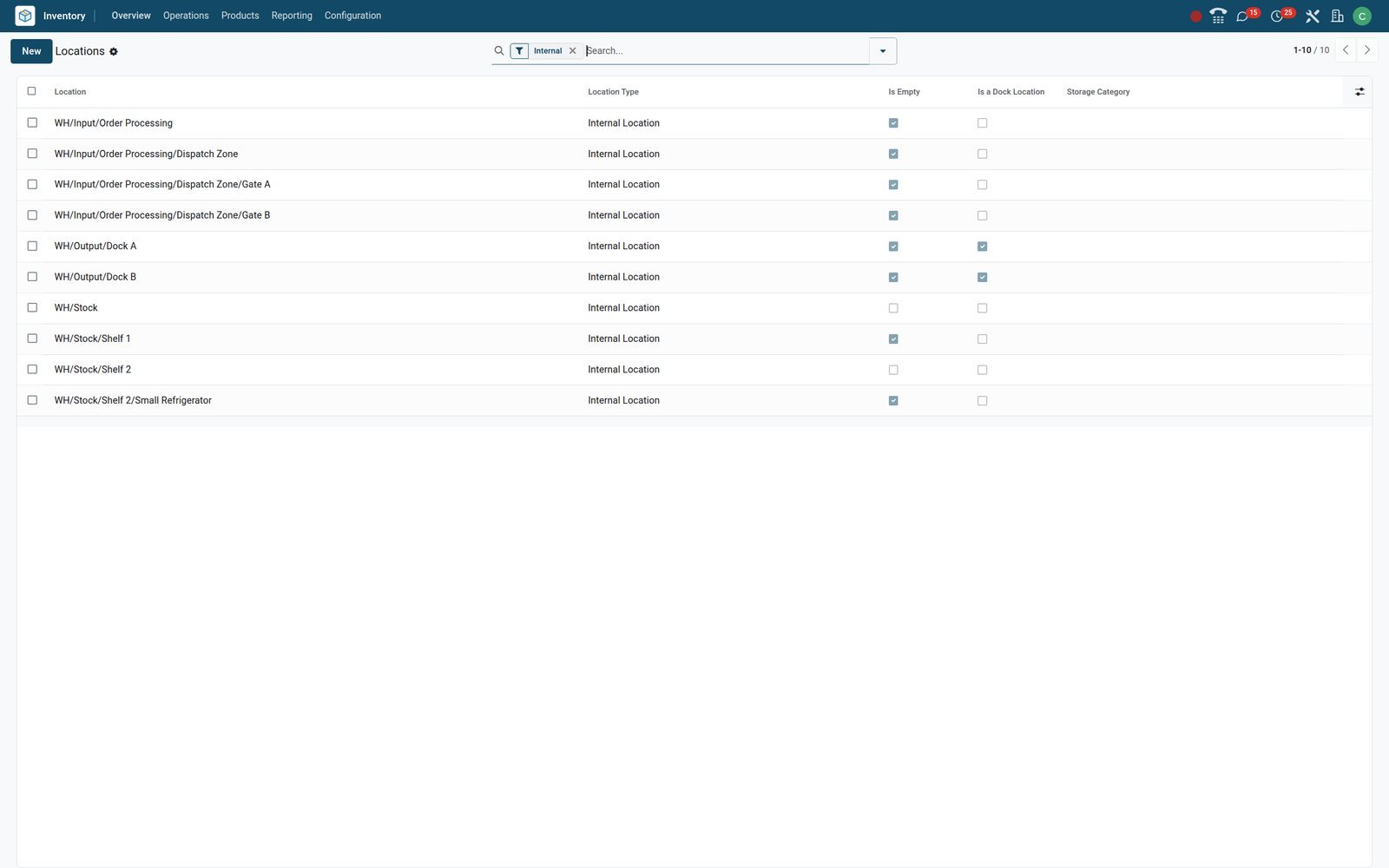
Stock value and every movement, reconciled with the ledger
Valuation is a report, not a spreadsheet: each move writes a layer at cost, and the accountant reads the same numbers as the storekeeper.
- Inventory
Every layer, its unit value and what remains
Reporting > Valuation lists every layer with Quantity, Unit Value, Total Value and Remaining Value per product; pivot and graph views group them by category or month.
Explore Inventory →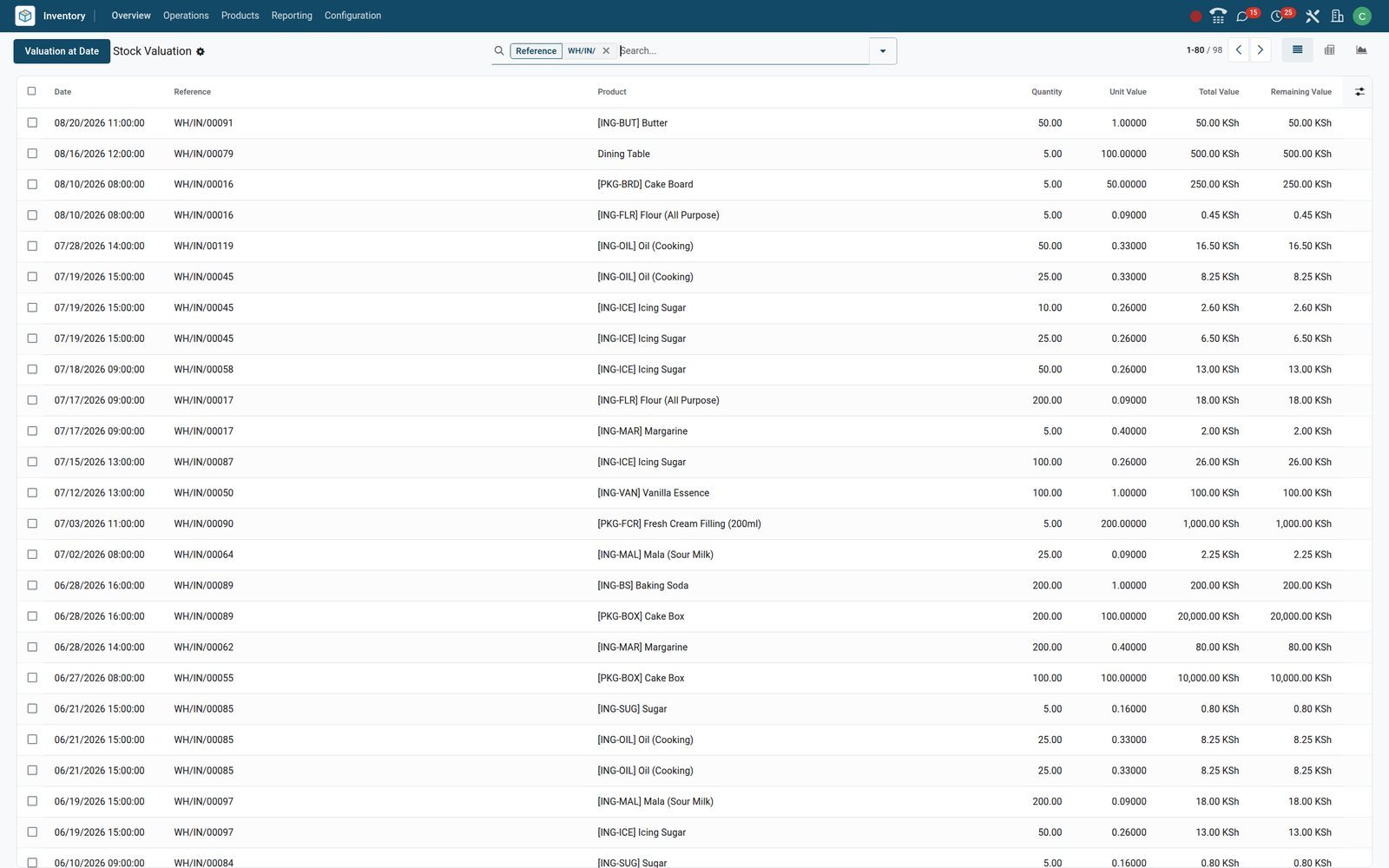
- Inventory
The audit trail behind every quantity
Moves History records each move line with Date, Reference, Product, From, To and Quantity, plus the Lot/Serial Number on tracked products; filter by product or lot to answer a stock query.
Explore Inventory →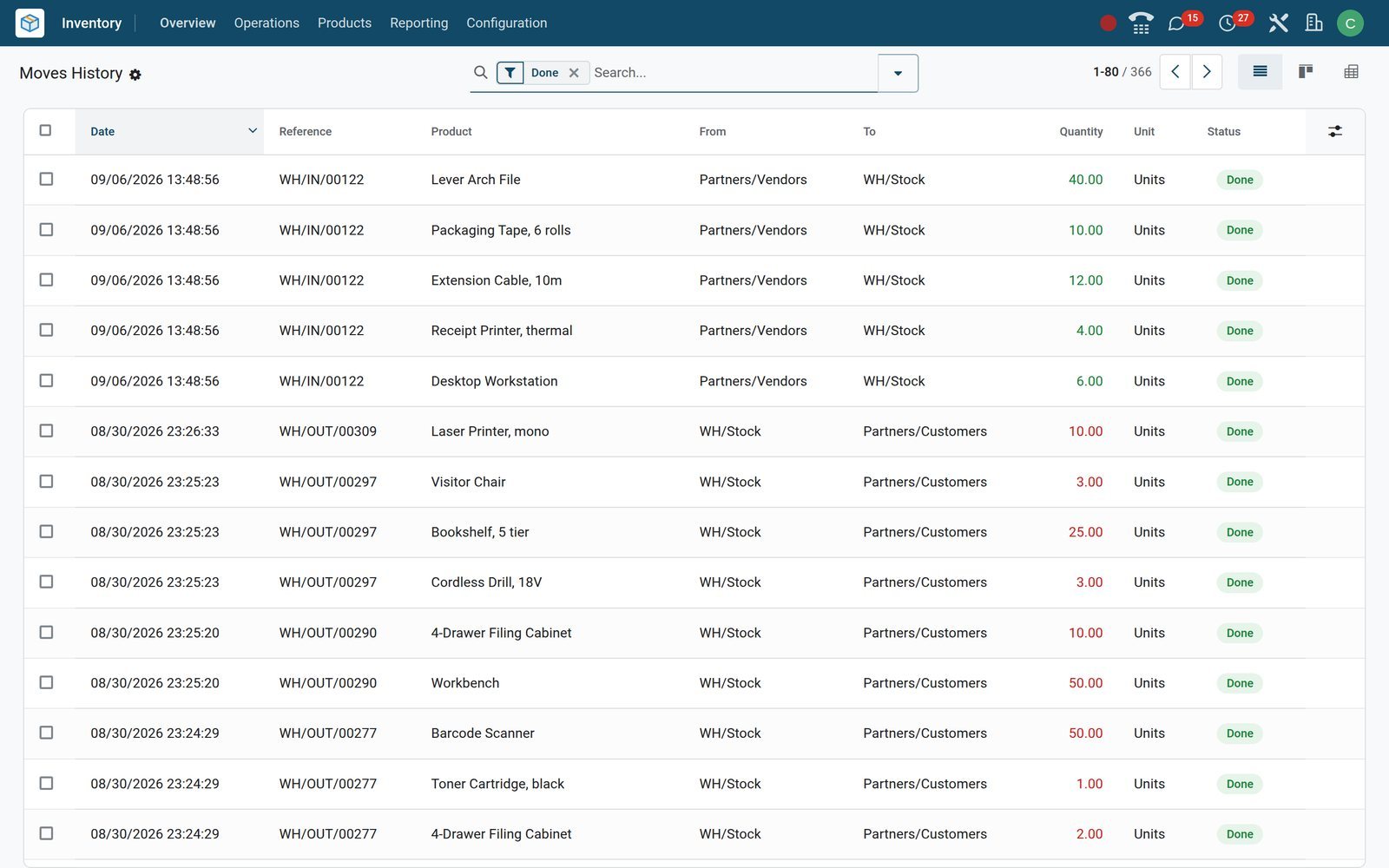
Scan receipts, picks and counts from a phone
The Barcode app runs in the browser of a phone, a tablet or a handheld scanner, on the same database as the office.
 Inventory
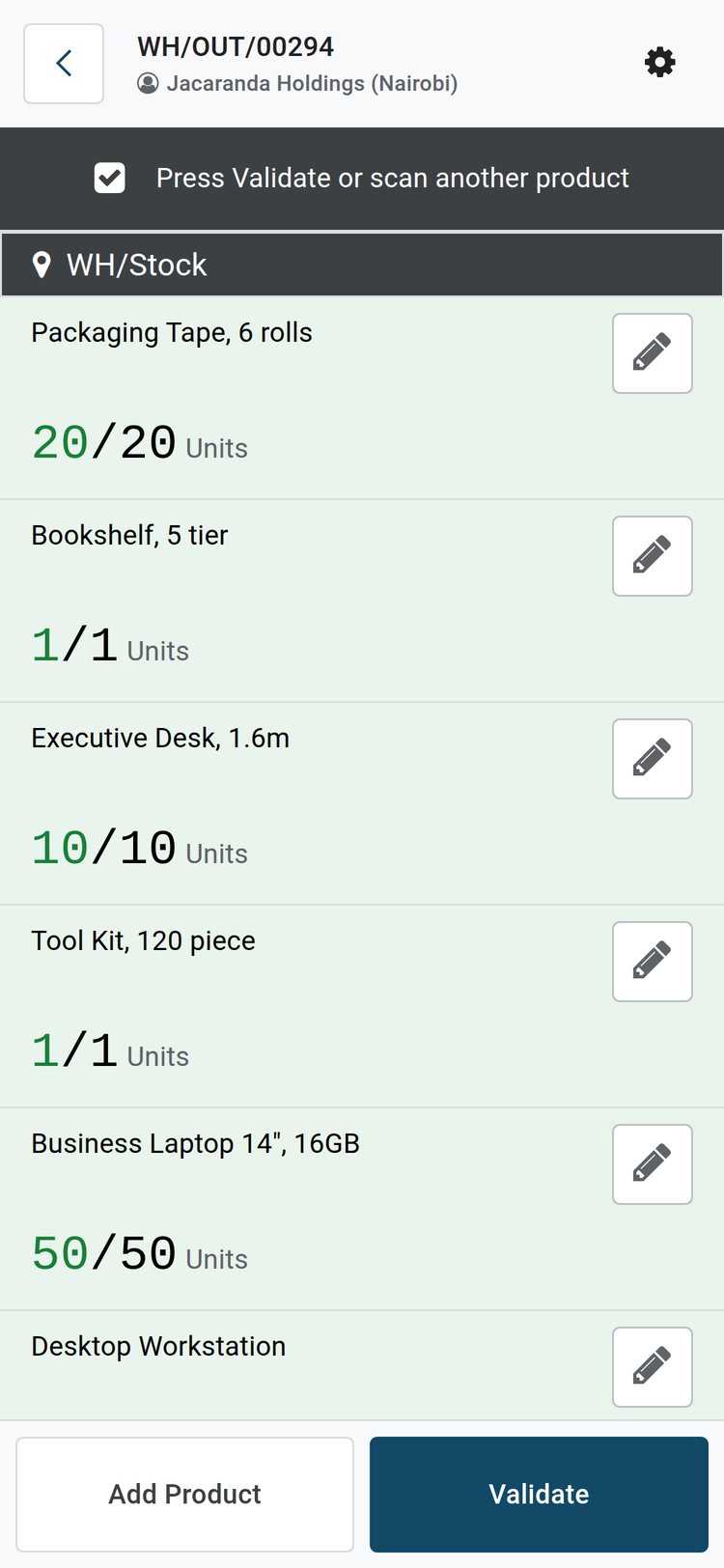
Pick a delivery line by line from the phone
In the Barcode app, delivery WH/OUT/00294 lists each product with the quantity picked against the quantity ordered; scan the next product, add one, or press Validate.
Explore Inventory →Who uses it
Who uses it, and what each person sees
One database, six vantage points, each limited by the Inventory User or Administrator access group.
Managing director
The Overview cards, the Warehouse Metrics dashboard and the Valuation total in KES show whether stock is growing faster than sales.
Warehouse manager
Late and Waiting filters on Deliveries, batch assignment to pickers, count frequency per location and the Operations Types settings for reservation and backorders.
Storekeeper and picker
The Barcode app for receipts, batch picks and counts, the printed Count Sheet and Delivery Slip, and the Scrap screen for damaged goods.
Purchasing officer
Replenishment with To Order per product, vendor lead times on the product form and the receipt status on every purchase order.
Accountant
Valuation layers and their journal entries, the costing method per product category and, on the demo, the KRA eTIMS send status on each validated transfer.
Sales team and cashier
Delivery Status on the sales order, stock availability while quoting, and PoS Orders that draw on the same warehouse as the deliveries.
Works with
Apps that share the same stock
Every app below reads and writes the same quants, so a sale at the till and a delivery to a client come off one count.
 PurchaseConfirmed orders create receipts; Replenishment raises requests for quotation with the vendor's price, currency and lead time from the product form.
 SalesConfirmed quotations create deliveries; the order shows Delivery Status and reserves stock at confirmation or before the scheduled date.
 Point of SaleShop sales post through the PoS Orders operation type, so the till and the warehouse read one on-hand figure.
 eCommerceWebsite availability settings show stock on the product page, set a threshold and allow or block out-of-stock orders.
 ManufacturingManufacturing orders consume components and put finished cakes or furniture into stock through the Manufacture route.
 AccountingAutomated valuation posts each layer to the ledger; manual valuation keeps the report for period-end entries.
 InvoicingInvoice on delivered quantities: a partial delivery bills exactly what left the warehouse, nothing more.
 FleetDispatch Management puts a vehicle, vehicle category, driver and dock location on each batch transfer.
 IoTShipping Documents and Shipping Labels print straight from the transfer to a printer connected through the IoT Box.
 QualitySwitch on Quality Control to add checks at receipt, before delivery or during manufacturing, with alerts on failure.
 RepairsRepair orders take spare parts from stock and return the repaired item to the customer through a delivery.
 StudioAdd fields and Properties to transfers, or automate a step in the flow, without writing code.
In your country
Built for how warehouses actually run
The details that decide whether a system survives month one, wherever the warehouse is.
Stock reporting to the tax authority
Stock modules exist for countries such as Mexico, Peru, Romania and Kenya; on the demo, Kenya's eTIMS module gives each transfer a send status and each product a KRA Item Code.
Your currency, and the vendor's
Vendor price lists per product in KES, USD or ETB with a minimum quantity and lead days; companies in a group move stock through an inter-company transit location.
Local couriers, priced your way
Delivery Methods such as Local Delivery and The Poste price shipping as a fixed amount or by weight, volume and destination rules; ten carrier connectors wait in Settings.
SMS, email and a signature at the door
Settings switch on a Delivery SMS and a Shipping email sent at validation; the customer signs on screen and the signature stays on the transfer.
Grams, kilos, litres and dozens
Units of Measure covers g, kg, L, Dozens and Units, with a separate purchase unit per product; Packages and Product Packagings switch on in Settings.
Freight, customs and expiry when you need them
Landed Costs, Expiration Dates, Consignment, Dropshipping and Quality Control are switches in Settings, ready the day the business needs them.
Reports and control
Reports and control
Every Reporting menu, the Forecasted and Traceability reports behind each product and lot, and the Logistics dashboards.
Stock
Every tracked product with On Hand, Free to Use, Incoming, Outgoing and Forecasted; the Negative Forecasted Quantity filter lists what will run short.
Locations
Quants by location, product and lot: what sits on each shelf or in the Small Refrigerator right now, with the reserved quantity beside it.
Moves History
Done move lines by date, reference, product, lot, source and destination; grouped by product it answers most stock enquiries on one screen.
Moves Analysis
Stock moves grouped by operation type, product category or month, to compare receipt and delivery volumes across the year.
Valuation
Valuation layers with unit value, total and remaining value in list, pivot and graph views; under automated valuation each layer links its journal entry.
Forecasted and Traceability
The Forecasted report on a product shows incoming and outgoing quantities per date; Traceability on a lot follows it from receipt to customer.
Logistics dashboards
Warehouse Daily Operations, Warehouse Metrics, Operation analysis and Purchase & Vendor analysis in the Dashboards app, built on the same stock data.
Printouts and labels
Delivery Slip, Picking Operations, Count Sheet, Reception Report, Return Slip and Batch Transfer, plus product, lot, package and location labels, several in ZPL.
Getting started
Getting started
The order a standard implementation follows, each step on a screen the team keeps using afterwards.
Create the warehouse
Configuration > Warehouses creates the Receipts, Delivery and Internal operation types, routes and locations; choose one-, two- or three-step reception and delivery.
Load the products
Import a spreadsheet into Products with internal reference, barcode, unit of measure, cost, category and vendors, then set Track Inventory and Tracking per product.
Enter opening stock
In Physical Inventory, import or type the counted quantity per location and lot, apply once, and the valuation layers start at the opening cost.
Set costing and lead times
Costing method and valuation per product category; Purchase Lead Time, Sales Safety Days and Manufacturing Lead Time on the company; vendor lead days per product.
Set reordering rules and counts
Minimum and maximum per product and location with an Auto or Manual trigger; count frequency per location and the annual inventory day in Settings.
Give people the right screens
Inventory User for storekeepers and Administrator for managers, the Barcode app for scanners and phones, and company access per user in a group structure.
Questions
Questions about Inventory
Not covered here? Contact us.
Can we run more than one warehouse or branch?
Yes. Configuration > Warehouses adds a warehouse with its own operation types, routes and locations; Resupply From lets one warehouse replenish another, and the Locations and Stock reports filter by warehouse. Multi-company works the same way, with an inter-company transit location between companies.
Does it track lots, serial numbers and expiry dates?
Set Tracking on the product to By Lots or By Unique Serial Number; lots are created at receipt or picked at delivery, listed under Products > Lots / Serial Numbers, and followed with the Traceability report. Expiration Dates is a switch in Settings that adds expiry, removal and alert dates to each lot.
How does automatic reordering work?
A reordering rule holds a minimum and maximum per product and location. With the Auto trigger the scheduler raises a request for quotation or a manufacturing order when the forecast drops below the minimum; with Manual, the Replenishment screen shows To Order and you order from the line. Lead times from the vendor, the company and Visibility Days shape the forecast.
Which costing and valuation methods are available?
Standard Price, First In First Out and Average Cost per product category, with Manual valuation (a report for period-end entries) or Automated valuation (a journal entry per move). Valuation by lot or serial number is a further option on the product, and the Valuation report shows every layer with its remaining value.
Can staff use barcodes on ordinary phones?
Yes. The Barcode app runs in the phone's browser with the camera as the scanner, or with a handheld scanner on a desktop. It handles receipts, deliveries, internal transfers, batches, manufacturing and counts, reads GS1 barcodes through the GS1 nomenclature, and prints product, lot, package and location labels.
Does it report stock movements to the tax authority, such as KRA eTIMS?
Where the country has a stock module, yes. With Kenya's KRA eTIMS (OSCU) stock module, for example, each validated transfer carries an eTIMS send status and a Store and Release Number, the data sent to KRA is attached to the stock move, and products hold the KRA Item Code, Packaging Unit, eTIMS Product Type and Origin Country. Setup is under Accounting > Configuration > KRA eTIMS.
How are couriers and shipping costs handled?
Delivery Methods price shipping as a fixed amount or by rules on weight, volume, quantity or price, and the cost lands on the sales order. Ten carrier connectors (DHL, FedEx, UPS, USPS, bpost, Easypost, Sendcloud, Shiprocket, Starshipit, Mondial Relay) print labels and fill the Tracking Reference on the transfer.
What happens when only part of an order can ship?
The Shipping Policy on the transfer decides whether to ship as soon as possible or wait for all products. On validation of a partial quantity the operation type's Create Backorder setting (Ask, Always or Never) creates a backorder for the rest, which appears under the Backorders filter.
Tax compliance
Invoices your tax authority accepts
In Kenya, Uganda, Rwanda, Burundi and Zambia, each invoice, receipt and stock movement goes to the tax authority's own system when you post it. Ghana and Pakistan come next, and we connect 73 more countries on request.
- KenyaReady
eTIMS KRA
Invoices, credit notes, POS receipts and stock movements
- UgandaReady
EFRIS URA
Invoices, POS receipts and stock
- RwandaReady
EBM RRA
Invoices, POS receipts, stock and imports
- BurundiReady
EBMS OBR
Invoices, POS receipts, stock and manufacturing
- ZambiaReady
Smart Invoice ZRA
Invoices, POS receipts, stock and imports
Where Inventory fits
Nothing here is a silo: the apps around it read and write the same records, so the hand-offs happen on their own.
What feeds it, and what it feeds — these are real app connections, not a diagram.
- Operations
Inventory
Stock moves, lots and serials, reordering rules and valuation.
Inventory →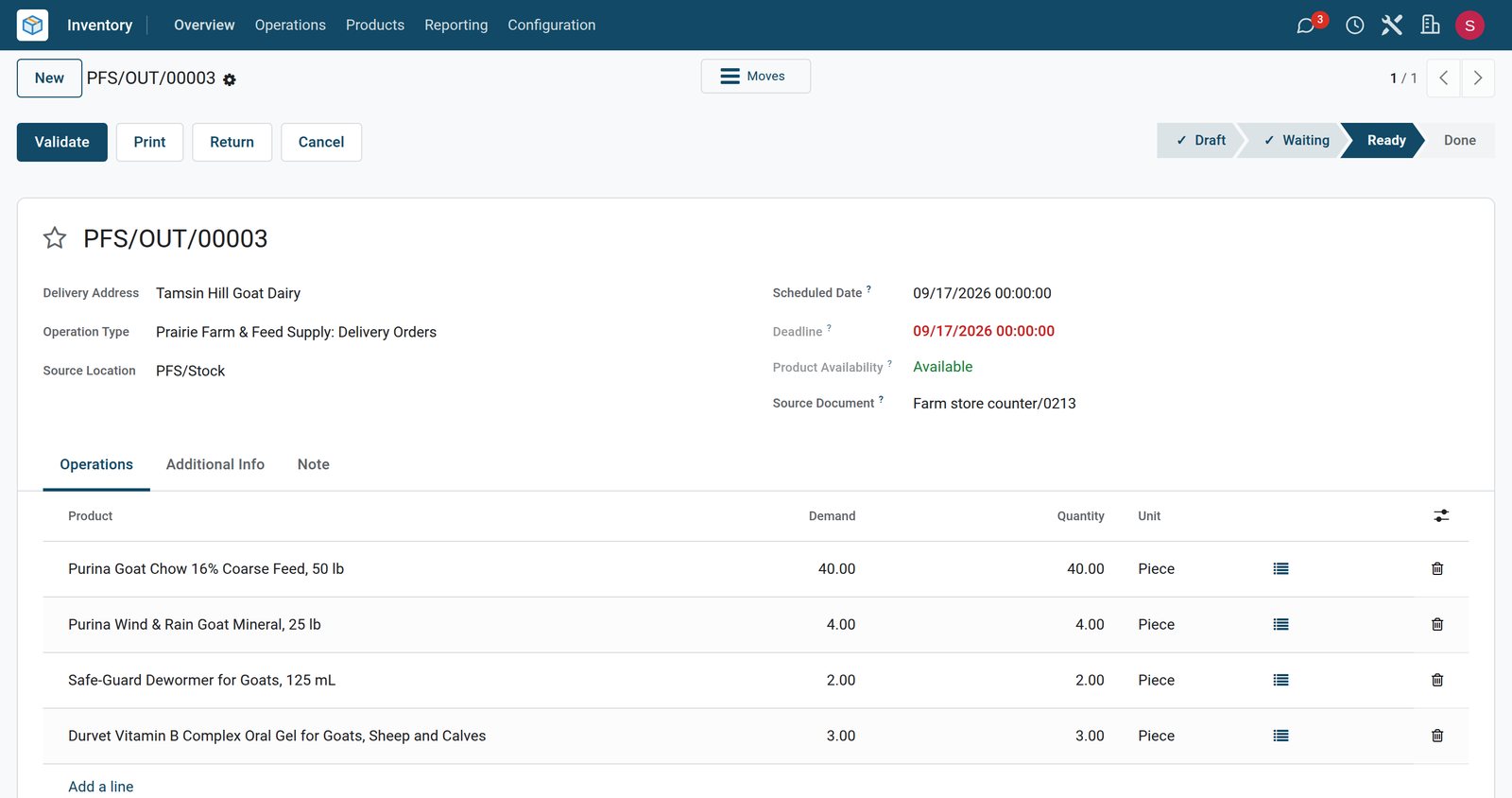
Put Inventory to work
Add it to your plan and pay only for what you use, or see it running on your own demo first.