

 Studio: Add the sign-off, the rule and the field your business needs, without waiting for a developer
Studio opens on any BridgeERP form, list or kanban: drag a field into place, switch views on, put an approval step on a button, write an automation rule and edit the PDF, all kept in your own customisation module.
Free instant access. No credit card required.
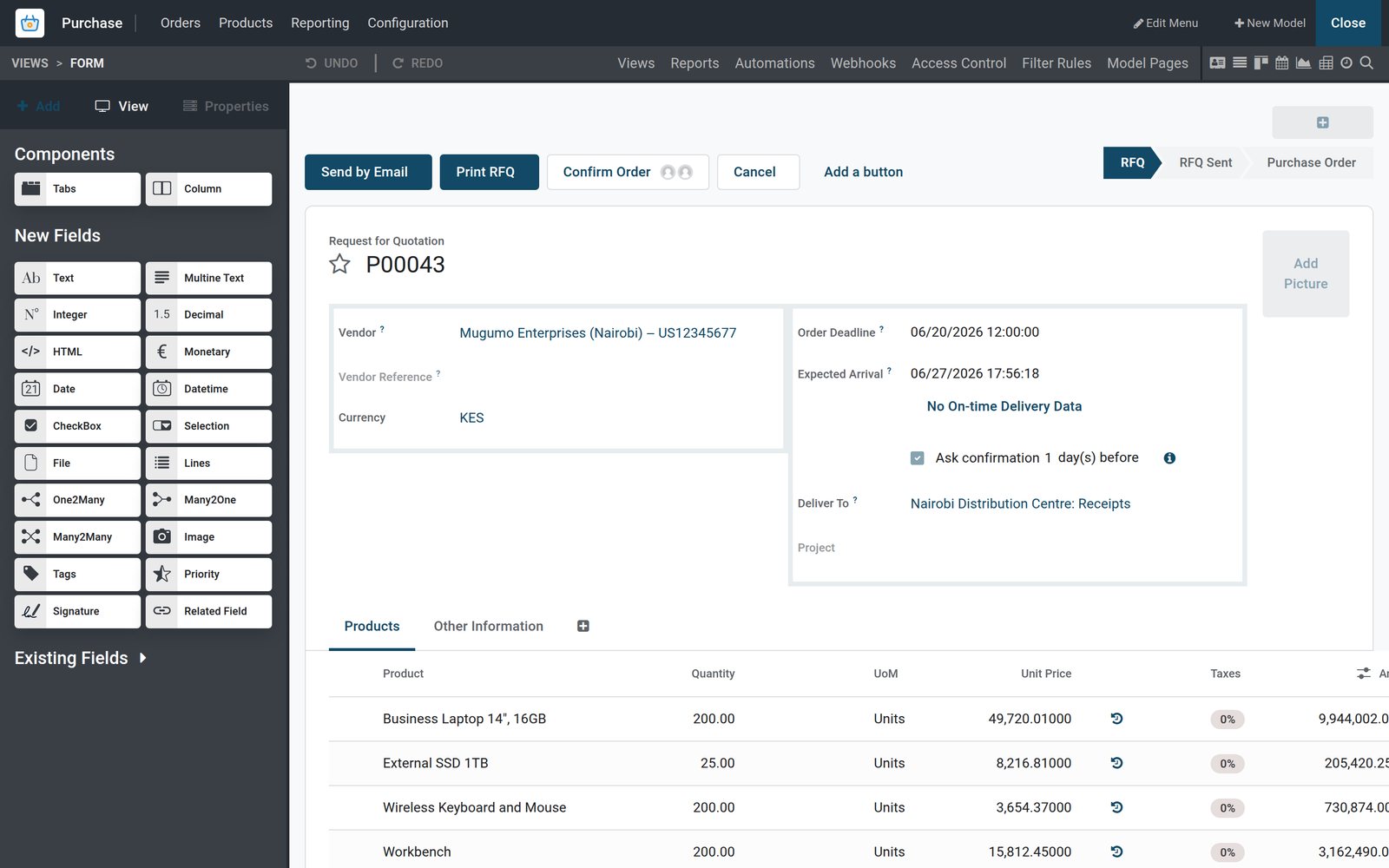
See every rule your company runs, and which button needs whose signature
Rules written in Studio are records like any other: one board shows what fires and when, the other shows which button waits for which approver.
- Studio
Every automation rule on one board
Each card names the rule, its trigger and its action, such as Opportunity won, which schedules the hand-over call once the stage is set to Won.
Explore Studio →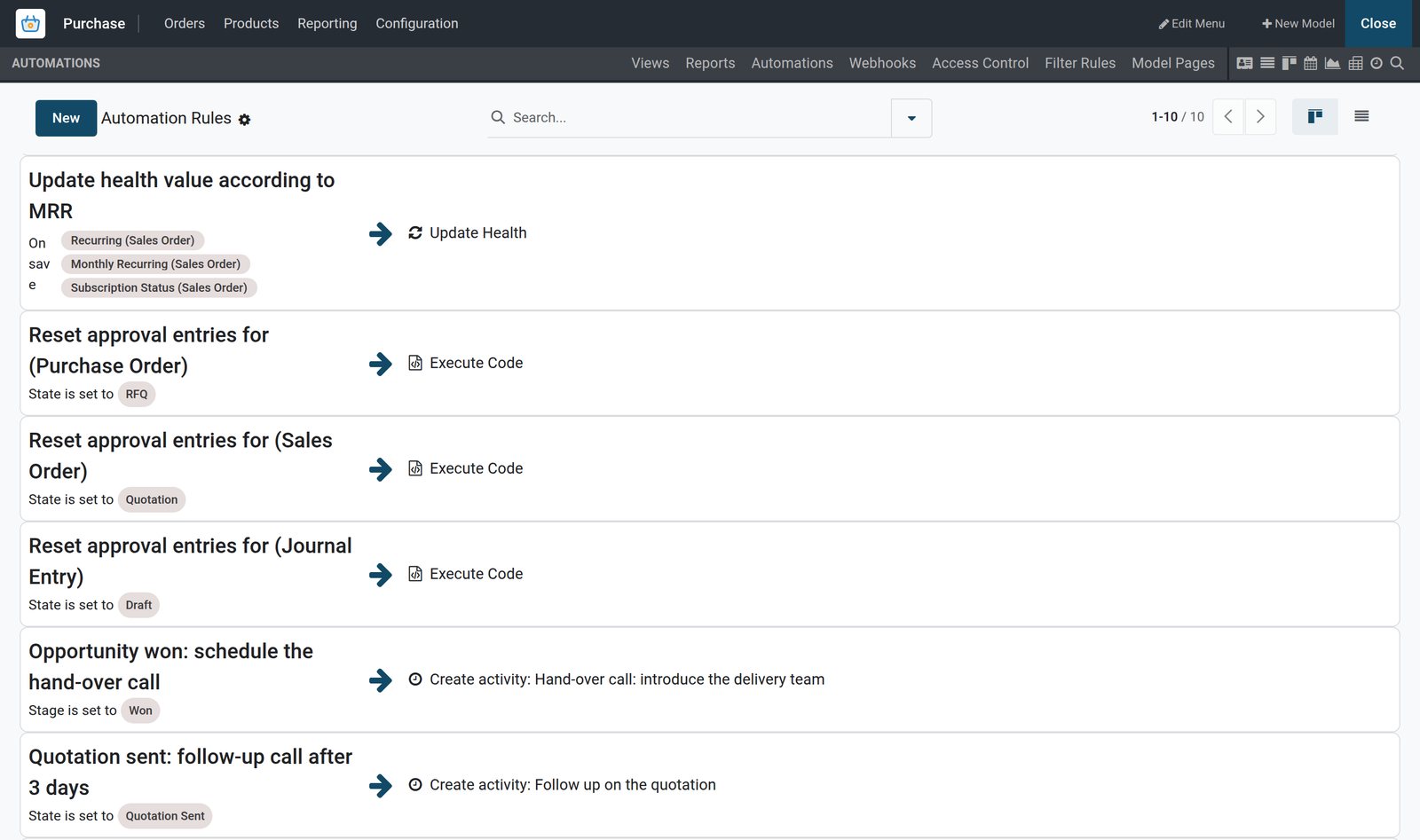
- Studio
Which button waits for which approver
With Confirm Order selected, the Approvals list shows both rules: Finance sign-off with approvers Hellen Akinyi and Rose Chelangat, then a second sign-off above KES 10,000,000.
Explore Studio →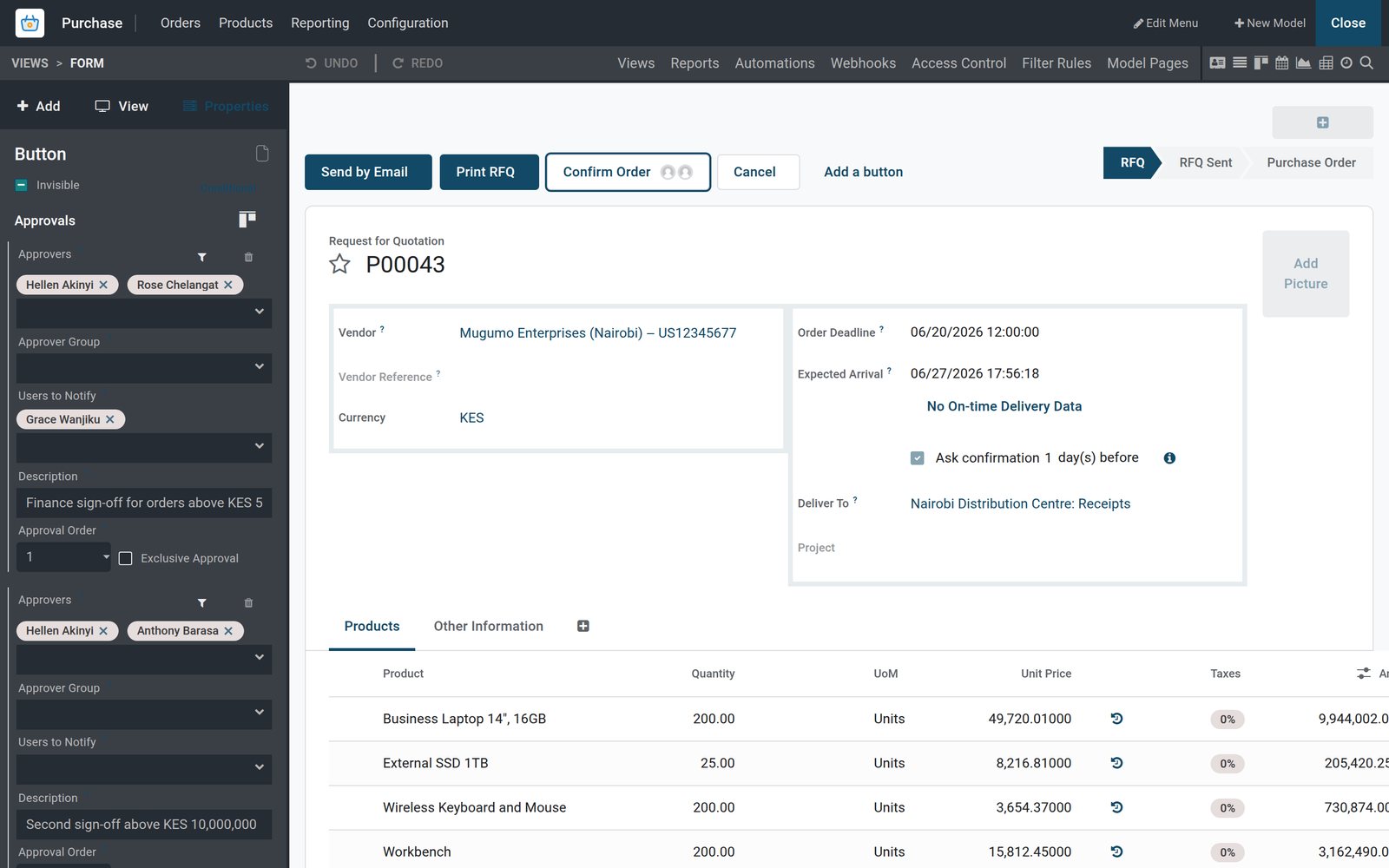
By the numbers
What Studio has to work with on the demo
Counts of real records in the demo database: the screens and documents Studio edits, and the rules already running on them.
- 4,400+
- views on the demo, from forms, lists and kanbans to calendars, Gantt charts, graphs and pivots: the screens Studio opens on and reshapes
- 71
- PDF reports on the demo, from the Purchase Order and the quotation to invoices and delivery slips, each one open in the Studio report editor
- 10
- automation rules running on the demo, on opportunities, quotations, purchase orders, vendor bills, applicants and subscriptions
- 17
- requests for quotation above KES 5,000,000 on the demo, each needing the Finance sign-off before Confirm Order goes through
Inside the app
What is inside
The tabs of the Studio editor and the entries in its top bar, each one writing records you can find on the demo.
Views: one editor per view type
Form, Kanban, List, Calendar, Gantt, Map, Graph, Pivot, Cohort, Activity and Search each open in a visual editor with properties like Can Create and Sort By.
Fields and their properties
Drag Text, Monetary, Selection, Many2One, Tags or Signature fields onto a view; set Label, Required, Readonly, Invisible, Default value and Help tooltip; names start x_studio_.
Reports: the PDF in an editor
The Reports tab opens the PDF in an editor; its sidebar sets Report name, Paper format, Show in print menu, Reload from attachment and Limit visibility to groups.
Automations: trigger, condition, actions
A rule pairs a trigger such as Stage is set to, On save or Based on date field with a condition and a list of actions.
Approvals on any button
Add an approval step to a button such as Confirm Order: approvers or a group, users to notify, a condition, the step order and Exclusive Approval.
Webhooks in and out
The Webhooks tab and the On webhook trigger let an outside system start a rule; Send Webhook Notification posts the record to another system when something happens.
Access Control and Filter Rules
These tabs hold the access rights per group and the record-level filter rules of the model you edit, so a new model is guarded like a standard one.
New apps, models and menus
New Model and Edit Menu sit in the Studio top bar; a new model offers suggested features such as Pipeline stages, Contact details, Lines, Company and Chatter.
Step by step
From a missing field to a live change, without leaving the screen
Each step happens inside Studio on the screen your team already uses; nothing is exported to a separate tool and re-imported.
- Step 1
Open Studio where you are
Click the Studio toggle on the purchase order, opportunity or employee form; the same screen reopens in edit mode with the app menu still visible.
Studio - Step 2
Drop the field
Drag a Monetary, Selection, Date or Related Field onto the form, name it and tick Required or Invisible; lists, filters and exports can then use it.
Studio - Step 3
Shape the views
Add the field as a list column, choose Default Group By on the kanban, and switch Gantt, Map, Graph or Pivot on from the Views tab.
Studio - Step 4
Add the rule
Write an automation rule: On save, when Total passes KES 2,000,000, schedule a To-Do that flags Finance; or put an approval step on Confirm Order.
Studio - Step 5
Put it on the PDF
Open the Reports tab, drop the new field into the Purchase Order or quotation layout, pick the paper format and limit who may print it.
Studio - Step 6
Close, and it is live
Close Studio and the change is in use across the company; Customize, Export writes it to a module you can import on a test or second database.
Studio
Shape the pipeline card and the list columns for your team, not a generic one
Studio opens on these screens as they stand, real records included: click a card or a column to change it, drag a field in from the sidebar and set the view's properties.
 CRM
CRMThe pipeline card, edited in place
Studio's kanban editor shows the pipeline card for Mto Logistics' warehousing deal, while the sidebar sets Quick Create, Open Record On Click and Default Group By Stage.
Explore CRM →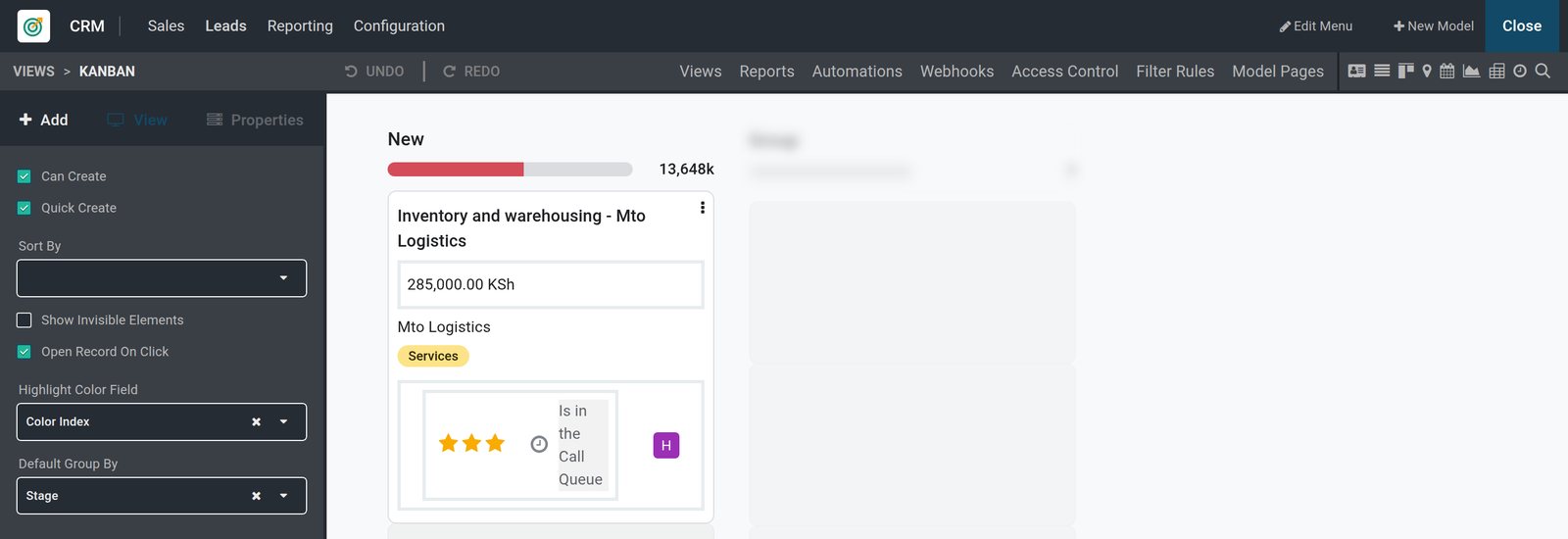
 Purchase
The Requests for Quotation list, column by column
The list editor keeps the RFQs on screen, with Reference, Vendor, Buyer, Order Deadline, Activities, Source Document and Total as columns, and new fields drag in from the sidebar.
Explore Purchase →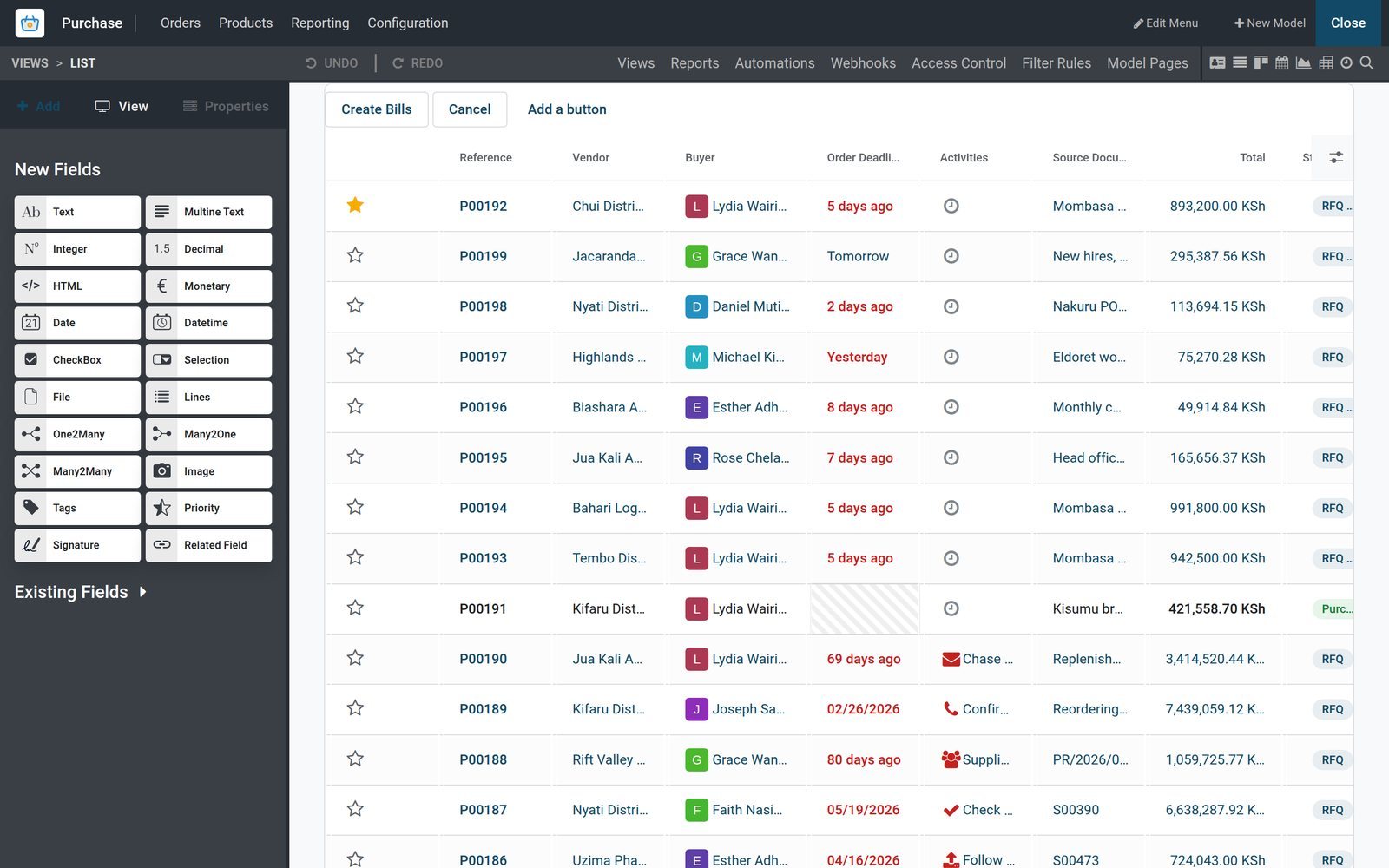
Put the sign-off on the button, with the threshold in your currency
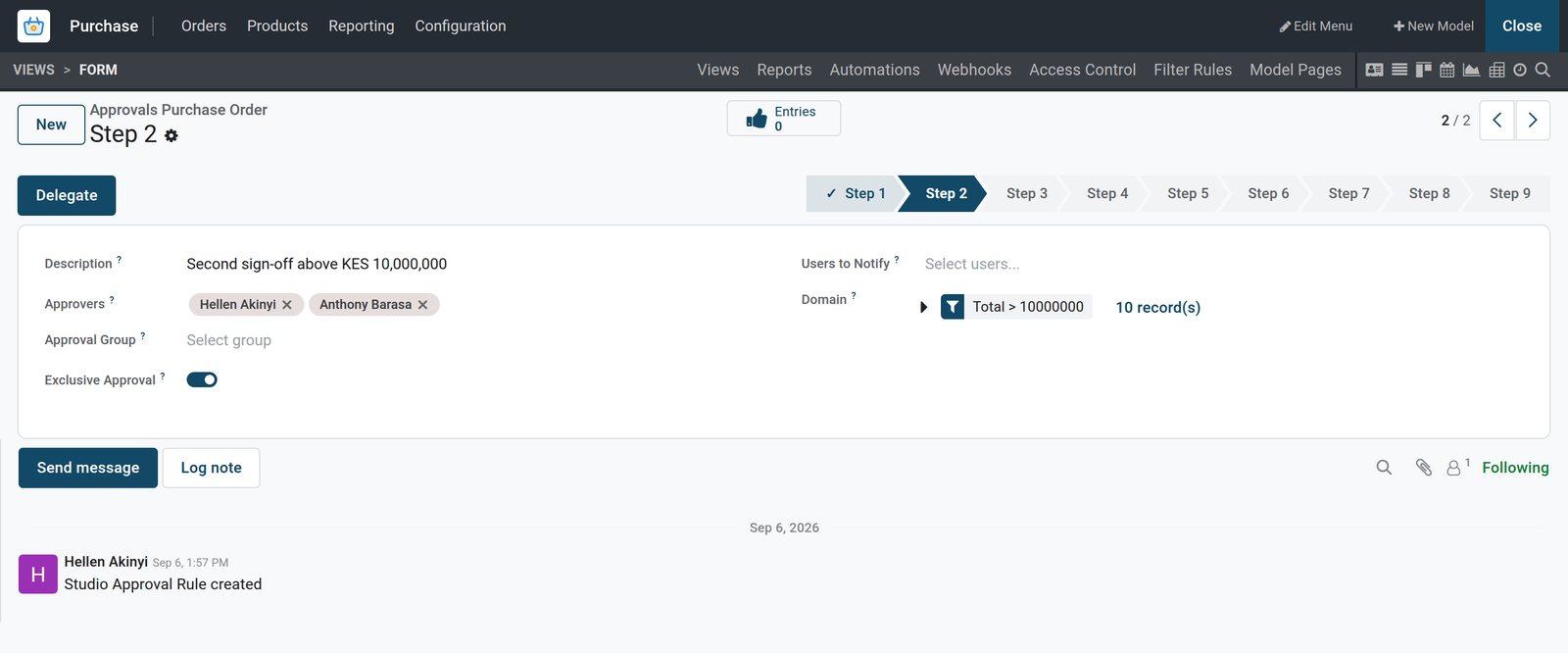
An approval rule attaches to the button that does the work. The rule below is the second, exclusive step on purchase orders above KES 10,000,000.
 Studio
A second, exclusive step above KES 10,000,000
Step 2 of the purchase order approvals: approvers Hellen Akinyi and Anthony Barasa, Exclusive Approval switched on, and the domain Total > 10000000, which 10 orders match.
Explore Studio →Let the rule schedule the call, flag the order and chase the applicant
An automation rule is a trigger, a condition and a list of actions on one model; the demo runs them on subscriptions, opportunities, quotations, purchase orders and journal entries.
 Studio
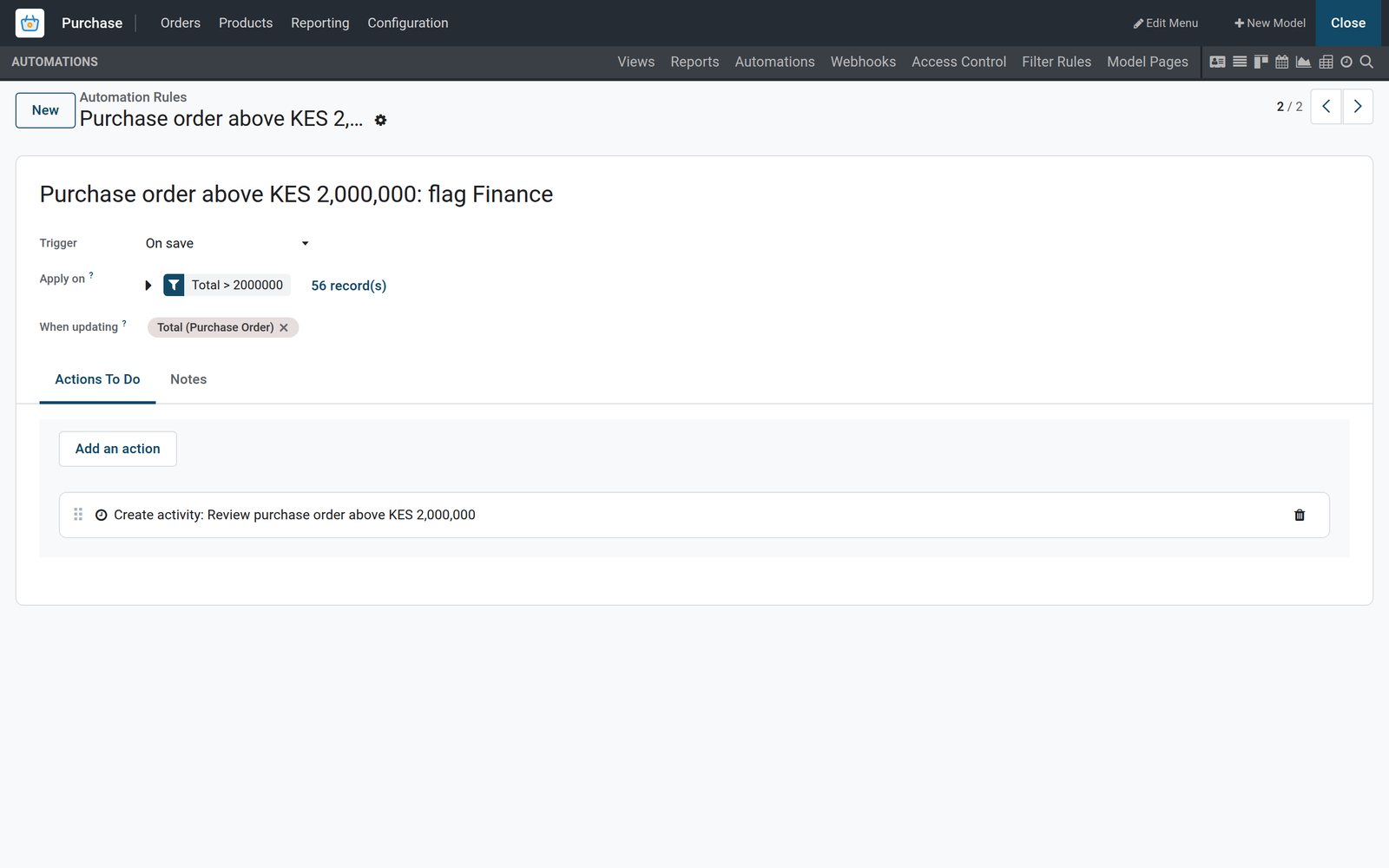
The rule form: trigger, condition, action
The rule runs on save when Total changes, applies to the 56 purchase orders above KES 2,000,000 and creates the activity Review purchase order above KES 2,000,000.
Explore Studio →Change the purchase order PDF in the editor, not in code
Studio opens a PDF such as the purchase order in its report editor, laid out as it prints: drop in fields, tables, images and text, pick the paper format and choose who may print it.
 Studio
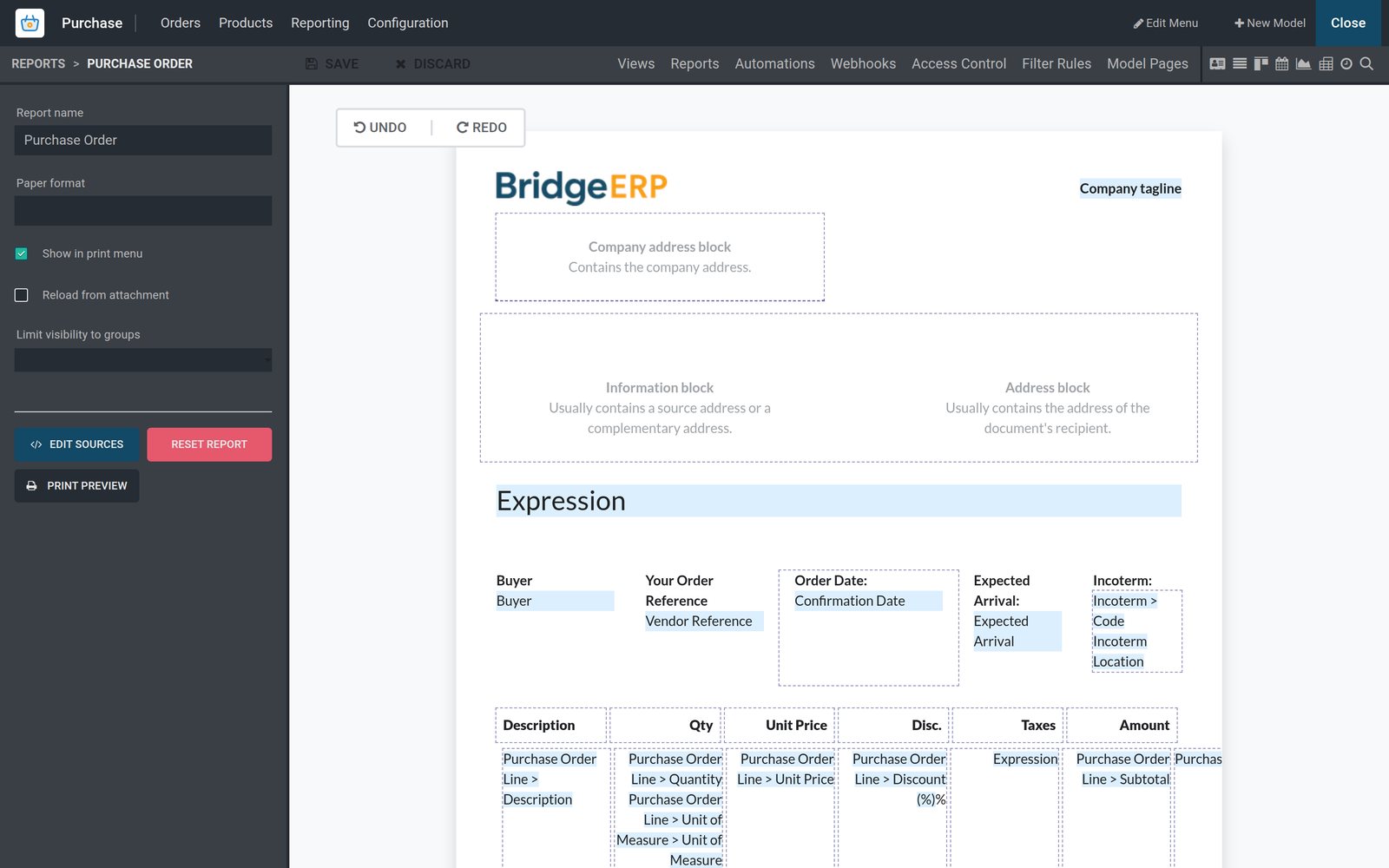
The purchase order PDF in the report editor
The report editor lays out the Purchase Order with the company logo, addresses, buyer, order date and lines table, beside its paper format and print menu settings.
Explore Studio →Who uses it
Who uses Studio, and for what
The people in a growing company who change BridgeERP themselves, and the change each of them makes without raising a ticket.
Managing director
Sets the approval thresholds: which purchase orders need Finance, which need a second signature, who is notified, and whether one person may sign both steps.
Operations manager
Adds the fields the business runs on: a delivery zone on the order, a county on the contact, a vehicle registration on the job.
Finance controller
Puts a Finance check on vendor bills above KES 500,000 and a sign-off on credit notes above KES 200,000, then reads each decision in the chatter.
Sales manager
Changes the pipeline card and the quotation PDF, and lets a rule schedule the hand-over call the moment an opportunity reaches Won.
HR manager
Adds a rule that opens an activity for the recruiter as soon as an application arrives, and drops a Signature field on the employee form.
IT lead or implementation partner
Keeps the x_studio_ technical names tidy, exports the customisation module, imports it on the next database and opens the XML editor for fine detail.
Works with
Apps Studio edits on the demo
Every app below is installed on the demo; Studio opens on its forms, lists and kanbans, and automation and approval rules run on its records.
- CRMEdit the pipeline card and the opportunity form; run a rule when a stage is set, such as the hand-over call on Won.
 SalesAdd fields to the quotation, put a Sales Director step on Confirm for large orders and edit the Quotation / Order PDF.
- PurchaseGuard Confirm Order with Finance and Managing Director steps, flag large orders with a rule and change the Purchase Order report.
 AccountingAdd the field a tender or a bank asks for on the invoice, check large vendor bills and sign off credit notes before posting.
 InventoryAdd a field to transfers or products, switch the Map view on for deliveries and edit the delivery slip and picking reports.
 ManufacturingAdd fields to manufacturing orders and work orders and adjust their PDF reports to the shop floor's needs.
 ProjectsChange the task kanban, add a Date range for a Gantt view and set a rule that creates an activity when a task changes stage.
 EmployeesAdd a Signature or File field to the employee form, restrict it by group and edit the Employee Resume and badge reports.
 RecruitmentRun a rule on every new applicant that creates an activity for the recruiter, and shape the applicant kanban per job position.
 FleetAdd the fields a vehicle file needs, such as an inspection date, and use Based on date field to raise a reminder before it.
 SubscriptionsStandard rules already act on subscriptions: one follows up less satisfied clients, another updates the health value from recurring revenue.
 Point of SaleAdd a field to the product form and reshape the orders list and kanban the shop manager reviews after each session.
In your country
Built for the way business runs in your country
The demo trades in Kenyan shillings with a sister company in Ethiopian birr; the rules and modules below are the ones it actually carries.
Thresholds in the record's currency
Approval and automation conditions compare the record's Total in its own currency; the demo rules read KES 5,000,000, 10,000,000, 3,000,000 and 200,000.
Multi-company from the first field
A new model can carry the Company feature, and rules are written per model; the demo runs 5 companies, including Baobab Traders (Nakuru) in Ethiopian birr.
Country connectors alongside your own fields
Country modules, such as the Kenyan eTIMS (OSCU) connector on the demo, sit in Accounting; Studio adds beside them the extra fields a licence, a bank or a tender asks for.
SMS and email from a rule
Send SMS and Send Email are rule actions with a template; the message goes out as an email, a chatter message, a note or an SMS.
Webhooks for the systems around you
The On webhook trigger lets a payment gateway, a bank feed or a fleet tracker start a rule; Send Webhook Notification pushes the record out the other way.
The same form on a phone
Studio edits the one view definition that browser and phone both render, so a field added on the desktop form shows on the phone form too.
Reports and control
Reports and control
What Studio gives a manager to read, and what it gives an administrator to lock down, all backed by records on the demo.
Graph and Pivot on any model
Switch Graph or Pivot on from the Views tab; set the measure, the dimensions, Bar, Line or Pie, stacking and whether a click opens the records.
Cohort for retention
The Cohort view takes a measure field, a Day, Week, Month or Year interval, Retention or Churn mode and a Forward or Backward timeline.
PDF layouts with your logo and colours
Light, Boxed, Bold, Striped, Bubble, Wave and Folder layouts carry the company logo, colours and font; each report can take any of the demo's paper formats.
Approval entries in the chatter
Every approval or rejection becomes an approval entry, and the decision is posted in the record's chatter for the auditor to read.
Access Control tab
Read, write, create and delete rights per group for the model you are editing, so a new model is guarded like any standard one.
Filter Rules tab
Record rules limit which records a group can see, such as its own company's orders; Studio shows them beside the model instead of in a technical menu.
What sets it apart
What sets it apart
Things you notice in the first hour with Studio, each of them backed by what is on the demo.
One database, not a separate builder
The form you edit is the form staff use; there is no second platform to sync with or log in to.
Fields that behave like standard ones
A Studio field is a real field with the x_studio_ prefix: it filters, groups, exports, shows in Graph and Pivot and prints on the PDF.
Approvals on the real button
The rule guards Confirm Order or Post itself, with ordered steps and Exclusive Approval, so no order is confirmed around the workflow.
Rules on real record events
Triggers such as Stage is set to, State is set to, On incoming message and After last update fire from the same events the apps use.
Customisations that travel
Everything Studio changes goes into the studio_customization module; Export gives a zip and Import installs it on a database with the same version and apps.
Developer mode when you want it
The XML editor sits behind the visual one for views and reports, and Execute Code runs Python inside a rule when a click is not enough.
Getting started
Getting started
Studio is on the demo today; the steps below are how a company takes it from a first field to a second database.
Install Studio from the Marketplace
Studio is an app in the BridgeERP Marketplace; once installed, the Studio toggle appears in the top bar of every app for administrators.
Start with one field
Open the form, drop a Text or Selection field, name it and Close; check the list and search, then add it to the PDF.
Keep the technical names tidy
Every new field is x_studio_ plus the name you type; choose short, stable names before the field appears in exports, rules and reports.
Move changes between databases
Customize, Export downloads the customisation module with Include Data, Include Demo Data, Attachments and Updatable options; Import installs it on the other database.
Undo, reset, XML
The report editor has undo and redo and a reset to the standard report; developer mode opens the XML editor for views and reports.
Every rule on one board
Studio's Automations tab lists the rules of the model you are editing; the Automation Rules board lists them all in kanban, list or form.
Questions
Questions about Studio
Not covered here? Contact us.
Do I need a developer to use Studio?
No for fields, views, approval steps, automation rules and PDF reports: all of them are drag-and-drop or form-based. Execute Code in a rule and the XML editor behind views and reports are there for a developer when a click is not enough.
Where do my changes go, and are they safe when the standard apps update?
Every change Studio makes is written into its own studio_customization module, separate from the standard apps, and new fields carry the x_studio_ prefix. Customize, Export turns that module into a zip you can keep or import elsewhere.
Can Studio build a whole new app, not just change an existing one?
Yes. The New App tile on the home screen names the app and its first menu, then the model configurator offers suggested features such as Contact details, Pipeline stages, Date range & Gantt, Lines, Monetary value, Company, Chatter and Archiving; each one adds the fields and views it needs.
Can an approval depend on the amount of the order?
Yes. A rule carries a condition on the record, so the demo asks Finance to sign purchase orders above KES 5,000,000 and adds a Managing Director step above KES 10,000,000; steps run in order and Exclusive Approval stops one person signing both.
Can a rule send an SMS or talk to another system?
A rule's actions include Send SMS and Send Email with a template, and Send Webhook Notification to push the record to another system; the On webhook trigger lets an outside system start a rule in BridgeERP.
Can I change the PDF my customers and suppliers receive?
Yes. The Reports tab opens the quotation, invoice or Purchase Order document in an editor with a real record behind it; you drop in fields, tables, images and text, pick the paper format and limit who may print it.
How do I move customisations from a test database to the live one?
Use Customize, Export on the test database to download the customisation module, then Import on the live one; both must run the same version with the same apps installed, and you choose whether data, demo data and attachments travel with it.
What if I make a mistake?
The report editor has undo and redo and a reset to the standard report; developer mode shows the XML behind views and reports so a change can be read line by line; and an exported customisation module keeps a copy of your work.
Put Studio to work
Add it to your plan and pay only for what you use, or see it running on your own demo first.