
Equipment Rental: Know which machine is free next Tuesday
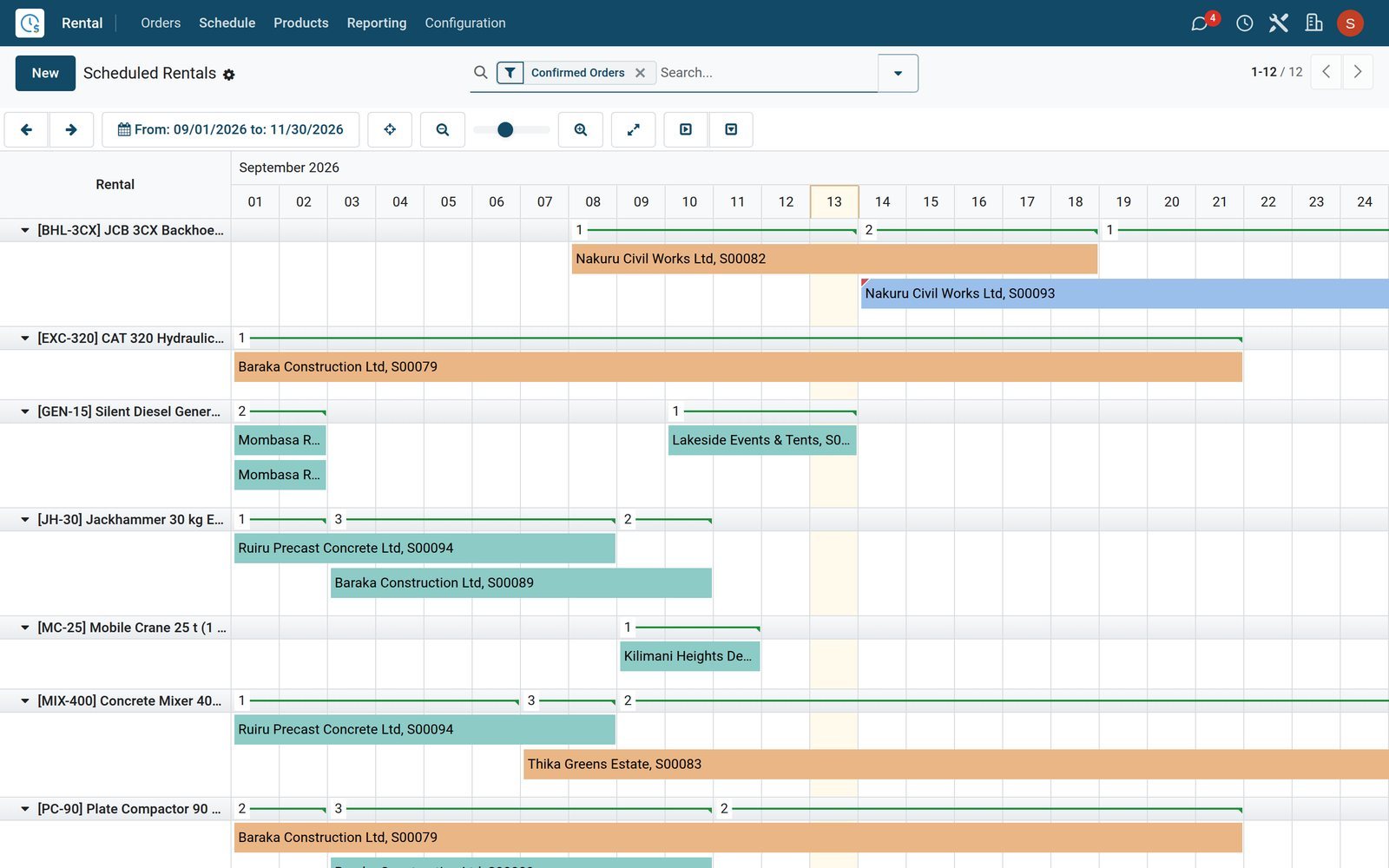
The Rental Schedule plots every booking per item. The same rental order then drives the pickup, the return, serial numbers, late fees and the invoice.
Free instant access. No credit card required.
 CRM
CRM Point of Sale
 Purchase
 Sales
Sales Rental
 Inventory
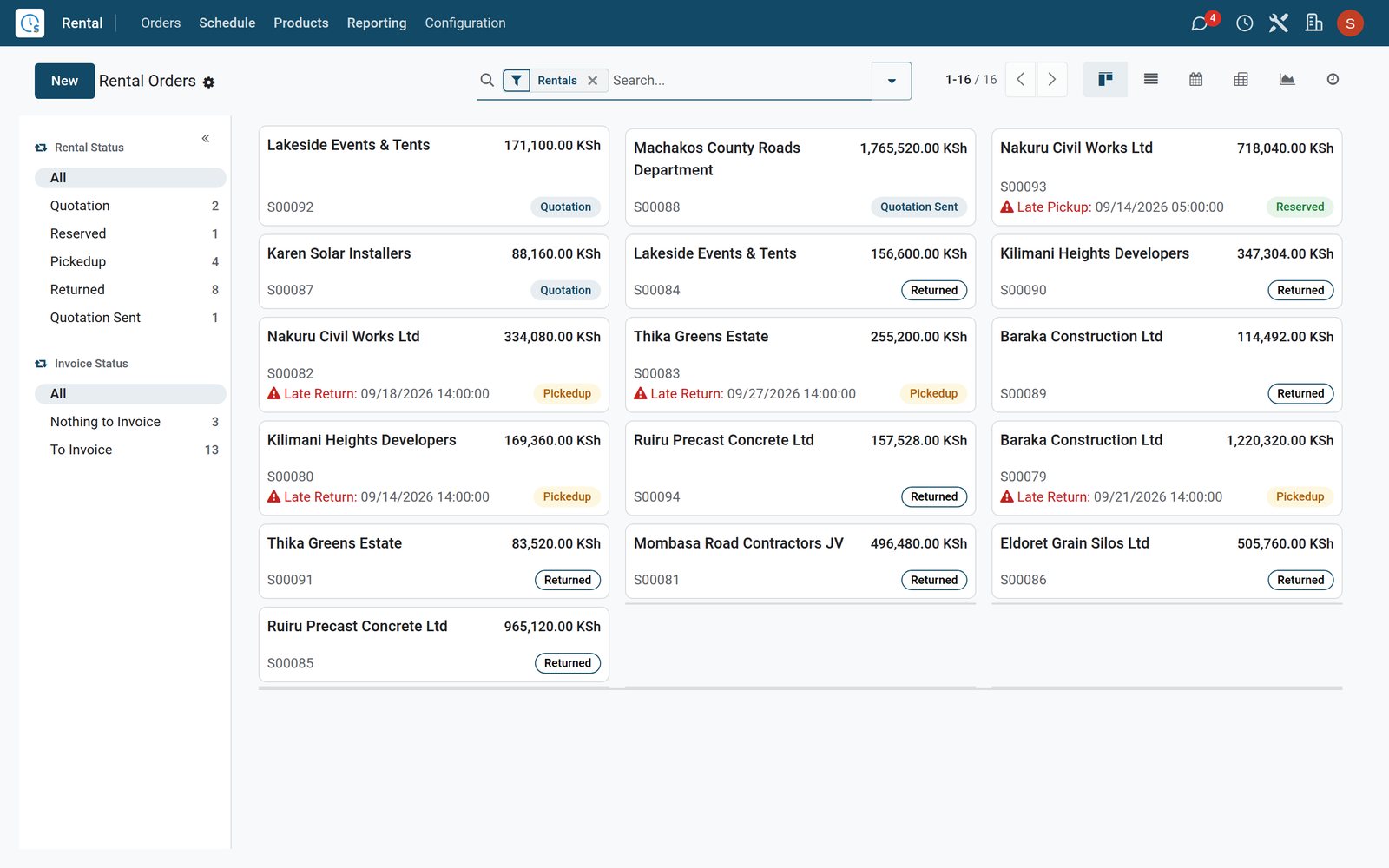
Every hire and where it stands, on one board
Rental Orders is the desk's home screen: each card is a booking, from the first quotation to the final return.
 Rental
Bookings as cards, status at a glance
Each card shows the customer, order number, total and rental status; filter the board by rental status or invoice status to find today's work.
Explore Rental →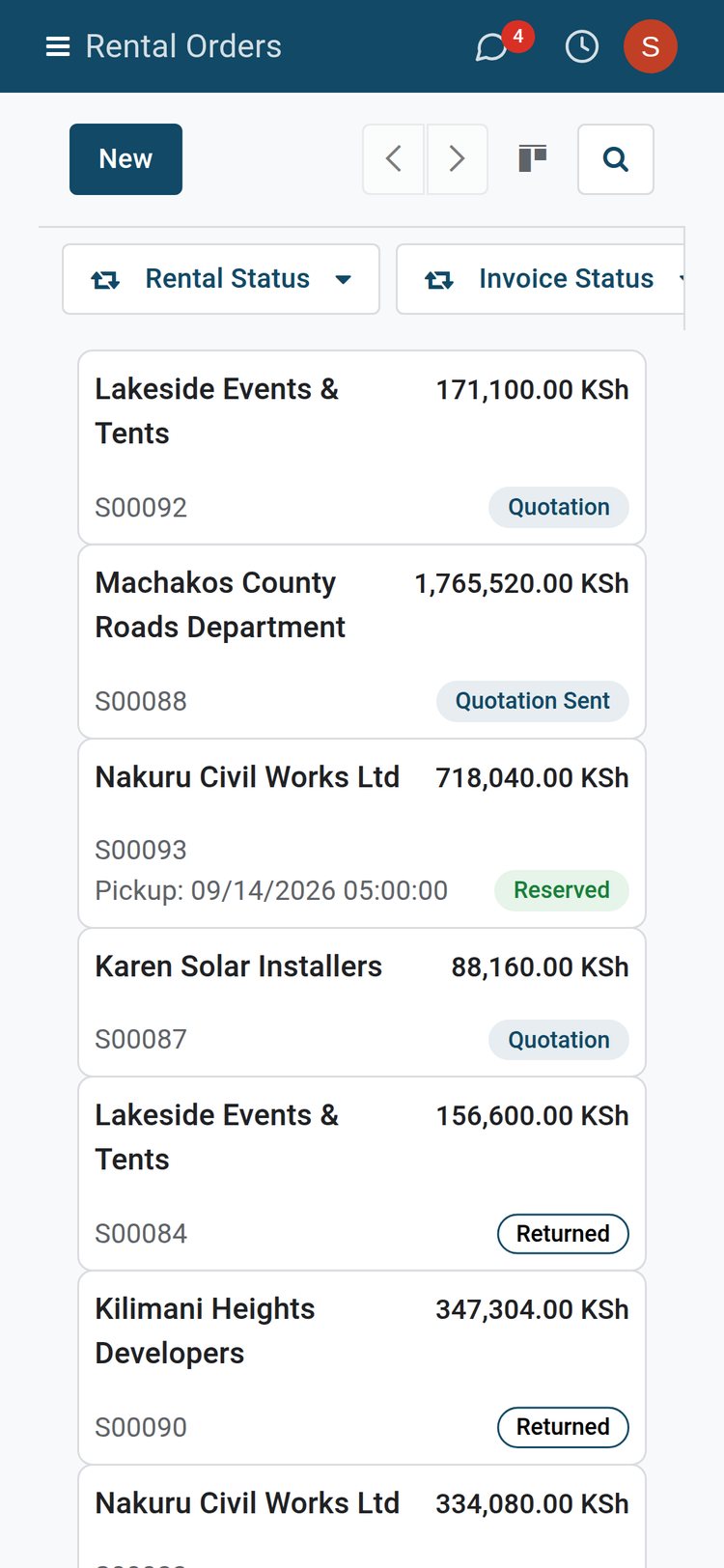 Rental
The same board in the yard
On a phone browser the Rental Orders board keeps the same cards, so yard staff can check a booking before the truck is loaded.
Explore Rental →By the numbers
The rental set-up on the demo, counted
Live counts from the BridgeERP equipment rental demo database, not projections.
- 37
- products marked as rentable on the demo, ready to add to any rental order
- 56
- rental price rules on those products, set by the hour, day, week or month
- 10
- rental periods configured on the demo, from hourly slots to yearly contracts
- 19
- serial numbers on rentable equipment, each linked to the orders it went out on
Inside the app
Everything the rental desk needs, already in the menus
These are the real menus of BridgeERP Rental and the apps around it, grouped by the job they do.
Rental orders
Rental / Orders holds every quotation and booking with its pickup and return dates, rental status and invoice status, as a board or a list.
Today's pickups and returns
To Do Today opens straight onto pickups and returns, so the counter starts each morning with its handover list ready.
Rental schedule
A Gantt of every rented item over days, weeks or months, showing quotations and confirmed bookings side by side.
Rentable products
Tick Can be Rented on any product, give it prices per rental period and set its extra-hour and extra-day late fees.
Rental periods
Define the units you charge by, from hours to years, once in Rental periods and reuse them on every item's prices.
Quotation templates
Save standard hire packages as rental quotation templates, and add your own headers and footers to the quotation PDF.
Serial numbers
Every tracked unit has its own serial number record showing its product, where it sits and the sales orders it appeared on.
Rental settings
Rental settings hold the default delay costs, the hours before they apply, the padding time between hires and rental transfers.
Step by step
From enquiry to invoice on a single order
The same rental order travels through every stage, so nobody re-keys a booking between the desk, the yard and accounts.
- Step 1
Quote the hire
In Rental, choose the customer, the pickup and return dates and the items; prices fill in from each item's rental price rules.
Rental - Step 2
Sign and confirm
The customer opens the quotation online, signs it on screen and the order is confirmed; the booking then shows on the Rental Schedule.
Sales - Step 3
Hand over at pickup
The Pickup button records what leaves and which serial numbers went out; with rental transfers on, Inventory gets a matching delivery.
Inventory - Step 4
Check it back in
The Return button records the serial numbers coming back; a late return adds a delay charge from the item's extra-hour or extra-day fee.
Rental - Step 5
Invoice the order
Create the invoice from the rental order; it posts to Accounting with the customer's payment terms and joins the follow-up list if unpaid.
Accounting - Step 6
See what earned
Rental / Reporting and the Rental dashboard show revenue by product, customer and period, so you see which items pay their way.
Rental
Charge by the hour, day or month without a price sheet
Rental prices sit on each product, so every quotation for the same item and the same dates comes out the same.
 Rental
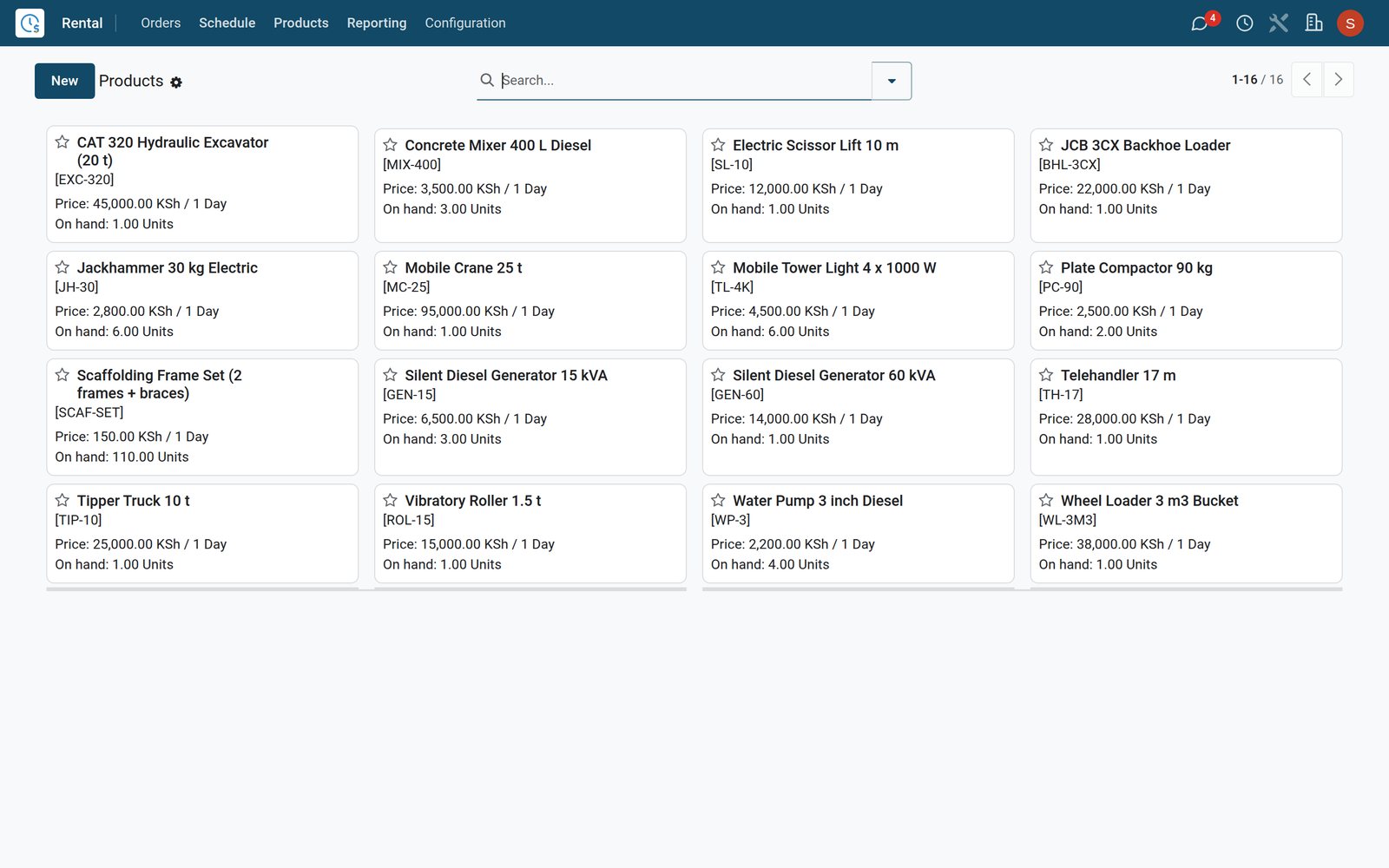
Rental prices on every item
Rental / Products shows each rentable item with its rental price, such as KES per day; open one to set prices per period and pricelist, plus its late fees.
Explore Rental →Know which unit is on which site
Serial tracking follows each individual unit from reservation to return, not just the product it belongs to.
 Inventory
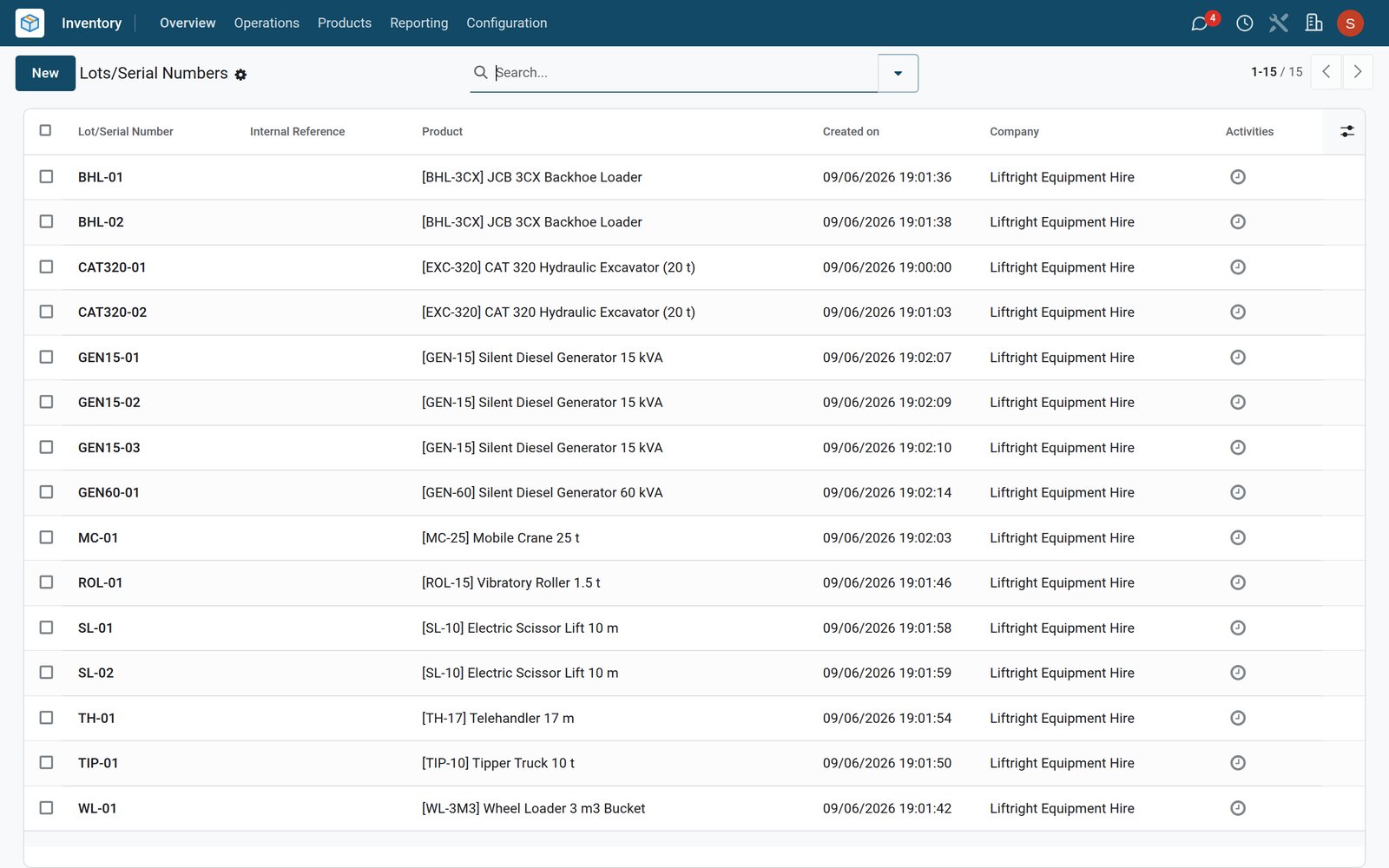
A record for every unit
Lots / Serial Numbers lists each tracked unit with its product; open one to see where it sits and every sales order it appeared on.
Explore Inventory →Bill every hire and see what each item earns
Invoices come off the rental order, and the rental analysis turns the same orders into revenue per item.
 Accounting
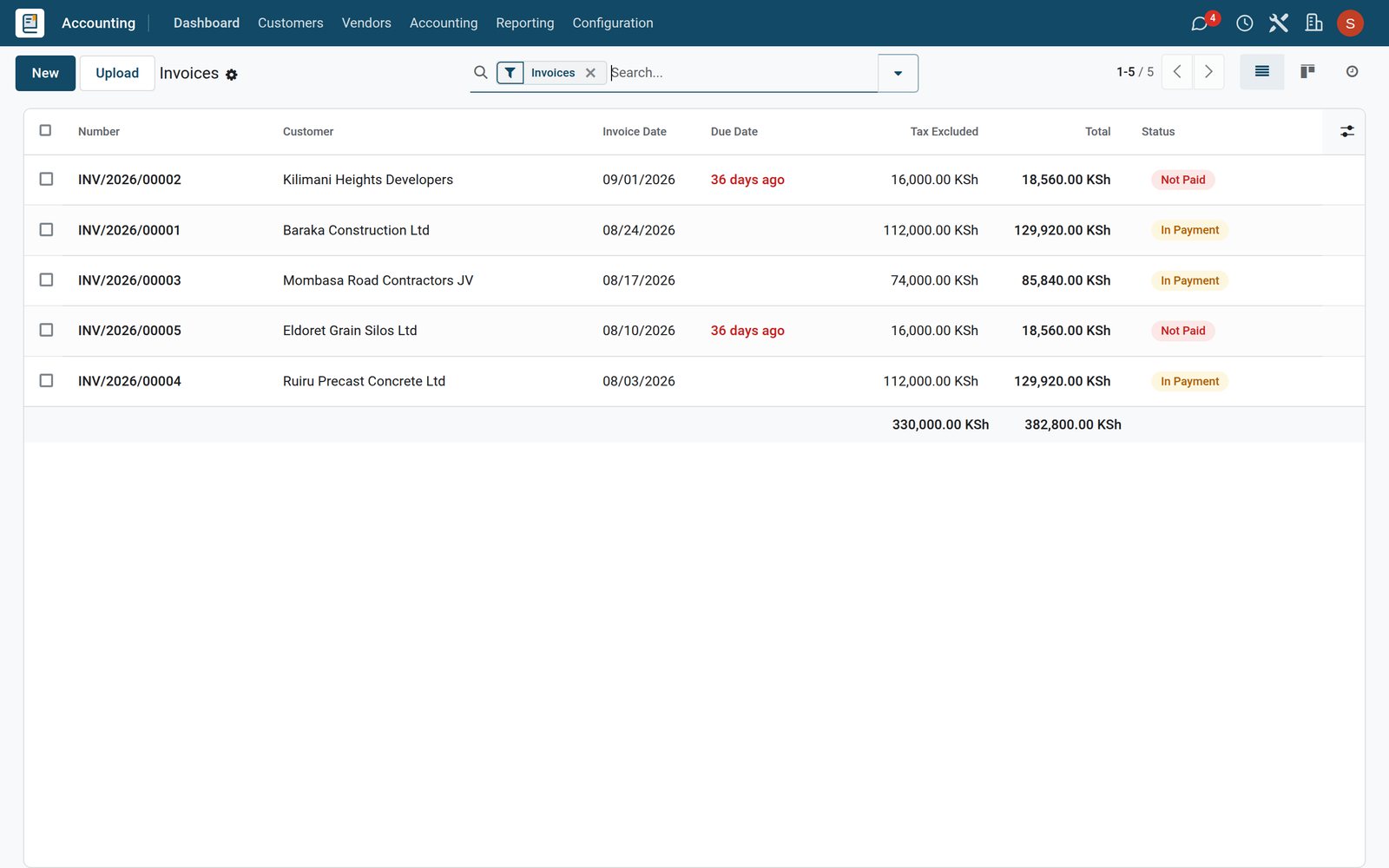
Invoices straight from the order
Invoices raised from rental orders sit in Accounting with customer, due date, total and payment status, ready for reminders and reconciliation.
Explore Accounting →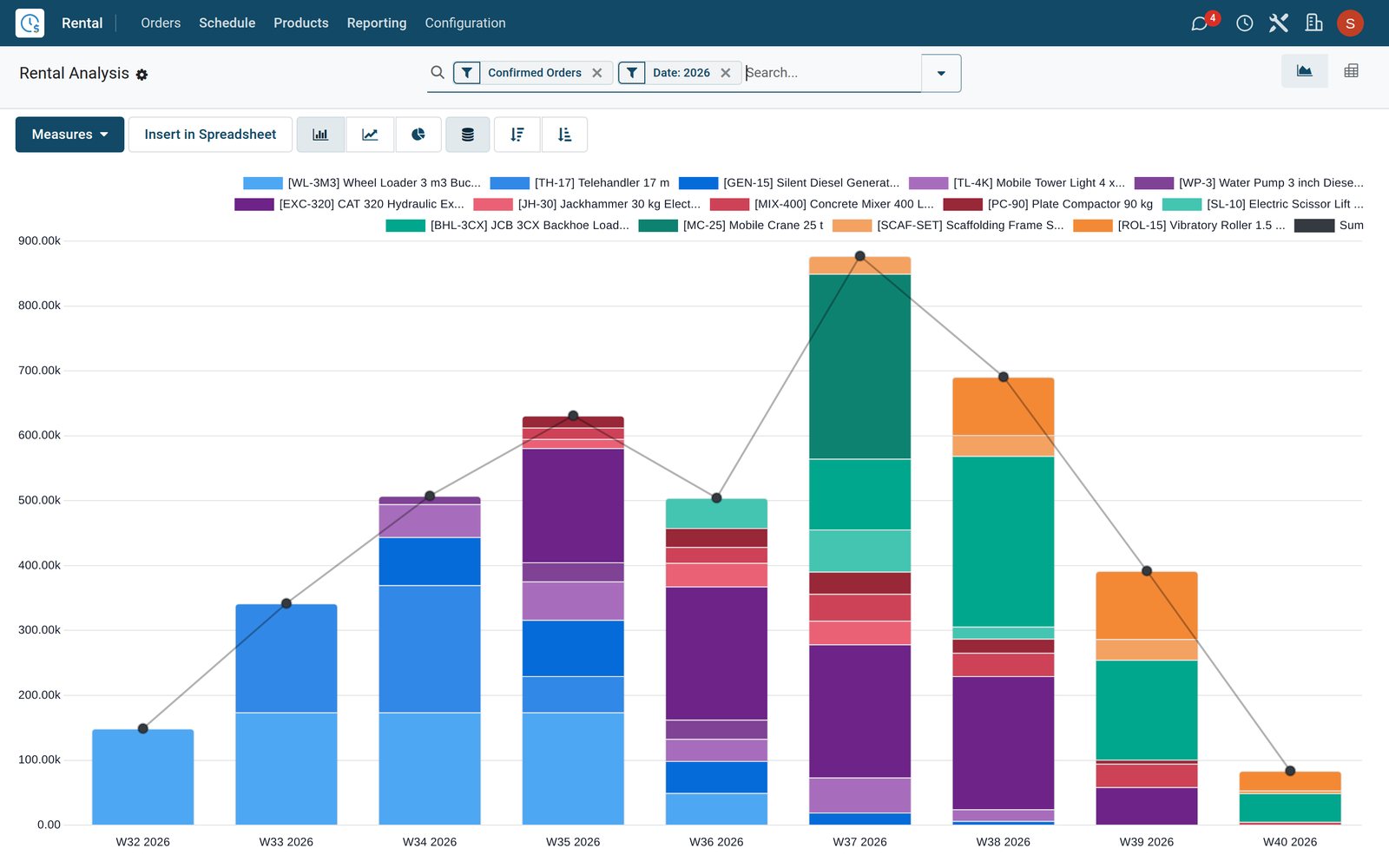 Rental
Revenue per item and period
Rental / Reporting charts rental amounts by week or month, split by item; switch to pivot to compare products, categories, customers or salespeople side by side.
Explore Rental →Who uses it
Each person sees the part of the hire they run
One set of rental orders, different starting screens for the owner, the desk, the yard and accounts.
Owner
Opens the Rental dashboard and Rental / Reporting for revenue by item and customer, and Orders to Invoice for money not yet billed.
Rental desk
Starts in To Do Today, builds quotations, confirms bookings and presses Pickup or Return as customers arrive at the counter.
Yard lead
Reads the Rental Schedule for coming handovers and checks serial numbers and stock on hand before a machine is loaded.
Operators and drivers
Get shifts in Planning when their hours are sold as service lines on a rental order, next to their other assignments.
Accountant
Posts invoices, reconciles payments, sends follow-ups and reads Aged Receivable and Deferred Revenue without exporting anything to a spreadsheet.
Buyer
Raises requests for quotation for new equipment and spares, confirms the order and turns it into a vendor bill on arrival.
Works with
Runs with the apps a hire firm already needs
Installed alongside Rental on the equipment rental demo, sharing the same customers, products and accounts.
- SalesQuotations, customers and sales reports shared with every rental order.
- InventoryWarehouses, serial numbers and the transfers behind each pickup and return.
- AccountingInvoices, payments, receivables, tax returns and e-invoicing reporting.
- PurchaseRequests for quotation and orders for new equipment and spare parts.
 PlanningShifts for operators and drivers booked from rental order lines.
 SignSend hire agreements and site forms for electronic signature.
 DocumentsKeep contracts, delivery notes and scanned forms in shared folders.
 HelpdeskLog breakdown calls and customer requests from site as tickets.
- Point of SaleSell consumables and accessories over the counter.
 ApprovalsGet sign-off on purchases and exceptions before they go ahead.
 EmployeesStaff records for the desk, the yard and the drivers.
 PayrollPayroll with statutory deductions for every employee, Kenyan rules on the demo.
In your country
Trade in your currency, report to your tax authority and bill overseas clients in theirs
The demo runs a Kenyan company beside US companies, with the Kenyan tax, customs and payroll packages installed.
E-invoicing built in
Customer invoices can be reported to the tax authority; on the demo they go to KRA through the eTIMS OSCU integration, with 292 KRA codes loaded.
Imported equipment on record
On the demo, Customs Imports keeps the import declarations received through eTIMS next to the vendor bills for machines bought abroad.
Two currencies on the same books
Quote a local contractor in KES and an overseas client in USD, with exchange differences posted to their own journal in Accounting.
Companies in different countries together
A Kenyan company and US companies share one database; users switch company from the top bar and each keeps its own books.
Country tax reports
On the demo, the Kenyan reporting package sits beside Tax Return, Profit and Loss, Balance Sheet and Cash Flow Statement in Accounting reporting.
Payroll for yard crews
Pay drivers, operators and yard staff under your country's payroll rules, Kenya's with SHIF on the demo, from the Payroll app in the same database.
Reports and control
Know what every item earns and who still owes you
Reports that exist on the demo today, from rental analysis to depreciation of the fleet itself.
Rental analysis
Rental / Reporting shows rental amounts and quantities by product, category, customer, salesperson and date, in graph or pivot view.
Rental dashboard
Dashboards includes a ready-made Rental dashboard, next to dashboards for sales, invoicing and purchase, all reading live data.
Aged Receivable and follow-ups
Aged Receivable shows who owes what and for how long, and follow-up levels set when reminders go to late payers.
Deferred revenue
Long hires billed upfront can be spread across the months they cover, and the Deferred Revenue report shows what is still to be earned.
The fleet as fixed assets
Record machines as fixed assets in Accounting and follow their book value month by month on the Depreciation Schedule.
Stock and valuation
Stock and Valuation reports show how many units of each item are held and what they are worth on the balance sheet.
What sets it apart
Small rules that stop rental money leaking
Details that decide whether a hire firm bills correctly, each one a field or setting on the demo.
The cheapest valid price, worked out
Give an item hourly, daily and weekly prices and the order works out the cheapest total from them for the dates booked.
Buffer time between hires
A preparation time per item, or a default padding time, keeps a machine unavailable after each hire while it is cleaned and checked.
Late fees without arithmetic
Extra-hour and extra-day fees on each item, with a grace period in settings, are charged when a return comes in late.
Serials at every handover
Each rental line keeps separate lists of reserved, picked-up and returned serial numbers, so a dispute is settled from the record.
Rent and sell on one order
Add sold items and services as normal lines beside the rented ones, then invoice the whole order in one go.
Stock that follows the machine
With rental transfers switched on, pickups and returns create stock moves, so Inventory knows what is in the yard and what is out.
Getting started
Move your fleet list in, then start renting
Set-up uses the standard import tool and the Rental settings, so an equipment spreadsheet becomes a rentable catalogue.
Import your equipment list
Load products, serial numbers and customers from Excel or CSV files, map the columns and run a test import before anything is saved.
Set periods and delay costs
Create the periods you charge by in Rental periods, then set default delay costs and padding time in Rental settings.
Update in bulk by re-importing
Change prices or product details in bulk by re-importing the same file; external IDs match existing records instead of creating duplicates.
Switch on tracking
Turn on rental transfers and serial numbers in Settings when the yard needs deliveries, receipts and per-unit tracking.
Questions
Questions about Equipment Rental
Not covered here? Contact us.
Can I charge by the hour for small tools and by the month for large machines?
Yes. Each rentable product carries its own prices per rental period, from hourly to yearly, and the rental order works out the cheapest total from those prices for the dates booked.
How are late returns charged?
Each item can carry an extra-hour and an extra-day fee, with company-wide defaults and a grace period in Rental settings. When an item comes back after its return date, the delay cost is added to the order.
Can I track individual machines by serial number?
Yes. With serial numbers switched on, you reserve specific units on the rental order, record which serials go out at pickup and which come back at return, and each serial keeps its order history.
How do I avoid double-booking an item?
The Rental Schedule shows every booking per item across days, weeks and months, including quotations that are not yet confirmed, so a clash is visible before you confirm the order.
Can customers sign the rental quotation online?
Yes. Rental orders can require an online signature: the customer opens the quotation from the email, signs it on screen and the order is confirmed. The Sign app handles separate agreements and forms.
Does it handle e-invoicing, such as KRA eTIMS?
Yes. The Kenyan eTIMS OSCU integration is installed on the demo, with KRA codes loaded and a Customs Imports menu for import declarations, alongside the Kenyan tax reports and payroll.
Can we run more than one depot or company?
Yes. The demo holds several warehouses and several companies, a Kenyan one trading in KES and US ones in USD, and each rental order records the warehouse it ships from.
How do we move our existing equipment list across?
Use the import tool: fill an Excel or CSV file with products, serial numbers and customers, map the columns, run the test and import. Re-importing the same file later updates the records.
Tax compliance
Invoices your tax authority accepts
In Kenya, Uganda, Rwanda, Burundi and Zambia, each invoice, receipt and stock movement goes to the tax authority's own system when you post it. Ghana and Pakistan come next, and we connect 73 more countries on request.
- KenyaReady
eTIMS KRA
Invoices, credit notes, POS receipts and stock movements
- UgandaReady
EFRIS URA
Invoices, POS receipts and stock
- RwandaReady
EBM RRA
Invoices, POS receipts, stock and imports
- BurundiReady
EBMS OBR
Invoices, POS receipts, stock and manufacturing
- ZambiaReady
Smart Invoice ZRA
Invoices, POS receipts, stock and imports
Equipment Rental, app by app
One connected flow instead of separate systems — the work moves from one team to the next without re-typing anything.
Every stop is a real app in your plan, and the hand-offs between them are the product.
- Customers & sales
- Operations
- Finance
- Platform & insight
CRM
Leads, opportunity pipeline, activities and sales forecasting.
CRM →CRMLeads, opportunity pipeline, activities and sales forecasting.Ready when you are
Open the plan builder with the right apps for this industry already selected, or see it running first.