

 Documents: Every file in its place, next to the work it belongs to
BridgeERP Documents keeps company files in folders with access rights and tags, and can file the documents of projects, employees, products and signatures on their own.
Free instant access. No credit card required.
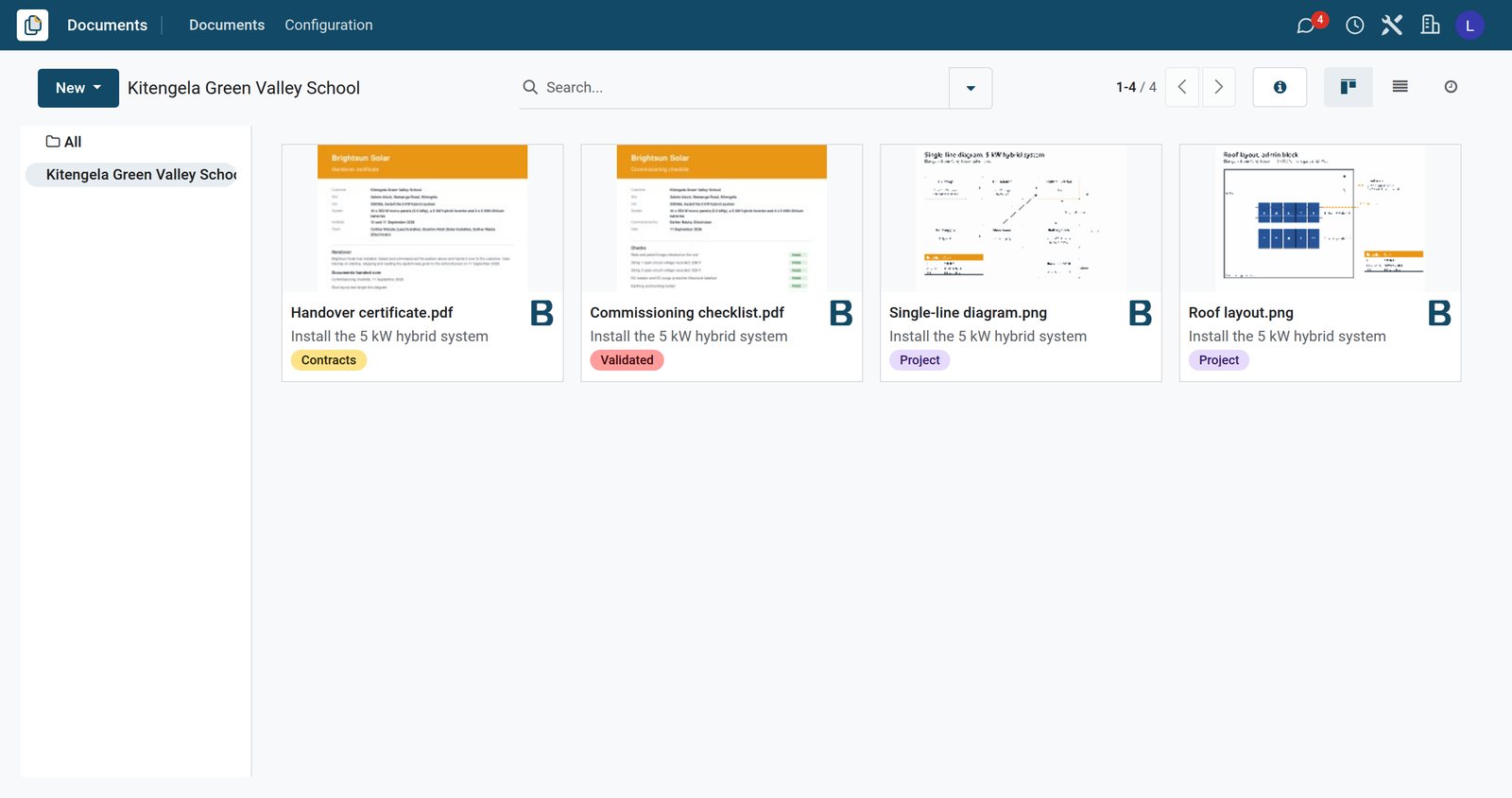
Find any file by folder, tag or contact
Each document carries its folder, tags, contact and owner, so a search finds it in seconds.
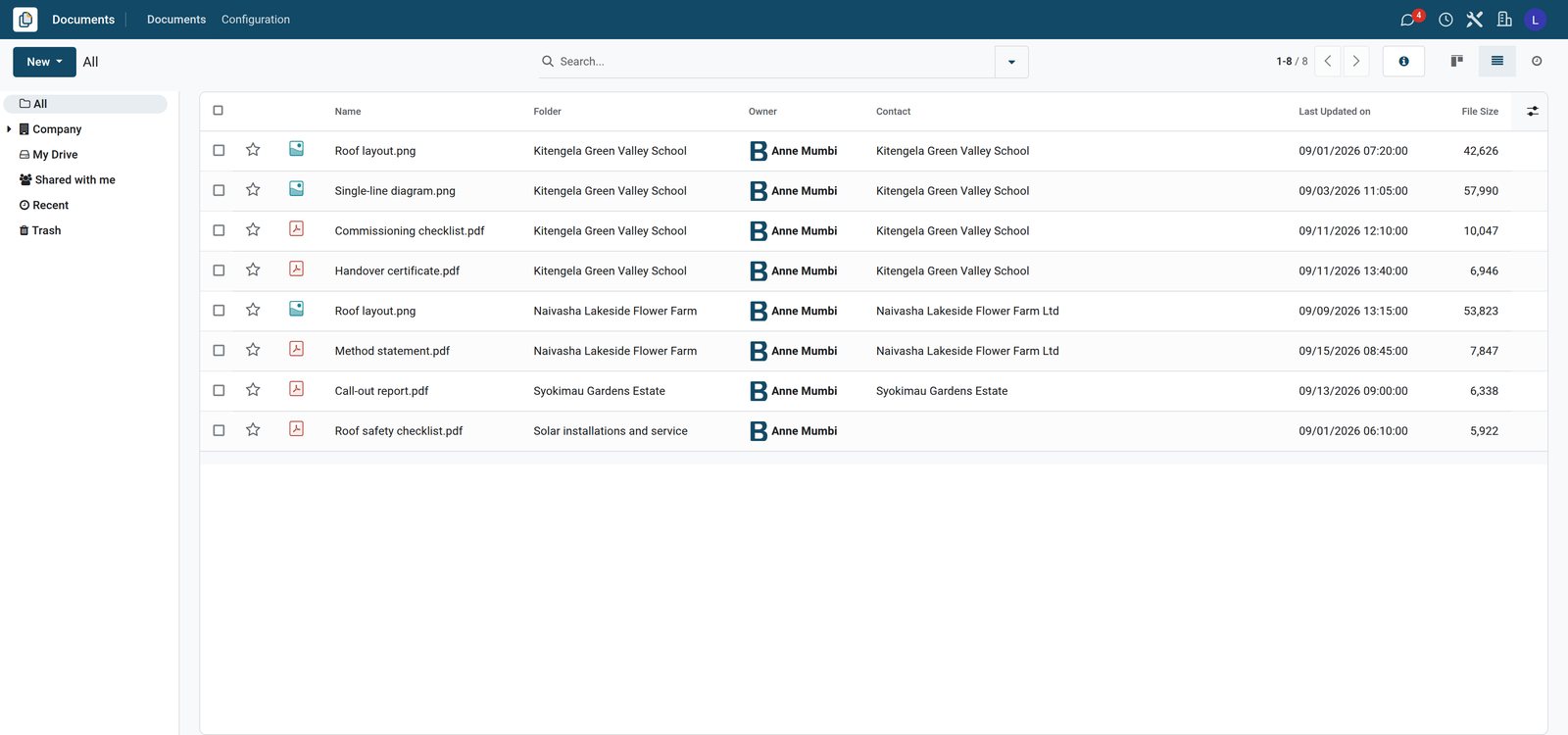 Documents
Every job file in one list
Eight job files across three customer folders and the project folder, each with its folder, owner, contact, last update and file size.
Explore Documents →By the numbers
What ships inside the Documents app
Counted in the product and on the demo database.
- 35
- tags on the demo to sort files, from Inbox and To Validate to VAT, Legal and product data sheets
- 5
- apps linked to Documents on the demo: projects, HR, products, sign and field service
- 3
- kinds of item in a folder: files, links and sub-folders
Inside the app
What is inside
The parts of the Documents app, grouped by what they do for the team.
Folders
Folders and sub-folders per team or project, each with its own access for colleagues.
Tags
Tag files as draft, to validate, VAT or legal, and filter the whole company's files by tag.
Share links
Share a file or a folder with a link, and choose whether people can view or edit it.
Email to a folder
Each folder can have an email alias, so attachments sent to it land in the folder.
File requests
Ask a colleague or a customer for a missing document and track the request as an activity.
Linked records
A document remembers the project, task, employee or product it belongs to.
Lock and versions
Lock a file while you work on it, and keep the earlier versions of a document.
Spreadsheets
Create spreadsheets inside Documents, such as a pipeline dashboard or sales commissions.
Step by step
From received file to filed record
How a document travels through BridgeERP, and which app does each step.
- Step 1
Receive
Files arrive by upload, by email to a folder alias, or from a request sent to a customer.
Documents - Step 2
Sort
The file goes into the right folder with tags such as To Validate or Legal.
Documents - Step 3
Link
It is attached to the project, task, employee or product it concerns.
Projects - Step 4
Sign
Contracts go out for signature, and the signed copy is filed back automatically.
Sign - Step 5
Share
A link gives the client or auditor access to the file or folder, view or edit.
Documents


One set of tags for the whole company
Tags are shared across folders, so the same filter finds every VAT document or every draft.
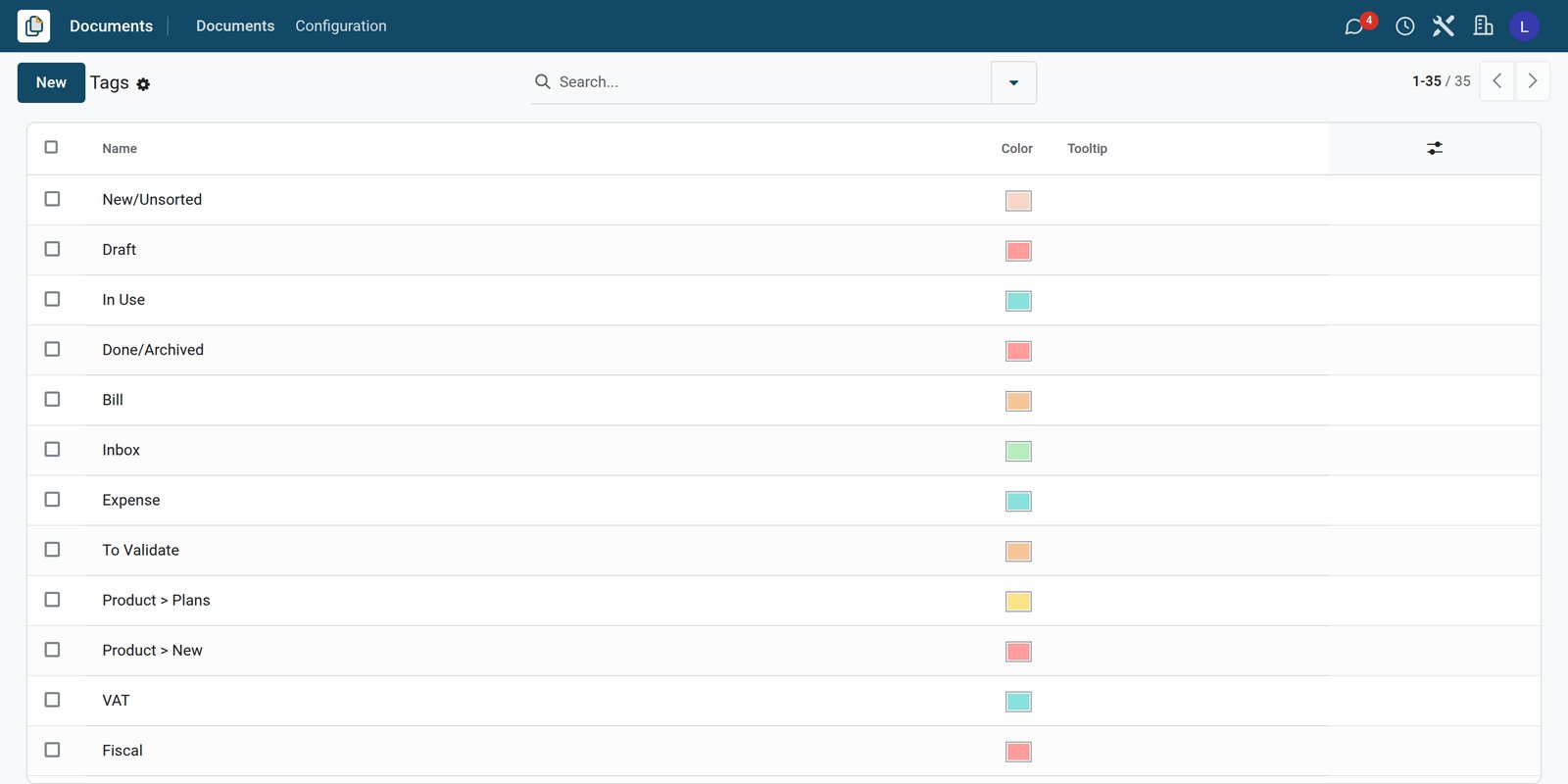 Documents
The company's tags in one list
The tags of the demo cover the stage of a file, finance, HR, legal and product data, ready for every folder.
Explore Documents →Let each app file its own documents
Switch on which apps store their files in Documents, and in which folder.
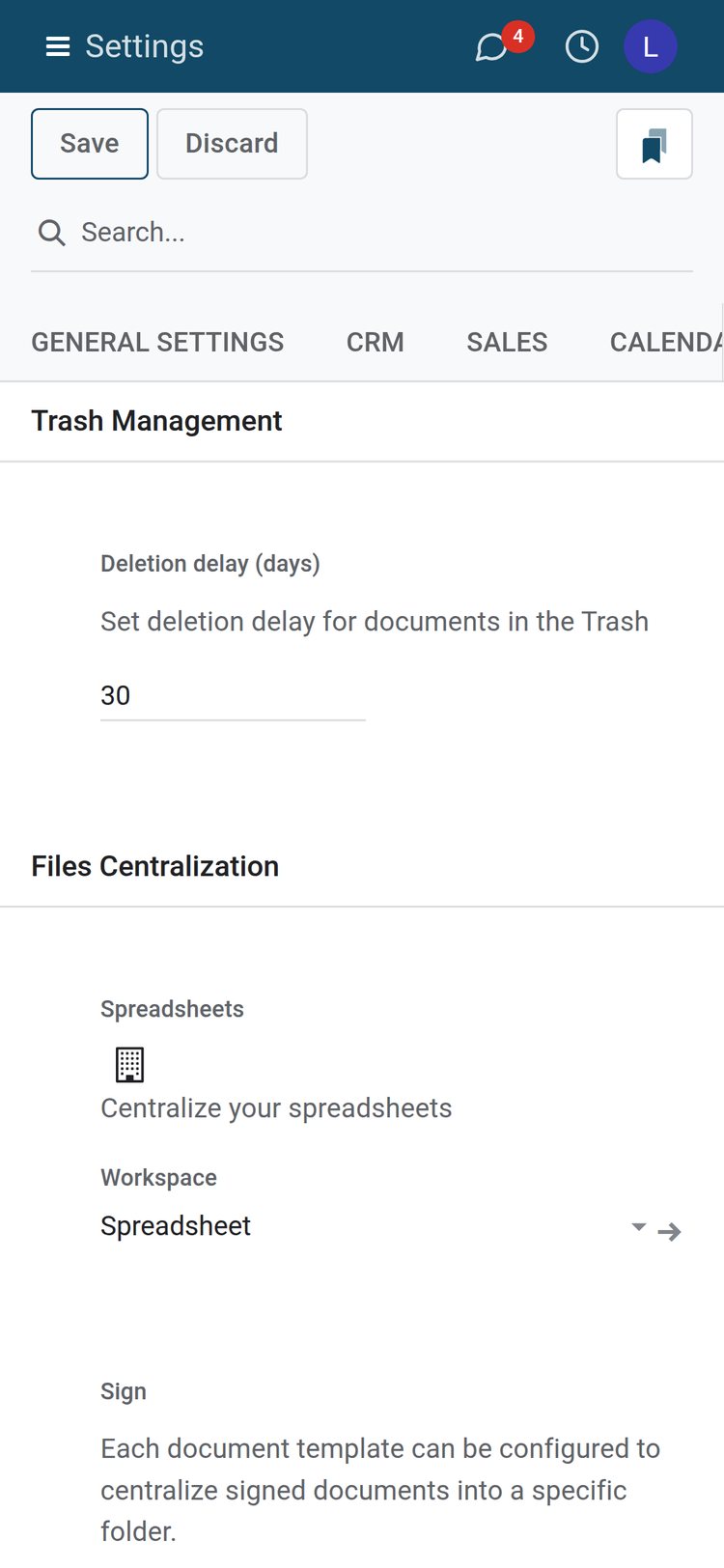 Documents
Documents settings per app
Files stay in the trash for 30 days, spreadsheets are filed into the Spreadsheet workspace, and signed documents can go to a folder of their own.
Explore Documents →Who uses it
Who uses it, and what they see
Documents is used by everyone who keeps files for the business.
Office manager
Sets up folders, access and tags, and the email aliases that receive files.
Project team
Finds the drawings, checklists and reports of a project in its own folder, filed by job.
HR officer
Keeps each employee's contract, identity papers and certificates filed in one place per employee.
Client or auditor
Opens a shared link to view or upload the files they were asked for.
Works with
Runs with the rest of BridgeERP
Apps that can file their documents in Documents.


In your country
Built for offices in any country
What changes when files stop travelling on paper and flash disks.
Paper records, filed once
Scanned contracts and receipts are uploaded in bulk into folders and tagged, instead of sitting in boxes.
Contracts signed remotely
Send contracts for electronic signature instead of printing and couriering them between towns.
Branches on the same files
Branches and clients open shared links to the files they need, from any browser.
Getting started
Getting started
How a company moves its shared drive onto BridgeERP.
Create your folders
Start with one folder per department and set who can view or edit each one.
Agree on tags
Keep a short list of tags for the stage and type of a file, shared by every folder.
Switch on the apps
Choose which apps file their documents automatically, such as projects and HR.
Try it on the demo
The demo has a solar installer's project folder with job folders, drawings, checklists and reports to open.
Questions
Questions about Documents
Not covered here? Contact us.
Can I control who sees a folder?
Yes. Each folder and file has access for internal users, and specific people can be given view or edit rights.
Can I share a file with someone outside the company?
Yes. Share a link to a file or folder and choose whether it can be viewed or edited.
Can documents arrive by email?
Yes. A folder can have an email alias, and attachments sent to it are filed in that folder with its tags.
Do project files end up in Documents?
Yes. With projects linked, each project gets a folder and the files of its tasks are filed there.
Can I ask a customer for a missing document?
Yes. A file request is sent and tracked as an activity until the document is uploaded.
Are older versions kept?
Yes. When a file is replaced, the previous versions stay attached to the document.
Put Documents to work
Add it to your plan and pay only for what you use, or see it running on your own demo first.