

 Field Service: Send the right technician, and invoice the visit before they leave
BridgeERP Field Service plans visits by technician, gives them the address, worksheet and parts on their phone, and invoices time and materials.
Free instant access. No credit card required.
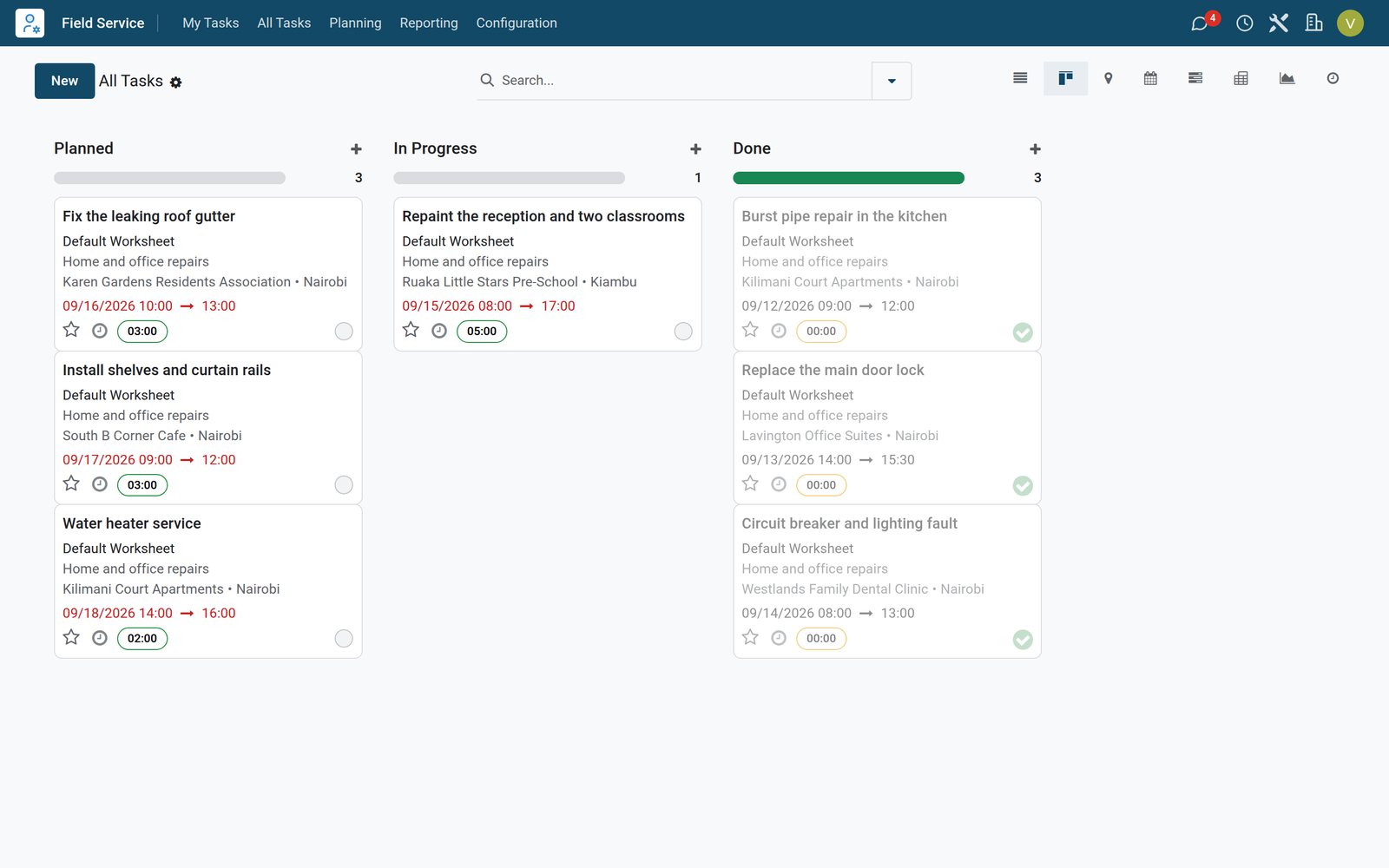
Everything the technician needs on one screen
A visit carries the customer, address, contact number, schedule and worksheet, with directions one tap away.
 Field Service
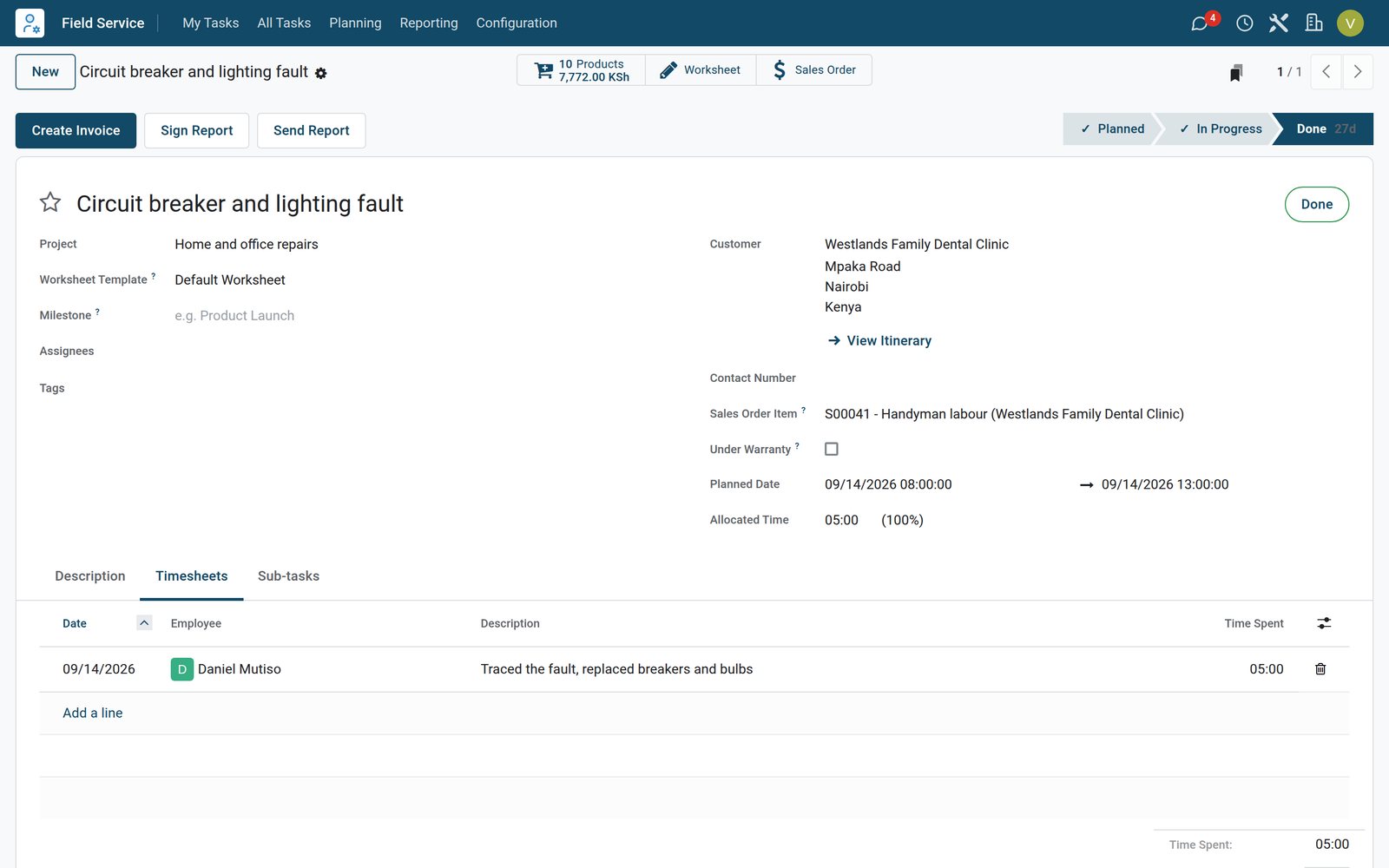
A visit, from the address to the invoice
The circuit breaker job at Westlands Family Dental Clinic shows the address with its itinerary, the planned hours, the 5 hours Daniel Mutiso logged, the 10 products used and the Create Invoice button.
Explore Field Service →By the numbers
What ships inside the Field Service app
Counted in the product itself, on the demo database.
- 5
- visit stages out of the box, from New and Planned to In Progress, Done and Cancelled
- 4
- ways to plan visits on the Gantt chart: by technician, project, location or worksheet
- 3
- options to switch on: worksheet templates, time and material invoicing, and extra quotations
- 2
- worksheet templates on the demo: a default worksheet and one for device installation and maintenance
Inside the app
What is inside
The parts of the Field Service app, grouped by what they do on the road.
Visits
Each visit is a task with the customer, address, contact number, planned date and technician.
Planning
A Gantt chart per technician, project, location or worksheet to drag visits into place.
My tasks and map
Technicians open today's visits as a list or on a map, and navigate to the next address.
Worksheets
Custom worksheet templates for checklists and readings, signed by the customer on site.
Parts used
Add the products used during the visit, taken from stock and put on the invoice.
Time on site
The technician starts and stops the timer, and the time lands on the visit's timesheet.
To schedule and to invoice
Lists of visits still waiting for a date and of visits done but not yet invoiced.
Visit reports
Send the customer a report of the work, the worksheet and the signature when the job is done.
Step by step
From call to paid visit
How a job travels through BridgeERP, and which app does each step.
- Step 1
Book
A sales order for an on-site service, or a call logged by the office, creates the visit.
Sales - Step 2
Plan
The dispatcher drags the visit onto a technician's day on the Gantt chart.
Field Service - Step 3
Visit
The technician navigates to the address, starts the timer and fills in the worksheet.
Field Service - Step 4
Sign
The customer signs the worksheet on the technician's phone, and the visit is marked done.
Field Service - Step 5
Invoice
Time and parts used go to the sales order and are invoiced to the customer.
Invoicing


All visits, with who goes where and when
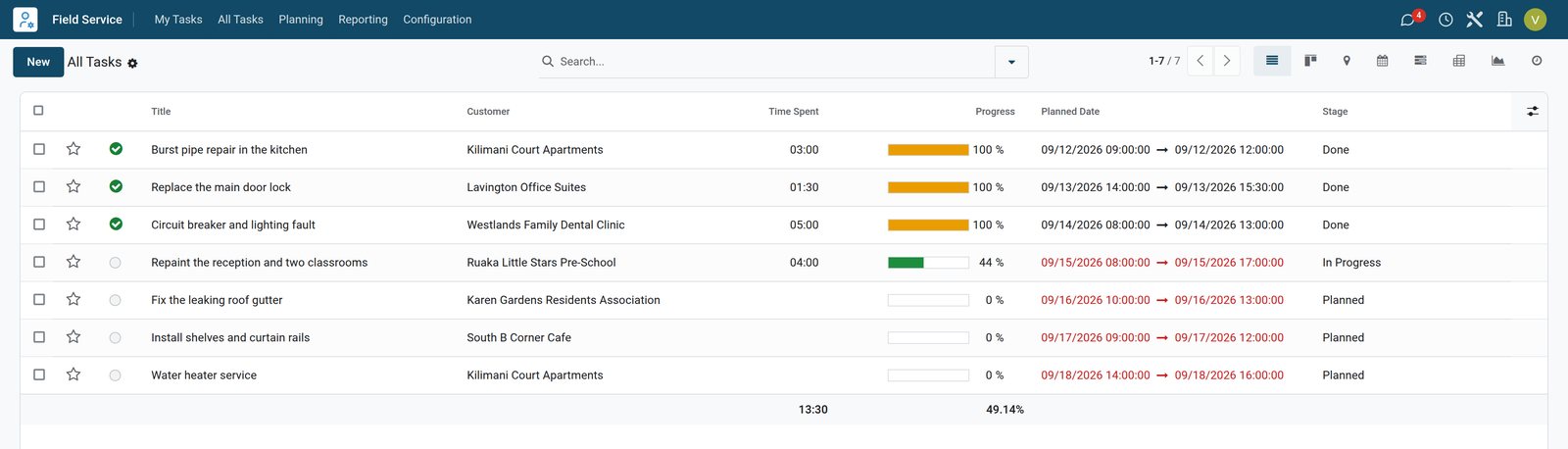
The list of visits shows the customer, the time spent, the progress, the planned hours and the stage of every job.
 Field Service
The week's visits in a list
Seven visits from the kitchen burst pipe to the water heater service, each with its customer, hours spent, progress, planned slot and stage, ready to filter, regroup or plan.
Explore Field Service →Who uses it
Who uses it, and what they see
Field service involves the office, the road and the customer.
Dispatcher
Plans the visits on the Gantt chart by technician or location, and follows what is still to schedule.
Technician
Sees their visits, navigates to each address, records time, parts and the worksheet.
Customer
Signs the worksheet on site and receives the visit report and the invoice.
Accountant
Invoices the visits that are done, with the time and parts taken from each one.
Works with
Runs with the rest of BridgeERP
Apps that share customers, parts and hours with Field Service.


See how the field team is doing
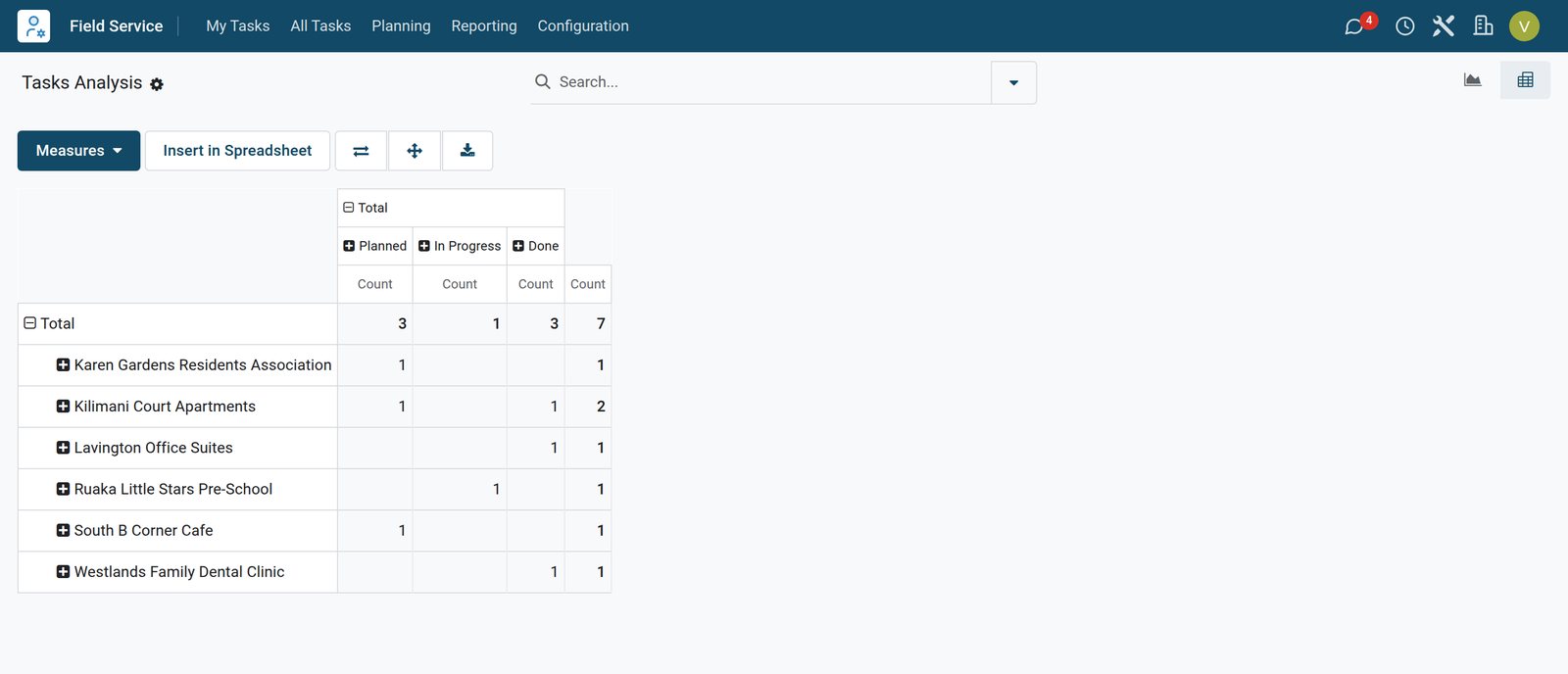
The tasks analysis counts visits by customer and stage, and regroups them by technician, project or month in a click.
 Field Service
Visits by customer and stage
The field service analysis counts each customer's visits per stage, ready to regroup by technician, project or month.
Explore Field Service →In your country
Built for service firms in any country
What changes from country to country, shown on the demo's Kenyan company.
Invoiced in your currency
Visits are invoiced in the company currency, Kenya shillings for the Kenyan companies on the demo.
Invoices ready for e-invoicing
Invoices for visits go through the country's e-invoicing like any other customer invoice, Kenya's eTIMS on the demo.
Text messages to customers
A stage can send the customer a text message, such as when the visit is planned.
Getting started
Getting started
How a service company moves its field work onto BridgeERP.
Create a field service project
Set up a project for your visits, with worksheets and products on tasks switched on.
Design your worksheet
Build a worksheet template with the checks and readings your technicians record on site.
Add your parts and services
List the products and service rates technicians add to a visit.
Try it on the demo
The demo has visits in every stage, worksheet templates and technicians to plan.
Questions
Questions about Field Service
Not covered here? Contact us.
Can technicians get directions to the customer?
Yes. The visit has a Navigate To button that opens the address in the phone's maps.
Can the customer sign on site?
Yes. The worksheet is signed on the technician's screen and the name of the signer is kept on the visit.
Can we invoice time and parts from the visit?
Yes. With time and material invoicing on, the hours and products used go to the sales order and the invoice.
Can parts come out of stock?
Yes. Products added to a visit are delivered from stock, so inventory stays right.
How do dispatchers plan the week?
On the Gantt chart, by technician, project, location or worksheet template, dragging visits into place.
Can we send the customer a report?
Yes. When the job is done, the visit report with the worksheet and signature can be sent to the customer.
Put Field Service to work
Add it to your plan and pay only for what you use, or see it running on your own demo first.