

 Approvals: Requests approved by the right people, with a record of who decided
BridgeERP Approvals turns payments, trips, contracts and purchases into requests with their approvers, so nothing is spent or signed before the right person says yes.
Free instant access. No credit card required.
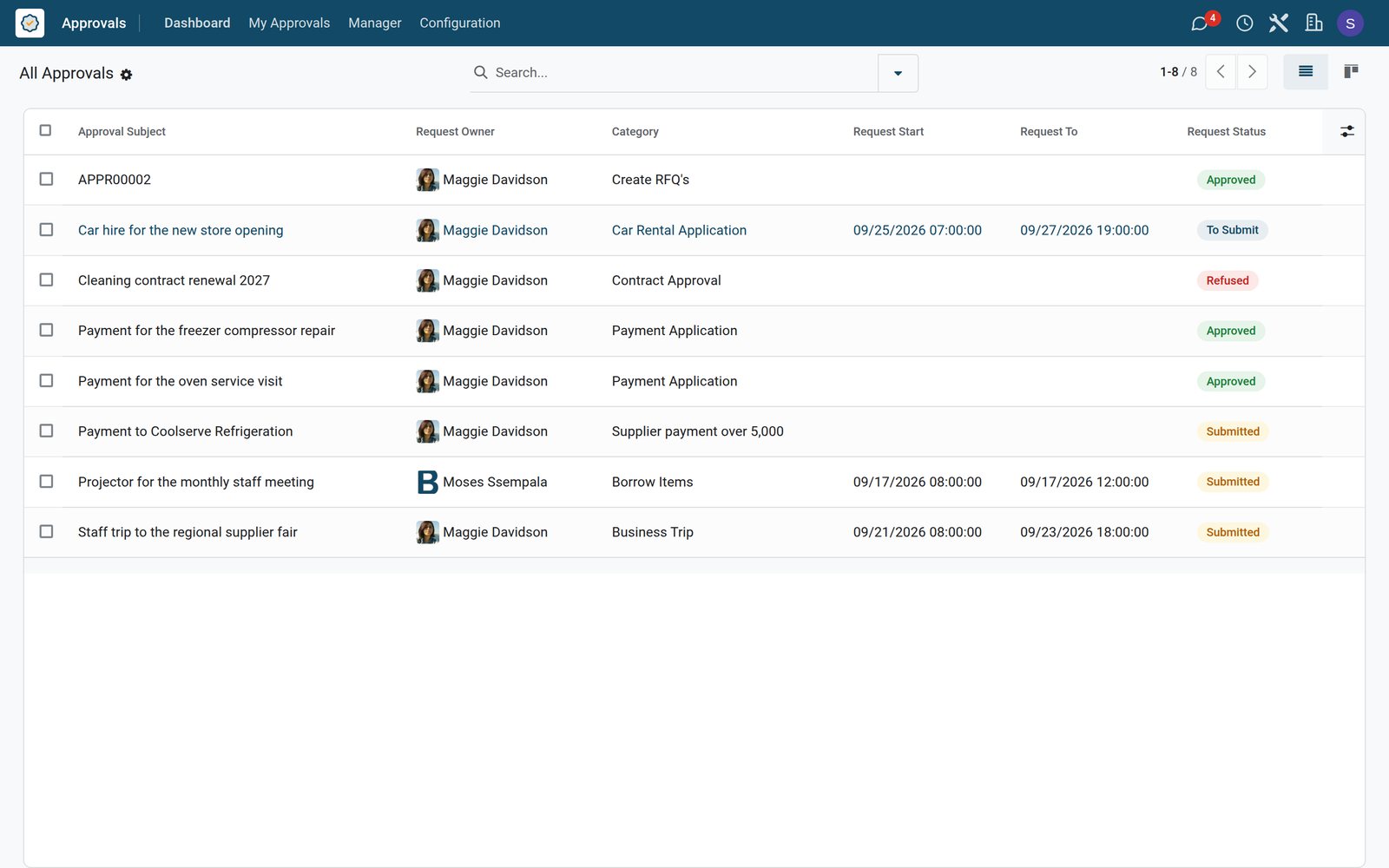
Every request shows who must approve it
A request carries its type, the details that type asks for, and the approvers with their decision.
- Approvals
A supplier payment waiting for finance
Maggie Davidson asks to pay Coolserve Refrigeration 6,400 against invoice INV-CS-5510; Admin account is the required approver.
Explore Approvals →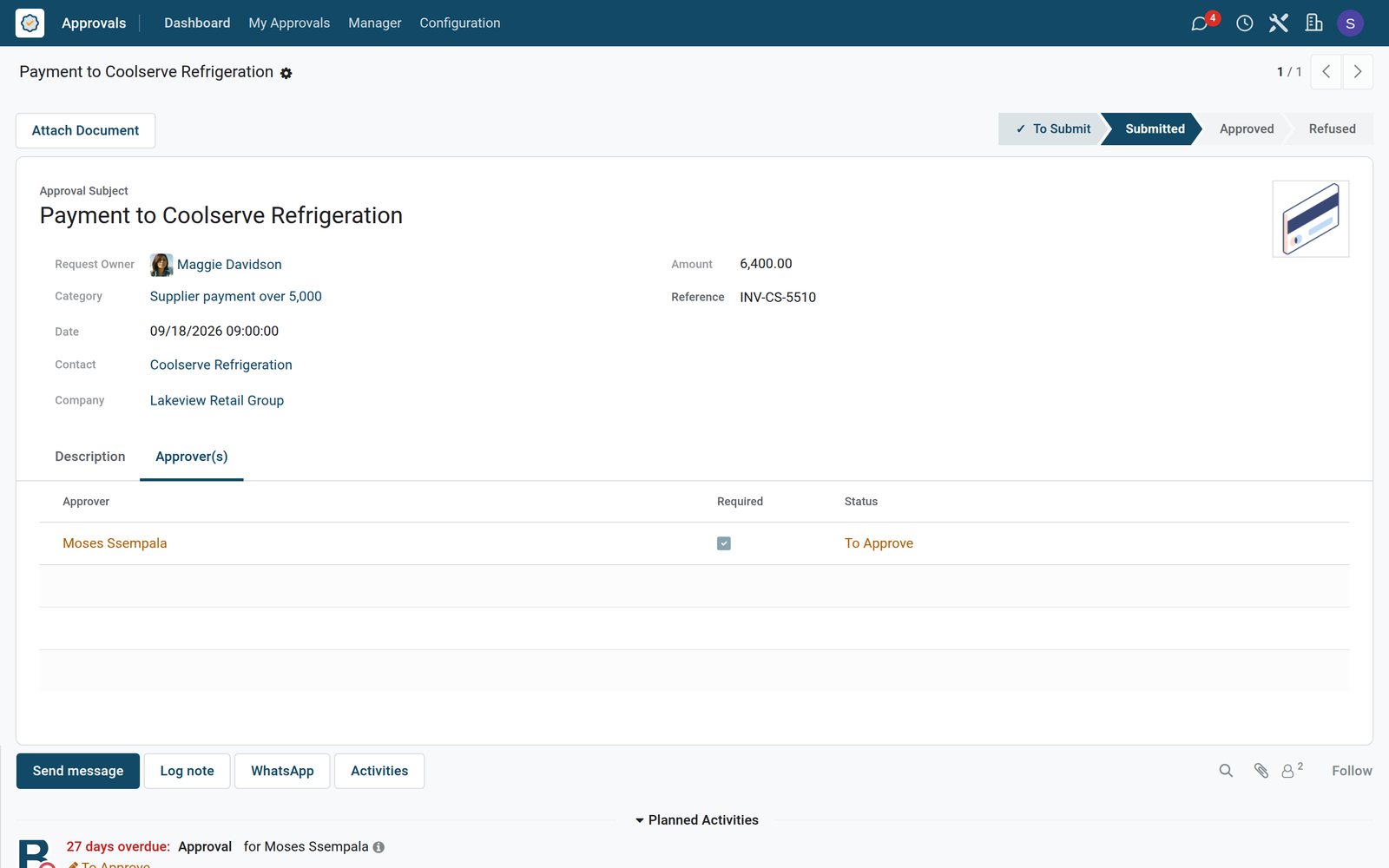
- Approvals
A business trip with its dates
The trip to the regional supplier fair in Kampala runs over three days and waits for Admin account to approve it.
Explore Approvals →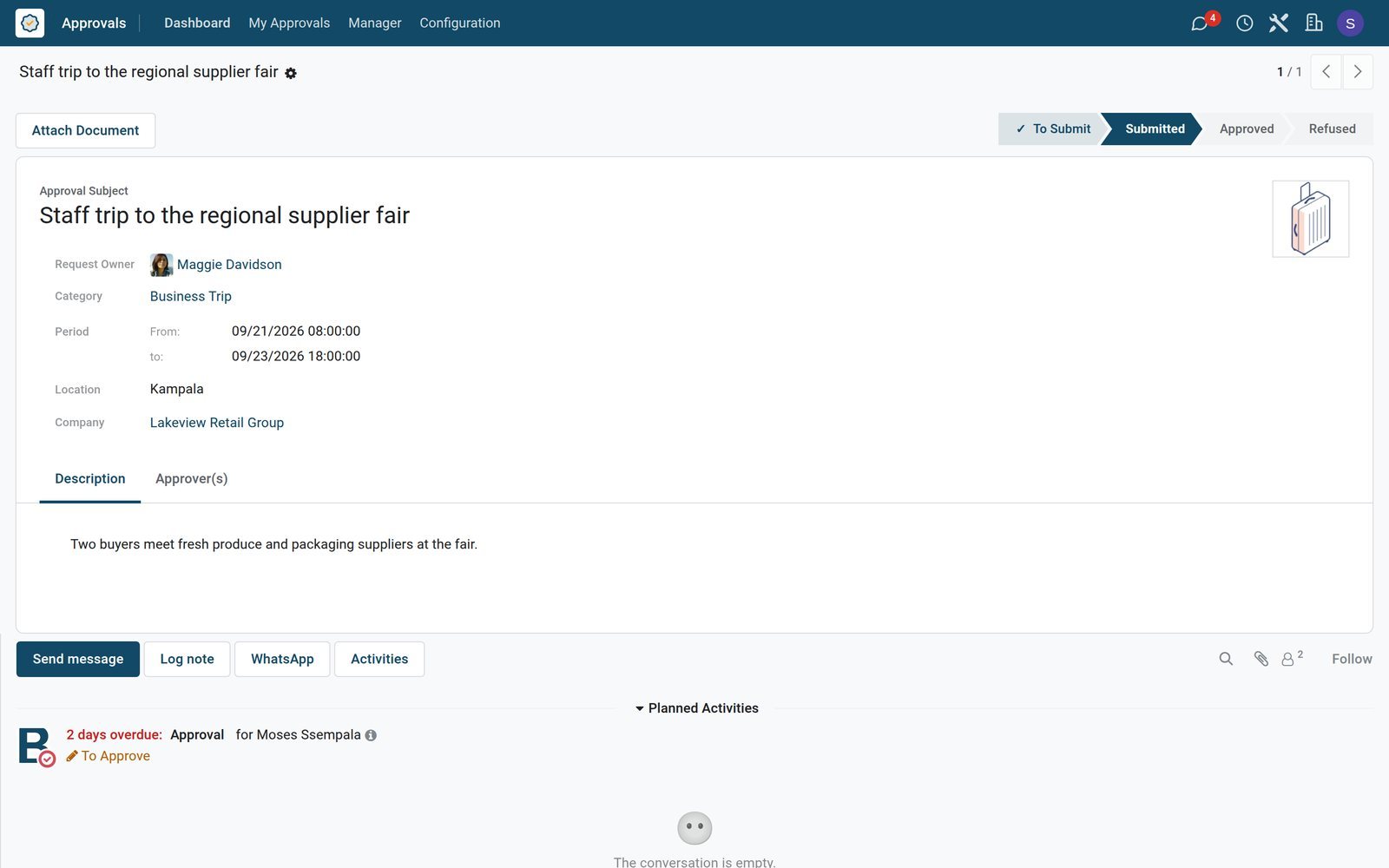
By the numbers
What ships inside the Approvals app
Counted in the product.
- 3
- settings for each detail a request type asks for: required, optional or none
- 5
- request statuses, from To Submit and Submitted to Approved, Refused or Canceled
- 6
- approver statuses, including Waiting for approvers who come later in the sequence
Inside the app
What is inside
The parts of the Approvals app, grouped by what they do.
Approval types
Each type sets the details a request needs, such as amount, contact, dates, location or products.
Approvers per type
Each type lists its approvers, marks who is required and sets the minimum number of approvals.
Approvals in sequence
Approvers can be asked one after the other, so the next person waits for the previous decision.
The employee's manager
A type can add the requester's manager as an approver, or make that approval required.
To review
Approvers see the requests waiting for them, with an activity on each one.
Purchase requests
An approved purchase request creates the request for quotation for each vendor.
Documents
A type can require a document, such as a quote, before the request is submitted.
Numbered requests
A type can number its requests automatically from its own code.
Step by step
From request to decision
How a request moves through BridgeERP, and who acts at each step.
- Step 1
Request
An employee picks the approval type and fills in the details that type asks for.
Approvals - Step 2
Submit
Submitting sends an approval activity to each approver on the request.
Approvals - Step 3
Decide
Each approver approves or refuses, in order when the type asks for a sequence.
Approvals - Step 4
Act
An approved purchase request turns into requests for quotation to the vendors.
Purchase
Your own approval types
The dashboard lists the types employees can request, and each type is set up once.
- Approvals
Pick a type, make a request
Business trips, borrowed items, payments, contracts, car rental, procurement and supplier payments each have a card to start a request.
Explore Approvals →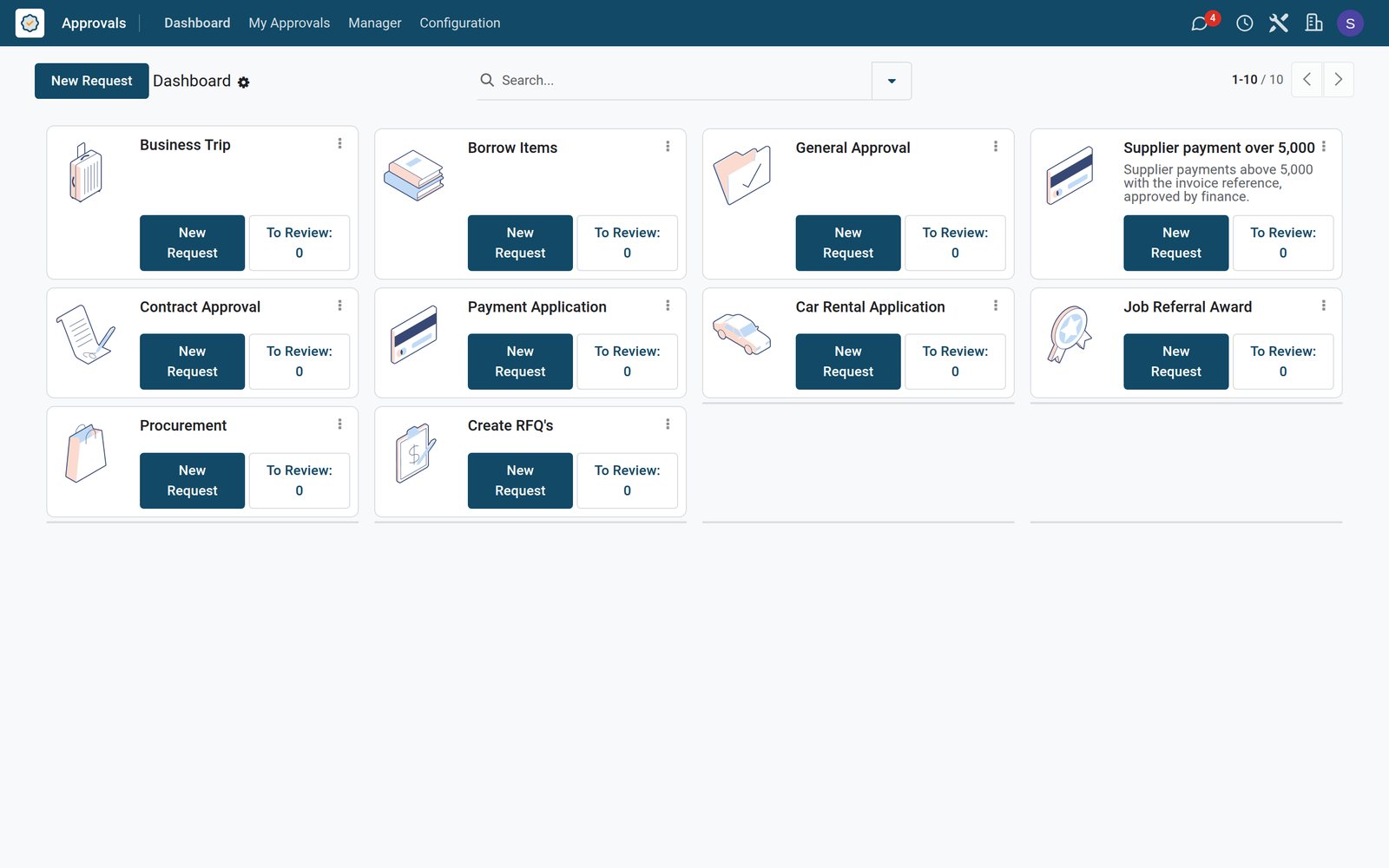
- Approvals
A supplier payment type
Supplier payments over 5,000 must carry a date, an amount, the contact and the invoice reference, and Admin account must approve them.
Explore Approvals →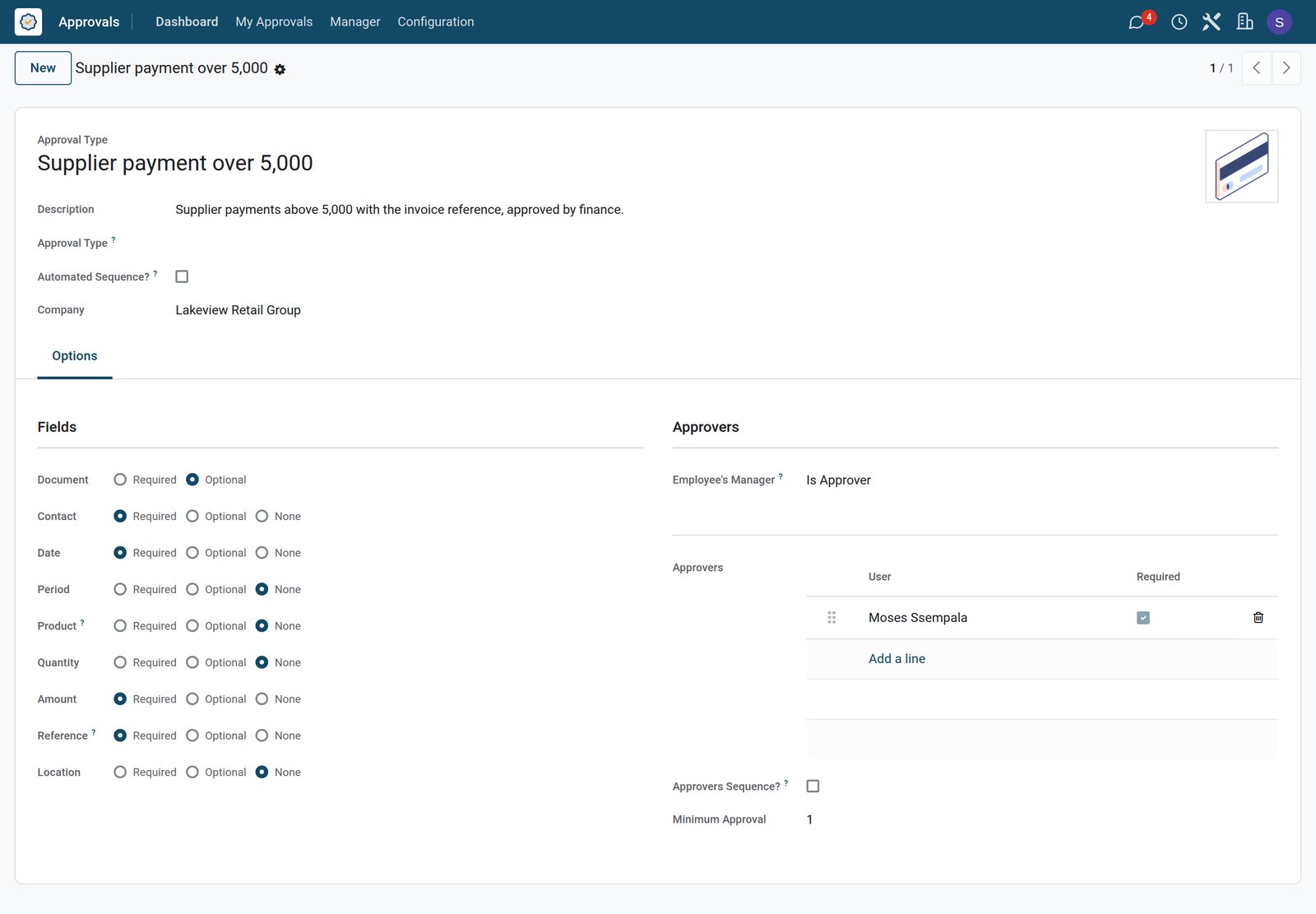
Approved purchases become quotations
Products on an approved purchase request go straight into a request for quotation.
- Approvals
An approved equipment request
Four barcode scanners, two receipt printers and two cash drawers from Checkout Tech Supplies were approved, and the request links to its purchase order.
Explore Approvals →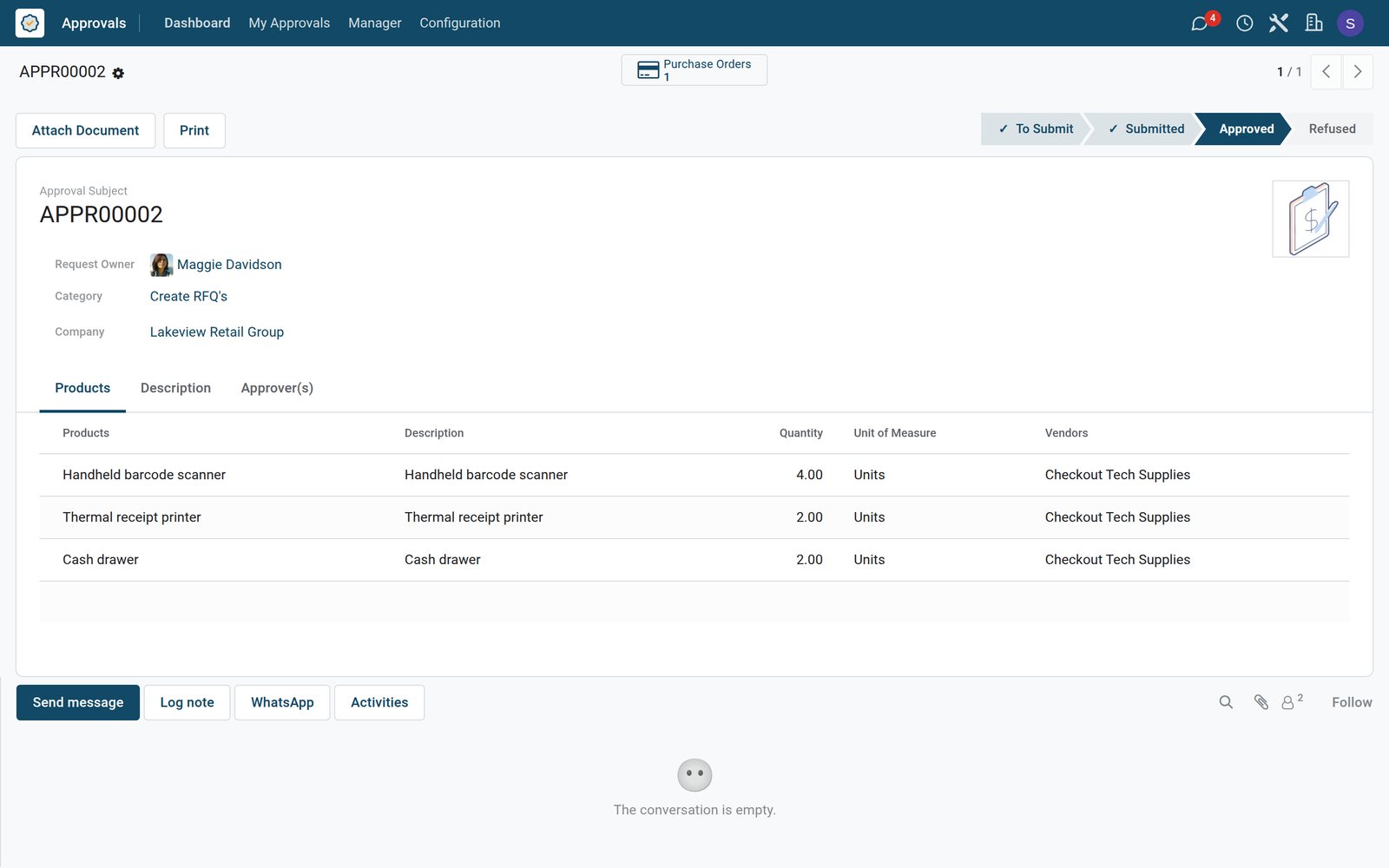
 Purchase
The quotation it created
The request for quotation to Checkout Tech Supplies lists the same three products at the vendor prices, 1,390 dollars in total.
Explore Purchase →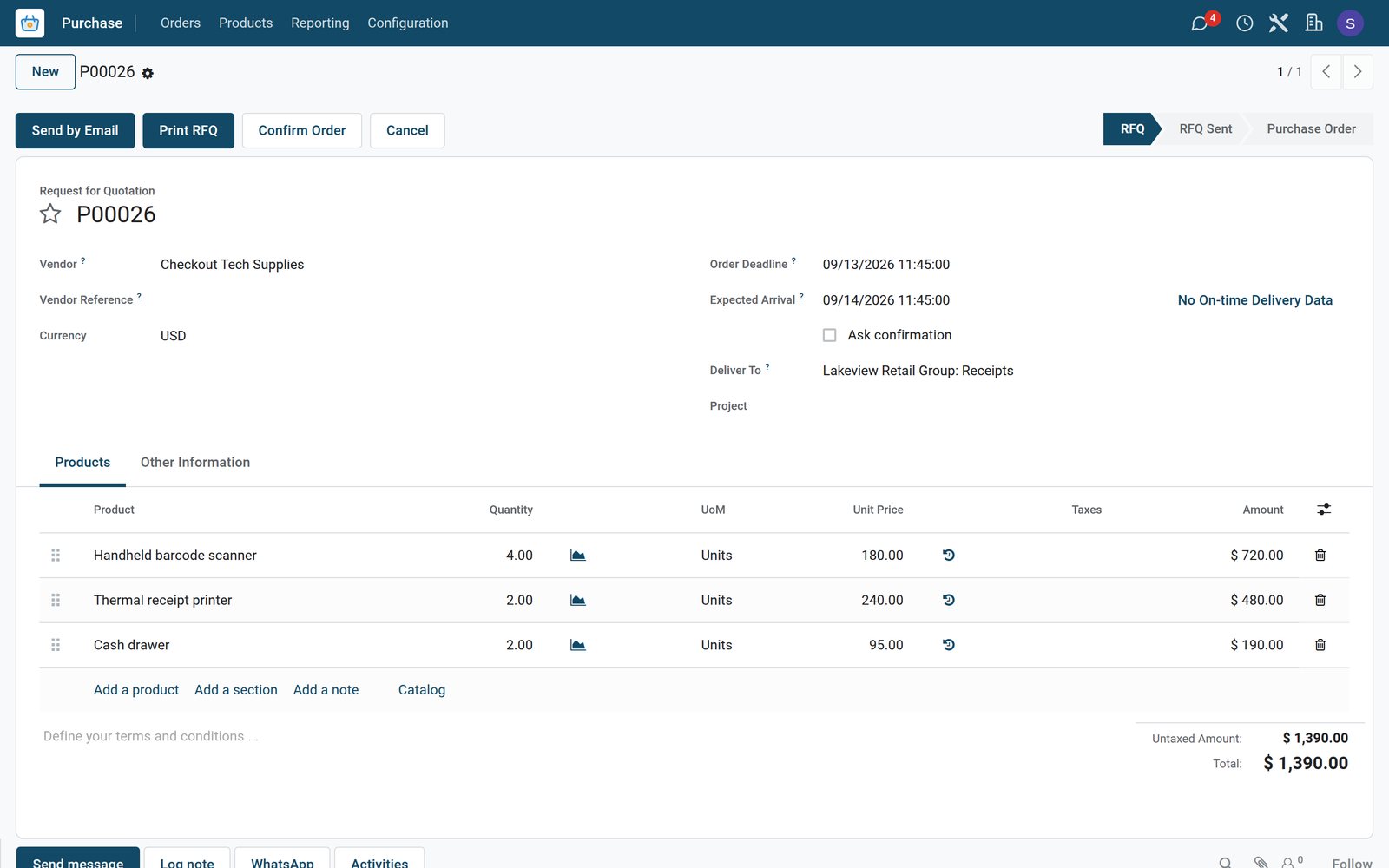
A refusal on the record
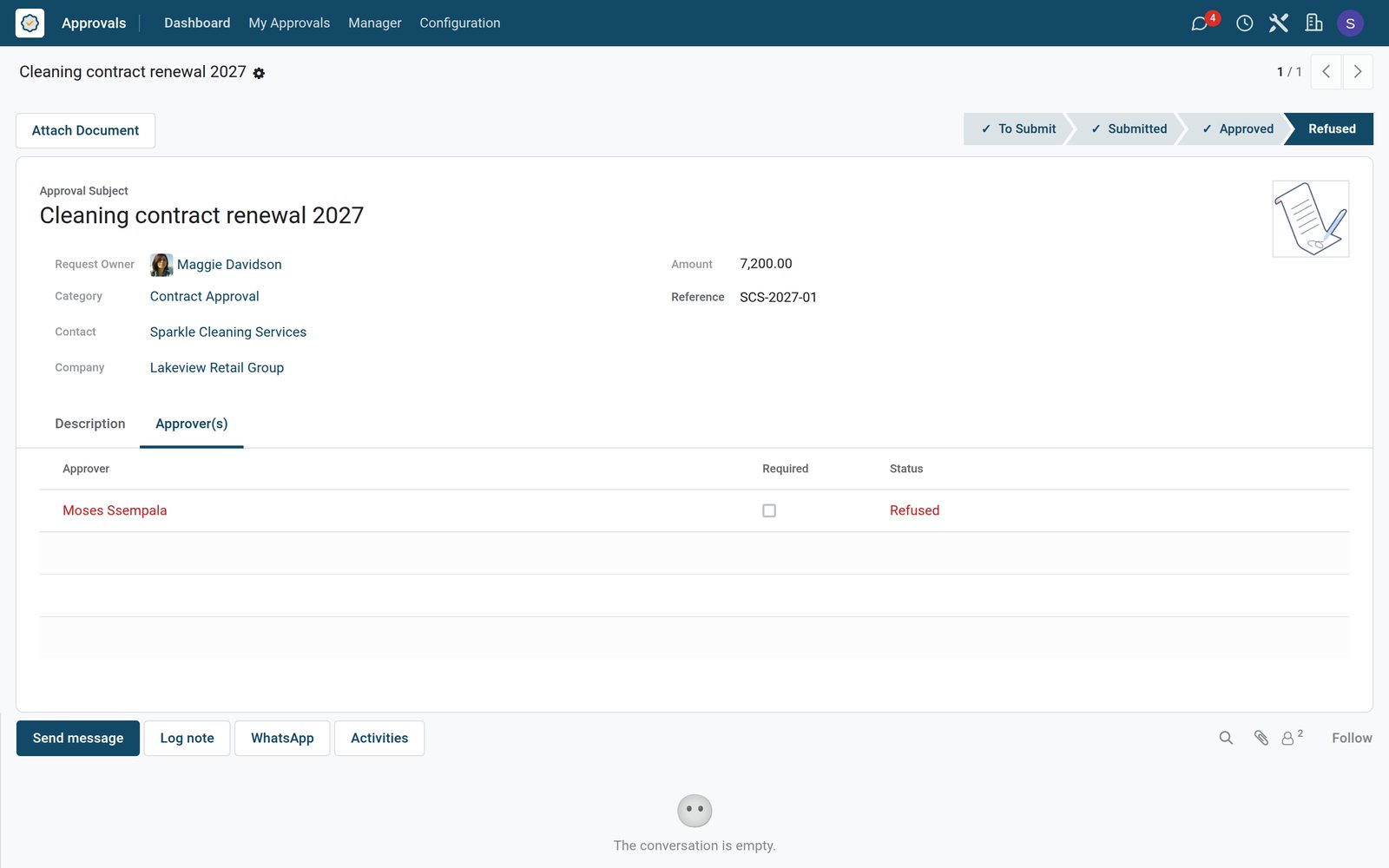
Refused requests stay in the list with the approver who refused them.
 Approvals
A contract renewal refused
The 2027 cleaning contract renewal at 7,200 was refused by Admin account and stays on record with its reference.
Explore Approvals →Who uses it
Who uses it, and what they see
Approvals is used by the people who ask and the people who decide.
Employee
Picks a type, fills in the details and follows the status of each request.
Approver
Sees the requests to review and approves or refuses each one.
Buyer
Receives the requests for quotation created from approved purchase requests.
Administrator
Creates the approval types, their required details and their approvers.
Works with
Runs with the rest of BridgeERP
Apps that approvals feed or draw on.


In your country
Built for businesses in any country
What changes when approvals stop living in chat messages and paper forms.
One record per decision
Each request keeps who asked, who approved or refused, and when it was submitted.
Any currency
Amounts on requests use the company currency, US dollars on this demo company.
Several companies
Each company in the database keeps its own approval types, approvers and requests, side by side.
Getting started
Getting started
How a business moves its approvals onto BridgeERP.
List your approvals
Write down what needs a yes today: payments, purchases, trips, contracts and borrowed items.
Create the types
For each one, choose the details to ask for and whether documents are required.
Name the approvers
Add the approvers, mark who is required and set the minimum number of approvals.
Link purchases
Use a purchase type with products and vendors so approved requests become quotations.
Questions
Questions about Approvals
Not covered here? Contact us.
Can one request need more than one approver?
Yes. A type can list several approvers, mark some as required and set a minimum number of approvals.
Can approvers decide in order?
Yes. With approvers in sequence, the next approver waits until the previous one has decided.
Can the employee's manager approve?
Yes. A type can add the manager from the employee record as an approver or as a required approver.
What happens when a purchase request is approved?
The products on the request are turned into requests for quotation to their vendors.
Can we ask for a quote or invoice to be attached?
Yes. A type can make documents required, and the request cannot be submitted without one.
Where do approvers see what is waiting for them?
In Approvals to Review, and as an approval activity on each request.
Put Approvals to work
Add it to your plan and pay only for what you use, or see it running on your own demo first.