

 Planning: Plan every shift, person and machine on one schedule
BridgeERP Planning schedules employees and materials on shifts by project, role or sales order, publishes the schedule to the team, and spots conflicts.
Free instant access. No credit card required.
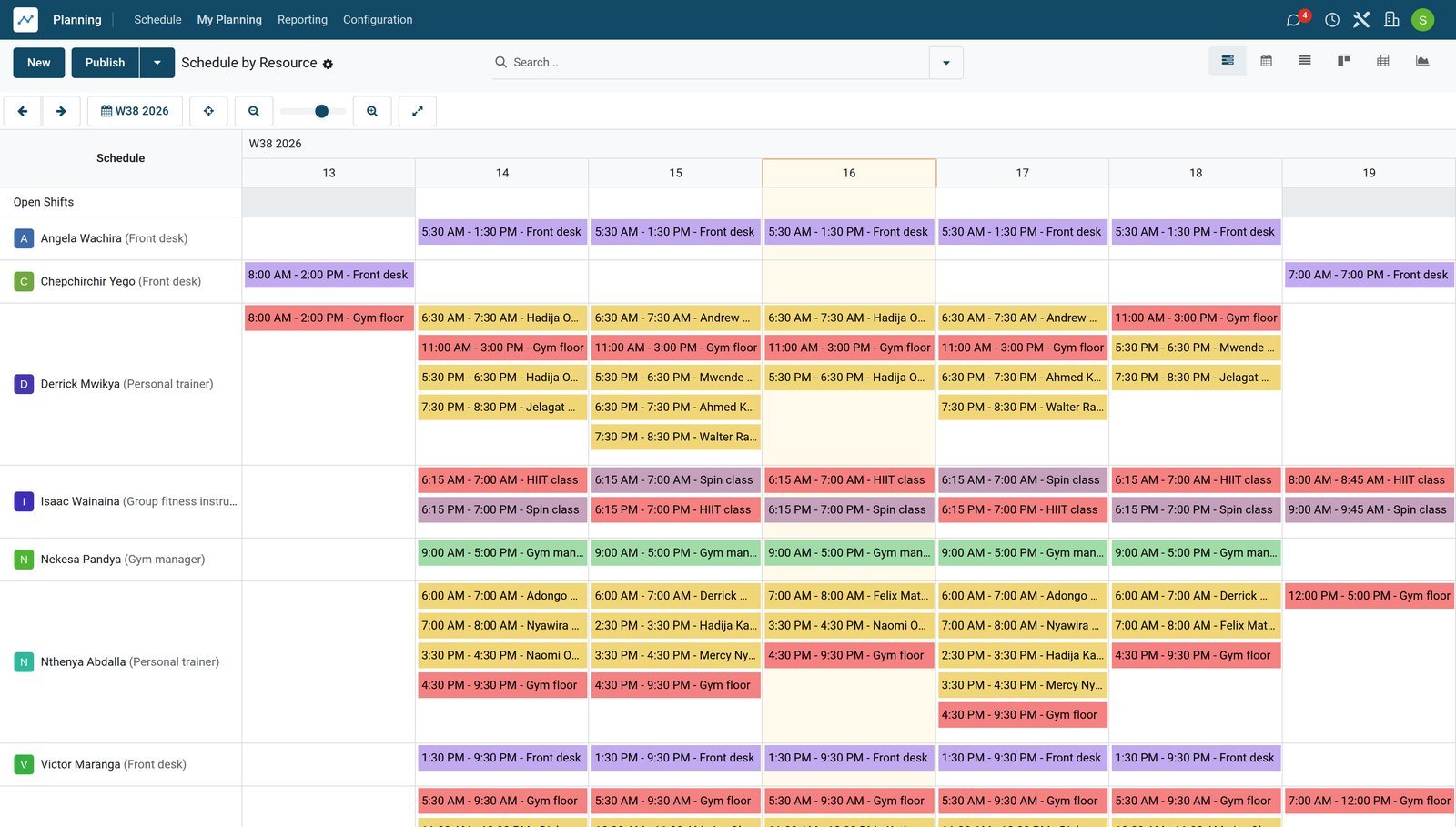
A shift says who, where, when and for which client
Each shift links a person or a machine to a role, a project and, when sold, the order line it delivers.
 Shift Planning
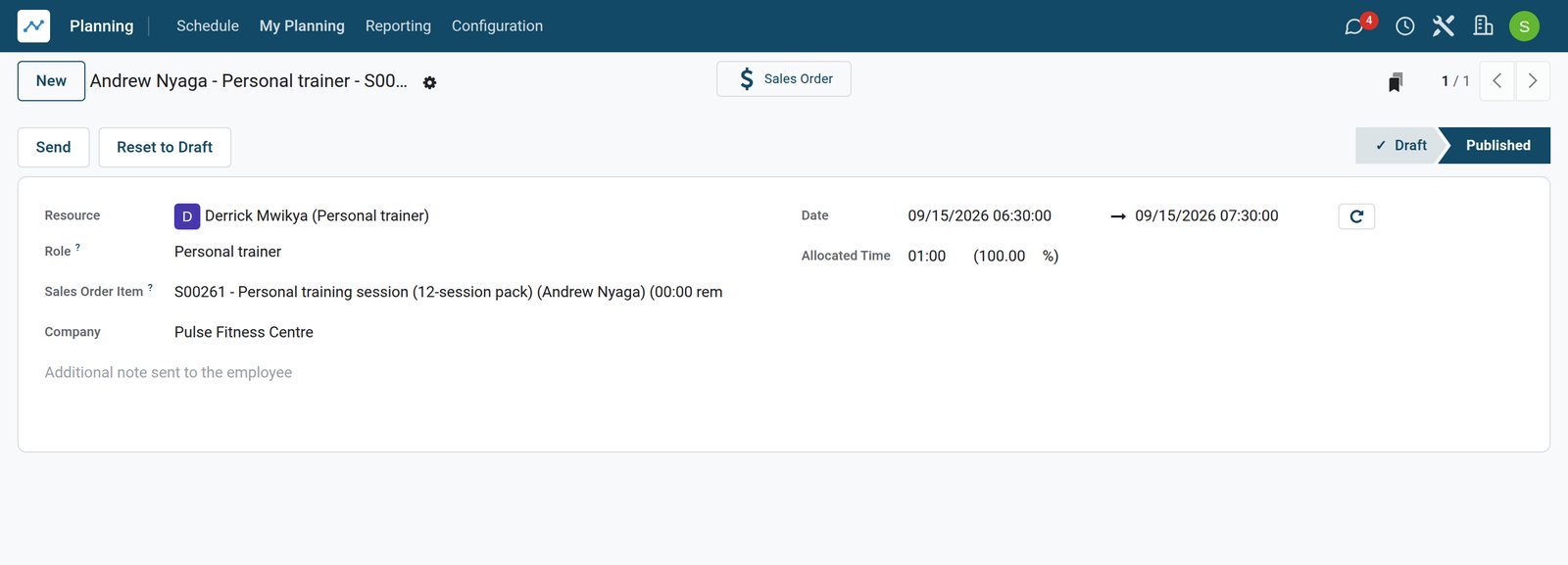
A trainer booked on a client's session pack
The shift puts Derrick Mwikya with Andrew Nyaga for an hour on 15 September, against the 12-session personal training pack sold to him.
Explore Shift Planning →By the numbers
What ships inside the Planning app
Counted in the product and on the demo database.
- 4
- ways to see the schedule: by project, by resource, by role and by sales order
- 18
- roles on the demo, from Developer and Consultant to Crane, Projector and Furniture Assembler
- 18
- materials on the demo scheduled like people, such as cranes, projectors and tool kits
- 14
- shift templates on the demo, morning and afternoon shifts per role
Inside the app
What is inside
The parts of the Planning app, grouped by what they do for the planner.
Gantt schedule
Drag shifts between people and days, and switch between day, week, month and year.
Shift templates
Save common shifts, such as 8 AM to 12 PM for a developer, and drop them on the schedule.
Recurring shifts
Repeat a shift every so many days, weeks, months or years instead of copying it.
People and materials
Plan employees and equipment such as cranes or projectors on the same chart.
Conflicts
Overlapping shifts for the same resource are counted and flagged before the schedule goes out.
Publish and notify
Publish the schedule so employees see their shifts, and warn when changes are not yet published.
Switch and unassign
Employees ask to switch a shift or leave it, up to a deadline you set.
Skills
Find the right person for a shift by the skills recorded on each employee.
Step by step
From sold hours to worked hours
How a schedule travels through BridgeERP, and which app does each step.
- Step 1
Sell
A sales order for services creates the hours to plan on its order lines.
Sales - Step 2
Plan
The planner drops shift templates on the Gantt chart for the right people and roles.
Shift Planning - Step 3
Publish
Publishing sends each employee their shifts, and changes made after show a warning.
Shift Planning - Step 4
Adjust
Employees request switches or unassign themselves before the deadline, and others take the shift.
Shift Planning - Step 5
Compare
The planning analysis compares planned hours with the time logged on timesheets.
Timesheets


Build the week from shifts you already know
Shift templates hold the usual hours per role, so a week is planned in a few drops.
 Shift Planning
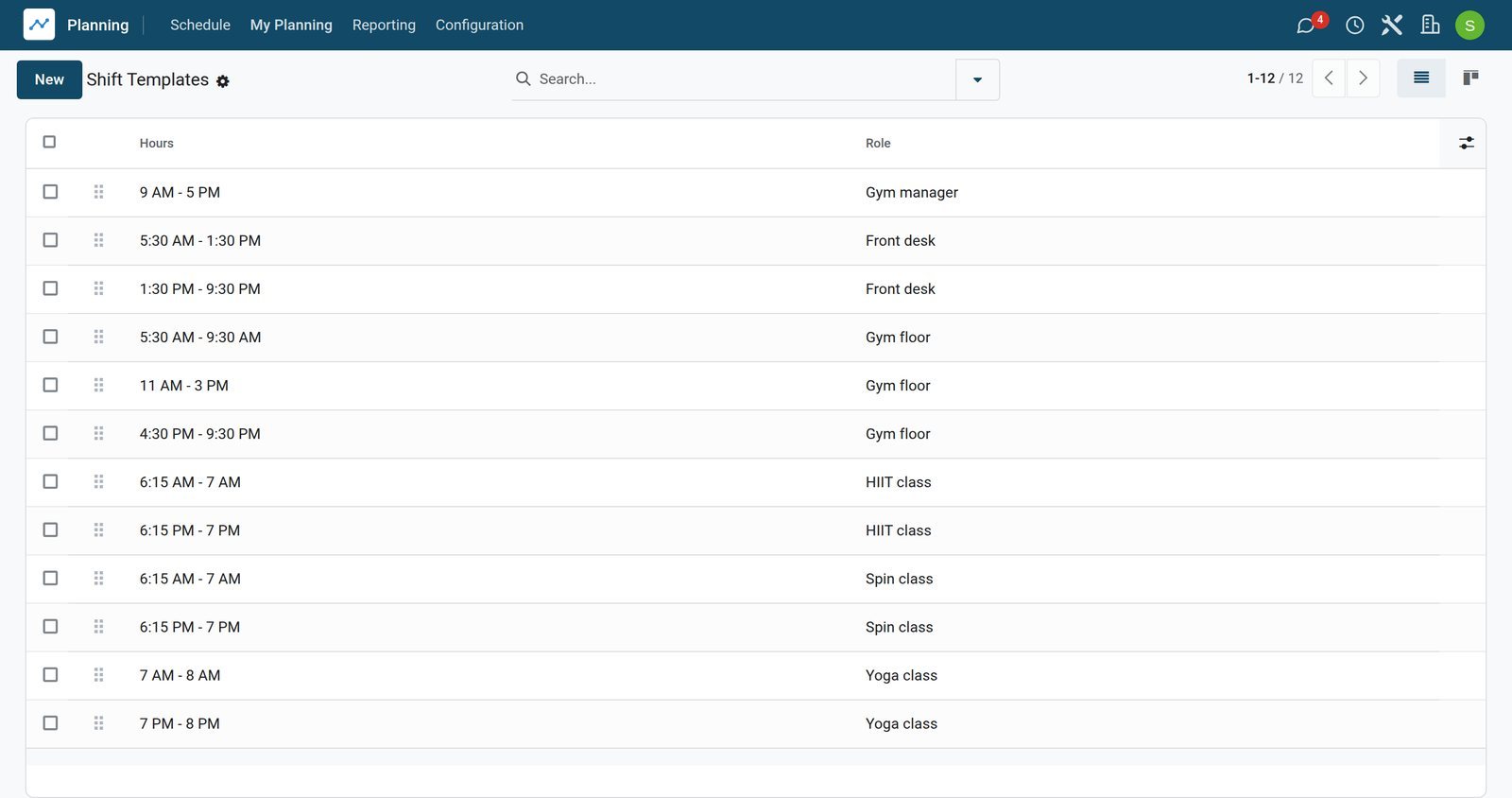
Opening, midday and evening shifts per role
The gym's templates cover the gym manager's day, front desk and gym floor shifts from 5:30 AM to 9:30 PM, and the morning and evening classes.
Explore Shift Planning →Who uses it
Who uses it, and what they see
Planning involves the people who sell, plan and work the shifts.
Planner
Builds the schedule by project, role or resource, resolves conflicts and publishes it.
Employee
Sees their published shifts, asks to switch one, or leaves a shift before the deadline.
Project manager
Checks the people planned on the project against the hours sold and logged.
Sales
Sells service hours that turn into shifts to plan on the order lines.
Works with
Runs with the rest of BridgeERP
Apps that share people, projects and hours with Planning.


See where the hours are planned
The planning analysis adds up planned hours by person and role, so gaps and overloads stand out.
 Shift Planning
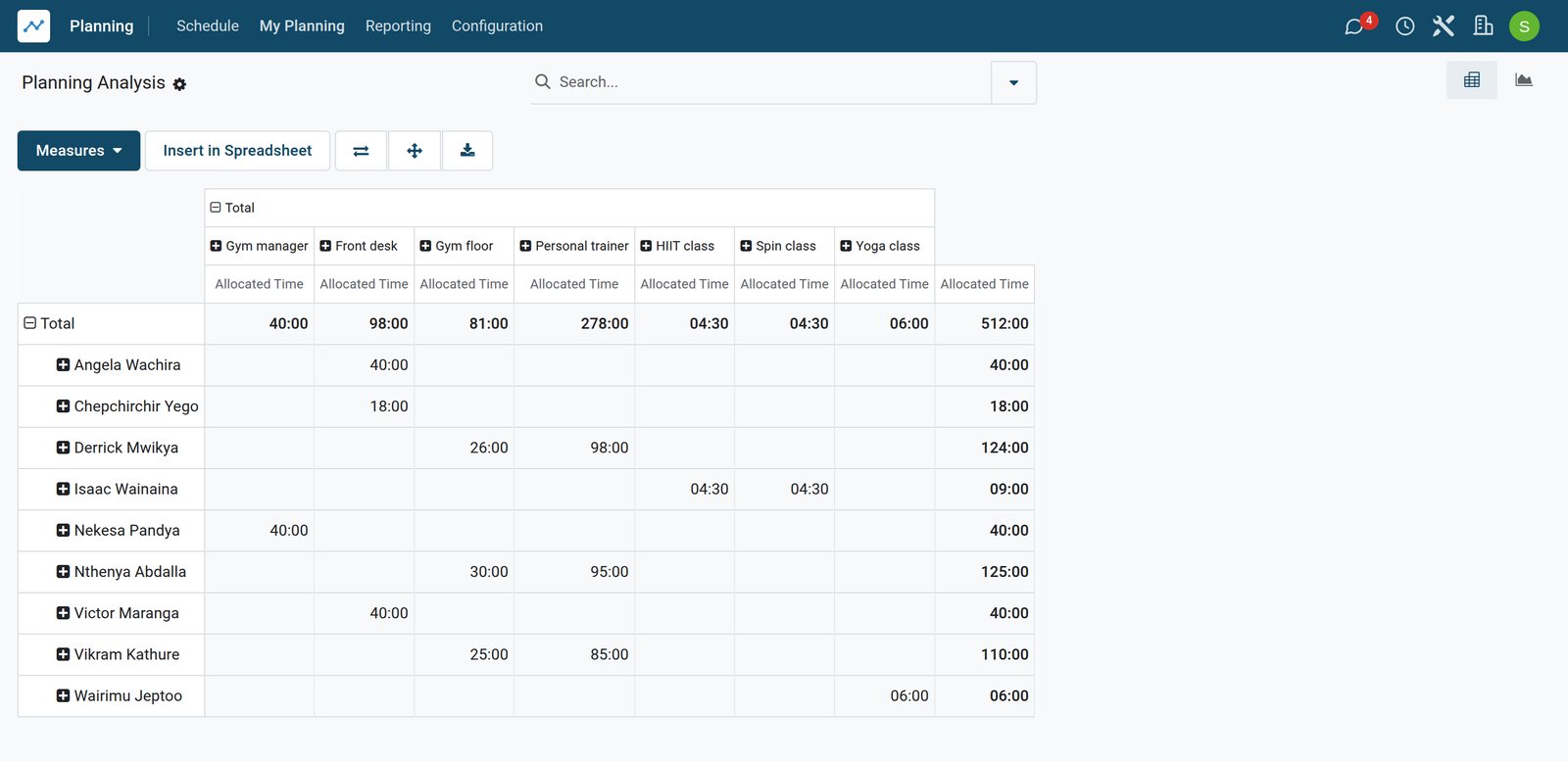
Planned hours by person and role
The planning analysis puts every staff member in a row and every role in a column, with the hours planned; personal training carries the most.
Explore Shift Planning →Rules you set once
Planning settings that apply to everyone.
Unavailabilities
Show employees' unavailability on the schedule so nobody is planned while away.
Recurring shift generation
Choose how far ahead recurring shifts are created on the schedule.
Unassignment deadline
Set how many days before a shift employees can still leave it.
Getting started
Getting started
How a team moves its rota onto BridgeERP.
Create roles
List the roles you plan, such as consultant or crane, and give each a colour.
Add templates
Save the shifts you use every week as templates with their hours and role.
Plan and publish
Drop templates on the Gantt chart for the week, then publish so the team is told.
Try it on the demo
The demo has hundreds of shifts for employees and materials across projects, roles and sales orders.
Questions
Questions about Planning
Not covered here? Contact us.
Can I plan equipment as well as people?
Yes. Materials such as cranes or projectors are resources you plan on the same Gantt chart.
Can employees swap shifts?
Yes. An employee can ask to switch a shift, and can leave it up to the deadline set in the settings.
Can shifts repeat every week?
Yes. A shift repeats every chosen number of days, weeks, months or years.
Will I see double bookings?
Yes. Overlapping shifts for the same resource are counted on the shift so the planner can fix them.
Can I plan the hours sold to a client?
Yes. Sales order lines for services create hours to plan, shown by sales order on the schedule.
Can I compare planned and actual hours?
Yes. The planning analysis compares hours planned with hours logged on timesheets.
Put Planning to work
Add it to your plan and pay only for what you use, or see it running on your own demo first.