

 Knowledge: Write it down once, and let the whole company find it
BridgeERP Knowledge keeps playbooks, procedures and checklists in one tree of articles, with access per team and a chatter on every page.
Free instant access. No credit card required.
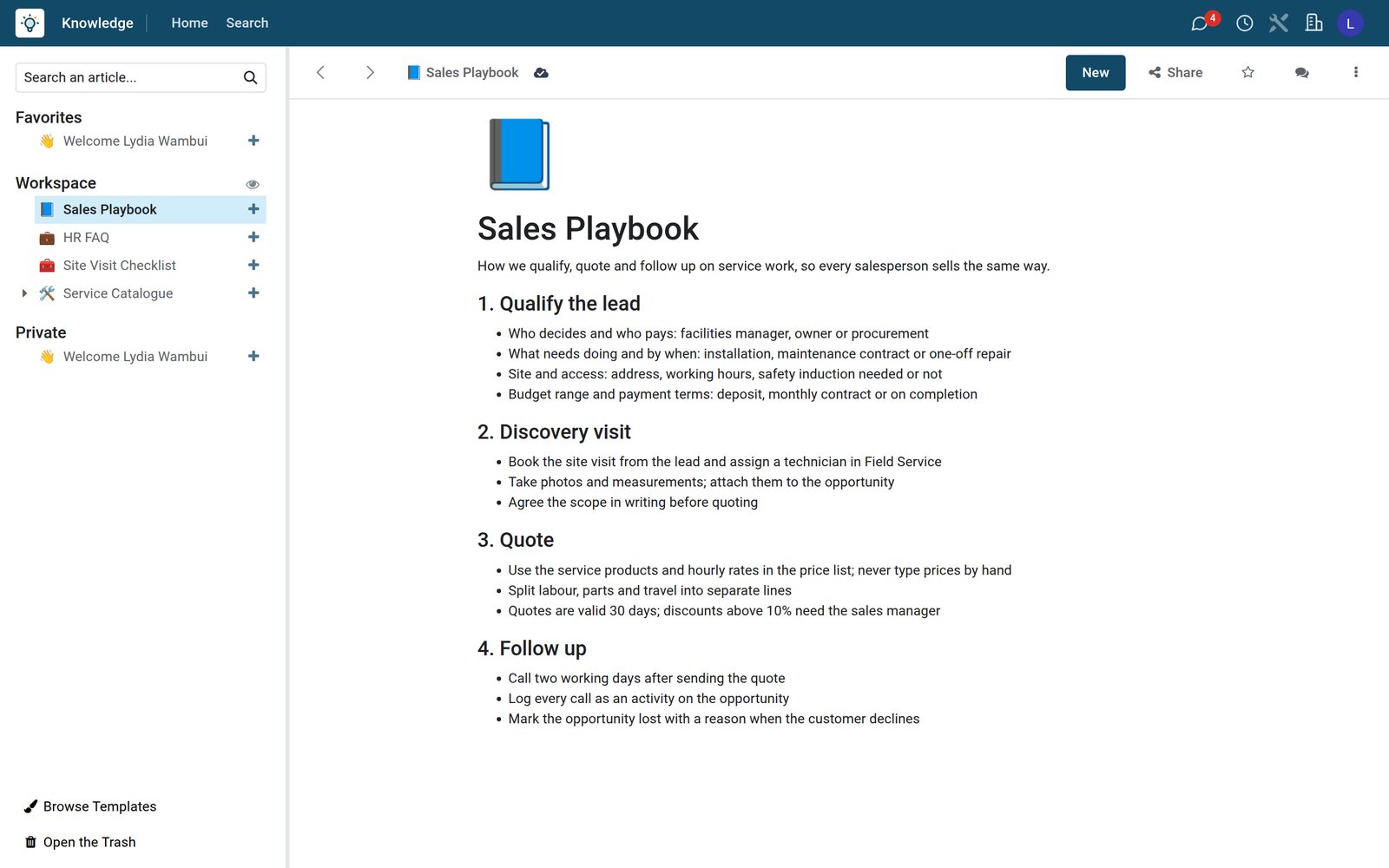
One tree for everything the team knows
Articles nest under articles, so a catalogue or a handbook keeps each topic on its own page.
 Knowledge
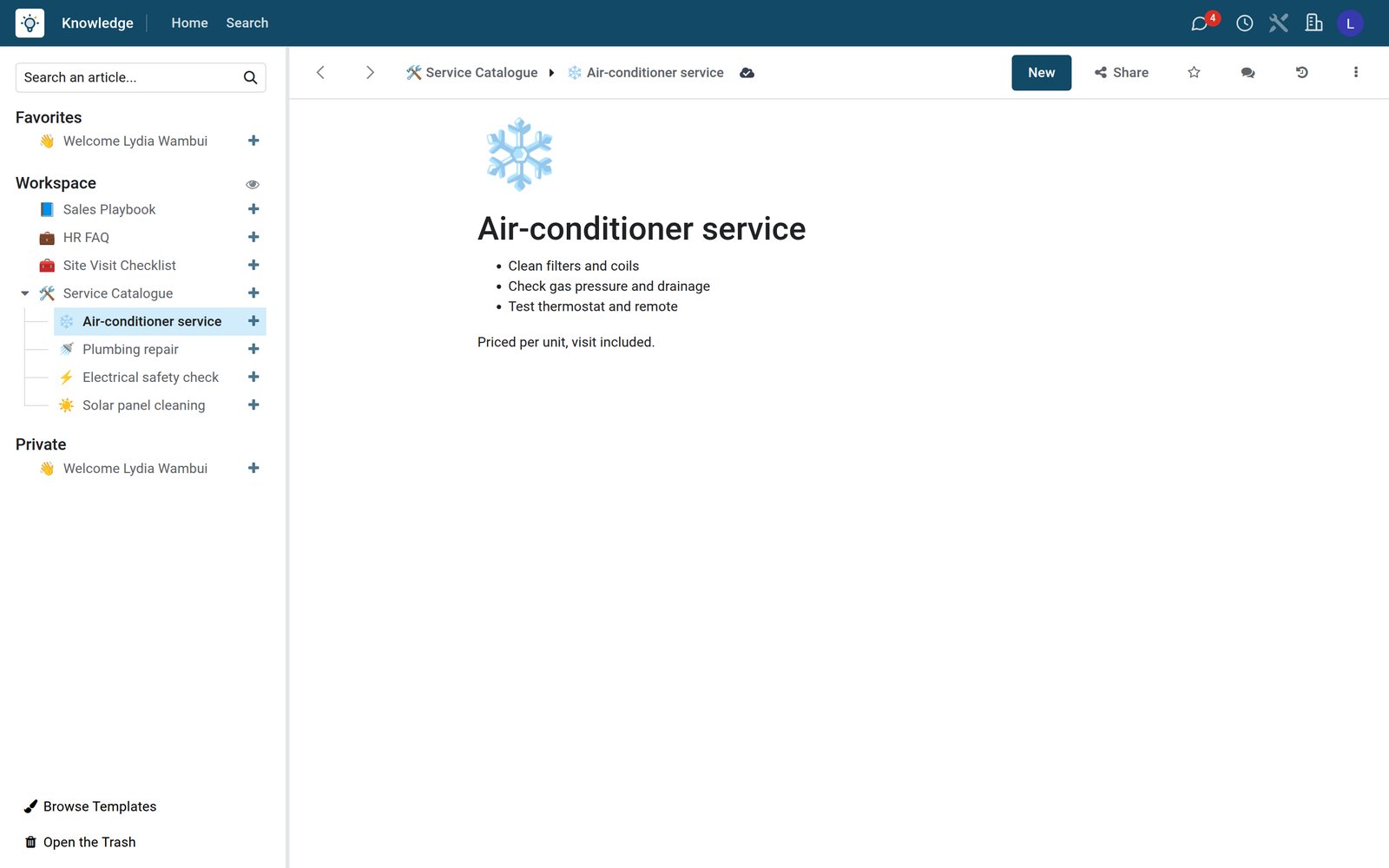
A service catalogue with a page per service
The Service Catalogue holds one sub-article per service, and each page lists what the visit includes and how it is priced.
Explore Knowledge →By the numbers
What ships inside the Knowledge app
Counted in the product and on the demo database.
- 3
- sections in the sidebar: Workspace for everyone, Shared with invited people, and Private
- 3
- access levels for the rest of the company: can edit, can read, or no access
- 15
- ready-made templates in 5 categories, from meeting minutes to release notes
Inside the app
What is inside
The parts of the Knowledge app, grouped by what they do for the team.
Article tree
Articles nest under articles, so a handbook grows into chapters without losing its shape.
Access per article
Give the company edit or read access, or none, and invite members with their own rights.
Templates
Start a page from a template such as meeting minutes, a post-mortem or a sprint calendar.
Article items
Records inside an article, with their own properties, shown as cards or a list.
Favourites
Star the articles you use every day and find them at the top of the sidebar.
Search
Search every article you can read by title or content from the Knowledge search.
Lock and full width
Lock a finished article against edits, or open it full width for long tables.
Trash
Deleted articles go to the trash first, so a mistake can be undone.
Step by step
From meeting to shared know-how
How knowledge travels through BridgeERP, and which app does each step.
- Step 1
Write
A team lead writes the procedure in an article, from a blank page or a template, under the right parent.
Knowledge - Step 2
Share
The article is opened to the company to read, and the owners are invited as editors.
Knowledge - Step 3
Organise
Sub-articles keep each service or topic on its own page, and items track records with their properties.
Knowledge - Step 4
Find
Colleagues search Knowledge or star the article to keep it at the top of their sidebar.
Knowledge - Step 5
Discuss
Questions go to the article's chatter, and followers hear about every change.
Discuss

Answers people look for every week
A FAQ in Knowledge replaces the same question asked again and again by email and chat.
 Knowledge
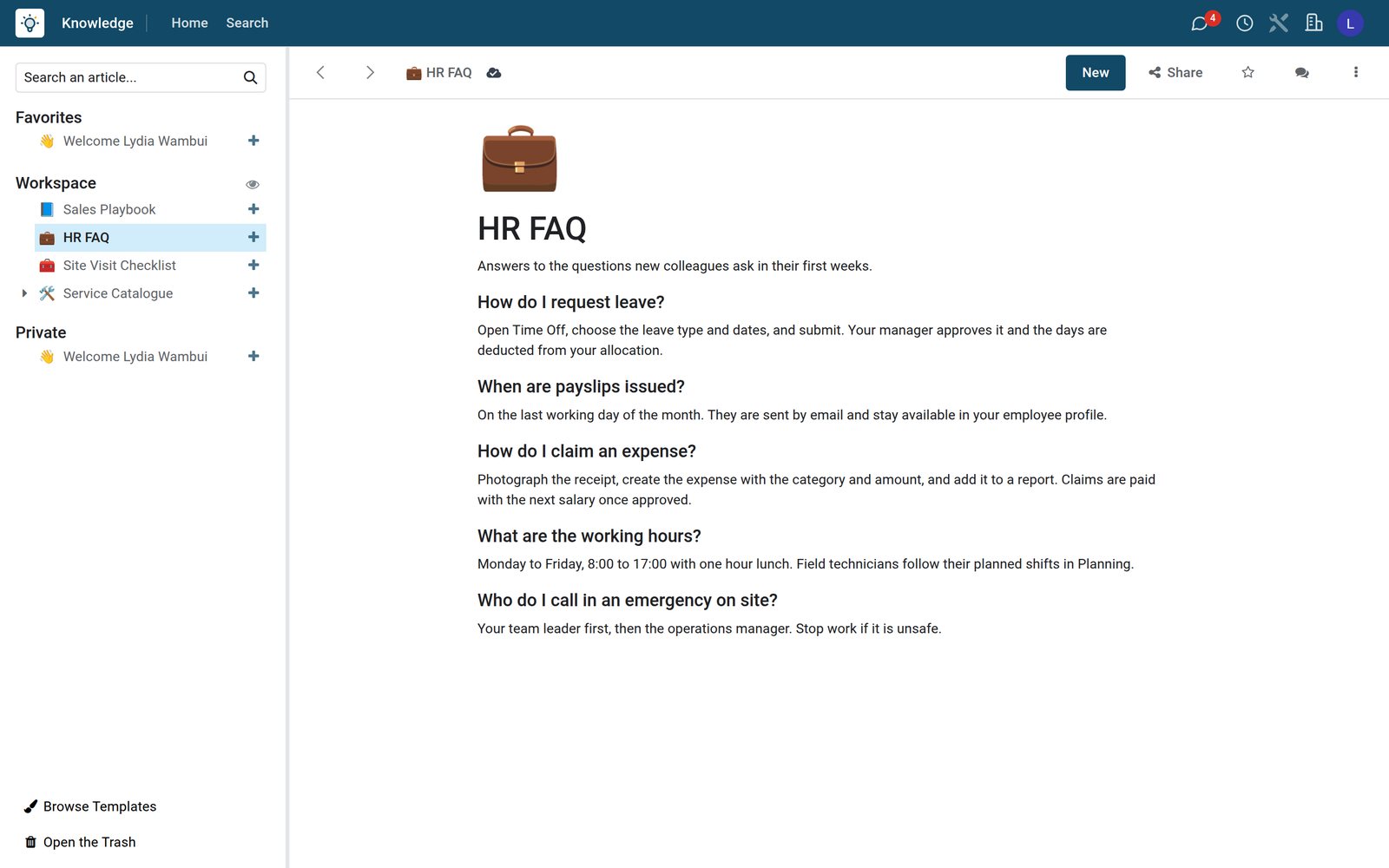
The HR FAQ, one click from the sidebar
The HR FAQ answers what new colleagues ask about leave, payslips, expenses and working hours, in one page for everyone.
Explore Knowledge →What teams keep in Knowledge
Articles already written on the demo workspace of a services company.
Sales playbook
How to qualify a lead, run the discovery visit, quote and follow up, the same way for everyone.
HR FAQ
Leave, payslips, expense claims and working hours answered once for every colleague.
Site visit checklist
What a technician checks before leaving, on site and before closing the visit.
Service catalogue
One page per service with what the visit includes and how it is priced.
Checklists people tick on the job
Procedures written as checklists, so every visit follows the same steps.
 Knowledge
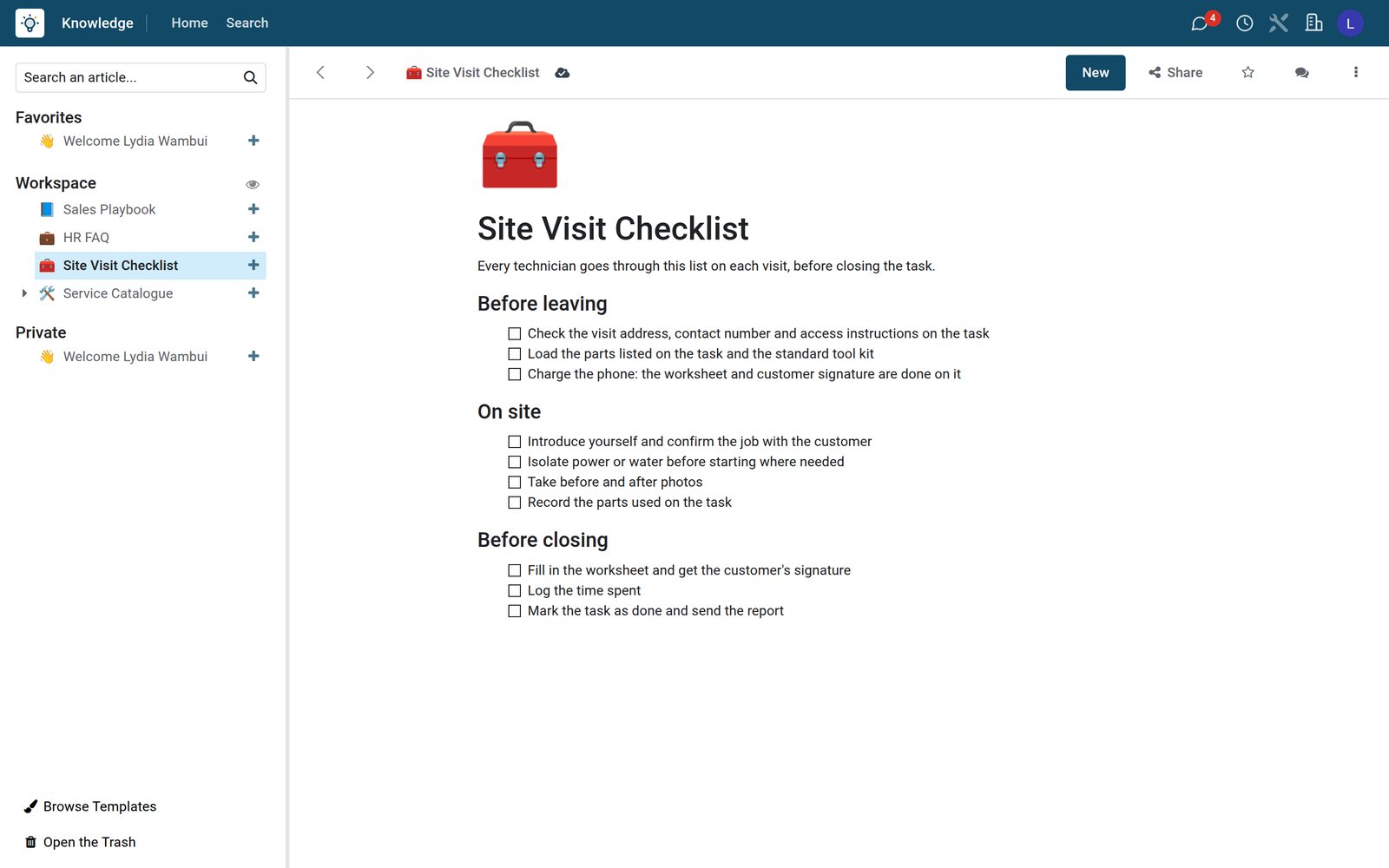
The site visit checklist
Technicians go through the same list before leaving, on site and before closing the task, with boxes to tick.
Explore Knowledge →Start from a template, not a blank page
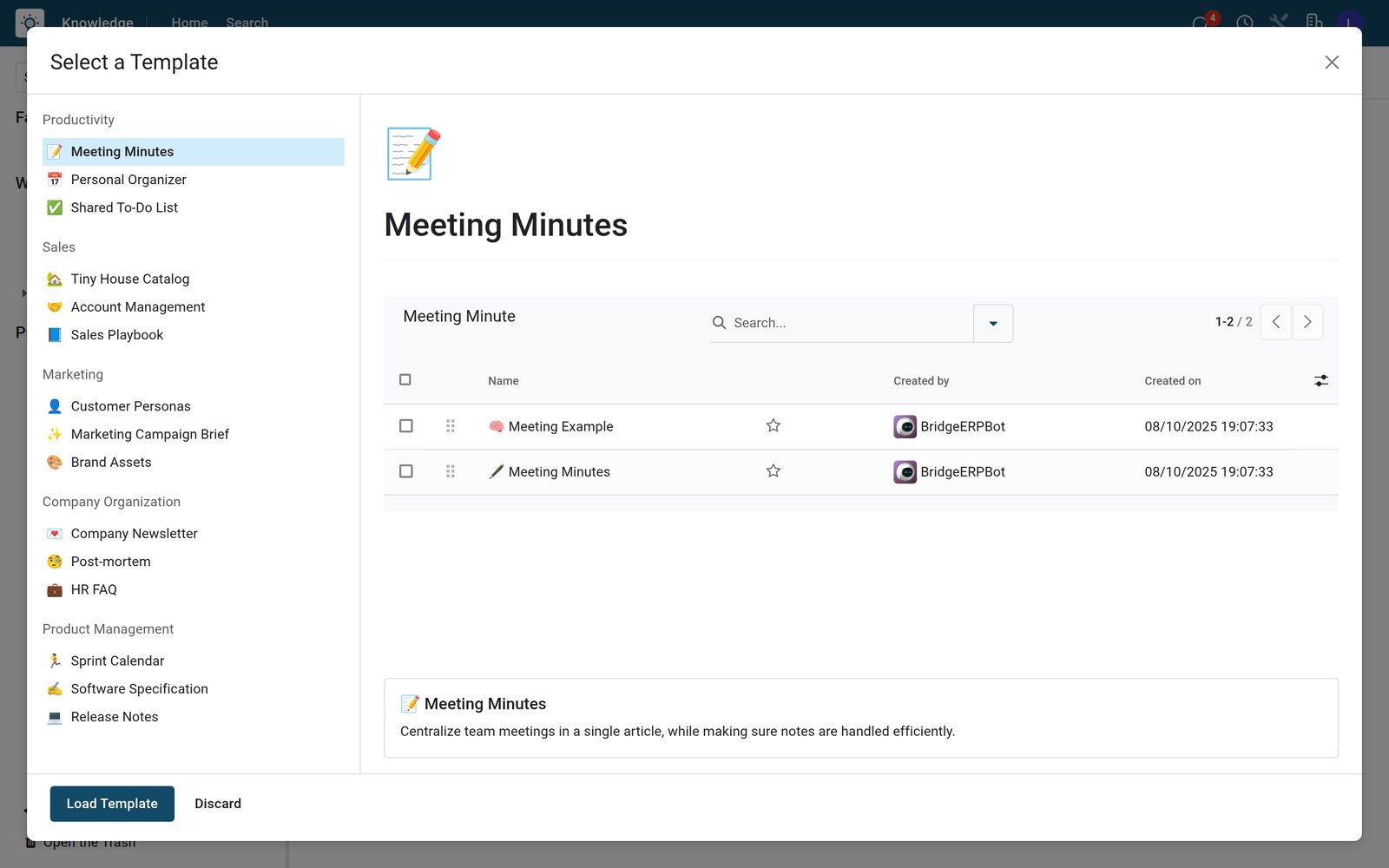
Ready-made templates give a new article its structure in one click.
 Knowledge
The template gallery
Browse templates by category, preview one such as meeting minutes, and load it into a new article.
Explore Knowledge →Who uses it
Who uses it, and what they see
Knowledge is written by a few people and read by everyone.
Team lead
Writes and organises the team's articles, and decides who can edit or read them.
Employee
Reads the handbooks, searches for answers and stars the articles used every day.
New hire
Starts from the welcome article and the FAQ instead of asking the same questions.
Administrator
Manages members and favourites and restores articles from the trash.
Works with
Runs with the rest of BridgeERP
Apps whose teams keep their know-how in Knowledge.


Getting started
Getting started
How a team moves its wiki onto BridgeERP.
Start with the questions
Write the five questions people ask most as a FAQ article in the workspace.
Build the tree
Create a parent article per team and move existing pages under it.
Set access
Open each team's articles to the company to read and invite the owners to edit.
Try it on the demo
The demo workspace has a sales playbook, an HR FAQ, a site visit checklist and a service catalogue.
Questions
Questions about Knowledge
Not covered here? Contact us.
Can I keep some articles private?
Yes. Private articles are visible only to you, and shared articles only to the members you invite.
Can I control who edits an article?
Yes. Set company access to edit, read or none, and give invited members their own rights.
Do I have to start from a blank page?
No. Load a template such as meeting minutes, a post-mortem or release notes into a new article.
What happens when an article is deleted?
It goes to the trash first, from where it can be restored.
Can I stop an article from being changed?
Yes. Lock the article so it can be read but not edited until it is unlocked.
Can colleagues comment on an article?
Yes. Each article has its own chatter for questions, and followers are notified.
Put Knowledge to work
Add it to your plan and pay only for what you use, or see it running on your own demo first.