

 VoIP: Call the customer from the record in front of you, and let the call log itself
BridgeERP VoIP puts a softphone in the top bar of every app. Click a phone number on a deal, a contact or an applicant, work through the calls due in Next Activities, and every call lands in the call log with its contact and outcome.
Free instant access. No credit card required.
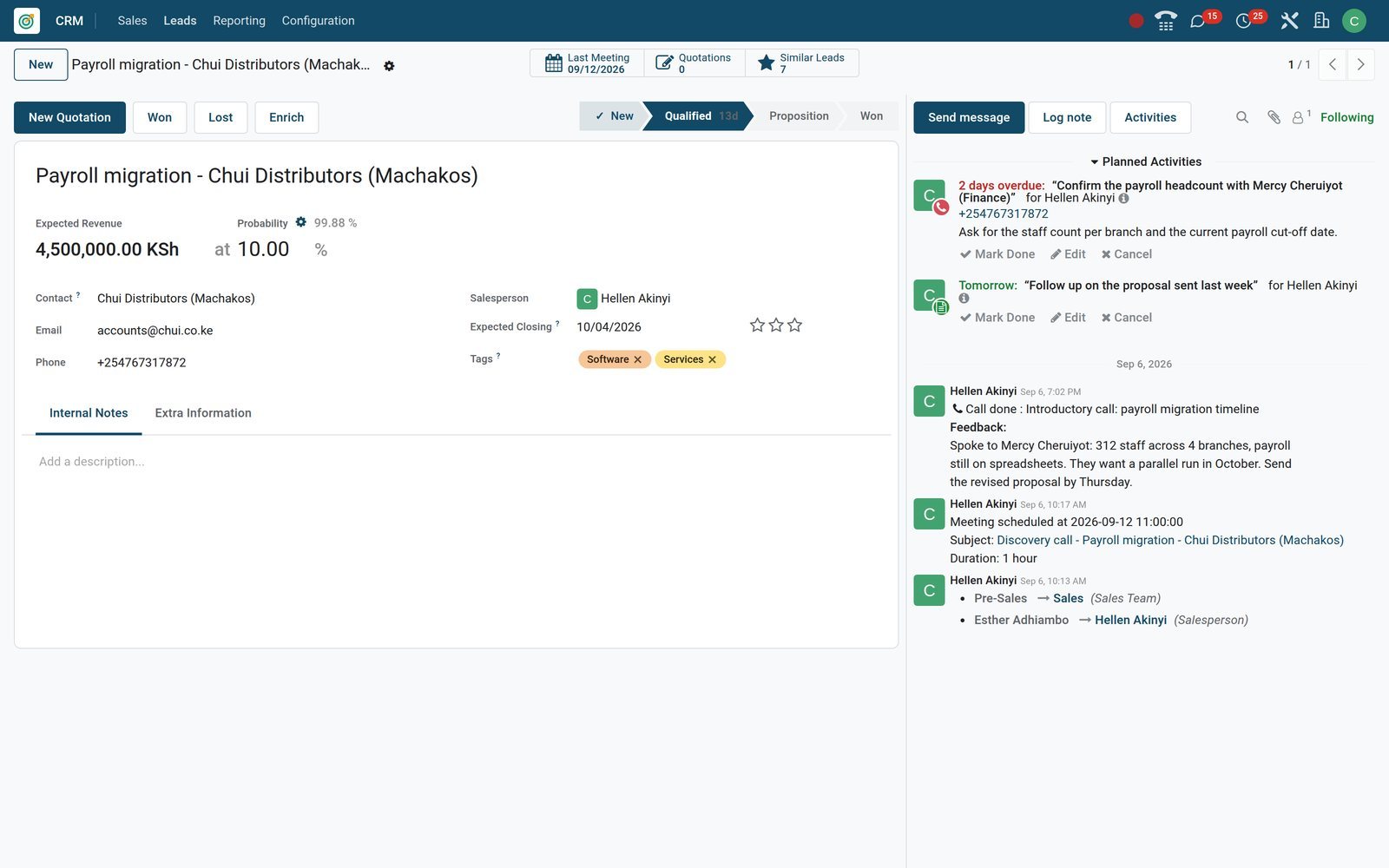
Every call the team owes, in one list
The softphone's Next Activities tab is built from ordinary Call activities. The same activities sit in one list across every app, so a manager sees who owes which call and by when.
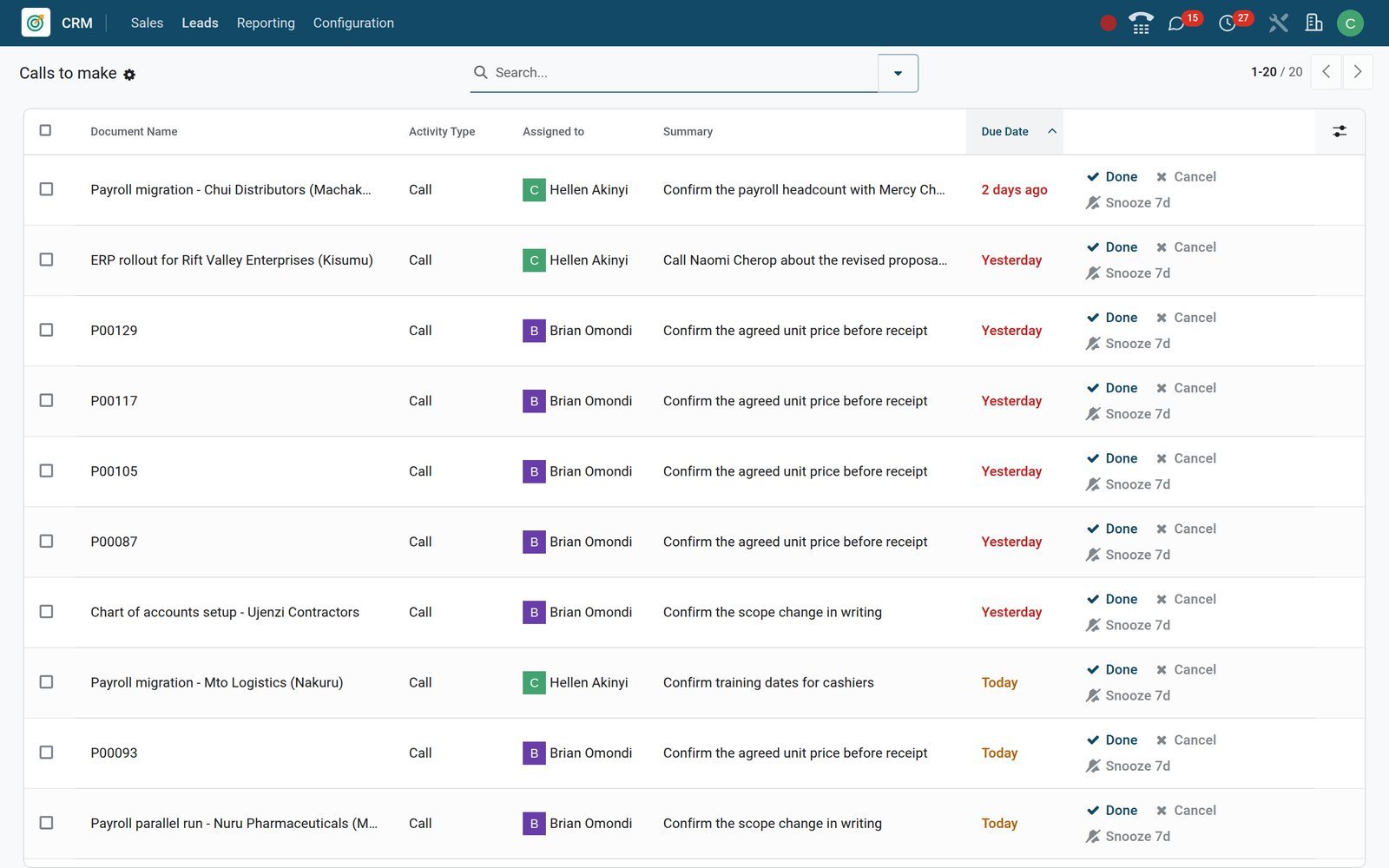
 CRM
CRMCalls from deals, purchase orders, applicants and tasks side by side
Each row names the document, activity type, owner, summary and due date, so a supplier price check and a phone screening sit in the same list.
Explore CRM →By the numbers
The softphone in numbers
Counted on the demo database, not taken from a brochure.
- 92
- call activities scheduled on the demo, from deals and purchase orders to project tasks and job applicants
- 28
- calls in one week of the call log, each with direction, state, start and end time and contact
- 720
- contacts with a stored phone number, each one click away from the softphone
- 33
- supplier calls planned on purchase orders, in the same call queue as the sales team's follow-ups
Inside the app
What is inside VoIP
One softphone, wired into the phone fields, activities and contacts that every BridgeERP app already has.
Softphone in the top bar
The phone icon at the top right of every app opens the softphone: a search bar, a keypad and the Recent, Next Activities and Contacts tabs.
Click-to-call on any phone field
Phone numbers on contacts, opportunities and applicants are links; clicking one dials from the softphone, and the call log records the contact.
A call queue built from activities
Call and Call for Demo activities fill Next Activities as they fall due; a deal joins the queue from the phone-and-plus icon on its pipeline card.
Work through the list
Open an entry in Next Activities to see its details, place the call, then mark the activity done, edit it or cancel it from the same panel.
Incoming calls in the browser
An incoming call rings in the softphone and is answered with the green phone button; a user who must stay undisturbed ticks Reject incoming calls.
Transfer or forward a call
During a call, the arrows icon transfers the caller to a colleague's extension, or forwards the call to a full outside phone number.
Call from another device
Tick Call from another device and enter an External device number, and calls started in BridgeERP are placed through your desk phone or mobile.
A call log for every user
Each call is kept with direction, state, start and end time, contact, responsible user and the name of the activity it belonged to.
Step by step
From a stored number to a reviewed week
The same six steps whether the call is a sales follow-up, a supplier price check or a candidate screening.
- Step 1
Store the number
Save phone and mobile on the contact or lead; the same number serves the softphone, the SMS gateway and the call log.
BridgeERP Core - Step 2
Plan the call
Schedule a Call activity on the deal or queue it from its pipeline card; an activity plan chains the call with an e-mail and a demo call.
CRM - Step 3
Dial from the record
Click the number on the form or open the entry in Next Activities; the softphone shows the contact, the number and the activity being worked.
VoIP - Step 4
Handle the conversation
Send an e-mail or schedule the next activity from the call panel, or transfer the caller to a colleague's extension or an outside number.
VoIP - Step 5
Log the outcome
Mark the Call activity done from the panel: the feedback lands in the record's chatter and the call stays in the log with the activity name.
VoIP - Step 6
Review the week
The CRM Activities report counts completed activities by salesperson and type; the Calls list shows missed and rejected calls still to ring back.
CRM
Turn a pipeline into a calling list
Hover an opportunity card and the phone icon with a green plus adds the deal to your call queue, so it appears in the softphone's Next Activities tab without opening the form.
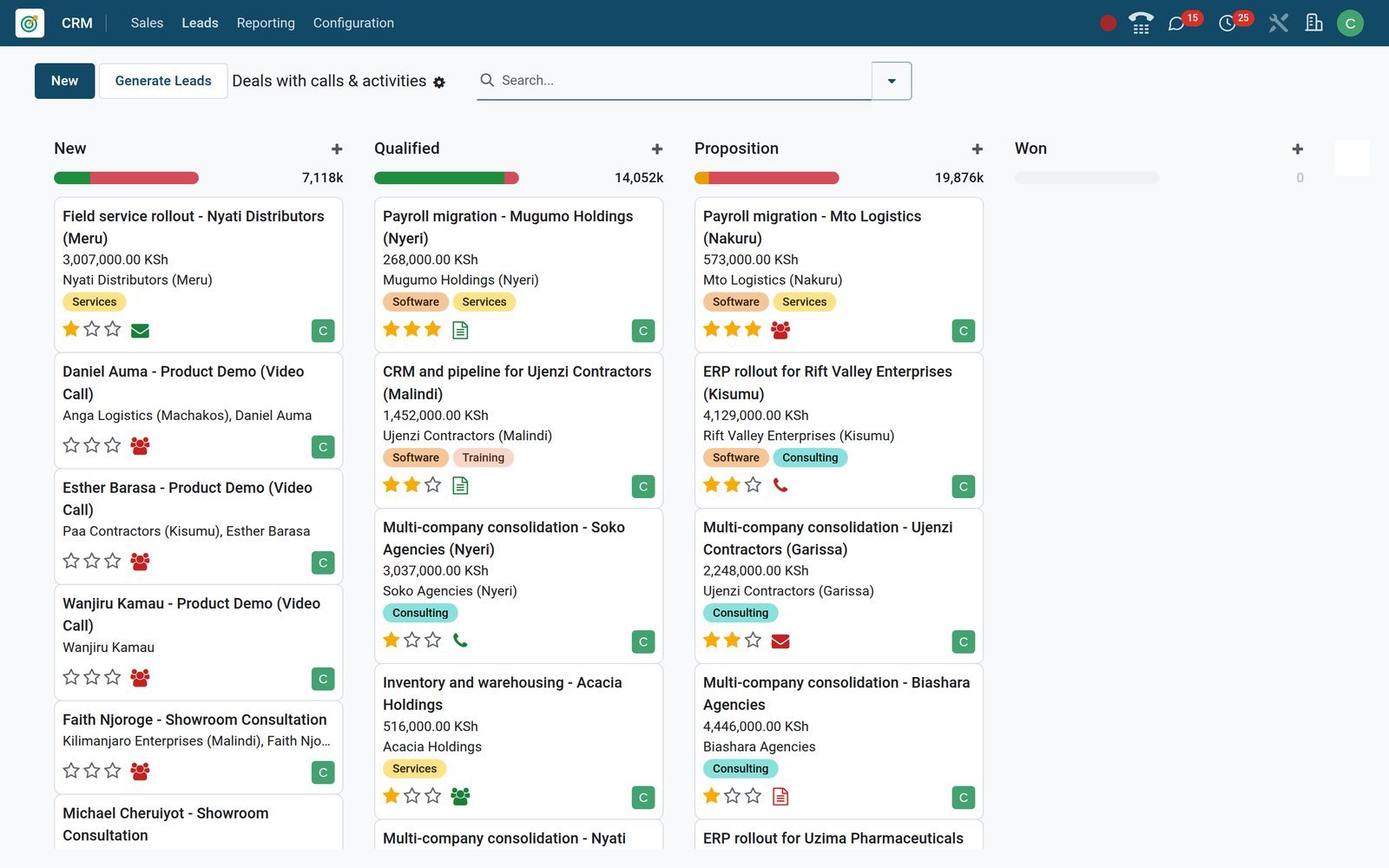 CRM
CRMHellen's deals with open activities, grouped by stage
Column headers total expected revenue in KES and show planned, due-today and overdue activity bars; the phone-plus icon on a card adds it to the queue.
Explore CRM →Know who called, who answered and what it was about
The Calls list keeps one line per call: direction, state, start and end time, the contact, the responsible user and the activity the call belonged to. Each user sees their own calls.
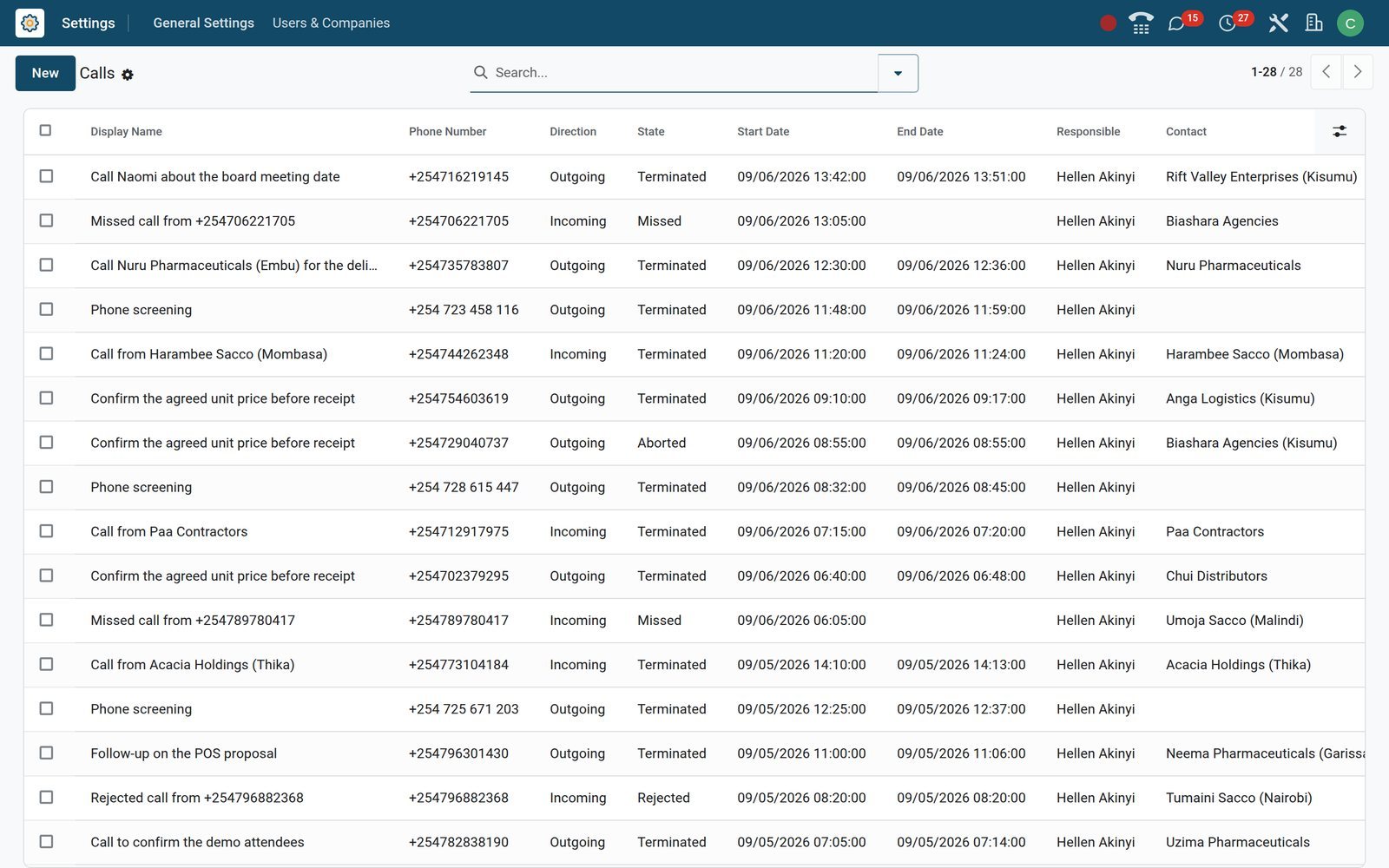 VoIP
VoIPOne week of Hellen's calls
Outgoing calls carry the name of the activity they belonged to; missed and rejected incoming calls stay on the list with the number to ring back.
Explore VoIP →The same softphone in Recruitment, Purchase, Project and Contacts
VoIP is not a CRM-only feature. Any app with a phone field or a Call activity feeds the same queue and the same log, and the softphone's Contacts tab searches the same address book.
 Recruitment
Phone-screen an applicant from the application
The applicant form shows the phone number as a call link beside the e-mail, with the Phone screening activity in the chatter; the recruiter dials from Recruitment.
Explore Recruitment →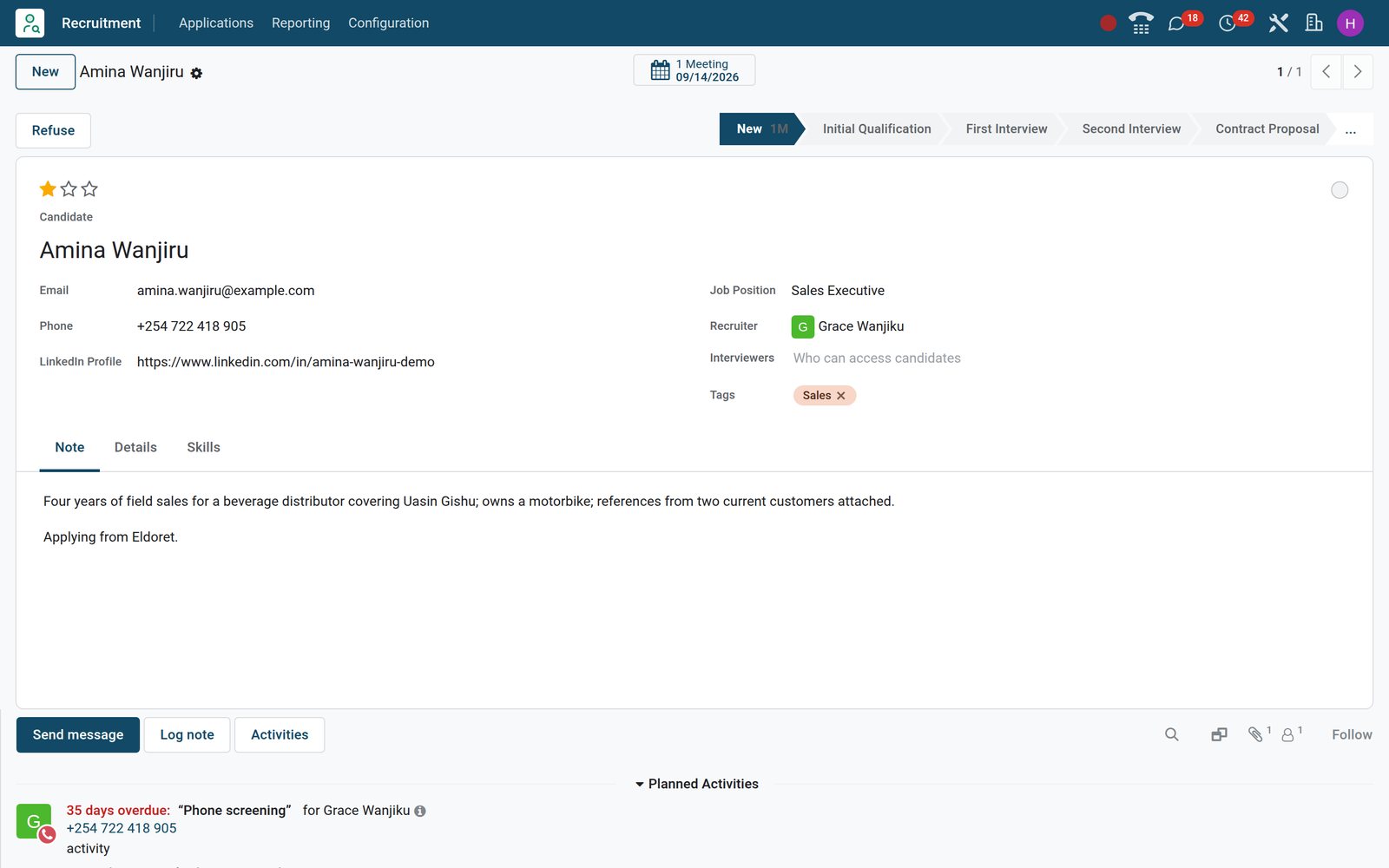
 BridgeERP Core
Every contact with a number is one click from a call
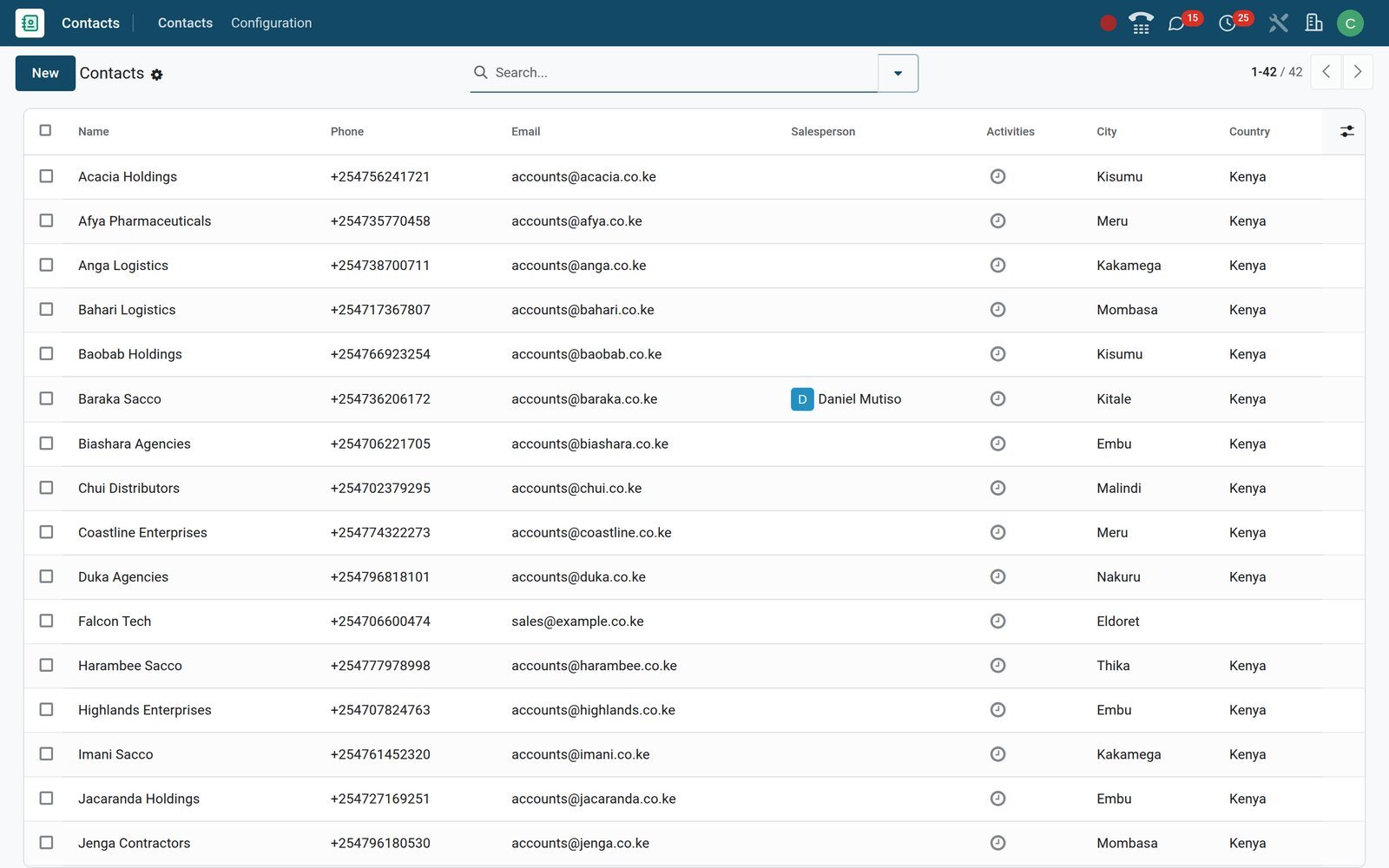
The Contacts list shows each company's phone, e-mail, city and country; the softphone's Contacts tab searches the same address book by name.
On the road, tap the number and choose how to call
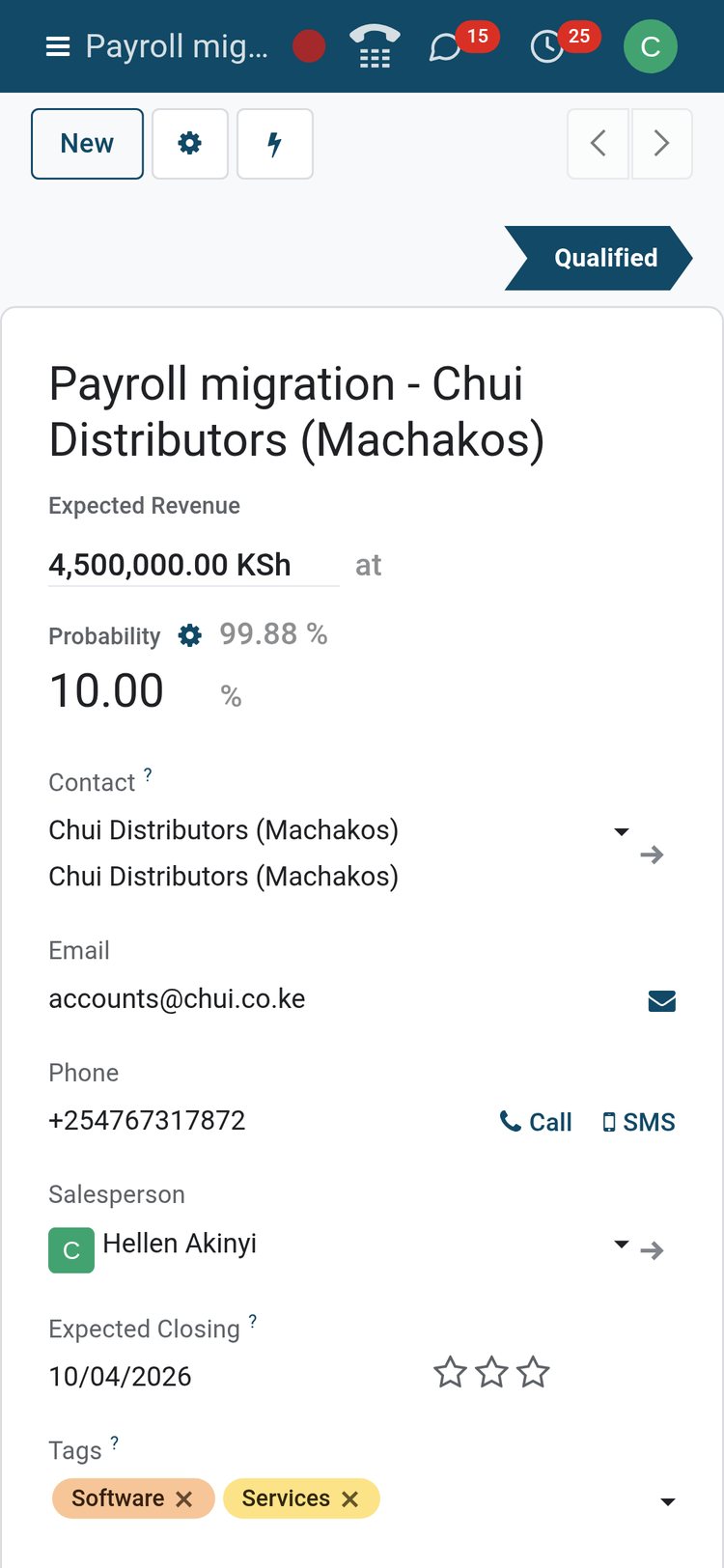
The BridgeERP mobile app opens the same records. Tapping a number places an outgoing call through the softphone or the device's own dialler, whichever the user has chosen.
 CRM
CRMThe deal on a phone screen
Phone, e-mail and stage fit a phone screen; the VoIP tab of each user's preferences sets calls on mobile to Ask, VoIP or Device's phone.
Explore CRM →Who uses it
Who picks up the phone, and what each of them sees
The softphone is the same for everyone; the queue, the records and the reports differ by role.
Sales representative
Works through Next Activities, calls each deal from the softphone, then marks the Call activity done and schedules the follow-up from the same panel.
Sales manager
Reads the CRM Activities report by salesperson and type, and spots late calls in the red segment of each pipeline column's activity bar.
Reception and customer care
Answers incoming calls in the softphone, finds the caller in the Contacts tab and schedules a callback activity for the right colleague from the call panel.
Procurement officer
Plans supplier calls as Call activities on purchase orders, such as confirming the agreed unit price before receipt, and works them from the same softphone queue.
Recruiter
Runs phone screenings from the applicant form in Recruitment, with the candidate's number, the job, the stage and the interview notes on one screen.
Administrator
Creates the provider line once, gives each user an extension and secret on the VoIP tab of their preferences, and keeps Demo mode until the PBX goes live.
Works with
Apps it runs with
These are the apps on the demo whose records already carry phone numbers, Call activities or SMS templates.
- CRMAdd to Call Queue on cards, Call activities on deals and the Activities report.
 SalesCall activities scheduled on quotations and orders join the same softphone queue.
 PurchaseSupplier calls scheduled on purchase orders share the queue and the log.
- RecruitmentPhone screenings run from the applicant form, with the candidate's number and stage.
 ProjectCall activities on tasks, such as scope confirmations, appear in Next Activities.
 EventsCalls to caterers and venues scheduled on an event join the same list.
 AppointmentsBooking and calendar reminders can go out by SMS as well as e-mail.
 Live ChatWebsite chats can become leads with the visitor's details, ready for a callback.
 ChatVoice calls with colleagues, push-to-talk and the chatter thread on every record.
 WebsiteContact-form leads arrive in CRM with the visitor's phone number ready to dial.
 Point of SaleReceipts can go to the customer by SMS, to the number the softphone dials.
- Contacts and ActivitiesThe shared address book, activity types and the Calls log underneath it all.
In your country
Built for how teams actually call, across borders
International number formats, your own SIP provider, handsets and SIP apps, and SMS on the same records.
Numbers in international format
Phone validation keeps a sanitised international copy of each number, and 663 contacts on the demo already hold Kenyan numbers ready to dial.
Bring your own SIP provider
Any SIP provider or PBX with a WebSocket connection works: enter its WebSocket URL and PBX server address on the provider line, then switch to Production.
Desk phones and SIP apps
Handsets on the same PBX work through Call from another device, and SIP apps such as Zoiper Lite and Linphone take calls on a laptop or phone.
Mobile app on Android and iOS
In the Android and iOS apps, outgoing calls use the softphone or the phone's dialler; for incoming calls away from a desk, add a SIP app.
Voice and SMS on the same number
Settings switch on an SMS when a delivery is validated and SMS receipts at the till, sent to the same number the softphone dials.
One provider per company
Each provider line can be limited to one company, so the five companies on the demo can keep separate PBX settings in one database.
Reports and control
Reports and control
Everything a call touches, from the queue to the chatter history, is a list or a report on the demo.
Calls list
One line per call with direction, state, start and end time, contact, responsible and activity name; a record rule shows each user only their own calls.
Activities list
Every open activity with its document, type, owner, summary and due date; filter Overdue, Today or Future and group by activity type or assignee.
Pipeline activity bars
Each pipeline column shows planned, due-today and overdue activities; click the red segment to list only the deals whose follow-ups are late.
CRM Activities report
Completed activities by type, salesperson and date, so a manager compares calls with e-mails and meetings across the whole sales team.
Missed and rejected calls
Group the Calls list by State to see every missed and rejected call; each keeps the caller's number, so the callback is one click away.
Call history in the chatter
Each Call activity marked done posts to the record's chatter with its feedback, so the history stays on the deal, purchase order or applicant.
Beyond the voice call
Voice is one channel on the record. SMS, live chat, e-mail and colleague calls sit on the same contact and the same chatter.
SMS from contacts and leads
Send an SMS from a contact or a lead, and let templates cover delivery notices, POS receipts and event reminders; nine templates ship on the demo.
Live chat on the website
Two website live chat channels with chatbot scripts have held 32 conversations; an operator can turn a chat into a CRM lead for a callback.
Calls between colleagues in Chat
Start a voice call in a Chat channel or direct message, with an optional push-to-talk key, without using a phone line at all.
E-mail from the call panel
The envelope button on the call details opens an e-mail to the contact, so the summary goes out while the conversation is still fresh.
Getting started
Getting started
A provider line, an extension per user and a rehearsal in Demo mode; the rest is the data you already have.
Switch it on
Settings > General Settings > Integrations: tick VoIP, Schedule & make calls from your database, save, then open Manage Providers from the same block.
Add your provider
One line per provider: its name, the WebSocket URL, the PBX server address, the Demo or Production environment and the company it serves.
Give each user an extension
On the VoIP tab of their preferences, each user picks the provider and enters the VoIP username, which is the extension, and the secret.
Rehearse in Demo mode
With the environment on Demo the softphone simulates calls, so the team learns the queue, the call panel and the log before the PBX is connected.
Import contacts with numbers
From the Contacts list, Import records takes .xlsx, .xls, .ods or .csv files; map the Phone and Mobile columns and every number is ready to dial.
Plan the first calls
An activity plan schedules a Call, an e-mail and a Call for Demo on a deal in one step, each reaching Next Activities on its due date.
Questions
Questions about VoIP
Not covered here? Contact us.
Which phone providers or PBX systems work with it?
Any SIP provider or PBX that offers a WebSocket connection. You enter its WebSocket URL and PBX server address on a provider line and switch the environment from Demo to Production.
Do we need special hardware?
No. Calls run in the browser with a headset or the computer's microphone. If you prefer handsets, tick Call from another device and calls started in BridgeERP go through your desk phone or mobile; SIP apps such as Zoiper Lite and Linphone also work.
What happens when a customer calls in?
The softphone rings in the browser and you answer with the green phone button; the call is logged with its contact. A user who must not be disturbed can tick Reject incoming calls in their preferences.
Are calls recorded?
BridgeERP records who called whom, when, the outcome and the activity the call belonged to, and keeps your typed feedback in the chatter. Audio recording, IVR menus and queues are functions of your PBX or provider, not of the softphone.
Does it work on mobile?
Outgoing calls work in the Android and iOS apps: tapping a number uses the softphone or the device's dialler, as set in the user's preferences. The mobile app does not ring for incoming calls, so use the desktop softphone or a SIP app on the phone.
How does a call become part of the record?
Calls started from an activity carry its name into the call log. Marking the Call activity done posts it to the record's chatter with your feedback, so the history stays on the deal, order or applicant.
Can we try it before connecting a PBX?
Yes. A provider set to the Demo environment simulates calls, so the team can practise the queue and the call panel before production credentials are entered.
Can several companies share one database?
Yes. Each provider line can be restricted to a company, and each user has their own extension and secret, so branches keep separate PBX settings under one login.
Put VoIP to work
Add it to your plan and pay only for what you use, or see it running on your own demo first.