
Purchaselesson 2 of 3
Written lesson
Check what arrived against the order, validate the receipt, and handle a partial delivery.
Read the lesson →Receive the goods
Course contentslesson 2 of 3
What Buy and Receive gets you to
- Turn a request for quotation into a purchase order and receive the goods against it
When the delivery arrives, open its receipt: Receive Products on the purchase order, or the Receipts card in Inventory › Overview.
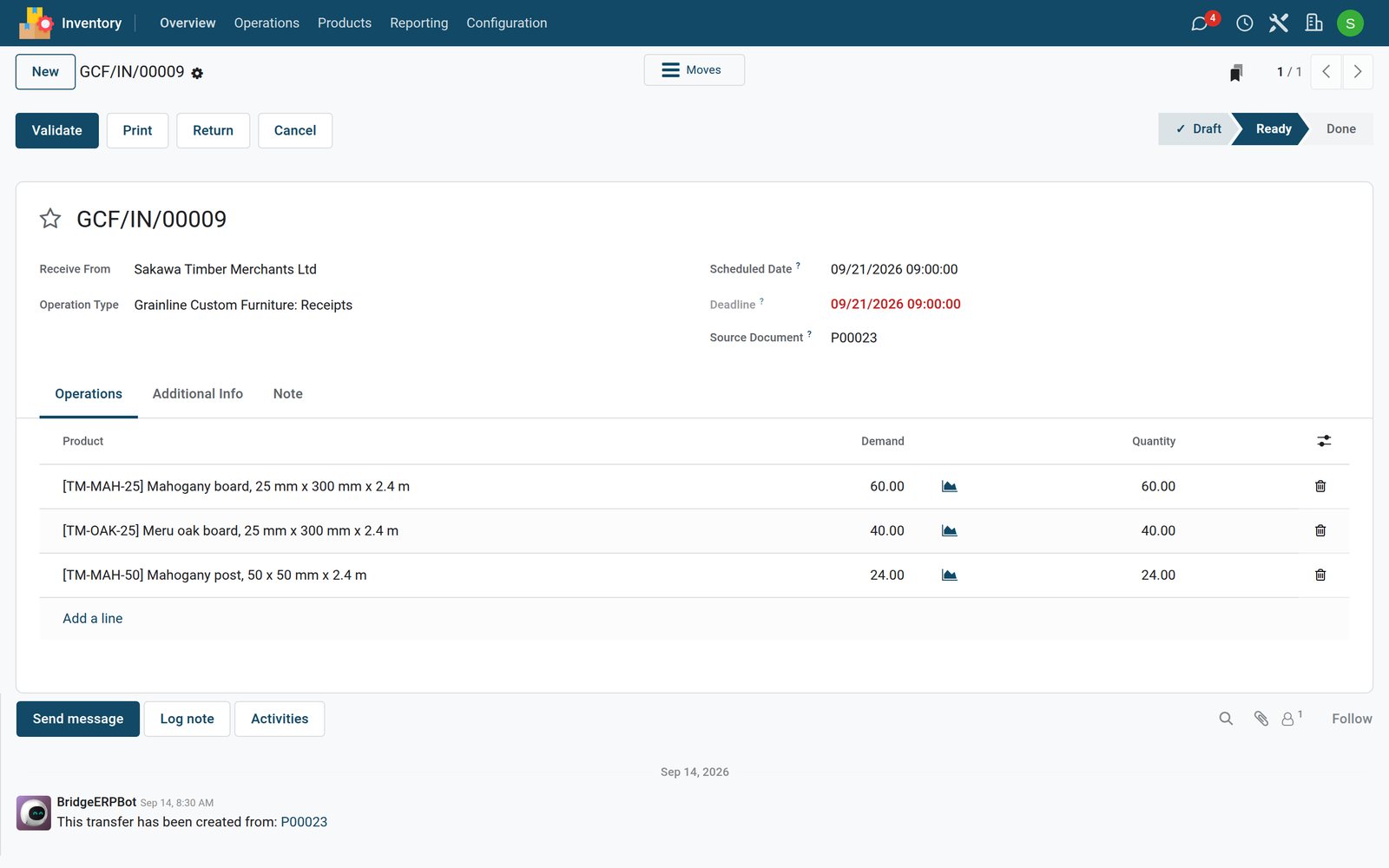
- Check each line: Demand is what you ordered, Quantity is what you are receiving.
- Change the quantity if less arrived.
- Click Validate.
If less arrived than you ordered, BridgeERP asks whether to create a backorder: a second receipt for the rest, which stays open until it comes. Choose No Backorder if the rest will never come.
Validating puts the goods in stock and updates the Received column on the purchase order. If something was wrong, Return sends goods back to the vendor.
Check what you learned
Loading the quiz…
These lessons were recorded on a working BridgeERP. Start a free trial and follow them on your own.