

Purchaselesson 1 of 3
Written lesson
Ask a supplier for prices, send the request, and confirm it into a purchase order.
Read the lesson →From request for quotation to purchase order
Course contentslesson 1 of 3
What Buy and Receive gets you to
- Turn a request for quotation into a purchase order and receive the goods against it
Every purchase starts as a request for quotation (RFQ): what you want, how many, and by when.
Create the RFQ
- In Purchase, click New.
- Choose the Vendor. If the vendor gave you a reference for this order, put it in Vendor Reference.
- Add products with Add a product: the quantity and the unit price. If the product lists this vendor with a price, that price is proposed.
- Check the Order Deadline (when the vendor should answer) and the Expected Arrival. The vendor's on-time delivery rate shows beside it.
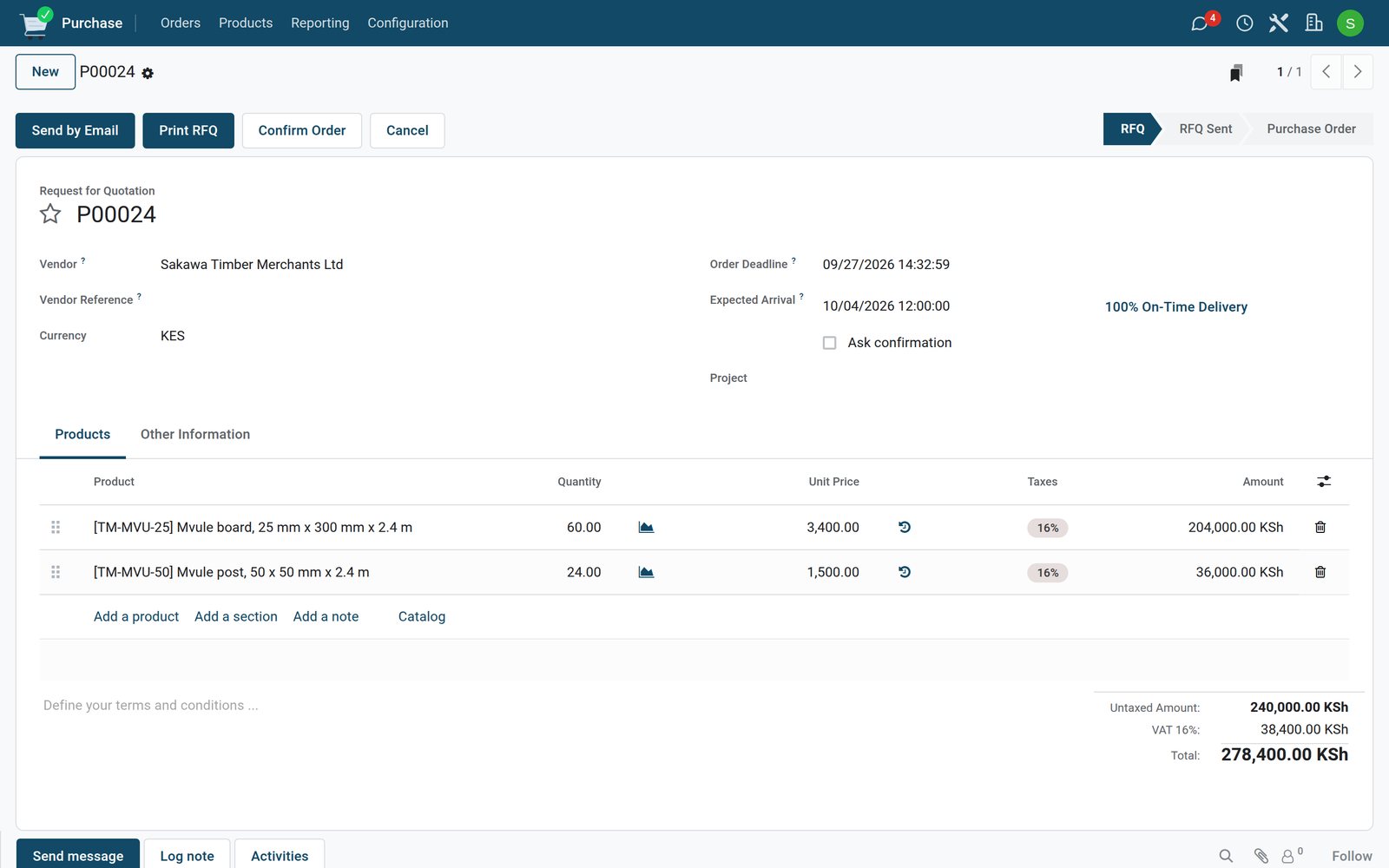
Send it, then confirm it
Send by Email sends the RFQ to the vendor as a PDF and moves it to RFQ Sent; Print RFQ gives you the same PDF. When the vendor agrees, update the prices if needed and click Confirm Order: the RFQ becomes a purchase order.
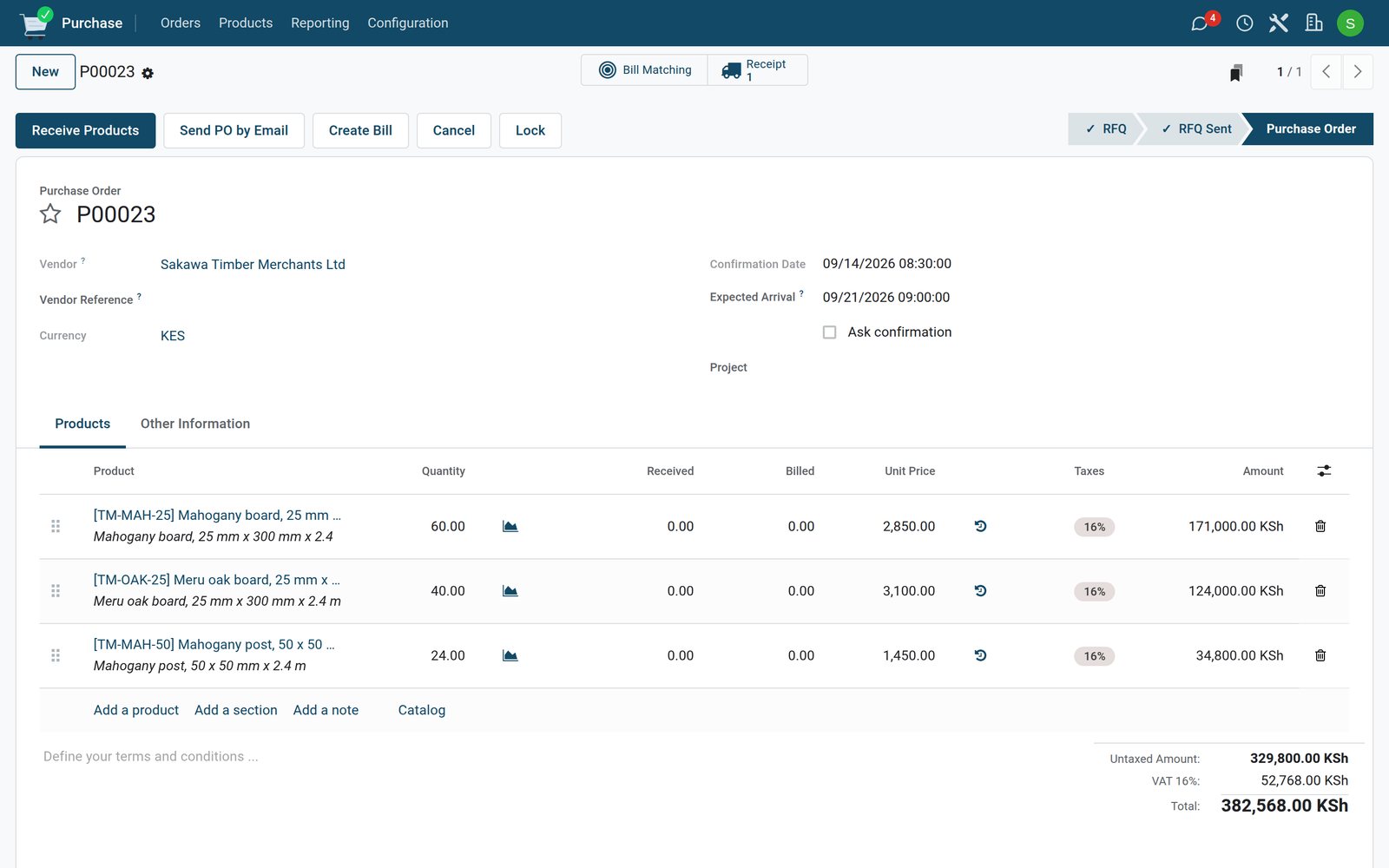
Once confirmed, the order plans the receipt of the goods in Inventory (the Receipt button at the top), and each line shows how much has been Received and Billed so far.
Purchase › Orders has both lists: Requests for Quotation for the ones still waiting, Purchase Orders for the confirmed ones.
Check what you learned
Loading the quiz…
These lessons were recorded on a working BridgeERP. Start a free trial and follow them on your own.